


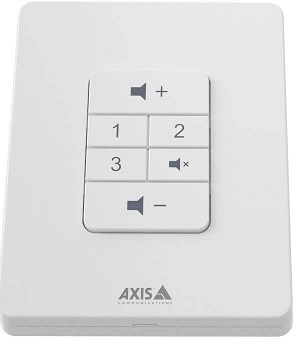
Kontrollur tal-Volum AXIS C8310
Installazzjoni

Connect your AXIS C8310 Volume Controller to the I/O connector of any device in your system. We recommend that you simply choose the device that is located closest to your AXIS C8310 Volume Controller.
The volume controller 4-pin connector on AXIS C8310 is specifically designed to work with the I/O Port 1 on the connectivity hub, utilizing pins 1-4 (GND, 12V, I/O, and I/O). Once connected, those ports cannot be configured for other uses.
Nota
L-apparat ospitanti jrid ikollu l-verżjoni tal-firmware 11.6 jew aktar tard.


Ibda
Use AXIS C8310 Volume Controller with AXIS Audio Manager Edge
For instructions, see Control audio with AXIS C8310 Volume Controller in the AXIS Audio Manager Edge user manual.
Use AXIS C8310 Volume Controller with AXIS Audio Manager Pro
You need to have AXIS Audio Manager Pro version 4.4 to use it with an AXIS C8310 Volume Controller.
For instructions, see Control audio with AXIS C8310 Volume Controller in the AXIS Audio Manager Pro user manual.
Ikkonfigura t-tagħmir tiegħek
Agħmel sejħa SIP
Uża l-AXIS C8310 tiegħek biex tibda sejħa SIP minn kelliem b'mikrofonu integrat għal riċevitur SIP.
F'dan exampngħidu aħna nibdew u ntemmu t-telefonata bl-istess buttuna. Għażilna l-buttuna tas-sors 1, imma tista' tagħżel kwalunkwe buttuna fuq l-AXIS C8310 tiegħek.
Nota
If you are using the same button for source control in AXIS Audio Manager Edge or Pro, you might want to unassign that functionality in those applications.
Għal aktar informazzjoni dwar regoli li jqanqlu azzjonijiet, ara Ibda bir-regoli għall-avvenimenti.
- Iftaħ il- web l-interfaċċja tal-ispiker li miegħu huwa konness l-AXIS C8310 tiegħek:
Daħħal l-indirizz IP tal-kelliem fil-browser. - Go to Audio > Peripherals and make sure your AXIS C8310 is connected.
- Go to System > SIP and make sure SIP is set up and activated.
- Żid riċevitur:
- Go to System > Events > Recipients and click + Add recipient.
- Semmi r-riċevitur.
- Under Type, select SIP or VMS.
- Select SIP and enter the details.
- Ikklikkja Save.
- Add rule for initiating a call:
- Go to System > Events > Rules and click + Add a rule.
- Name the rule.
- Under Condition, select I/O > Digital input is active.
- Under Port, select Source 1 button.
- To avoid initiating more than one call, we add an extra condition:
- Click + Add a condition.
- Select Call > State.
- Under State, select Idle.
- Under Action, select Calls > Make call.
- Under Recipient, select your recipient.
- Ikklikkja Save.
- Add a rule for ending the call:
- Click + Add a rule.
- Name the rule.
- Under Condition, select I/O > Digital input is active.
- Under Port, select Source 1 button.
- To only perform the action if there is an ongoing call, we need to add another condition:
- Click + Add a condition.
- Select Call > State.
- Under State, select Active.
- Under Action, select Calls > End calls.
- Ikklikkja Save.
Lock the device after a certain time of inactivity
- Go to Audio > Peripherals.
- Turn on Enable auto-lock.
- Under Auto-lock time, select a time.
If no buttons have been pressed on your AXIS C8310 for the selected time, all buttons will be locked. - To unlock the buttons, press the volume up and volume down buttons at the same time.
Speċifikazzjonijiet
Prodott fuqview

Ikkuntattja l-appoġġ
Jekk teħtieġ aktar għajnuna, mur fuq axis.com/support.
T10196055
2025-06 (M4.2)
© 2023 – 2025 Axis Communications AB
Dokumenti / Riżorsi
 |
Kontrollur tal-Volum AXIS C8310 [pdfManwal tal-Utent Kontrollur tal-Volum C8310, C8310, Kontrollur tal-Volum, Kontrollur |