1. Informazzjoni Importanti dwar is-Sigurtà
Please read all safety and operating instructions carefully before using this television. Keep this manual for future reference.
- Sors tal-Enerġija: Connect the TV only to a power supply as indicated on the rating label.
- Ventilazzjoni: Aċċerta ruħek li jkun hemm ventilazzjoni xierqa. Timblokkax il-fetħiet tal-ventilazzjoni.
- Ilma u Umdità: Tesponix it-TV għax-xita jew għall-umdità. Tpoġġix oġġetti mimlija b'likwidi fuq it-TV.
- Sħana: Żomm it-TV 'il bogħod minn sorsi ta' sħana bħal radjaturi, reġistri tas-sħana, stufi, jew apparati oħra li jipproduċu sħana.
- Tindif: Skonnettja t-TV mill-plagg tal-ħajt qabel ma tnaddaf. Uża drapp artab u niexef. Tużax prodotti tat-tindif likwidi jew prodotti tat-tindif bl-ajrusol.
- Servizzi: Tippruvax isservi dan il-prodott int stess. Irreferi l-manutenzjoni kollha lil persunal tas-servizz kwalifikat.
2. Setup u Assemblea
2.1 Kif tneħħi t-TV mill-pakkett
Carefully remove the TV and all accessories from the packaging. Ensure all components listed below are present.
Komponenti Inklużi:
- Blaupunkt 32-inch HD LED TV
- Kontroll mill-bogħod
- Kejbil tal-Enerġija
- Stand tat-TV (2 biċċiet)
- Viti għall-Assemblaġġ tal-Stand
- Manwal għall-Utent (dan id-dokument)
- Karta ta' Garanzija
2.2 Twaħħil tal-Istand tat-TV
To attach the stand, place the TV face down on a soft, flat surface to prevent screen damage. Align each stand piece with the corresponding slots on the bottom of the TV and secure them with the provided screws.
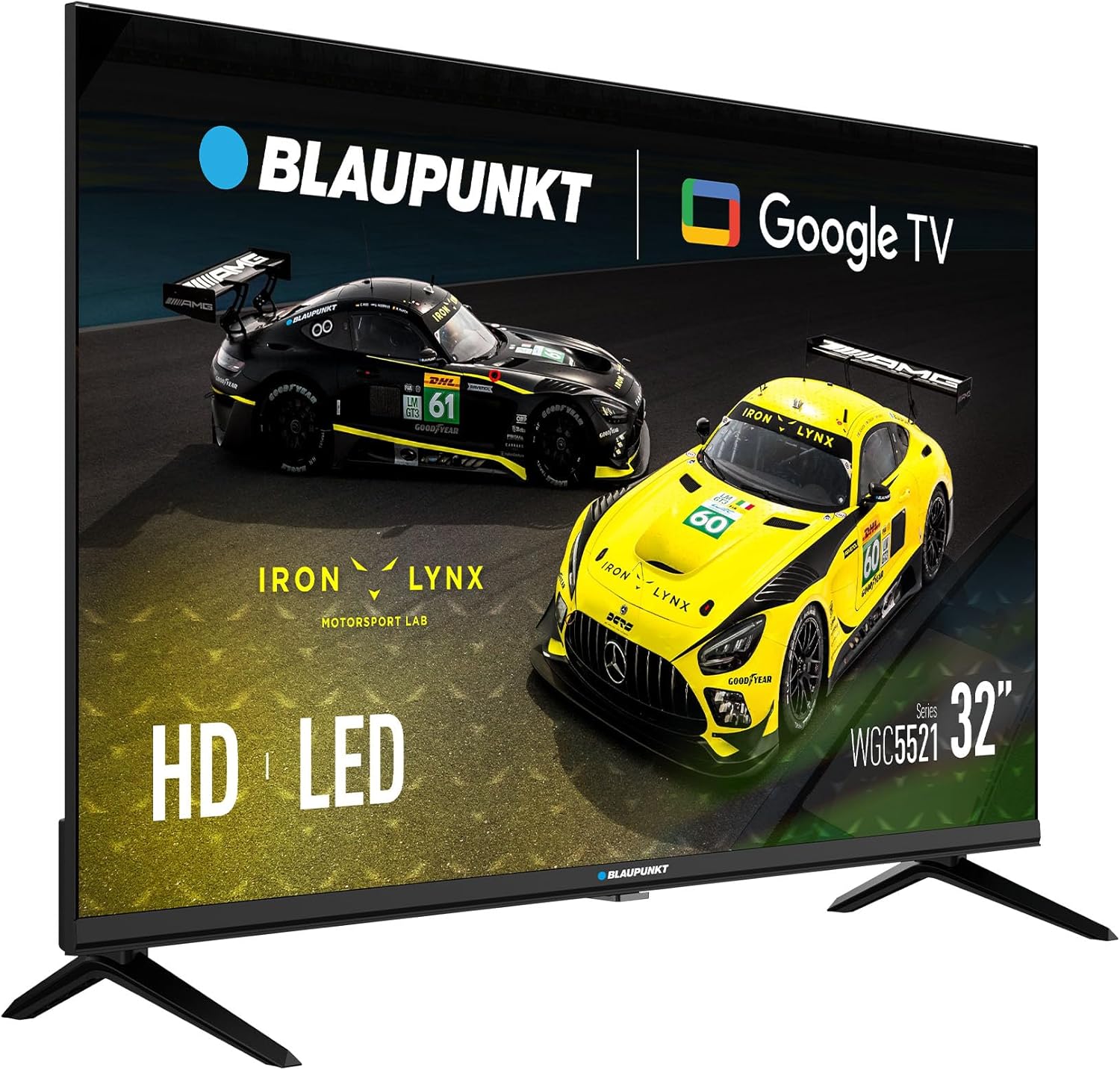
Immaġni: Quddiem view of the Blaupunkt 32-inch HD LED TV with its stand attached, ready for use.
2.3 Immuntar mal-Ħajt (Mhux obbligatorju)
This TV supports VESA 100x100mm wall mounts. Ensure you use a compatible wall mount kit (sold separately) and follow the instructions provided with the wall mount. Remove the stand before wall mounting.

Immaġni: Wara view of the Blaupunkt 32-inch HD LED TV, highlighting the VESA mounting points for wall installation.
3. Konnessjonijiet
Before making any connections, ensure the TV and all external devices are powered off and unplugged from the wall outlet.
3.1 Konnessjoni tal-Enerġija
Qabbad il-kejbil tal-enerġija fornut mad-dħul tal-enerġija tat-TV u mbagħad ma' sokit tal-ħajt.
3.2 Antenna/Cable/Satellite Connection
- DVB-T2 (Terrestrial): Connect a terrestrial antenna cable to the 'ANT IN' port.
- DVB-S2 (Satellite): Connect a satellite dish cable to the 'SAT IN' port.
- DVB-C (Cable): Connect a cable TV signal to the 'ANT IN' port.
3.3 Konnessjonijiet HDMI
Connect external devices such as Blu-ray players, game consoles, or set-top boxes to the HDMI ports (HDMI1, HDMI2) using HDMI cables.
3.4 Konnessjoni USB
Insert a USB storage device into the USB port to play media files (ritratti, mużika, vidjows).
3.5-il Slott tas-CI
Insert a Conditional Access Module (CAM) and smart card (provided by your service provider) into the CI Slot to access encrypted digital channels.

Immaġni: Ġenb view of the Blaupunkt 32-inch HD LED TV, illustrating the various input and output ports including HDMI and USB.

Immaġni: Wara angolata view of the Blaupunkt 32-inch HD LED TV, providing a clearer look at the rear-facing connection ports.
4. Istruzzjonijiet Operattivi
4.1 Wizard tas-Setup Inizjali
After connecting the power cable and turning on the TV for the first time, the Initial Setup Wizard will guide you through the basic settings:
- Għażla tal-Lingwa: Agħżel il-lingwa preferuta tiegħek għall-menù tat-TV.
- Konnessjoni tan-Netwerk: Connect the TV to your Wi-Fi network to access Google TV features and online content.
- Setup tal-Kont Google: Sign in with your Google account to personalize your experience, download apps, and access Google services.
- Scan tal-Kanal: The TV will automatically scan for available digital channels (DVB-T2/S2/C) based on your connection.
4.2 Funzjonijiet ta' Kontroll mill-bogħod
Il-kontroll remot jippermettilek tinnaviga l-karatteristiċi tat-TV:
- Buttuna tal-Qawwa: Ixgħel jew jitfi t-TV.
- Volum +/-: Jaġġusta l-livell tal-volum.
- Kanal +/-: Jibdel il-kanali tat-TV.
- Input/Sors: Selects the input source (HDMI1, HDMI2, TV, USB).
- Buttuni tan-Navigazzjoni: Use arrow keys to move through menus and 'OK' to confirm selections.
- Buttuna tad-dar: Jaċċessa l-iskrin ewlieni ta' Google TV.
- Buttuni tal-App: Buttuni ddedikati għal servizzi ta' streaming popolari (jekk disponibbli).
4.3 L-Interfaċċja tat-TV tal-Google
The Google TV interface provides access to streaming apps, live TV, and personalized recommendations. Navigate using the remote control to explore content.
4.4 Daqq tal-Midja permezz tal-USB
Daħħal USB drive li jkun fih il-midja files. The TV will prompt you to open the media player, or you can access it from the Google TV home screen. Supported formats include common photo, music, and video files.
4.5 Issettjar tal-Immaġni u l-Ħoss
Access the TV's settings menu to adjust picture and sound preferences:
- Modi tal-Istampa: Choose from presets like Standard, Dynamic, Movie, or customize settings for Brightness, Contrast, Color, and Sharpness. The TV supports HDR for enhanced contrast and color.
- Modi tal-Ħsejjes: Select from presets like Standard, Music, Movie, or Speech. The TV features Dolby Audio for an immersive sound experience.
5. Manutenzjoni
5.1 Tindif tat-TV
Dejjem aqla’ t-TV qabel ma tnaddaf.
- Skrin: Imsaħ l-iskrin bil-mod b'ċarruta ratba u mingħajr suf. Għal marki persistenti, nixxef ftit.ampLaħlaħ id-drapp bl-ilma jew b'prodott speċjalizzat għat-tindif tal-iskrin (tisprejjax direttament fuq l-iskrin).
- Kabinett: Imsaħ il-kabinett tat-TV b'ċarruta ratba u niexfa. Evita li tuża prodotti tat-tindif, xama' jew solventi li joborxu.
5.2 Power Off Procedures
To completely power off the TV, press the power button on the remote control or the TV itself, then unplug the power cable from the wall outlet.
6 Issolvi l-problemi
If you encounter issues, refer to the following common problems and solutions before contacting support.
| Problema | Soluzzjoni Possibbli |
|---|---|
| Ebda qawwa | Ensure the power cable is securely connected to the TV and the wall outlet. Check if the wall outlet is working. |
| L-ebda stampa, iżda l-ħoss huwa preżenti | Iċċekkja s-sors tad-dħul. Kun żgur li l-apparati esterni huma mixgħula u konnessi b'mod korrett. Ipprova kejbil HDMI differenti. |
| L-ebda ħoss, iżda l-istampa hija preżenti | Check the volume level. Ensure 'Mute' is not activated. Check audio settings and external device audio output. |
| Il-kontroll mill-bogħod ma jaħdimx | Ibdel il-batteriji. Kun żgur li m'hemm l-ebda ostaklu bejn ir-remote u s-senser IR tat-TV. |
| Ma tistax tikkonnettja mal-Wi-Fi | Kun żgur li r-router tiegħek huwa mixgħul u jaħdem. Erġa' daħħal il-password tal-Wi-Fi. Ipprova erġa' ibda t-TV u r-router. |
| Kwalità ħażina tal-istampa mill-antenna | Iċċekkja l-konnessjoni tal-antenna. Aġġusta l-pożizzjoni tal-antenna. Agħmel skennjar ta' kanal ġdid. |
7. Speċifikazzjonijiet
| Karatteristika | Speċifikazzjoni |
|---|---|
| Mudell | 32WGC5521S |
| Daqs tal-Wiri | 32 pulzieri |
| Teknoloġija tal-Wiri | LED |
| Riżoluzzjoni | HD (1366 x 768) |
| Riffriskar Rata | 60 Hz |
| Karatteristiċi Speċjali | HDR, Google TV (GTV), Dolby Audio |
| Sistema Operattiva | Google TV |
| Konnettività | 2x HDMI, 1x USB, CI Slot, DVB-T2/S2/C Tuner |
| Modalità tal-Ħruġ tal-Awdjo | Stereo |
| Konsum tal-Enerġija | 26 W |
| Voltage | 220 Volts |
| Kompatibilità VESA | 100 x 100 mm |
| Dimensjonijiet (W x H x D) | 71.6 x 42.3 x 5.8 ċm (mingħajr stand) |
| Piż | 3.98 kg |
8. Garanzija u Appoġġ
8.1 Garanzija tal-Prodott
This product comes with a warranty. Please refer to the included Warranty Card for detailed terms, conditions, and registration information. Keep your proof of purchase for warranty claims.
8.2 Appoġġ għall-Klijent
If you experience any issues not covered in the troubleshooting section or require further assistance, please contact Blaupunkt customer support. Contact details can typically be found on the warranty card or the official Blaupunkt websit.


