1. Introduzzjoni
Thank you for choosing the KTC H25T7-3 24.5 Inch 240Hz FHD Gaming Monitor. This manual provides essential information for setting up, operating, and maintaining your monitor. Please read it thoroughly before use to ensure optimal performance and safety.
Informazzjoni dwar is-Sigurtà
- Tesponix il-monitor għax-xita jew għall-umdità biex tevita nar jew xokk elettriku.
- Tiftaħx il-monitor casing. Ġewwa m'hemm l-ebda partijiet li jistgħu jiġu rranġati mill-utent. Irreferi għal kull manutenzjoni f'idejn persunal kwalifikat.
- Poġġi l-monitor fuq wiċċ stabbli u ċatt biex tevita li jaqa'.
- Żgura ventilazzjoni xierqa madwar il-monitor biex tevita sħana żejda.
- Use only the power adapter and cables provided by KTC.
2. X'hemm fil-Kaxxa
Verify that all the following items are present in your package:
- KTC H25T7-3 24.5" FHD 240Hz Monitor (x1)
- Stand tal-Monitor (x1)
- Gwida ta' Bidu Mgħaġġel (QSG) (x1)
- Kejbil tad-DisplayPort (DP) (x1)
- Adapter tal-Enerġija (x1)
- Korda tal-Enerġija (x1)
3. Prodott Aktarview
The KTC H25T7-3 is a 24.5-inch Full HD (1920x1080) gaming monitor featuring a Fast IPS panel, 240Hz refresh rate, and 1ms MPRT response time for smooth visuals. It supports HDR400 and Adaptive-Sync technology to enhance your viewing u esperjenza tal-logħob.
Karatteristiċi Ewlenin
- 24.5" FHD Fast IPS Panel: Delivers crisp 1080p resolution with wide 178° viewangoli.
- Rata ta' Riffriskar ta' 240Hz & MPRT ta' 1ms: Ensures ultra-smooth motion and minimal ghosting.
- Teknoloġija ta' Sinkronizzazzjoni Adattiva: Synchronizes the monitor's refresh rate with your GPU for tear-free gameplay.
- Appoġġ HDR400: Provides enhanced contrast and color depth for a more immersive visual experience.
- Stand ergonomiku: Offers tilt, pivot, and height adjustments for personalized viewkumdità.
- Karatteristiċi tal-Kura tal-Għajnejn: Low blue light and flicker-free technology reduce eye strain during extended use.
- Għażliet ta' Konnettività Multipli: Includes 2x HDMI 2.0, 1x DisplayPort 1.4, and 1x USB 2.0.

Figura 3.1: Aktarview of KTC H25T7-3 monitor features including Fast IPS, 240Hz, HDR400, and adjustable stand.
4. Setup
4.1 Armar tal-Istand
- Oħroġ il-monitor u l-komponenti tal-istand mill-imballaġġ bir-reqqa.
- Waħħal il-bażi tal-istand mal-għonq tal-istand billi tuża l-viti pprovduti.
- Align the assembled stand with the mounting slot on the back of the monitor and secure it firmly.

Figura 4.1: Quddiem view of the KTC H25T7-3 monitor with its stand assembled.
4.2 Immuntar mal-Ħajt VESA (Mhux obbligatorju)
The monitor supports a 100x100mm VESA mount. To wall mount the monitor:
- Neħħi l-istand mill-monitor jekk diġà jkun imwaħħal.
- Attach your VESA-compatible wall mount bracket to the four screw holes on the back of the monitor. Ensure the screws are appropriate for the VESA standard and do not overtighten.
- Follow the instructions provided with your VESA mount for secure installation.

Figura 4.2: Wara view of the KTC H25T7-3 monitor, highlighting the input ports and VESA mounting area.
4.3 Kejbils tal-Konnessjoni
Connect the necessary cables to the corresponding ports on the monitor and your computer/device:
- Qawwa: Connect the power adapter to the monitor's DC input and then plug the power cord into a power outlet.
- DisplayPort (DP): For optimal performance (240Hz, Adaptive-Sync), connect the provided DisplayPort cable from your graphics card to the monitor's DP 1.4 port.
- HDMI: Alternatively, connect an HDMI cable from your device to one of the monitor's HDMI 2.0 ports.
- USB: The USB 2.0 port can be used for firmware upgrades or connecting peripherals.
5. Istruzzjonijiet Operattivi
5.1 Power On/Off
Press the power button (usually located on the back or bottom of the monitor) to turn the monitor on or off. The power indicator light will illuminate when the monitor is on.
5.2 Navigazzjoni tal-Menù tal-OSD
The On-Screen Display (OSD) menu is controlled by a joystick button, typically located on the back of the monitor. Use the joystick to navigate through the menu options and adjust settings.
- Imbotta 'l ġewwa: Daħħal/Ikkonferma l-għażla.
- Fuq Isfel: Innaviga permezz tal-għażliet tal-menu.
- Xellug/Lemin: Aġġusta l-valuri jew iċċaqlaq bejn is-submenus.
5.3 Aġġustament tas-Settings tad-Displej
Aċċessa l-menù tal-OSD biex tikkonfigura diversi settings tad-displej:
- Luminożità/Kuntrast: Aġġusta l-livelli ġenerali ta' luminanza u kuntrast.
- Settings tal-Kulur: Irfina t-temperatura tal-kulur, il-gamma, u l-valuri RGB individwali.
- Modalità Stampa: Select from preset modes (e.g., Standard, Game, Movie, sRGB) or customize your own.
- Rata ta' Aġġornar: Ensure your graphics card output is set to 240Hz for optimal performance.
- Sinkronizzazzjoni Adattiva: Enable this feature in the OSD menu and your graphics card control panel to eliminate screen tearing.
- HDR: Activate HDR400 for compatible content to experience enhanced dynamic range.
- Dawl Blu Baxx: Adjust the blue light filter to reduce eye strain.

Figure 5.1: Visual representation of the 240Hz refresh rate for smooth motion.
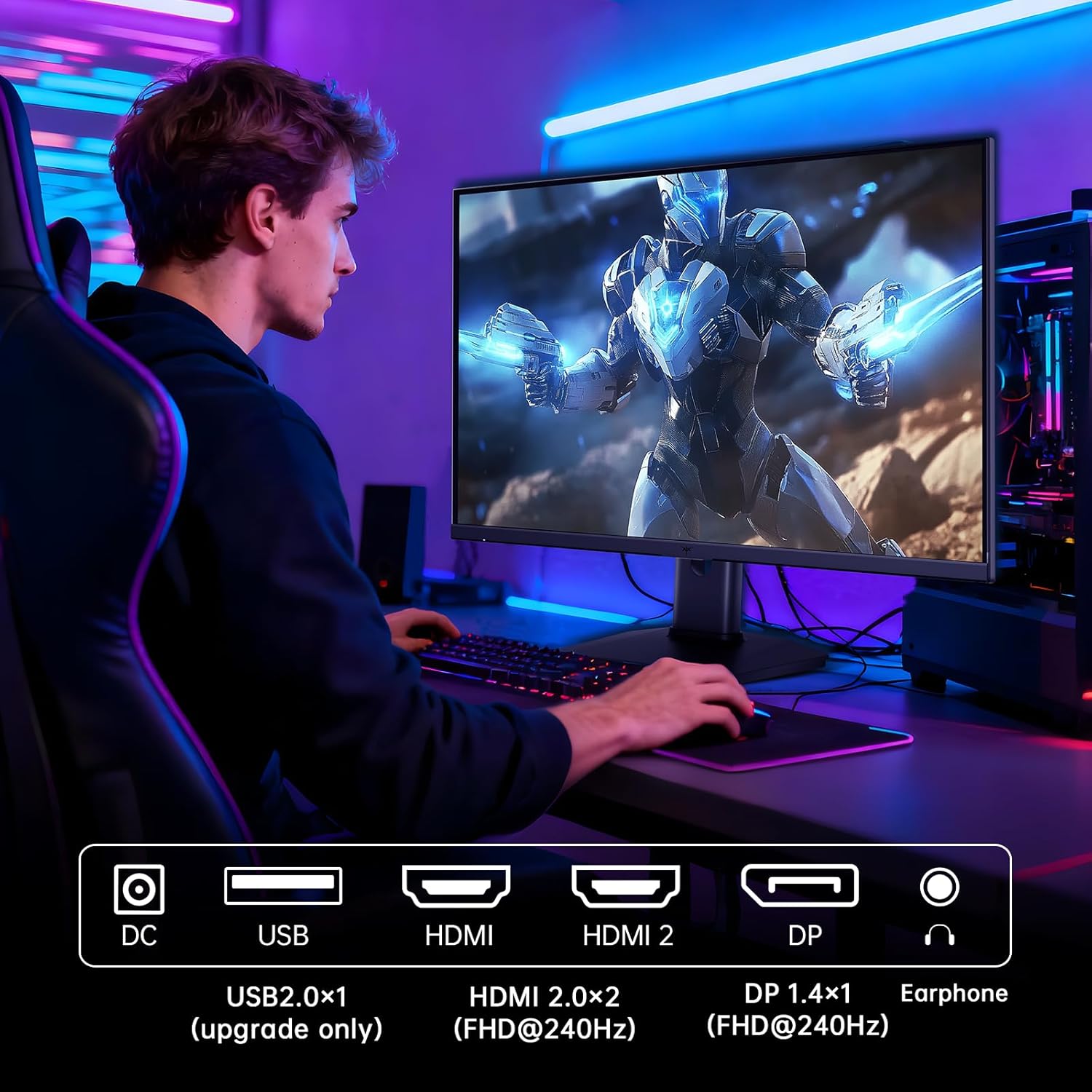
Figure 5.2: Comparison showing the effect of Adaptive-Sync on reducing stuttering and screen tearing.

Figure 5.3: Illustration of HDR400 technology delivering clear details in dark areas compared to HDR10.

Figure 5.4: Diagram illustrating hardware blue light reduction technology to filter harmful blue light bands.
5.4 Aġġustamenti Ergonomiċi
L-istand tal-monitor jippermetti diversi aġġustamenti biex jottimizza tiegħek viewpożizzjoni ing:
- Mejjel: Adjust the screen angle forward or backward (-5° to 20°).
- Pivot: Rotate the screen 90° for portrait mode.
- Aġġustament Għoli: Għolli jew baxxi l-iskrin sa 110mm.
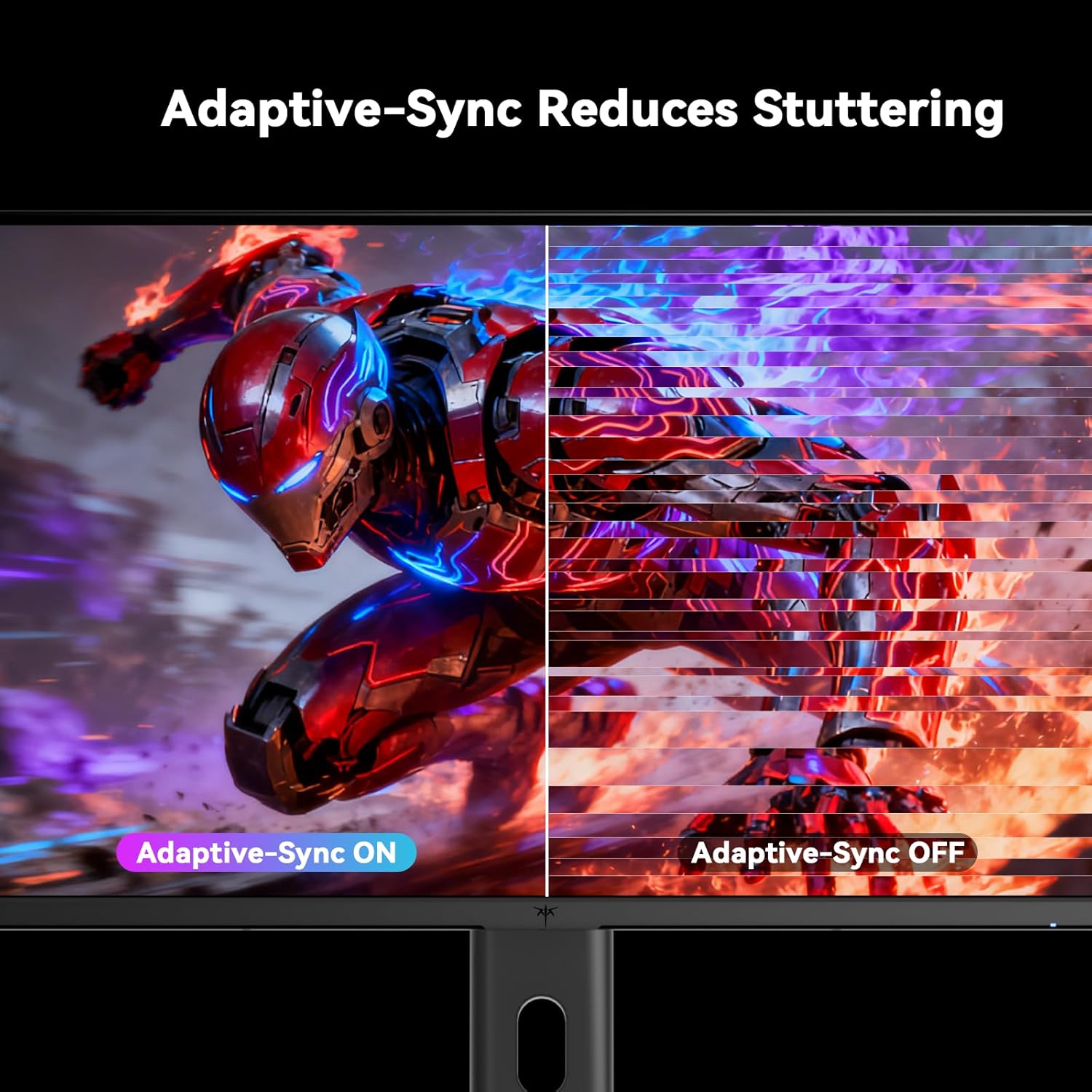
Figure 5.5: Diagram showing the tilt, pivot, and height adjustment capabilities of the monitor stand.
5.5 Vidjo Uffiċjali tal-Prodott
Video 5.1: An official product video from KTC-Official showcasing the 24.5 Inch FHD 240Hz Gaming Monitor, demonstrating its features and performance.
6. Manutenzjoni
6.1 Tindif tal-Monitor
Biex tnaddaf l-iskrin tal-monitor u ċasing:
- Dejjem aqla’ l-monitor mill-plagg tal-elettriku qabel ma tnaddaf.
- Uża ċarruta ratba u mingħajr ħelu dampMaħsul bl-ilma jew b'tindif tal-iskrin li ma jobrox.
- Tisprejjax it-tindif direttament fuq l-iskrin.
- Evita li tuża benżin, irqaq, prodotti tat-tindif ibbażati fuq l-ammonja, jew materjali li joborxu.
6.2 Kura Ġenerali
- Żomm il-monitor 'il bogħod mix-xemx diretta, mis-sħana eċċessiva, jew mill-kesħa.
- Evita li tpoġġi oġġetti tqal fuq il-monitor jew il-kejbils tiegħu.
- Timblokkax il-fetħiet tal-ventilazzjoni fuq il-monitor.
7 Issolvi l-problemi
Jekk tiltaqa' ma' problemi bil-monitor tiegħek, irreferi għall-problemi u s-soluzzjonijiet komuni li ġejjin:
| Problema | Kawża Possibbli | Soluzzjoni |
|---|---|---|
| Ebda qawwa | Kejbil tal-enerġija mhux imqabbad; Is-sokket tal-enerġija mhux qed jaħdem | Kun żgur li l-kejbil tal-enerġija huwa konness sew. Ittestja s-sokit tal-enerġija b'apparat ieħor. |
| L-ebda sinjal | Video cable not connected; Incorrect input source selected; Computer/device not powered on | Check video cable connections. Select the correct input source via the OSD menu. Ensure your computer/device is on. |
| Skrin li jteptep | Incorrect refresh rate; Cable issue; Adaptive-Sync not enabled | Set refresh rate to 240Hz. Try a different video cable. Enable Adaptive-Sync in OSD and GPU settings. |
| Image distortion/poor quality | Incorrect resolution; Graphics driver issue; Monitor settings | Set resolution to 1920x1080. Update graphics drivers. Adjust OSD settings (brightness, contrast, color). |
7.1 Irrisettja l-Fabbrika
If problems persist, you may perform a factory reset through the OSD menu. This will revert all monitor settings to their default values.
8. Speċifikazzjonijiet
Detailed technical specifications for the KTC H25T7-3 monitor:
| Karatteristika | Speċifikazzjoni |
|---|---|
| Numru tal-Mudell | H25T7-3 |
| Daqs tal-Iskrin | 24.5 Pulzier |
| Tip ta' Panel | IPS veloċi |
| Riżoluzzjoni | FHD 1080p (1920 x 1080 Pixel) |
| Proporzjon ta' l-aspett | 16:9 |
| Riffriskar Rata | 240Hz |
| Ħin ta' Rispons | 1ms (MPRT) |
| Sinkronizzazzjoni Adattiva | Iva |
| Appoġġ HDR | HDR400 |
| Gamut tal-Kulur | 114% sRGB |
| Proporzjon ta' Kuntrast | 1000:1 |
| Wiri Kuluri | 16.7 Miljun |
| Luminożità | 350 cd/m² |
| ViewIng Angolu | 178° (H/V) |
| Konnettività | 2x HDMI 2.0, 1x DisplayPort 1.4, 1x USB 2.0 |
| Kompatibilità tal-Immonta VESA | 100x100mm |
| Aġġustamenti Ergonomiċi | Inklinazzjoni, Pern, Għoli |
| Dimensjonijiet tal-Prodott (bl-istand) | 7.6 x 21.97 x 18.23 pulzieri |
| Piż tal-Oġġett (bl-istand) | 11.58 liri |
| Voltage | 12 Volts (DC) |
9. Garanzija u Appoġġ
9.1 Informazzjoni dwar Garanzija
KTC monitors are designed and manufactured to the highest quality standards. For specific warranty terms and conditions, please refer to the warranty card included with your product or visit the official KTC websit. Żomm l-irċevuta tax-xiri tiegħek bħala prova tax-xiri għal talbiet ta' garanzija.
9.2 Appoġġ għall-Klijent
If you have any questions, require technical assistance, or experience issues not covered in this manual, please contact KTC customer support. Contact details can typically be found on the official KTC webis-sit jew fil-Gwida ta' Bidu Mgħaġġel.


