Introduzzjoni
Thank you for choosing the ProtoArc KM310 Wireless Mechanical Keyboard and Mouse. This combo offers a responsive typing experience with low-profile linear red switches and versatile multi-device connectivity. The ergonomic mouse is designed for comfort and precision. This manual provides detailed instructions for setup, operation, maintenance, and troubleshooting to ensure optimal performance.
X'hemm fil-Kaxxa

Image: Contents of the ProtoArc KM310 package, including the keyboard, mouse, charging cable, and user manual.
- ProtoArc KM310 Wireless Mechanical Keyboard
- ProtoArc Wireless Mouse
- Cable tal-Iċċarġjar tal-USB-C
- Manwal għall-Utent
Prodott Overview
Karatteristiċi tat-Tastiera

Immaġni: Close-up view of the ProtoArc KM310 keyboard, highlighting its low-profile keys and linear red switches.
- Baxx-Profile Ċwievet mekkaniċi: Equipped with linear red switches for a smooth, quiet, and responsive typing experience.
- Aluminum Top Case: Provides durability and a sleek, modern aesthetic.
- Saqajn Aġġustabbli għall-Inklinazzjoni: Ergonomically designed with 2-stage foot mats offering 6° and 9° tilt options for comfortable typing.
- Layout ta' Daqs sħiħ: A 108-key layout suitable for office and business use.
Karatteristiċi tal-Ġurdien

Image: The ProtoArc KM310 mouse being held, showcasing its ergonomic design for a natural grip.
- 63G Ultra-Lightweight: Reduces hand fatigue during extended use and enhances portability.
- Disinn Ergonomiku: Contoured shape for a comfortable and natural grip.
- DPI aġġustabbli: Three DPI levels (1000/1600/2400) for tailored control and precision.
- Ikklikkja Siekta: Designed for quiet operation.
- Buttuni 'l Quddiem/Lura: Integrated for seamless browsing.
Konnettività u Enerġija
- Konnettività Multi-Apparat: Connects up to 3 devices via 2.4G USB receiver or Dual Bluetooth (BT1, BT2).
- Rikarikabbli: Both keyboard and mouse feature Type-C charging. The mouse's USB receiver is stored on its bottom.
- Ħajja twila tal-batterija: Up to 150-200 days standby time; 2-3 hours for a full charge.
Setup Istruzzjonijiet
1. Iċċarġjar tal-Apparati

Image: The keyboard and mouse are shown connected to power sources via USB-C cables for charging.
- Connect the provided USB-C charging cable to the charging port on the keyboard (located on the top edge) and the mouse (located on the front edge).
- Ipplaggja t-tarf l-ieħor tal-kejbil ma' sors ta' enerġija USB (eż., port USB tal-kompjuter, adapter tal-ħajt USB).
- The indicator lights will show charging status. Allow 2-3 hours for a full charge.
2. Konnessjoni ma' Apparati

Image: A desk setup showing the ProtoArc KM310 keyboard and mouse connected to a laptop, monitor, and tablet, illustrating multi-device capability.
The KM310 combo supports three connection modes: 2.4G wireless via USB receiver, Bluetooth 1 (BT1), and Bluetooth 2 (BT2).
2.1. Konnessjoni bla fili 2.4G
- Sib ir-riċevitur USB maħżun fil-kompartiment fil-qiegħ tal-maws.
- Ipplaggja r-riċevitur USB f'port USB disponibbli fuq il-kompjuter tiegħek.
- Ixgħel it-tastiera u l-maws billi tuża s-swiċċijiet tal-enerġija rispettivi tagħhom.
- The devices should connect automatically.
2.2. Bluetooth Connection (BT1 / BT2)
- Ixgħel it-tastiera u l-maws.
- Fuq it-tastiera, agħfas il- BT1 or BT2 key (usually located on the number pad, indicated by orange keycaps) to select the desired Bluetooth channel. The indicator light will flash.
- On your device (computer, tablet, etc.), go to Bluetooth settings and search for "ProtoArc KM310 Keyboard" and "ProtoArc KM310 Mouse".
- Select the devices to pair. The indicator light will stop flashing once connected.
- Repeat for a second Bluetooth device using the other BT channel.
2.3. Tibdil bejn Apparati
To switch between connected devices, simply press the corresponding connection key on the keyboard (2.4G, BT1, or BT2) and the channel switch button on the bottom of the mouse.
Istruzzjonijiet Operattivi
Użu tat-Tastiera
- Ittajpjar: Il-low-profile linear red switches provide a responsive and quiet typing experience.
- Kompatibilità tas-Sistema Operattiva: The keyboard is compatible with Windows and Mac OS. Keys like 'Win' and 'Alt' also show 'Option' and 'Cmd' for Mac users.
- Aġġusta tal-Mejjel: Use the adjustable tilt legs on the underside of the keyboard to set your preferred typing angle (6° or 9°).
Użu tal-ġurdien
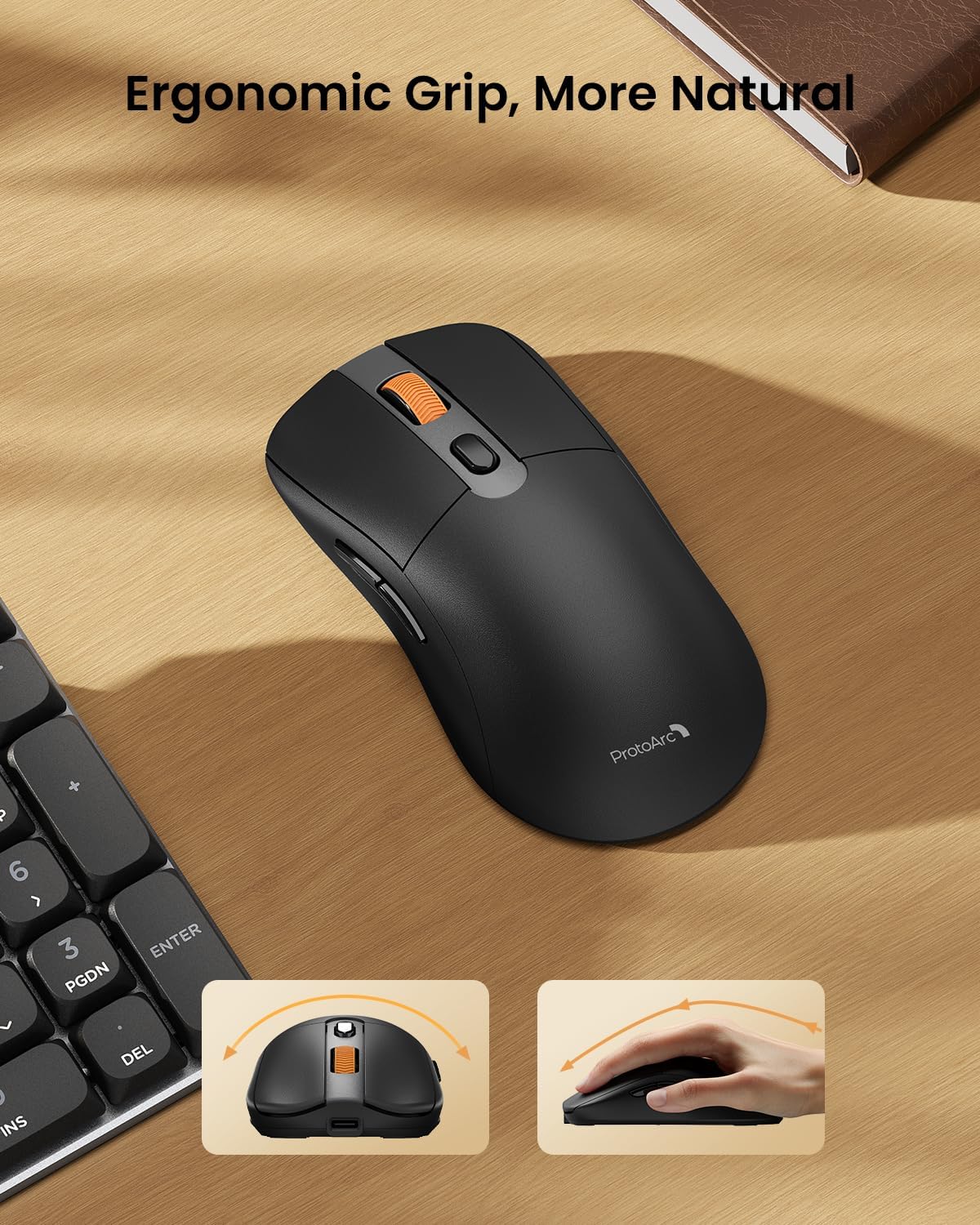
Image: A close-up of the ProtoArc KM310 mouse, illustrating the three adjustable DPI settings (1000, 1600, 2400).
- Aġġustament DPI: Press the DPI switch button (usually located near the scroll wheel) to cycle through the 3 DPI levels (1000/1600/2400) to match your preference for cursor speed and precision.
- Buttuni tan-Navigazzjoni: Uża l-buttuni 'l quddiem u lura fuq il-ġenb tal-maws għal navigazzjoni rapida web browsers jew file esploraturi.
- Klikks Siekta: The mouse features silent click buttons for a quiet working environment.
Manutenzjoni
- Tindif: Use a soft, dry cloth to wipe down the keyboard and mouse. For stubborn dirt, a slightly damp Jista' jintuża drapp b'sapun ħafif, biex tiżgura li l-ebda likwidu ma jidħol fl-apparat.
- Kura tal-batterija: Recharge the devices when the battery indicator is low. Avoid prolonged exposure to extreme temperatures.
- Ħażna: When not in use for extended periods, turn off the devices to conserve battery life. Store the USB receiver inside the mouse to prevent loss.
Issolvi l-problemi
Keyboard/Mouse Not Turning On or Stopping Working
- Iċċekkja l-batterija: Ensure both the keyboard and mouse are sufficiently charged. Connect them to a power source using the USB-C cable.
- Irranġa l-Apparati:
- For 2.4G connection, ensure the USB receiver is securely plugged in and the devices are set to 2.4G mode.
- For Bluetooth connection, ensure the devices are set to the correct BT channel (BT1 or BT2) and re-pair them through your device's Bluetooth settings.
- Ipprova Cable differenti: If charging issues persist, try using a different USB-C cable to rule out a faulty cable.
- Interferenza: Mexxi l-apparati eqreb lejn il-kompjuter tiegħek jew 'il bogħod minn apparati oħra mingħajr fili li jistgħu jikkawżaw interferenza.
- Ikkuntattja l-Appoġġ: If the issue persists, please contact ProtoArc customer support for further assistance.
Speċifikazzjonijiet
| Numru tal-Mudell | KM310 |
| Brand | ProtoArc |
| Kulur | Griż Spazjali |
| Teknoloġija tal-Konnettività | Bluetooth, USB (2.4G Wireless) |
| Karatteristiċi Speċjali | Pro baxxfile Keys, Linear Red Switches, Ergonomic Design, Ultra-Light Mouse, Ergonomic Mouse |
| Apparati Kompatibbli | Laptop, Personal Computer, Tablet (Windows 7/8/10, Mac OS X 10.12, Android 4.3 or higher) |
| Piż tal-oġġett | 2.31 liri |
| Dimensjonijiet tal-Pakkett | 17.68 x 8.07 x 2.05 pulzieri |
Garanzija u Appoġġ
The ProtoArc KM310 Mechanical Keyboard and Mouse combo comes with a 2-Sena Garanzija.
For any questions, technical support, or warranty claims, please contact ProtoArc customer service:
- Email: support@protoarc.com
- Telefon: +1 866-287-8188
Vidjo Uffiċjali tal-Prodott
Vidjo: Wirja uffiċjali tal-vidjo tal-prodottasing the features and design of the ProtoArc KM310 Aluminum Mechanical Keyboard and Mouse.


