1. Introduzzjoni
Thank you for choosing the GooDee AC321 Video Projector. This manual provides essential information for setting up, operating, and maintaining your device to ensure optimal performance and longevity. Please read this manual thoroughly before using the projector.

Image: The GooDee AC321 Video Projector, a compact device with a lens on the front, resting on its adjustable stand.
2. X'hemm fil-Kaxxa
Iċċekkja li l-oġġetti kollha huma preżenti fl-imballaġġ:
- GooDee AC321 Projector
- Korda tal-Enerġija
- Cable HDMI
- Kontroll mill-bogħod
- Manwal għall-Utent (dan id-dokument)

Image: A visual representation of the items included with the GooDee AC321 projector: the projector unit, remote control, power cable, lens cover, and a 90-degree HDMI cable.
3. Setup
3.1 Konnessjoni tal-Enerġija
- Qabbad il-korda tal-enerġija mal-port tad-dħul tal-enerġija tal-proġettazzjoni.
- Ipplaggja t-tarf l-ieħor tal-korda tal-enerġija f'sokit elettriku adattat.
- Agħfas il-buttuna tal-qawwa fuq il-proġekter jew il-kontroll mill-bogħod biex tixgħel l-apparat.
3.2 Placement and Positioning
The GooDee AC321 features a flexible hovering stand, allowing for versatile placement options:
- Tabletop Projection: Place the projector on a flat surface and adjust the stand to direct the image onto a wall or screen.
- Projezzjoni tas-Saqaf: The projector can be tilted upwards to project onto a ceiling, ideal for comfortable viewing while lying down.
- Immuntar ta' tripod: Utilize the 1/4-inch screw holes at the bottom of the projector to mount it on a tripod for stable and precise positioning.

Image: The GooDee AC321 projector demonstrating its flexible stand, capable of adjusting the projection angle up to 120 degrees for various viewing positions, including ceiling projection.
3.3 Initial Power On and Focus
Upon powering on, the projector will automatically perform autofocus and keystone correction to provide a clear and rectangular image. Further adjustments can be made via the remote control.
Video: A demonstration of the GooDee Mini Projector's initial setup, showing the power-on sequence, automatic focus adjustment, and the main user interface with various streaming apps.
4. Istruzzjonijiet Operattivi
4.1 Navigazzjoni u Interfaċċja tal-Utent
The GooDee AC321 runs on Movin 2.0 OS, providing a smart TV experience with pre-installed streaming applications. Use the included remote control to navigate the interface:
- Pad Direzzjonali: Use the arrow buttons to move between apps and menu options.
- Buttuna OK: Agħżel oġġett jew ikkonferma azzjoni.
- Buttuna tad-dar: Irritorna għall-iskrin tad-dar prinċipali.
- Buttuna Lura: Mur lura għall-iskrin preċedenti.
- Buttuni tal-Volum: Aġġusta l-livell tal-ħruġ tal-awdjo.
- Buttuni tal-App Dedikati: Quickly access Netflix, YouTube, and Prime Video.

Image: The GooDee AC321 projector's home screen, showcasing a variety of pre-installed streaming applications like Netflix, YouTube, and Prime Video, ready for selection.
4.2 App Access and Streaming
The projector comes pre-licensed with major streaming platforms. Connect to your Wi-Fi network to access over 10,000 streaming channels and a built-in app store for additional content.
4.3 Screen Mirroring
The GooDee AC321 supports various casting protocols including DLNA, AirPlay, and Miracast, allowing seamless screen mirroring from iOS, Android, and Windows devices.

Image: The GooDee AC321 projector casting content from a mobile device to a large screen, illustrating its screen mirroring capabilities across different operating systems.
5. Konnettività
Il-proġettur joffri diversi għażliet ta' konnettività:
- HDMI: Connect to computers, gaming consoles, TV boxes, or DVD players.
- USB: Ilgħab il-midja direttament minn apparati tal-ħażna USB.
- Jack Awdjo 3.5mm: Qabbad kelliema jew headphones esterni.
- Wi-Fi 6: For high-speed wireless internet and streaming.
- Bluetooth 5.4: For stable connection to external audio devices like speakers or headphones.
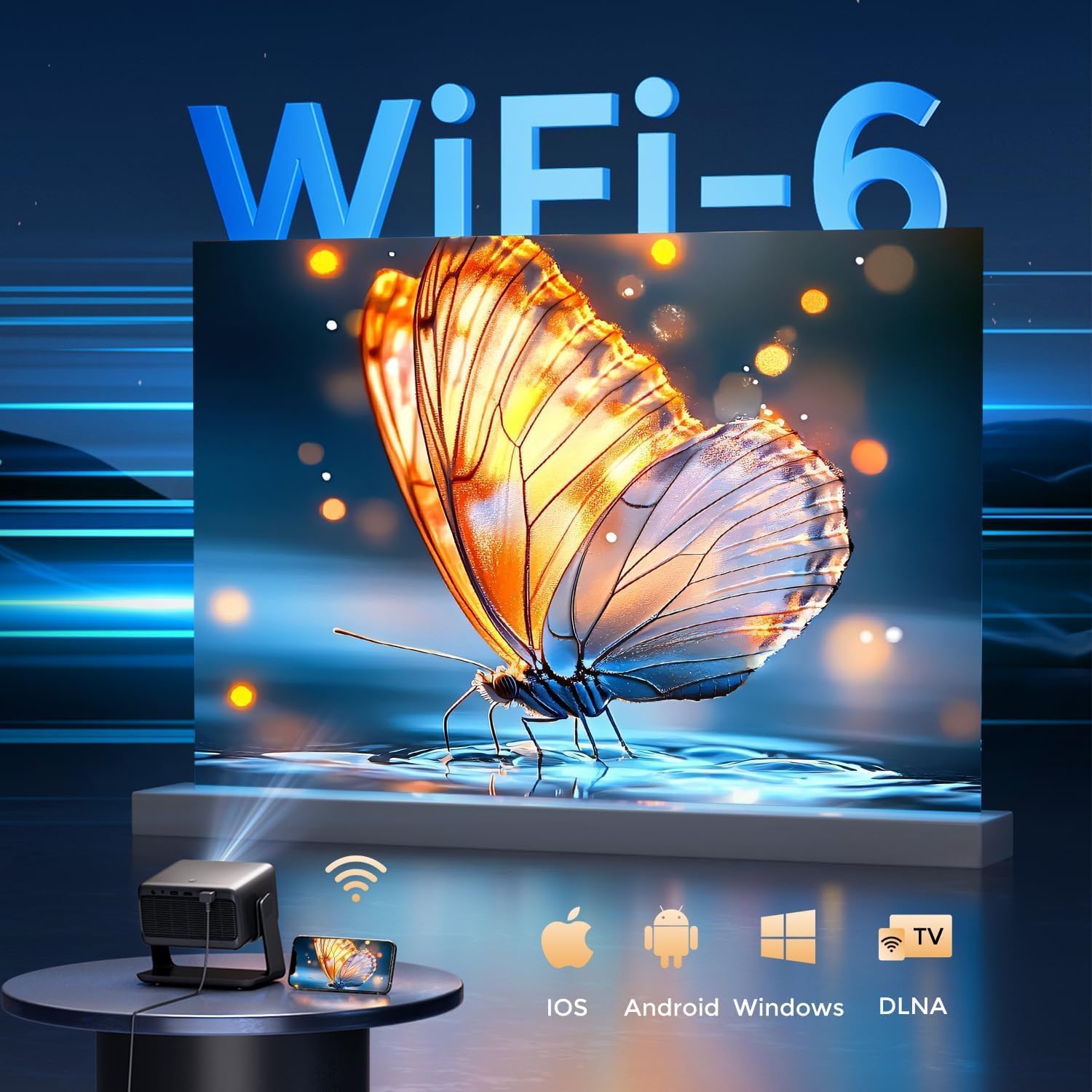
Image: The rear panel of the GooDee AC321 projector, highlighting its connectivity ports including a 3.5mm audio jack, USB port, HDMI input, and power connector.
6. Display & Audio Features
6.1 Visual Performance
Experience an immersive visual feast with the following display capabilities:
- Riżoluzzjoni Nattiva: 1080p (1920 x 1080) for sharp and clear images.
- 4K Video Decoding: Supports 4K video input for smooth playback of high-definition content.
- Luminożità: 1200 ANSI lumens ensures clear picture quality even in ambient light conditions.
- AI Image Quality Optimization: Utilizes deep learning algorithms to analyze and optimize picture pixels in real-time, enhancing HDR10+ color and 25000:1 contrast ratio.
- Large Screen Zooming: Project images from 60 to 200 inches, with adjustable zoom from 50-100%.
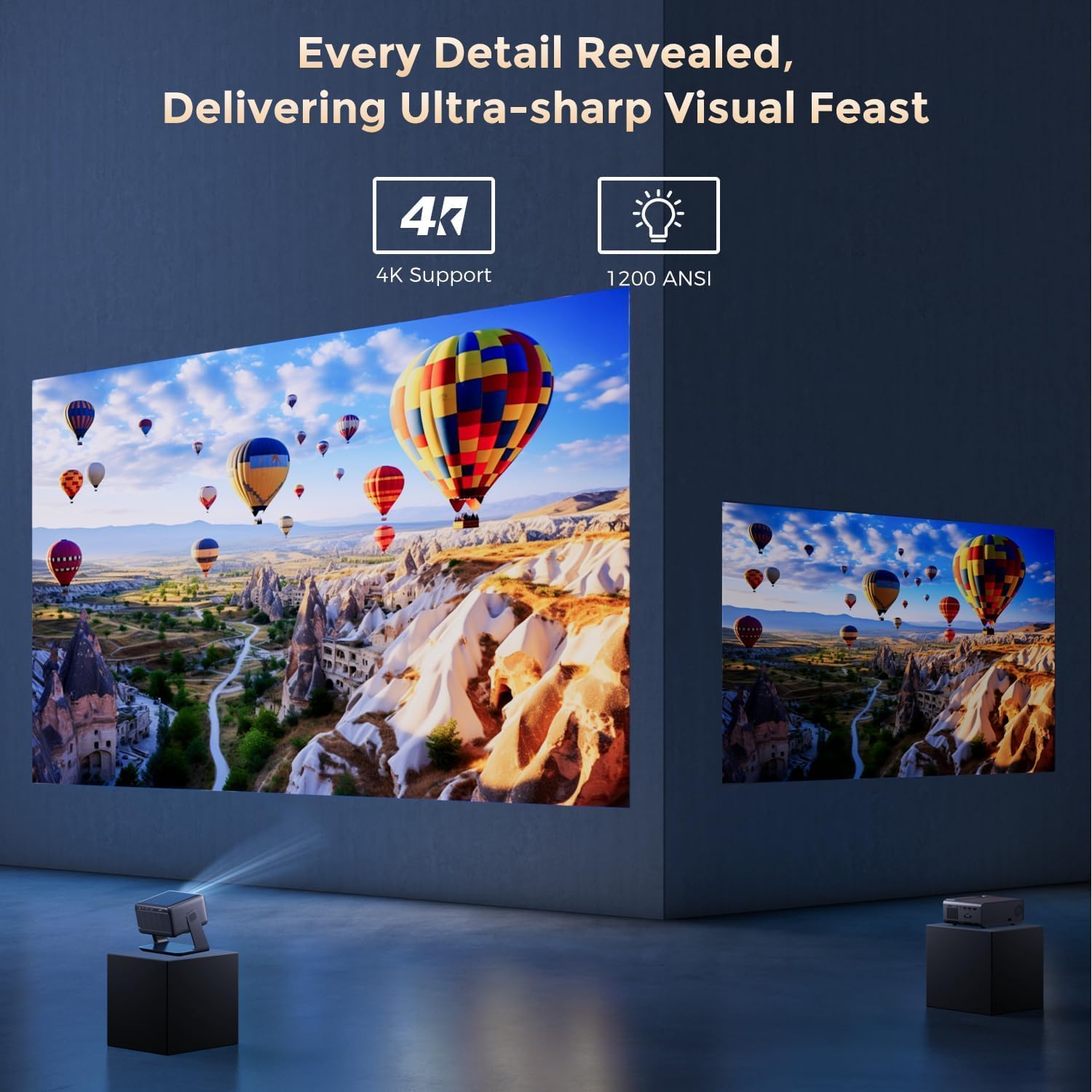
Image: The GooDee AC321 projector showcasing its visual capabilities with a bright, detailed image, emphasizing 4K support and 1200 ANSI lumens for superior clarity.
6.2 Esperjenza Awdjo
The projector is equipped with built-in features for an immersive audio experience:
- Dolby Audio: Integrated Dolby Audio speakers provide rich and immersive sound.
- Bluetooth 5.4: Connect wirelessly to external Bluetooth speakers or soundbars for enhanced audio.
7. Karatteristiċi Avvanzati
The GooDee AC321 incorporates intelligent features for effortless setup and optimal viewing:
- Auto Focus: Automatically adjusts the image clarity in seconds.
- Korrezzjoni Auto Keystone: Intelligently corrects vertical and horizontal trapezoidal distortion, ensuring a perfectly rectangular image even from an angled projection.
- Allinjament Awtomatiku tal-Iskrin: Automatically fits the projected image to your screen.
- Evitar ta' Ostakli fil-Karozzi: Jidentifika u jaġġusta l-projezzjoni biex jevita ostakli fit-triq tal-projezzjoni.

Immaġni: Trasparenti view of the GooDee AC321 projector, illustrating its AI 3D ToF Technology for automatic keystone correction, obstacle avoidance, focus, and screen fitting.
Video: A demonstration of the GooDee Mini Smart Projector's automatic keystone correction and focus features, showing how the image quickly adjusts to a perfect rectangle and sharp clarity.
8. Speċifikazzjonijiet
| Karatteristika | Deskrizzjoni |
|---|---|
| Numru tal-Mudell | AC321 |
| Brand | GooDee |
| Riżoluzzjoni tal-Wiri | 1920 x 1080 (Nattiv) |
| Dekodifikazzjoni tal-vidjo | 4K Appoġġjati |
| Luminożità | 1200 lumens ANSI |
| Teknoloġija tal-Konnettività | 3.5mm Jack, Bluetooth 5.4, HDMI, USB, Wi-Fi 6 |
| Karatteristiċi Speċjali | Auto Focus, Auto Keystone, Auto Screen Alignment, Auto Obstacle Avoidance, Built-In Cooling System, Built-In Speaker, Smart TV OS (Movin 2.0), Dolby Audio |
| Piż tal-oġġett | 4.66 liri |
| Dimensjonijiet tal-Prodott | 8.1 x 6.1 x 7.1 pulzieri |
| Qawwa Rated | 65W |
9. Manutenzjoni
To ensure the longevity and optimal performance of your GooDee AC321 projector, follow these maintenance guidelines:
- Tindif tal-Lenti: Uża drapp artab u mingħajr suf iddisinjat speċifikament għal lentijiet ottiċi. Imsaħ il-lenti bil-mod biex tneħħi t-trab jew it-tbajja’. Evita li tuża materjali li joborxu jew kimiċi ħarxa.
- Tindif tal-Ventijiet: Regularly check and clean the air intake and exhaust vents to prevent dust buildup, which can hinder cooling and affect performance. Use a soft brush or compressed air.
- Ħażna: Meta ma tkunx qed tużah għal perjodi twal, aħżen il-proġettur f'post frisk u niexef, 'il bogħod mix-xemx diretta u minn temperaturi estremi. Uża l-għatu tal-lenti pprovdut biex tipproteġi l-lenti.
- Itfi sew: Always power off the projector using the designated power button and allow it to complete its shutdown cycle before unplugging.
10 Issolvi l-problemi
If you encounter any issues with your GooDee AC321 projector, refer to the following common troubleshooting steps:
- Ebda Stampa:
- Kun żgur li l-korda tal-enerġija hija konnessa sew u li l-proġettazzjoni hija mixgħula.
- Check the input source (HDMI, USB) and ensure it is correctly selected.
- Verify that the connected device (laptop, console) is powered on and outputting a signal.
- Ebda Ħsejjes:
- Aġġusta l-volum kemm fuq il-proġettazzjoni kif ukoll fuq l-apparat tas-sors konness.
- If using external speakers, ensure they are properly connected via Bluetooth or the 3.5mm audio jack.
- Check the audio output settings on the connected source device.
- Immaġni mċajpra:
- Allow the auto-focus function to complete its cycle.
- Kun żgur li l-lenti tal-proġettazzjoni hija nadifa.
- Adjust the projector's distance from the screen/wall.
- L-Immaġni hija Distorta (Forma ta' Trapeżojde):
- Allow the auto-keystone correction to complete.
- Manually adjust keystone settings via the remote control if needed.
- Problemi bil-Konnessjoni tal-Wi-Fi/Bluetooth:
- Kun żgur li l-proġettazzjoni tinsab fil-firxa tar-router Wi-Fi jew l-apparat Bluetooth tiegħek.
- Erġa' ibda l-proġettazzjoni u r-router/apparat Bluetooth tiegħek.
- Iċċekkja l-password tal-Wi-Fi u s-settings tan-netwerk.
11. Garanzija u Appoġġ
The GooDee AC321 Video Projector comes with a 12-il xahar garanzija. For any product-related inquiries, technical assistance, or warranty claims, please contact GooDee customer support.
GooDee offers Appoġġ Live Chat 24/7 to assist you with any issues. You can also visit the official GooDee website for more information and to register your product for warranty activation.
- Websit: www.top-goodee.com
- Servizz tal-Klijent: Irreferi għall-informazzjoni ta' kuntatt ipprovduta fuq il-paġna uffiċjali webis-sit jew fl-imballaġġ tal-prodott tiegħek.


