Introduzzjoni
This manual provides detailed instructions for the installation, operation, and maintenance of your Reobiux 2K Outdoor WiFi Surveillance Camera, Model K6Q-1P. Please read this manual thoroughly before using the product to ensure proper functionality and safety.
Kontenut tal-Pakkett
Iċċekkja li l-oġġetti kollha elenkati hawn taħt huma inklużi fil-pakkett tiegħek. Jekk xi oġġetti huma neqsin jew bil-ħsara, jekk jogħġbok ikkuntattja l-appoġġ għall-klijenti.
- 1 x Surveillance Camera
- 1 x Adapter tal-Enerġija
- 1 x Sett ta 'Viti tal-Immuntar
- 1 x Waterproof Cover Kit
- 1 x Manwal għall-Utent
Prodott Overview
The Reobiux 2K Outdoor WiFi Surveillance Camera (Model K6Q-1P) is an advanced security solution featuring a dual-lens design for comprehensive monitoring. It offers 2K resolution, color night vision, motion detection, two-way audio, and compatibility with Amazon Alexa.
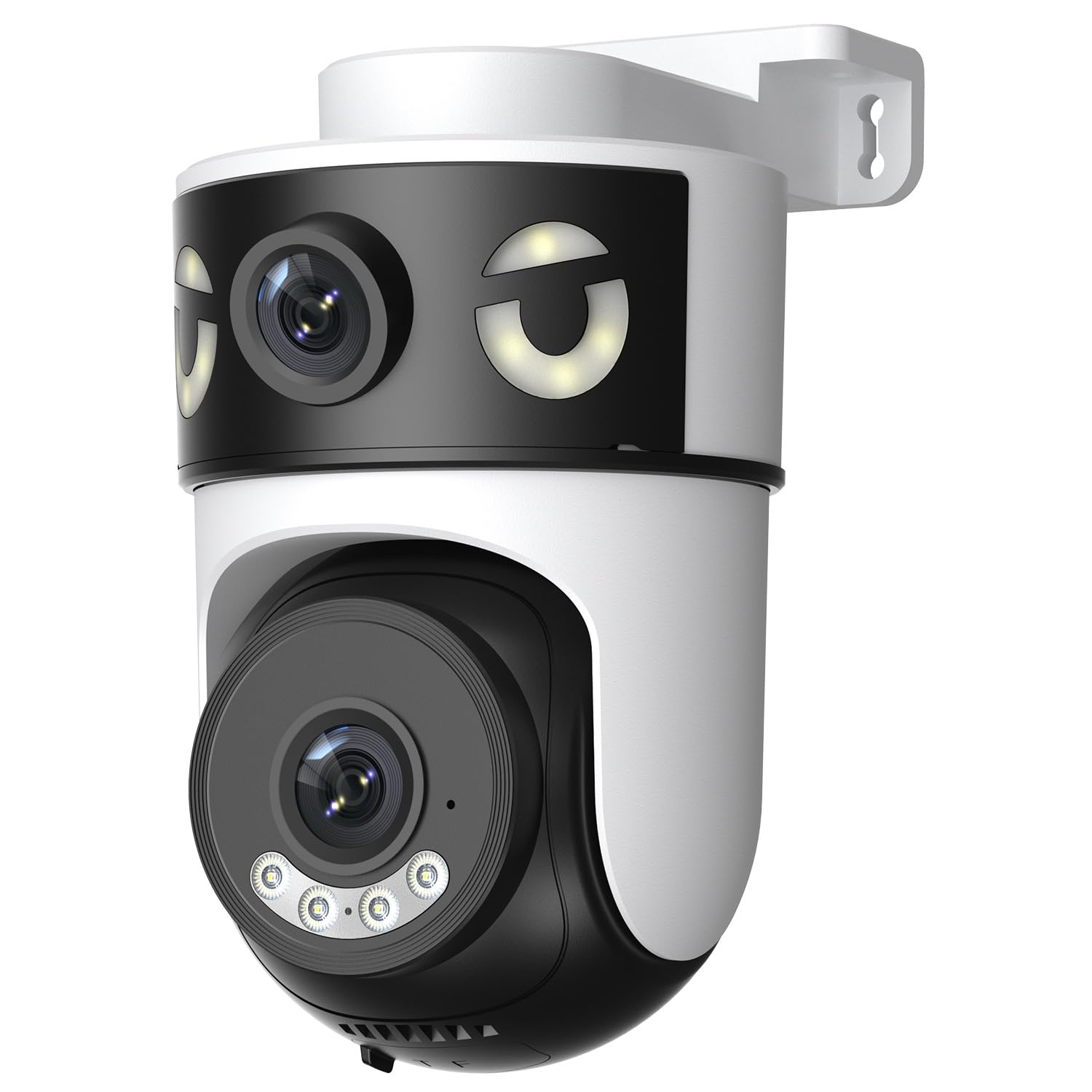
Image: Reobiux 2K Outdoor WiFi Surveillance Camera, Model K6Q-1P. This image shows the camera unit with its dual lenses, two external antennas, and a wall-mount bracket.
Karatteristiċi Ewlenin
- Dual Lens & 355° View: Unique 2-in-1 design supporting fixed area surveillance and mobile full-view monitoring. Features two high-resolution lenses; one fixed and one rotatable for wide panoramic views.
- Riżoluzzjoni 2K u Viżjoni bil-Lejl bil-Kulur: Delivers clear and detailed images and videos. Offers three night vision modes: Infrared, Color, and Smart Night Vision for reliable 24-hour surveillance.
- Motion Detection & Alarm Siren: Advanced motion detection sends real-time alarm notifications to your mobile device upon detecting movement.
- Two-Way Audio & Multi-User Access: Built-in microphone and speaker allow for remote communication. Supports sharing camera access with multiple users.
- SD Card/Cloud Storage & Alexa Compatibility: Supports 24-hour continuous recording to a Micro SD card (max 128GB) or cloud server. Compatible with Amazon Alexa for voice control.
Gwida ta' Setup
1. Immuntar tal-Kamera
The camera is designed for wall mounting. Choose a suitable location that provides the desired surveillance coverage and is within range of your Wi-Fi network and a power outlet.
- Mark the drilling points on the wall using the camera's base as a template.
- Drill holes and insert the wall plugs if necessary.
- Secure the camera to the wall using the provided mounting screws.
- Ensure the camera is firmly attached and the waterproof cover kit is properly installed to protect connections.
2. Tixgħel
Qabbad l-adapter tal-enerġija pprovdut mal-input tal-enerġija tal-kamera u mbagħad daħħalha f'sokit elettriku standard. Il-kamera tixgħel u tibda s-sekwenza tal-istartjar tagħha.
3. Konnessjoni tan-Netwerk (Wi-Fi)
The camera connects via 2.4GHz Wi-Fi. Follow these steps to connect your camera to your home network:
- Niżżel il- O-kam Pro application from the App Store (iOS) or Google Play Store (Android) on your smartphone or tablet.
- Irreġistra għal kont ġdid jew idħol jekk diġà għandek wieħed.
- Segwi l-istruzzjonijiet fl-app biex iżżid il-kamera l-ġdida tiegħek. Dan tipikament jinvolvi l-iskennjar ta' kodiċi QR fuq il-kamera jew id-dħul manwali tal-ID tagħha.
- Select your 2.4GHz Wi-Fi network and enter the password when prompted.
- Wait for the camera to connect to the network. A voice prompt or indicator light will confirm a successful connection.

Image: Reobiux camera with a smartphone displaying the O-kam Pro app interface, demonstrating remote control and live view kapaċitajiet.
Istruzzjonijiet Operattivi
Live View u Kontroll Pan/Tilt
Once connected, open the O-kam Pro app to access the live feed from your camera. The dual-lens system provides both a fixed wide view and a movable PTZ (Pan-Tilt-Zoom) view.
- Tap on the camera in the app to view il-live stream.
- Use the on-screen controls to pan (horizontal rotation up to 355°) and tilt (vertical movement) the movable lens to adjust the viewangolu tal-ing.
- Switch between the fixed and movable lens views within the app interface.
Modi tal-Viżjoni bil-lejl
Il-kamera toffri tliet modi ta' viżjoni bil-lejl:
- Viżjoni bil-lejl infrared: Provides black and white images in low-light conditions using infrared LEDs.
- Viżjoni bil-lejl bil-kulur: Utilizes built-in spotlights to provide full-color images at night.
- Viżjoni bil-lejl intelliġenti: Jaqleb awtomatikament bejn il-viżjoni bil-lejl bl-infra-aħmar u bil-kulur ibbażat fuq il-moviment jew il-kundizzjonijiet tad-dawl skoperti.
- You can select your preferred night vision mode in the O-kam Pro app settings.
Sejbien ta' Moviment u Twissijiet
Configure motion detection settings and receive alerts on your mobile device:
- Navigate to the camera settings in the O-kam Pro app.
- Ippermetti d-detezzjoni tal-moviment u aġġusta l-livelli ta' sensittività kif meħtieġ.
- Set up alert notifications to be sent to your smartphone.
- You can also enable the alarm siren to deter intruders.
Awdjo Two-Way
Use the two-way audio feature to communicate through the camera:
- Fil-live view interface of the O-kam Pro app, tap the microphone icon to speak. Your voice will be transmitted through the camera's speaker.
- Tap the speaker icon to listen to audio from the camera's surroundings.
Reġistrazzjoni u Ħażna tal-Vidjo
The camera supports continuous 24-hour recording. You have two storage options:
- Karta Micro SD: Insert a Micro SD card (up to 128GB, not included) into the designated slot on the camera. The camera will automatically begin recording to the card.
- Ħażna Cloud: Subscribe to a cloud storage plan through the O-kam Pro app for secure off-site video storage.
- Aċċess irreġistrat footage via the O-kam Pro app.
Amazon Alexa Integrazzjoni
Integrate your Reobiux camera with Amazon Alexa for voice control:
- Iftaħ l-app Amazon Alexa fuq it-tagħmir mobbli tiegħek.
- Go to "Skills & Games" and search for the "O-kam Pro" skill.
- Enable the skill and link your O-kam Pro account.
- Discover devices. You can now use voice commands like "Alexa, show me the front door camera" to view the live feed on compatible Alexa devices.
Manutenzjoni
- Tindif: Imsaħ il-lenti u l-korp tal-kamera regolarment b'ċarruta ratba u damp drapp biex tneħħi t-trab u l-ħmieġ. Tużax kimiċi ħarxa jew prodotti tat-tindif li joborxu.
- Protezzjoni tat-Temp: The camera is waterproof, but ensure all connections are sealed properly, especially the power cable and any SD card slots, to maintain its weather resistance.
- Aġġornamenti tal-Firmware: Check the O-kam Pro app periodically for firmware updates to ensure optimal performance and security.
Issolvi l-problemi
- Il-kamera ma tixgħelx:
- Ensure the power adapter is securely connected to both the camera and a working electrical outlet. Verify the outlet has power.
- Ma nistax nikkonnettja mal-Wi-Fi:
- Ensure your Wi-Fi network is 2.4GHz. Check your Wi-Fi password for accuracy. Move the camera closer to your Wi-Fi router to improve signal strength. Restart your router and the camera.
- Ebda ħaj view or recording:
- Check your internet connection. Ensure the camera is connected to Wi-Fi. Verify that the Micro SD card is inserted correctly and not full, or that your cloud storage subscription is active.
- Twissijiet ta' skoperta ta' moviment mhux riċevuti:
- Check app notification settings on your phone and within the O-kam Pro app. Ensure motion detection is enabled and sensitivity is set appropriately. Verify your phone has an active internet connection.
- L-awdjo f'żewġ direzzjonijiet mhux qed jaħdem:
- Ensure your phone's microphone and speaker are enabled for the O-kam Pro app. Check the volume settings on your phone and within the app. Ensure there are no obstructions blocking the camera's microphone or speaker.
Speċifikazzjonijiet
| Karatteristika | Speċifikazzjoni |
|---|---|
| Brand | Reobiux |
| Isem tal-Mudell | K6Q-1P |
| Numru tal-Mudell | REO-K6Q-1P |
| Tip ta 'Immuntar | Mount Wall |
| Riżoluzzjoni ta' Reġistrazzjoni tal-Vidjo | 2K |
| Numru ta' Oġġetti | 1 |
| Teknoloġija tal-Komunikazzjoni mingħajr Fili | Wi-Fi (2.4GHz) |
| ViewIng Angolu | 355 Grad (Pan) |
| Tip ta' Installazzjoni | Invita |
| Materjal | Plastik |
| Voltage | 5 Volts (DC) |
| Qawwa | 5 Watts |
| Livell ta 'Reżistenza għall-Ilma | Waterproof |
| Karatteristiċi Speċjali | Two-Way Audio, Local Recording, HD Resolution, PTZ Technology |
| Użu Rakkomandat | Sigurtà ta 'barra |
| Apparati Kompatibbli | Laptop, Smartphone, Tablet, Televiżjoni |
| Sors tal-Enerġija | Kejbil Elettriku |
| Protokoll tal-Konnettività | RTSP |
| Tip ta' Kontrollur | O-kam Pro App |
Garanzija u Appoġġ
For warranty information and technical support, please refer to the official Reobiux website or contact Reobiux customer service directly. Keep your purchase receipt as proof of purchase for warranty claims.
Manufacturer: Reobiux