1. Introduzzjoni
This manual provides comprehensive instructions for the Cleyver T57W IP Phone and the Cleyver ODHW25V2 DECT Headset System. This professional VoIP package is designed to enhance communication efficiency in business environments.
Is-sistema tinkludi:
- Cleyver T57W IP Phone: A Voice over IP (VoIP) phone featuring a 7-inch color touchscreen, Wi-Fi, and Bluetooth connectivity.
- Cleyver ODHW25V2 DECT Duo Headset: A wireless DECT headset with dual earcups and noise cancellation for clear audio.
- Electronic Hook Switch (EHS) Module: Enables remote call control directly from the headset.

Figure 1.1: Cleyver T57W IP Phone, ODHW25V2 DECT Headset, and connecting cables.
2. Kontenut tal-Pakkett
Qabel ma tipproċedi bl-installazzjoni, ivverifika li l-oġġetti kollha huma preżenti fil-pakkett:
- Cleyver T57W IP Phone
- Handset u Korda tal-Handset
- Cable Ethernet
- Power Adapter for IP Phone
- Cleyver ODHW25V2 DECT Duo Headset
- DECT Headset Base Station
- Power Adapter for Headset Base Station
- EHS Module and Connecting Cables
- Gwida ta' Bidu Mgħaġġel (jekk inkluża)
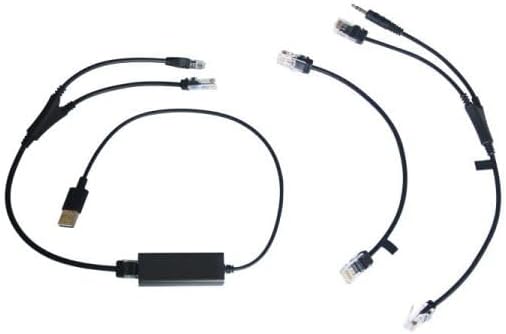
Figure 2.1: Included connecting cables for the IP phone and headset system.
3. Setup
3.1. Cleyver T57W IP Phone Setup
- Qabbad il-Handset: Plug one end of the coiled handset cord into the handset port on the IP phone and the other end into the handset.
- Qabbad man-Netwerk: Connect one end of the Ethernet cable to the Internet port on the IP phone and the other end to your network router or switch.
- Qabbad l-Enerġija: Plug the power adapter into the power port on the IP phone and then into an electrical outlet. The phone will power on automatically.
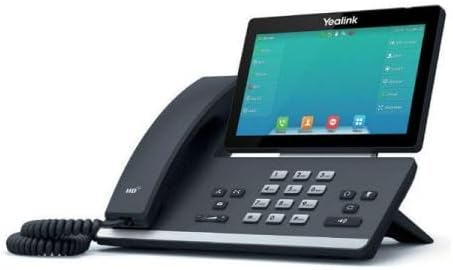
Figura 3.1: Ġenb view of the Cleyver T57W IP Phone, illustrating port locations for connections.
3.2. Cleyver ODHW25V2 DECT Headset Setup
- Connect Headset Base Power: Plug the power adapter into the power port on the DECT headset base station and then into an electrical outlet.
- Connect to IP Phone (EHS): Use the provided EHS module and cables to connect the headset base station to the appropriate ports on the Cleyver T57W IP Phone. Refer to the EHS module's specific instructions for detailed connection steps, as ports may vary.
- Place Headset on Base: Place the ODHW25V2 headset onto the charging cradle of the base station. Ensure it is seated correctly for charging.
- Tqabbil (jekk meħtieġ): The headset and base station are usually pre-paired. If pairing is required, follow the instructions in the headset's specific manual.
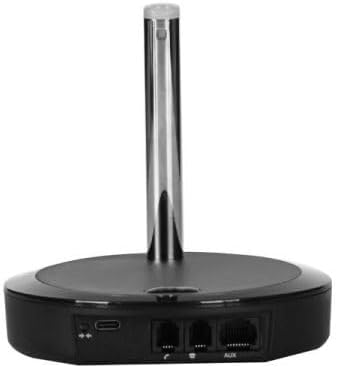
Figura 3.2: Wara view of the DECT headset base station, showing power and connection ports.
3.3. Konfigurazzjoni Inizjali
Upon first power-up, the T57W IP Phone will guide you through initial setup steps on its 7-inch touchscreen. This typically includes:
- Issettjar tan-Netwerk: Configure IP address (DHCP or Static), DNS.
- SIP Account Registration: Enter your SIP server address, username, password, and other credentials provided by your VoIP service provider.
- Data u Ħin: Set the correct date and time or configure NTP server.
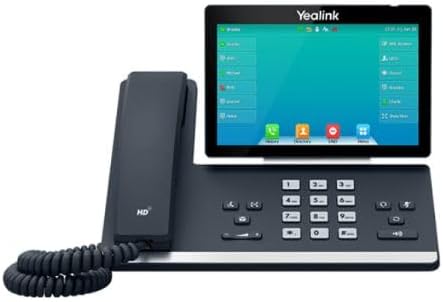
Figura 3.3: Quddiem view of the Cleyver T57W IP Phone, highlighting the 7-inch color touchscreen.
4. Istruzzjonijiet Operattivi
4.1. T57W IP Phone Basic Operations
- Tagħmel Sejħa: Lift the handset or press the Speaker button, then dial the number and press the Dial/Send key. Alternatively, use the touchscreen to select a contact.
- Tweġiba għal Sejħa: Lift the handset, press the Speaker button, or press the Answer soft key on the touchscreen.
- Tmiem Sejħa: Erġa' poġġi l-handset jew agħfas il-soft key End Call.
- Żomm: During a call, press the Hold soft key.
- Trasferiment: During a call, press the Transfer soft key and follow the on-screen prompts.
- Konferenza: During a call, press the Conference soft key and follow the on-screen prompts to add participants.
- Aġġustament tal-Volum: Use the volume keys on the phone to adjust handset, speaker, or ringer volume.
4.2. ODHW25V2 DECT Headset Usage
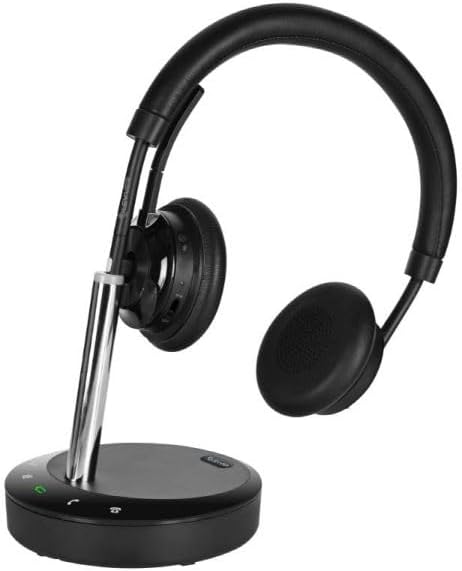
Figure 4.1: Cleyver ODHW25V2 DECT Headset on its charging base, ready for use.
- Liebes il-headset: Adjust the headband and microphone boom for a comfortable fit. The dual earcups provide passive noise isolation.
- Answering/Ending Calls (EHS): When connected via EHS, you can answer or end calls by pressing the call control button on the headset.
- Kontroll tal-Volum: Use the volume buttons on the headset to adjust listening volume.
- Siekta: Press the mute button on the headset to mute your microphone during a call.
- Iċċarġjar: Always return the headset to its base station when not in use to ensure it remains charged.

Figura 4.2: Eżample of a user operating the Cleyver T57W IP Phone and headset for business communication.
5. Manutenzjoni
5.1. Tindif
- Use a soft, dry, anti-static cloth to clean the phone's surface and touchscreen.
- For the headset, gently wipe earcups and headband with a slightly damp drapp. Evita umdità eċċessiva.
- Tużax kimiċi ħarxa, solventi tat-tindif, jew prodotti tat-tindif li joborxu.
5.2. Aġġornamenti tas-Software
Periodically check for firmware updates for your Cleyver T57W IP Phone through the phone's web interface or system settings. Updates can provide new features, performance improvements, and security enhancements. Consult your IT administrator or VoIP service provider for guidance on applying updates.
5.3. Headset Battery Care
- Always return the headset to its charging base when not in use to maintain optimal battery life.
- Evita li tiċċarġja l-batterija kompletament ta' spiss.
- Store the headset in a cool, dry place if not used for extended periods.
6 Issolvi l-problemi
If you encounter issues with your Cleyver T57W IP Phone and ODHW25V2 DECT Headset System, refer to the following common problems and solutions:
| Problema | Kawża Possibbli | Soluzzjoni |
|---|---|---|
| It-telefon ma jixgħelx | L-adapter tal-enerġija mhux imqabbad jew difettuż. | Ensure the power adapter is securely connected to the phone and a working electrical outlet. Try a different outlet. |
| L-ebda ton ta' telefonata / Ma nistax nagħmel telefonati | Network connection issue; SIP account not registered. | Check Ethernet cable connection. Verify network status on the phone's screen. Ensure SIP account details are correctly entered and registered. Contact your VoIP provider if registration fails. |
| Headset not connecting or poor audio | Headset out of range; low battery; EHS module issue. | Ensure headset is within range of the base station. Place headset on base to charge. Verify EHS module connections and configuration. Re-pair headset if necessary. |
| Touchscreen ma jirrispondix | Problema temporanju tas-softwer. | Restart the IP phone by unplugging and re-plugging the power adapter. |
7. Speċifikazzjonijiet
Key technical specifications for the Cleyver T57W IP Phone and ODHW25V2 DECT Headset System:
| Karatteristika | Dettall |
|---|---|
| Brand | Ċleyver |
| Numru tal-Mudell | YEALINKT57WHW20V2 |
| IP Phone Display | Touchscreen tal-Kulur ta '7 pulzieri |
| Connectivity (IP Phone) | SIP-VoIP, Built-in Wi-Fi, Bluetooth |
| Tip ta 'widna | DECT Duo, Wireless, Noise Cancellation |
| Ġestjoni tas-Sejħiet | Electronic Hook Switch (EHS) support |
| Sors tal-Enerġija | Wired (Power Adapters included) |
| Materjal | Plastik, Metall |
| Dimensjonijiet tal-Prodott | 30 x 22 x 23.5 ċm (L x W x H) |
| Piż tal-oġġett | 1.2 kg |
| Apparati Kompatibbli | DECT phone systems, VoIP SIP phones |
8. Garanzija u Appoġġ
8.1. Informazzjoni dwar Garanzija
The Cleyver T57W IP Phone and ODHW25V2 DECT Headset System comes with a garanzija ta' sentejn mid-data tax-xiri. Din il-garanzija tkopri difetti fil-manifattura u malfunzjonamenti taħt użu normali. Jekk jogħġbok żomm il-prova tax-xiri tiegħek għal talbiet ta' garanzija.
8.2. Appoġġ għall-Klijent
For technical assistance, troubleshooting beyond this manual, or warranty inquiries, please contact your vendor or Cleyver customer support. Refer to the contact information provided with your purchase documentation or visit the official Cleyver websit għal riżorsi ta' appoġġ.
