1. Introduzzjoni
The HyperX Cloud Flight 2 is a wireless gaming headset designed for multi-platform compatibility, offering customizable RGB lighting and long battery life. This manual provides essential information for setup, operation, and maintenance of your headset.

Image 1: HyperX Cloud Flight 2 Wireless Gaming Headset (Black)
2. Kontenut tal-Pakkett
- Kuffji tal-Logħob Wireless
- Mikrofonu li jinqala'
- Dongle bla fili (USB-C)
- Adapter USB-C għal USB-A
- USB-C Charge Cable
- Gwida Quick Start
3. Setup u Konnettività
3.1 Konnessjoni bla fili (2.4 GHz)
- Insert the USB-C Wireless Dongle into an available USB-C port on your device (PC, PS5, PS4, Nintendo Switch).
- If your device only has USB-A ports, use the provided USB-C to USB-A Adapter with the dongle.
- Power on your HyperX Cloud Flight 2 headset. The headset will automatically attempt to connect to the dongle.
- A solid LED indicator on the headset confirms a successful 2.4 GHz wireless connection.
3.2 Konnessjoni Bluetooth
- With the headset powered on, press and hold the Bluetooth button (usually indicated by a Bluetooth icon) until the LED indicator flashes, indicating pairing mode.
- On your mobile device or compatible system, navigate to Bluetooth settings and select "HyperX Cloud Flight 2" from the list of available devices.
- A solid LED indicator confirms a successful Bluetooth connection.
3.3 Instant Pair (for select OMEN laptops)
The HyperX Cloud Flight 2 supports Instant Pair with select OMEN gaming laptops, allowing for connection without a dongle. Refer to your OMEN laptop's documentation for specific instructions.

Image 2: Wireless connectivity options including 2.4 GHz, Bluetooth, and Instant Pair.
4. Istruzzjonijiet Operattivi
4.1 Kontrolli Abbord
The headset features intuitive controls located on the earcups for easy access during use.
- Buttuna tal-Qawwa: Agħfas u żomm biex tixgħel/itfi.
- Rota tal-Volum: Adjusts headset audio volume.
- Buttuna Mute: Toggles microphone mute. An LED indicator on the boom mic signals mute status.
- Buttuna b'diversi funzjonijiet: Controls media playback (play/pause, skip tracks) and call management.
- Swiċċ tal-Modalità Wireless: Toggles between 2.4 GHz wireless and Bluetooth modes.

Image 3: Diagram showing the location of onboard controls on the headset earcups.
4.2 Użu tal-Mikrofonu
The headset offers both a detachable boom microphone and a built-in internal microphone.
- Detachable Boom Mic: For clear voice communication, attach the 10mm boom mic to the designated port on the left earcup. An LED on the mic indicates mute status.
- Built-in Internal Mic: When the boom mic is detached, the internal mic automatically activates for a cleaner look in either wireless mode.

Image 4: The detachable boom microphone and the option to use the built-in internal microphone.
4.3 Ħajja tal-batterija
The HyperX Cloud Flight 2 offers extended battery life depending on usage:
- Sa 100 sigħat of 2.4 GHz wireless gameplay (lighting off).
- Sa 150 sigħat via Bluetooth (lighting off).
- Sa 23 sigħat with full RGB lighting enabled.
To conserve battery, you can toggle off the RGB lighting via the onboard controls.
5. Personalizzazzjoni
5.1 RGB Lighting and Removable Earcup Plates
The headset features full-panel RGB lighting and magnetic removable earcup plates, allowing for quick customization without tools.
- Magnetic earcup plates can be easily popped off and swapped.
- Customize RGB lighting profiles using the HyperX NGENUITY software. One profile can be saved onboard.

Image 5: The headset featuring customizable RGB lighting and easily removable magnetic earcup plates.

Image 6: Various removable parts of the headset, including earcup plates, ear pads, and microphone.
6. Kompatibilità
The HyperX Cloud Flight 2 offers versatile compatibility across multiple platforms:
- PC: Via 2.4 GHz wireless dongle (USB-C or USB-A adapter) or Bluetooth.
- PS5, PS4: Via 2.4 GHz wireless dongle.
- Nintendo Switch: Via 2.4 GHz wireless dongle (in dock mode) or Bluetooth.
- Apparat mobbli: Via Bluetooth.
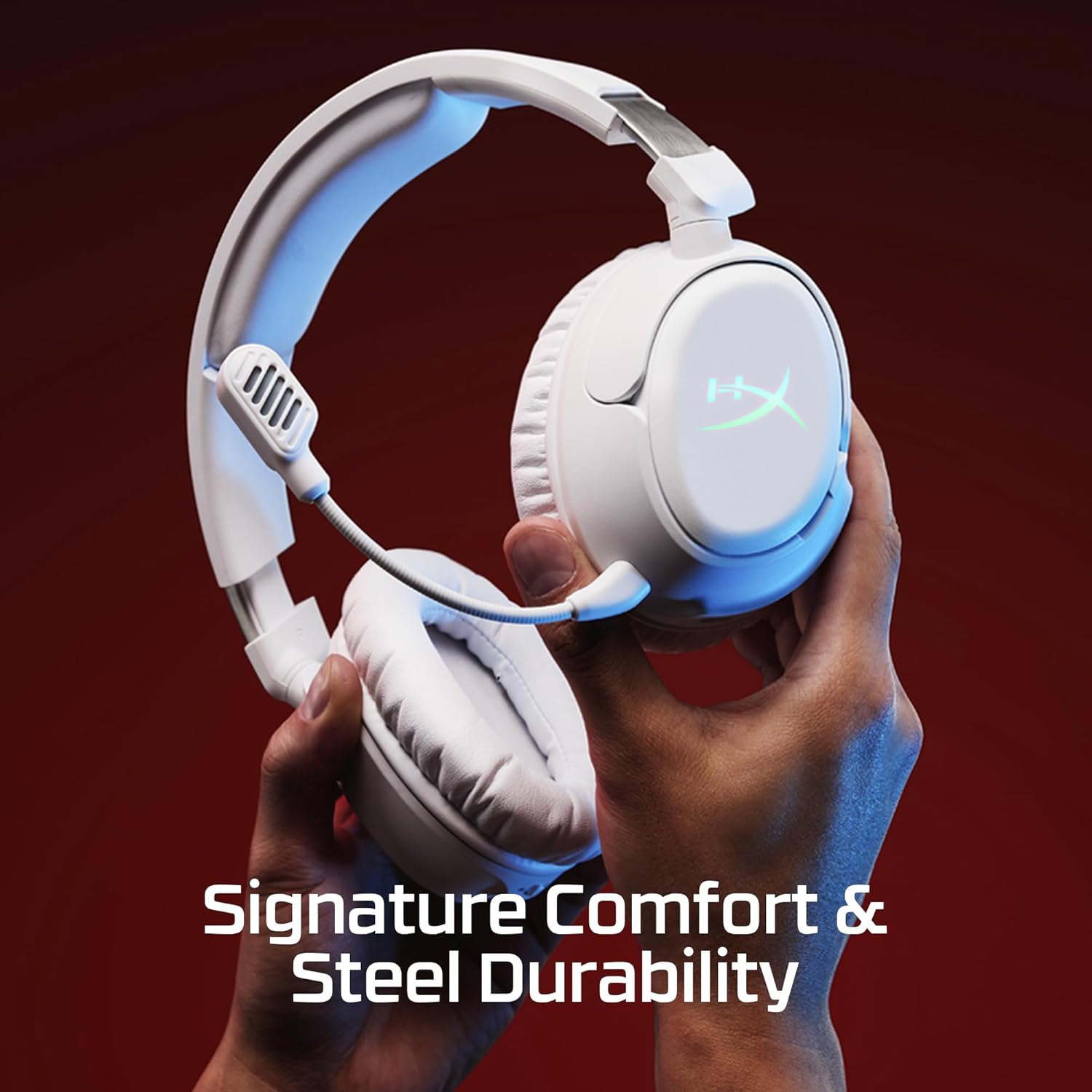
Image 7: The headset is compatible with PC, Mac, PlayStation, Nintendo Switch, and mobile devices.
7. Speċifikazzjonijiet
| Karatteristika | Dettall |
|---|---|
| Isem tal-Mudell | HyperX Cloud Flight 2 - Wireless Gaming Headset (Black) |
| Teknoloġija tal-Konnettività | Wireless USB Type-C; Bluetooth |
| Teknoloġija tal-Komunikazzjoni mingħajr Fili | Bluetooth |
| Verżjoni Bluetooth | 5.3 |
| Medda Bluetooth | 20 Meters |
| Tip ta' Sewwieq Awdjo | Sewwieq Dinamika |
| Rispons ta' Frekwenza | 20 Hz - 20 kHz (Headphones) |
| Impedenza | 32 Ohms |
| Sensittività | 103 dB |
| Mikrofonu | Detachable 10mm Boom Mic, Built-in Internal Mic |
| Ħajja tal-batterija | Up to 100 Hours (2.4 GHz, lighting off); Up to 150 Hours (Bluetooth, lighting off) |
| Piż | 12.6 uqija (madwar 357g) |
| Dimensjonijiet | 7 x 1.6 x 7.7 pulzieri |
| Materjal | Plastic, Steel Sliders, Memory Foam Ear Pads |
8. Manutenzjoni
To ensure the longevity and optimal performance of your HyperX Cloud Flight 2 headset, follow these maintenance guidelines:
- Tindif: Use a soft, dry cloth to wipe down the headset. Avoid harsh chemicals or abrasive materials.
- Ħażna: Aħżen il-headset f'post frisk u niexef 'il bogħod mix-xemx diretta u minn temperaturi estremi.
- Kura tal-Cable: Avoid sharp bends or excessive pulling on the USB-C charge cable and detachable microphone.
- Earcup Plates: Handle removable earcup plates with care to prevent damage to the magnetic connections.
9 Issolvi l-problemi
If you encounter issues with your HyperX Cloud Flight 2 headset, try the following steps:
- No Audio/Mic: Ensure the headset is powered on and correctly connected (2.4 GHz dongle or Bluetooth paired). Check volume levels on both the headset and your device. Confirm the microphone is not muted.
- Kwistjonijiet ta' Konnessjoni: For 2.4 GHz, try re-inserting the dongle or using a different USB port. For Bluetooth, try unpairing and re-pairing the headset with your device.
- Iċċarġjar: Use the provided USB-C charge cable. Ensure the cable is securely connected to both the headset and a power source.
- Software: For advanced settings and firmware updates, download and install the HyperX NGENUITY software from the official HyperX websit.
10. Vidjo Uffiċjali tal-Prodott
Vidjo: Utent reġa'view of the HyperX Cloud Flight 2 headset after one week of use, highlighting features and performance.
11. Garanzija u Appoġġ
The HyperX Cloud Flight 2 Wireless Gaming Headset typically comes with a manufacturer's warranty. For specific warranty terms and conditions, please refer to the warranty card included in your product packaging or visit the official HyperX support websit.
Optional protection plans are available for purchase, such as 2-Year and 3-Year Protection Plans, offering extended coverage beyond the standard manufacturer's warranty.
For further assistance, technical support, or to download the latest NGENUITY software, please visit the official HyperX support portal.