1. Prodott Aktarview
The Xiaomi Portable Photo Printer Pro is a compact and lightweight device designed for printing photos directly from your smartphone or other compatible devices. It utilizes advanced printing technology to produce high-quality, vibrant prints.
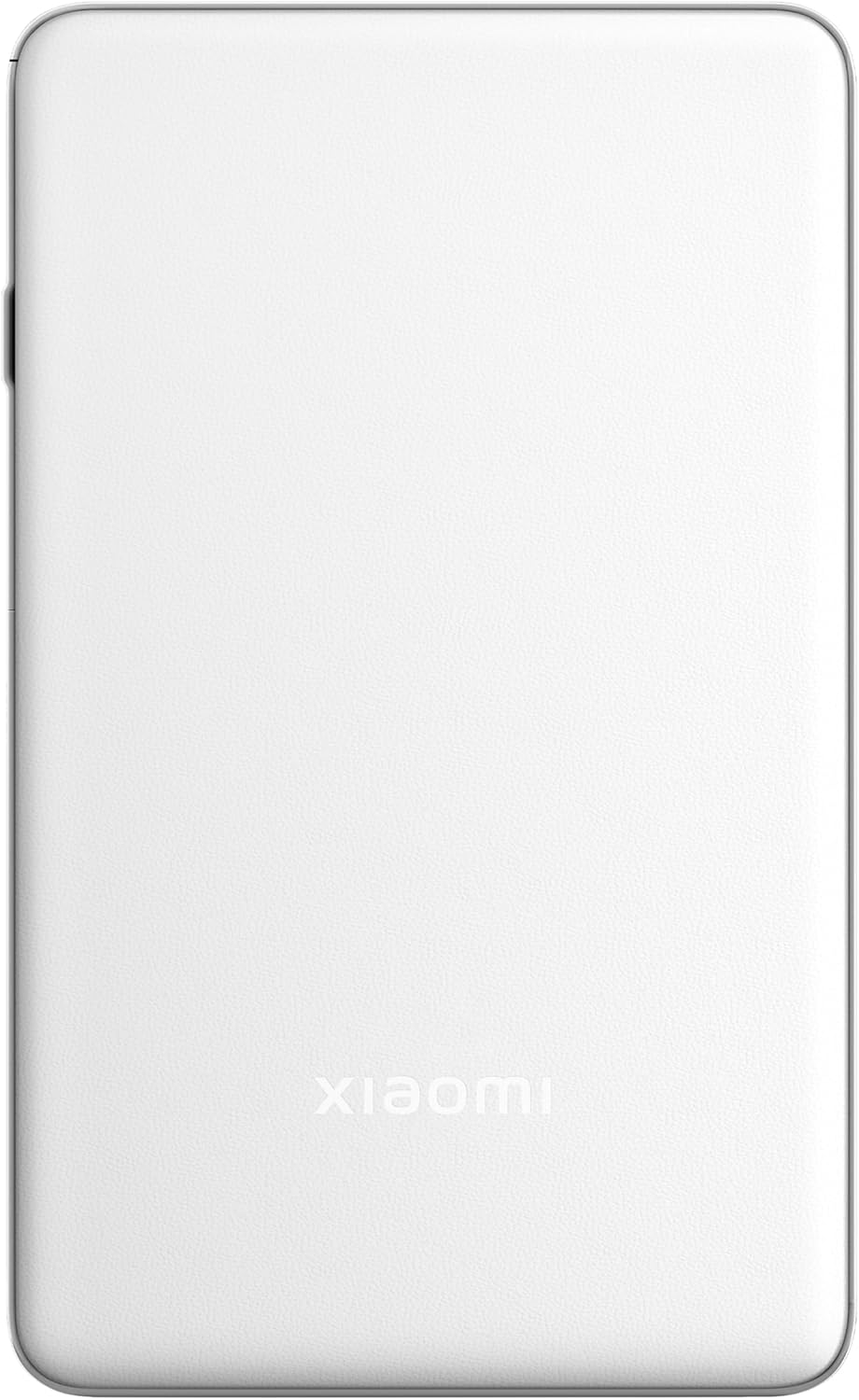
Immaġni 1.1: Fuq view of the Xiaomi Portable Photo Printer Pro, showcasing its minimalist design and compact form factor.

Immaġni 1.2: Ġenb view of the Xiaomi Portable Photo Printer Pro, highlighting its slim profile and power button location.
2. Setup
2.1 Iċċarġjar tal-Printer
Before initial use, fully charge the printer. Connect the provided USB charging cable to the printer's charging port and a compatible power adapter. The indicator light will show charging status.
2.2 Tagħbija ta' Karta tar-Ritratti
- Iftaħ l-għatu tat-trej tal-karta fuq il-printer.
- Insert the photo paper stack into the tray with the glossy side facing up. Ensure the paper is aligned correctly.
- Agħlaq l-għatu tat-trej tal-karta sew.

Image 2.1: The Xiaomi Portable Photo Printer Pro with photo paper being inserted into the paper tray, demonstrating the correct orientation.
2.3 Installazzjoni tal-Applikazzjoni ta' Kumpann
Download and install the official Xiaomi Home app (or designated printer app) from your device's app store. This app is required for connecting to the printer and managing print jobs.
2.4 Konnessjoni permezz tal-Bluetooth
- Kun żgur li l-istampatur huwa mixgħul.
- Ippermetti l-Bluetooth fuq l-ismartphone jew it-tablet tiegħek.
- Open the Xiaomi Home app and follow the on-screen instructions to add a new device. Select the Xiaomi Portable Photo Printer Pro from the list of available devices.
- Confirm the pairing request on both your device and the printer if prompted.
3. Istruzzjonijiet Operattivi
3.1 Tixgħel/Jitfi
- Biex Tixgħel: Agħfas u żomm il-buttuna tal-qawwa għal madwar 3 sekondi sakemm id-dawl indikatur jixgħel.
- Biex Tifi: Agħfas u żomm il-buttuna tal-qawwa għal madwar 3 sekondi sakemm id-dawl indikatur jintefa.
3.2 Stampar ta' Ritratti
- Ensure the printer is powered on and connected to your device via Bluetooth.
- Open the Xiaomi Home app and select the photo you wish to print.
- Adjust any print settings (e.g., size, filters) within the app.
- Tap the 'Print' button. The printer will feed the paper and begin printing.

Image 3.1: The Xiaomi Portable Photo Printer Pro positioned on a wooden table, actively printing a photo, with the printed image emerging from the top slot.

Image 3.2: The Xiaomi Portable Photo Printer Pro being held in a hand, illustrating its portability and ease of handling for on-the-go printing.
4. Manutenzjoni
4.1 Tindif tal-Istampatur
- Ensure the printer is powered off before cleaning.
- Uża drapp artab, niexef u mingħajr suf biex timsaħ il-parti ta' barra tal-istampatur.
- Tużax prodotti tat-tindif likwidi jew materjali li joborxu, għax dawn jistgħu jagħmlu ħsara lill-apparat.
4.2 Sostituzzjoni tal-Karta tar-Ritratti
When the printer runs out of paper, follow the steps in Section 2.2 to load a new stack of photo paper. Use only genuine Xiaomi photo paper for optimal print quality and to prevent damage to the printer.
4.3 Kura tal-Batterija
- Avoid exposing the printer to extreme temperatures.
- If storing the printer for an extended period, ensure it is partially charged (around 50%) to prolong battery life.
- Recharge the battery regularly, even if not in frequent use.
5 Issolvi l-problemi
- L-istampatur ma jixgħelx: Ensure the battery is charged. Connect the printer to a power source and try again.
- Ma nistax nikkonnettja permezz tal-Bluetooth:
- Ensure Bluetooth is enabled on your device and the printer.
- Ibda mill-ġdid kemm l-istampatur kif ukoll it-tagħmir tiegħek.
- Forget the device in your phone's Bluetooth settings and attempt to pair again through the app.
- Kwalità Fqira tal-Istampar:
- Check if the photo paper is loaded correctly with the glossy side up.
- Ensure you are using genuine Xiaomi photo paper.
- The image resolution might be too low. Try printing a higher-resolution image.
- Ġamm tal-Karta:
- Power off the printer immediately.
- Carefully open the paper tray cover and gently remove any jammed paper. Avoid tearing the paper inside the mechanism.
- Close the cover and power on the printer.
- Il-Printer Mhux Qed Jirrispondi: Try performing a soft reset by pressing and holding the power button for 10-15 seconds until the printer restarts.
6. Speċifikazzjonijiet
| Karatteristika | Speċifikazzjoni |
|---|---|
| Mudell | KDRSHDY03HT |
| Dimensjonijiet tal-Prodott | 14.25 x 8.68 x 2.68 ċm |
| Piż tal-oġġett | 308 Gramm |
| Kapaċità Massima tal-Folja tal-Input | 20 folja |
| Midja Stampata | Karta fotografika tleqq, Karta sempliċi |
| Output Printer | Kulur |
| Karatteristiċi Speċjali | Portabbli |
| Batteriji | 1 x batterija 12V (inkluża) |
| Konnettività | Bluetooth |
7. Garanzija u Appoġġ
7.1 Informazzjoni dwar Garanzija
The Xiaomi Portable Photo Printer Pro comes with a standard manufacturer's warranty. Please refer to the warranty card included in the product packaging for specific terms, conditions, and duration. Keep your proof of purchase for warranty claims.
7.2 Appoġġ għall-Klijent
For technical assistance, troubleshooting beyond this manual, or warranty inquiries, please contact Xiaomi customer support. Visit the official Xiaomi websit għal dettalji ta' kuntatt u riżorsi ta' appoġġ.
Tista' ssib aktar informazzjoni u appoġġ fuq is-sit uffiċjali Ħanut XIAOMI.


