1. Introduzzjoni
This manual provides comprehensive instructions for the setup, operation, maintenance, and troubleshooting of your POLONO P31S Bluetooth Thermal Label Maker. Please read this manual carefully before using the device to ensure proper function and longevity.
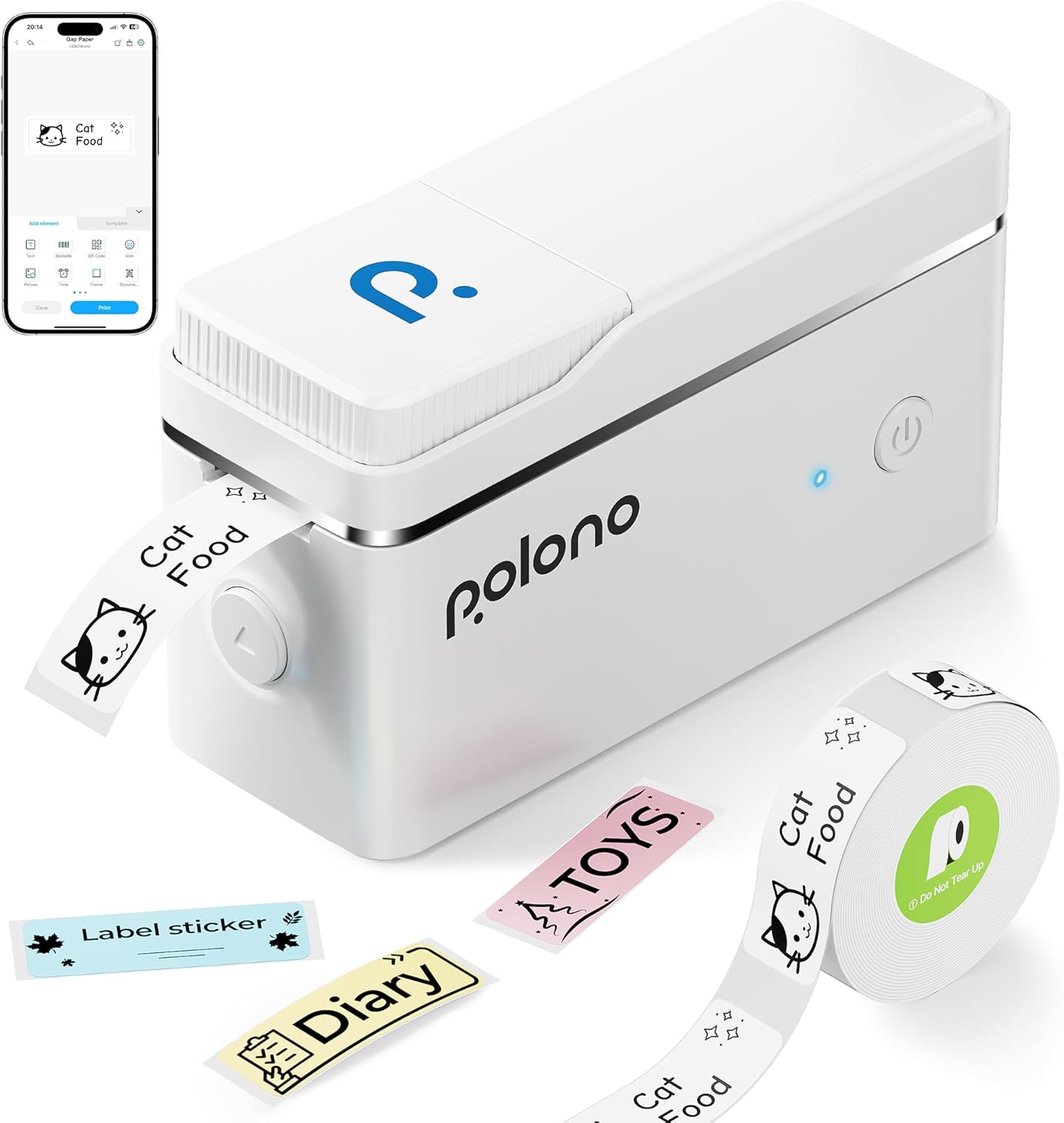
Image: The POLONO P31S label maker, shown with several colorful labels it has printed, and a roll of white label tape. A smartphone displaying the companion app is visible in the background.
2. Kontenut tal-Pakkett
Ivverifika li l-oġġetti kollha huma preżenti fil-pakkett:
- 1 × POLONO P31S Label Maker
- 1 × Roll of White Labels
- 1 × USB Iċċarġjar Cable
- 1 × Manwal tal-Utent (dan id-dokument)
- 1 × Guide Card

Image: The POLONO P31S label maker, a USB cable, a user manual, a guide card, and a roll of white labels are displayed next to the product packaging.
3. Gwida ta' Setup
3.1. Iċċarġjar tal-Apparat
Before first use, fully charge the POLONO P31S label maker using the provided USB cable. Connect the USB cable to the charging port on the device and a compatible USB power adapter (not included). The indicator light will show charging status.
3.2. Installazzjoni tat-Tejp tat-Tikketti
- Click the unlock button on the side of the device to open the paper cover.
- Install the label tape into the paper bin, ensuring the label roll is seated correctly.
- Leave approximately 0.2 inches (5mm) of label tape extending outside the machine and close the cover.
- Press and hold the power button to turn on the device. Click the power button again to calibrate the label tape.

Image: A four-step visual guide demonstrating how to open the label maker, insert the label tape, leave a small portion exposed, and calibrate the device.
3.3. Downloading the Labelnize App
The POLONO P31S operates via the 'Labelnize' mobile application. Download the app from your device's app store:
- Għal apparati iOS: Niżżel fuq l-App Store
- Għal apparati Android: Ġibha fuq Google Play
3.4. Konnessjoni permezz tal-Bluetooth
- Kun żgur li l-Bluetooth huwa attivat fuq l-ismartphone jew it-tablet tiegħek.
- Open the Labelnize app.
- Within the app, search for and select 'P31S' from the list of available devices to establish a Bluetooth connection.

Image: A visual guide showing how to scan a QR code for the app, click 'Unconnected' in the app, find and connect to 'P31S' via Bluetooth.
4. Istruzzjonijiet Operattivi
4.1. Creating Labels with the Labelnize App
The Labelnize app offers a variety of features for label creation:
- Mudelli: Access a large number of pre-designed templates for various uses.
- Test: Input custom text with various fonts and styles.
- Graphics & Symbols: Add icons, images, and other graphical elements.
- Kodiċijiet tal-bar u Kodiċijiet QR: Generate and print barcodes and QR codes.
- Gallerija tal-AI: Utilize AI-generated designs and images for your labels.

Image: A smartphone screen displaying the Labelnize app, showcasing options for adding elements like text, barcodes, QR codes, and icons, along with various label templates.
4.2. Stampar Tikketti
After designing your label in the Labelnize app, select the desired label size and paper type. Then, click the 'Print' button within the app to send the label to your P31S device.
4.3. Qtugħ tat-Tikketti
The POLONO P31S features a built-in cutting blade for neat label separation. After printing, do not pull the label out directly. Instead, press the cutting button to cleanly cut the label.

Immaġni: Dettaljata view of the label maker's output slot, highlighting the internal cutting mechanism and a label being cut.
4.4. Daqsijiet tat-Tikketti Appoġġjati
The POLONO P31S supports various fixed-length label sizes, including but not limited to:
- 12x40mm
- 14x40mm
- 14x50mm
- 15x40mm
- 14x75mm

Image: A display of different label sizes (e.g., 12x40mm, 14x40mm, 14x50mm, 14x75mm) with various printed designs, demonstrating the versatility of the label maker.
5. Manutenzjoni
5.1. Label Tape Care
To ensure optimal print quality, do not tear or damage the green sticker located on the back of the label tape. This sticker is crucial for the printer's detection and proper functioning.
5.2. Tindif tal-Istampatur
Regularly clean the print head and the interior of the label maker with a soft, lint-free cloth. If necessary, use a small amount of isopropyl alcohol on the cloth for stubborn residue. Ensure the device is powered off and disconnected from any power source before cleaning.
6 Issolvi l-problemi
- Apparat Mhux Qed Jikkonnettja: Ensure Bluetooth is enabled on your mobile device and the label maker is powered on. Restart both the app and the label maker if connection issues persist.
- Kwalità Fqira tal-Istampar: Verify that you are using genuine POLONO thermal label paper. Ensure the label tape is installed correctly and the green sticker is not damaged. The print resolution is 203dpi.
- L-ebda Output tal-Istampar: Check if the label tape is properly loaded and if there is enough tape remaining. Ensure the device is charged.
- Apparat Inkompatibbli: The POLONO P31S supports iOS 13 or above and Android devices. It is not compatible with computers.
- Continuous Labels Not Printing: This mini label printer is designed for fixed-length labels and does not support continuous label tapes.
- Stampar bil-kulur: The POLONO P31S is a thermal printer and can only print in monochrome (black and white).
7. Speċifikazzjonijiet
| Karatteristika | Dettall |
|---|---|
| Brand | POLONO |
| Isem tal-Mudell | P31S |
| Teknoloġija tal-Istampar | Termali |
| Teknoloġija tal-Konnettività | Bluetooth |
| Apparati Kompatibbli | iOS 13 jew aktar tard, Android |
| Riżoluzzjoni massima tal-istampar | 203dpi (Monochrome) |
| Output Printer | Monokromu |
| Veloċità Massima tal-Istampar | 80mm/s |
| Daqsijiet tat-Tikketti Appoġġjati | 12x40mm, 14x40mm, 14x50mm, 15x40mm, 14x75mm (Max 12x75mm) |
| Piż tal-oġġett | 8.1 uqija |
| Dimensjonijiet tal-Pakkett | 5.04 x 3.03 x 2.56 pulzieri |
| Karatteristiċi Speċjali | Portable, Clear Printing, Easy to Use, Rechargeable, Wireless, Inkless, Built-in Cutter |
8. Garanzija u Appoġġ
8.1. Informazzjoni dwar Garanzija
The POLONO P31S Label Maker comes with a manufacturer's warranty. Please refer to the guide card included in your package or visit the official POLONO websit għal termini u kundizzjonijiet dettaljati tal-garanzija.
8.2. Appoġġ għall-Klijent
For further assistance, technical support, or inquiries regarding your POLONO P31S Label Maker, please visit the official POLONO Store or contact their customer service through the provided channels on their websit.
Visit the POLONO Store: Ħanut Uffiċjali POLONO


