1. Prodott Aktarview
The NETUM Q900 is a robust handheld mobile computer designed for demanding environments such as warehousing, logistics, and asset tracking. It integrates an Android 14 operating system with a high-performance barcode scanning engine, offering reliable data capture and processing capabilities.

Figura 1.1: Quddiem u lura view of the NETUM Q900 device, showcasing its ergonomic design and integrated scanner.
Karatteristiċi ewlenin:
- Prestazzjoni Għolja: Powered by an octa-core MT8781 processor and Android 14, with 4GB RAM and 64GB storage (expandable).
- Wirja Immersiva: 5.99-inch HD IPS touchscreen with multi-touch support.
- Advanced Barcode Scanning: Equipped with a Honeywell HS7 scan engine for 1D and 2D barcodes.
- Industrial-Grade Rugged Design: IP67 rated for water and dust resistance, drop-tested from 1.5 meters.
- Global Connectivity: Supports global 4G LTE (dual SIM), Wi-Fi 5 (dual band), Bluetooth 5.2, and full GNSS.
- Ħajja twila tal-batterija: 5000mAh battery providing up to 13.5 hours of operation, with quick charging via USB-C or optional docking cradle.
- Modular Expansion: Optional modules include UHF RFID, NFC, fingerprint reader, and a scan handle.
2. Gwida ta' Setup
2.1. Kontenut tal-Pakkett
Iċċekkja li l-oġġetti li ġejjin huma inklużi fil-pakkett tiegħek:
- NETUM Q900 Mobile Computer
- Cable tal-Iċċarġjar tal-USB-C
- Adapter tal-Enerġija
- Gwida Quick Start
- (Optional) Docking Cradle, Hand Strap, other modules
2.2. Installazzjoni u Iċċarġjar tal-batterija
- Sib l-għatu tal-kompartiment tal-batterija fuq wara tal-apparat.
- Open the cover and insert the 5000mAh battery, ensuring the contacts align correctly.
- Ibdel l-għatu tal-kompartiment tal-batterija b'mod sikur.
- Connect the USB-C cable to the device's charging port and the power adapter. Plug the adapter into a wall outlet.
- Allow the device to charge fully before first use. A full charge typically takes less than 4 hours.

Figura 2.1: Illustration of the 5000mAh battery, highlighting its long-lasting power for extended use.
2.3. L-Ewwel Tixgħel u l-Konfigurazzjoni Bażika
- Agħfas u żomm il-buttuna tal-Qawwa sakemm l-apparat jivvibra u l-iskrin jixgħel.
- Follow the on-screen prompts to complete the initial Android 14 setup, including language selection, Wi-Fi connection, and Google account setup.
- Ensure the device is connected to a stable Wi-Fi network or has a 4G LTE connection for updates and application downloads.
3. Istruzzjonijiet Operattivi
3.1. Navigazzjoni bit-Touchscreen
The Q900 features a responsive 5.99-inch HD IPS touchscreen. Navigate the Android interface using standard touch gestures: tap, swipe, pinch-to-zoom, and long-press.
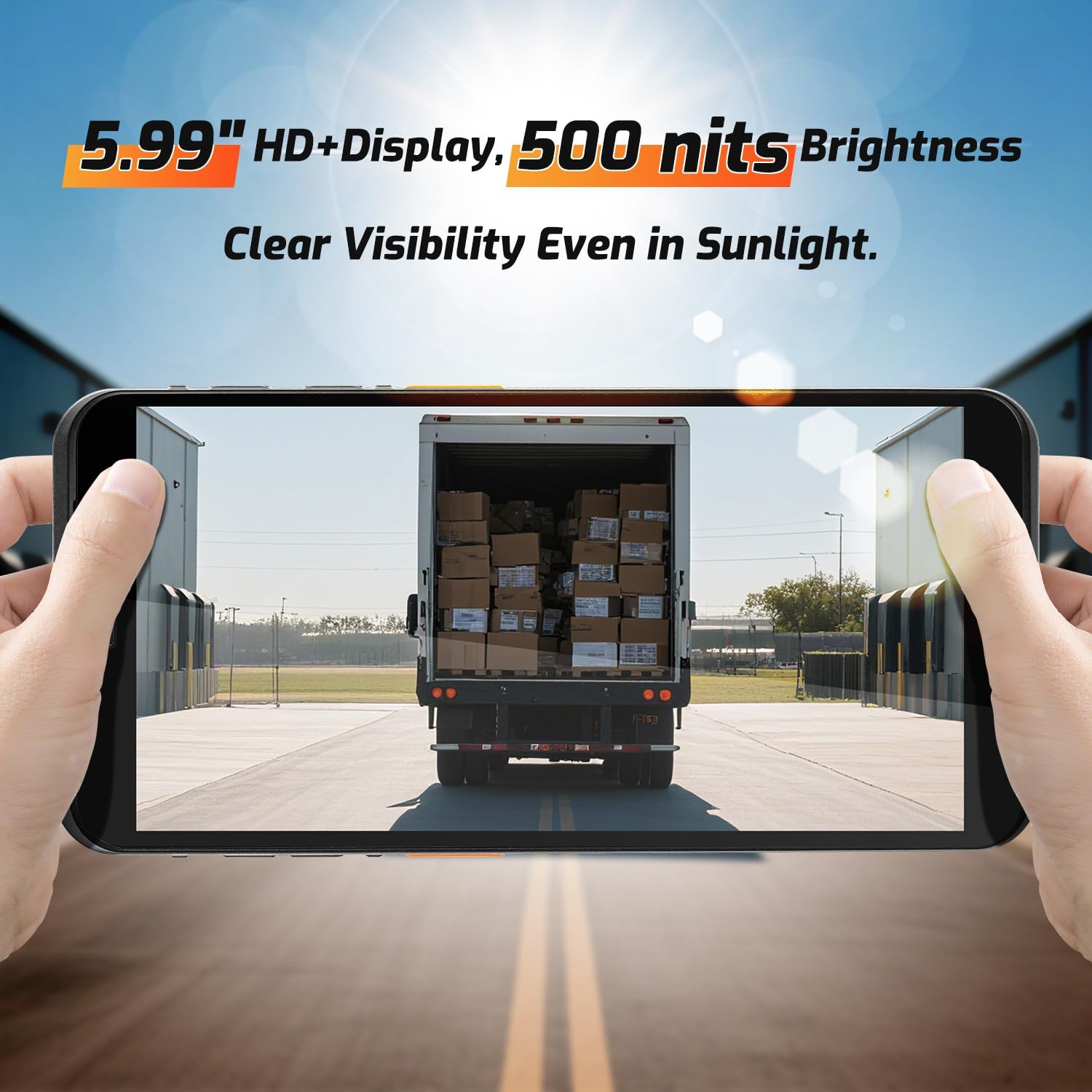
Figura 3.1: The 5.99-inch HD+ display offers clear visibility even in bright sunlight, enhancing outdoor usability.
3.2. Skennjar tal-Barcode
The integrated Honeywell HS7 scan engine allows for rapid and accurate capture of 1D and 2D barcodes.
- Open the scanning application or an application that supports barcode input.
- Ipponta t-tieqa tal-iskaner (li tinsab fil-parti ta' fuq tal-apparat) lejn il-barcode.
- Press one of the dedicated scan buttons (typically on the side of the device) to activate the laser/imager.
- Ensure the barcode is within the scanning range (approximately 5cm to 2m+ for long-range scanning) and centered in the aiming pattern.
- Skennjar b'suċċess tipikament ikun indikat minn ħoss ta' ħoss u/jew konferma viżwali fuq l-iskrin.

Figura 3.2: The Honeywell HS7 engine efficiently scans various barcode types, including damaged or difficult-to-read codes.
Vidjo 3.1: Demonstration of the NETUM Q900's barcode scanning capabilities, including long-range scanning and DPM code recognition.
3.3. Użu tal-kamera
The Q900 is equipped with an 8MP front camera and a 13MP rear camera for documentation and image capture.
- Iftaħ l-applikazzjoni tal-Kamera mill-iskrin tad-dar jew mill-kexxun tal-app.
- Select between front and rear cameras as needed.
- Tap the screen to focus and press the shutter button to capture photos or videos.

Figura 3.3: Location of the 8MP front camera, 13MP rear camera, and NFC module on the NETUM Q900.
3.4. Funzjonalità tal-NFC
The device supports NFC for short-range wireless communication, enabling applications like contactless payments, data exchange, and access control.
- Ensure NFC is enabled in the device settings (Settings > Connected devices > Connection preferences > NFC).
- Żomm l-apparat ħdejn NFC tag or compatible reader to initiate communication.
- Follow on-screen prompts for specific NFC applications.
4. Manutenzjoni
4.1. Tindif tal-Apparat
- Uża drapp ratba u mingħajr ħelu ftit dampened with water or a mild screen cleaner to wipe the display and exterior.
- Evita li tuża kimiċi ħarxa, prodotti tat-tindif li joborxu, jew sprejs tal-ajrusol.
- Kun żgur li l-portijiet kollha huma niexfa qabel ma tiċċarġja jew tqabbad l-aċċessorji.
4.2. Kura tal-batterija
- Biex timmassimizza l-ħajja tal-batterija, evita temperaturi estremi.
- If the device will not be used for an extended period, charge the battery to about 50% before storage.
- The battery is user-replaceable; refer to Section 2.2 for installation instructions.
4.3. Aġġornamenti tas-Software
Iċċekkja u installa regolarment aġġornamenti tas-softwer biex tiżgura prestazzjoni ottimali, sigurtà, u aċċess għal karatteristiċi ġodda.
- Mur Settings > Sistema > Aġġornament tas-sistema.
- Segwi l-istruzzjonijiet fuq l-iskrin biex tniżżel u tinstalla kwalunkwe aġġornament disponibbli.
- Ensure the device has sufficient battery charge and a stable internet connection during updates.
5 Issolvi l-problemi
| Problema | Kawża Possibbli | Soluzzjoni |
|---|---|---|
| L-apparat ma jixgħelx. | Low battery; faulty battery; power button issue. | Charge the device for at least 30 minutes. Ensure battery is correctly installed. Contact support if issue persists. |
| L-iskaner tal-barcode mhux qed jaħdem. | Scanner application not open; barcode damaged; incorrect scanning distance. | Open the scanning application. Ensure barcode is clean and within optimal range. Check scanner settings. |
| Ma tistax tikkonnettja mal-Wi-Fi. | Password mhux korretta; barra mill-firxa; problema bir-router. | Verify Wi-Fi password. Move closer to the router. Restart the router and device. |
| Touchscreen ma jirrispondix. | Software glitch; physical damage; wet screen. | Restart the device. Ensure screen is dry and clean. If damaged, contact support. |
6. Speċifikazzjonijiet
| Karatteristika | Dettall |
|---|---|
| Numru tal-Mudell | PDA Q900 |
| Sistema Operattiva | Android 14 |
| Proċessur | Octa-core MT8781 |
| RAM | 4GB |
| Ħażna | 64GB (expandable via microSD up to 1TB) |
| Wiri | 5.99" HD IPS Touchscreen |
| Magna tal-Barcode | Honeywell HS7 (1D/2D Scanning) |
| Kamera ta' wara | 13MP |
| Kamera ta' Quddiem | 8MP |
| Batterija | 5000mAh (up to 13.5 hours working time) |
| Konnettività | 4G LTE (Dual SIM), Wi-Fi 5 (Dual Band), Bluetooth 5.2, GNSS (GPS, GLONASS, Galileo, Beidou), NFC |
| Klassifikazzjoni tad-Durabilità | IP67 (Water and Dust Resistant), 1.5m Drop-tested |
| Dimensjonijiet | 0.71 x 2.6 x 6.61 pulzieri (18 x 66 x 168 mm) |
| Piż tal-oġġett | 12.3 uqija (348 gramma) |
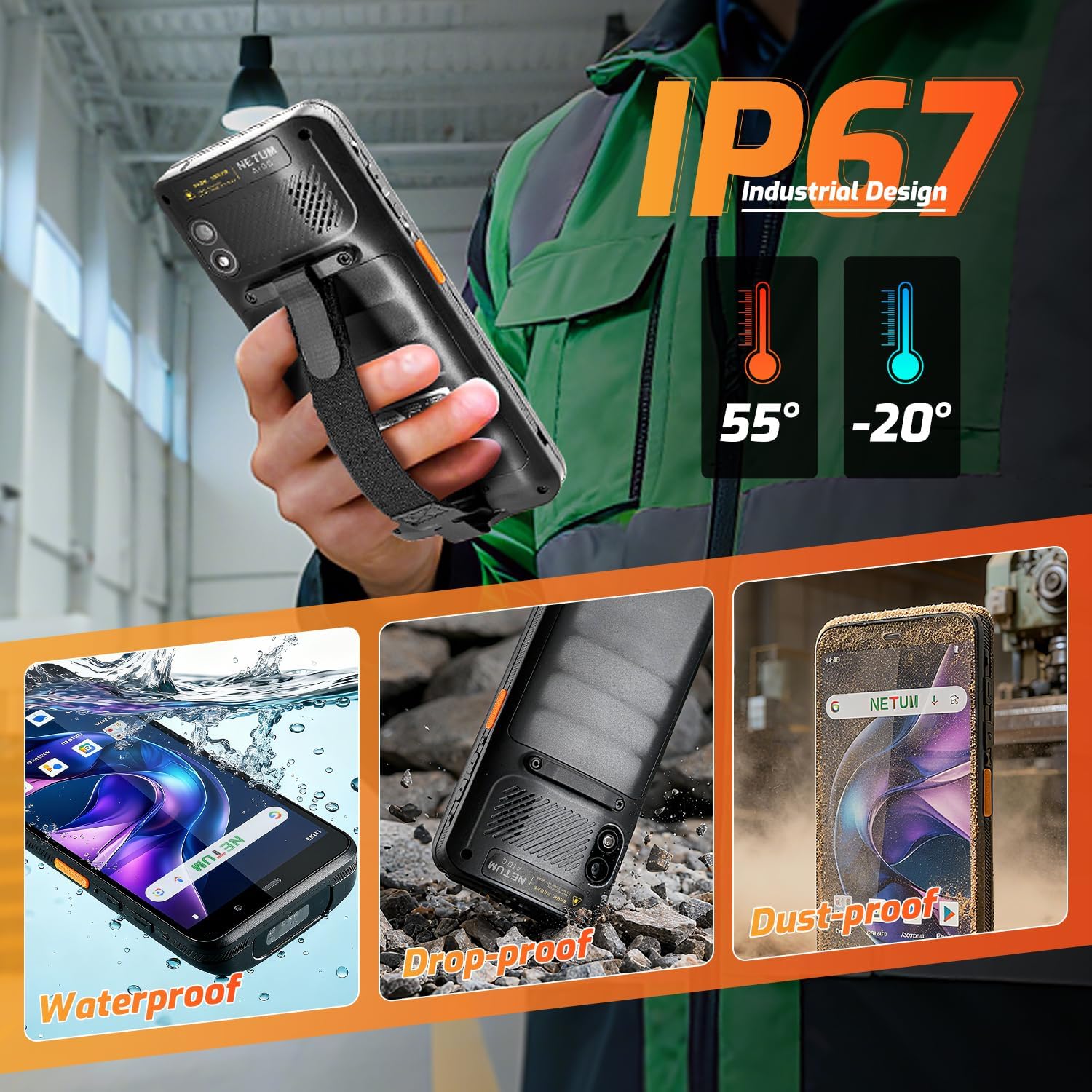
Figura 6.1: The NETUM Q900's IP67 rating ensures protection against water, dust, and drops, making it suitable for harsh environments.
7. Garanzija u Appoġġ
NETUM products are designed for reliability and performance. For warranty information, technical support, or service inquiries, please refer to the warranty card included with your product or visit the official NETUM websit.
Żomm l-irċevuta tax-xiri tiegħek bħala prova tax-xiri għal talbiet ta' garanzija.


