Introduzzjoni
This manual provides detailed instructions for the installation, operation, and maintenance of your BlackVue Elite 8-2CH Dash Cam. Please read this manual thoroughly before using the product to ensure proper functionality and to maximize your user experience. Keep this manual for future reference.
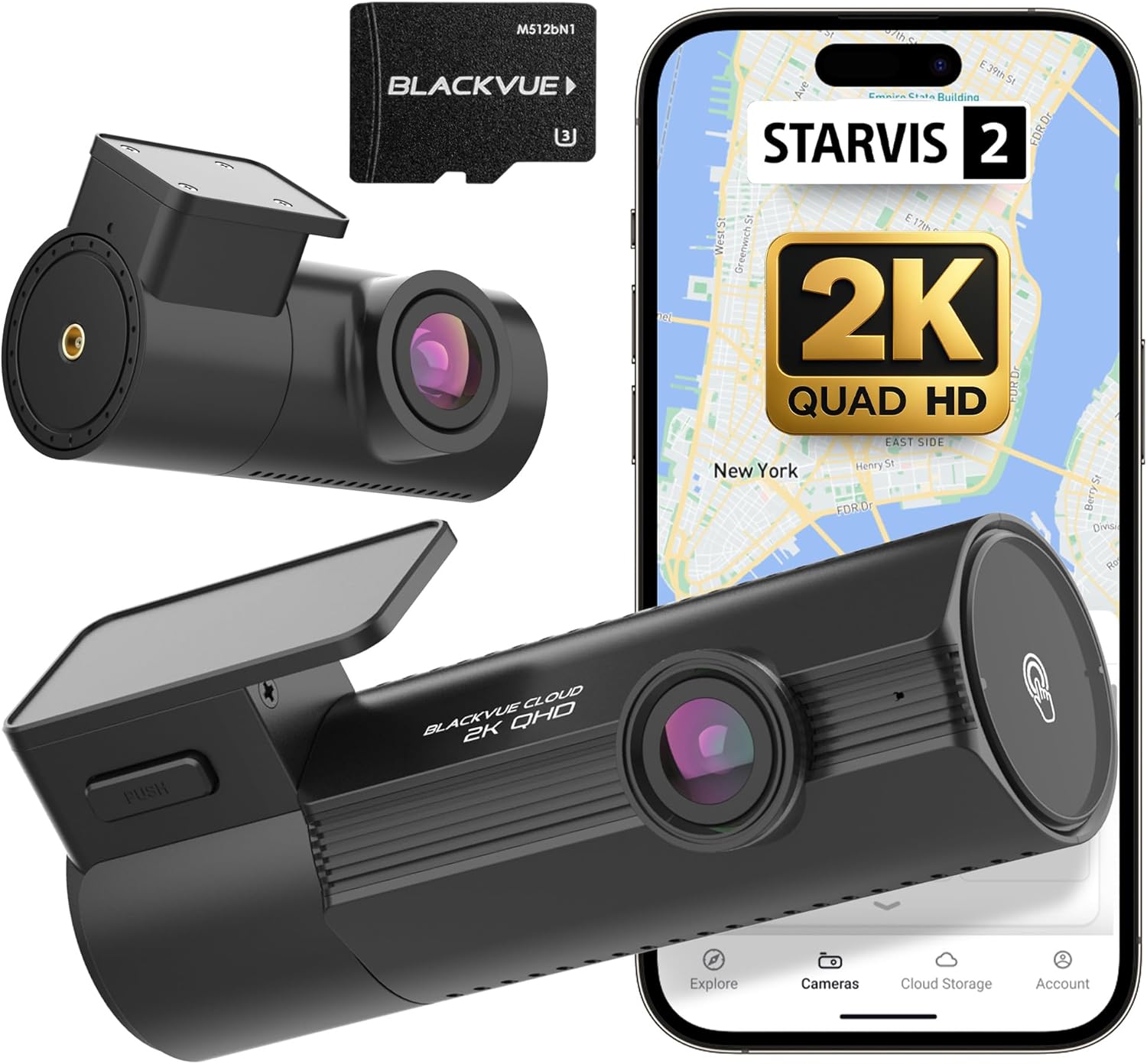
Image: The BlackVue Elite 8-2CH Dash Cam system, including the main front camera, a smaller rear camera, a BlackVue branded microSD card, and a smartphone screen displaying the BlackVue app interface with key features like STARVIS 2 and 2K QHD recording.
Prodott Overview
Karatteristiċi Ewlenin
- Dual 2K QHD Recording with STARVIS 2 sensors for enhanced clarity.
- Dual HDR for balanced brightness and contrast in varying light conditions.
- Smart Parking Surveillance with pre-event recording and Time Lapse mode.
- Power Saving Mode for extended parking surveillance.
- Integrated Wi-Fi and Cloud connectivity for remote access and footage ġestjoni.
- Built-in GPS and G-Sensor for impact and movement detection.
X'hemm fil-Kaxxa
- BlackVue Elite 8-2CH Front Dash Cam
- Kamera ta' wara
- Car Mounts (for front and rear cameras)
- Kejbil tal-Enerġija (USB-C)
- Kejbil ta 'Konnessjoni tal-Kamera ta' wara
- microSD Card (512GB)
- Clips tal-kejbil
- Għodda Pry
Setup u Installazzjoni
1. Ipprepara l-Kard tal-MicroSD
Before installation, ensure the provided microSD card is inserted into the front dash cam. If using a new card, it is recommended to format it using the BlackVue app or PC viewer għall-aħjar prestazzjoni.
2. Immonta l-Kamera ta' Quddiem
- Clean the windshield area where the camera will be mounted.
- Attach the front camera mount to the windshield, ideally behind the rearview mera biex tevita li tostakola s-sewwieq viewKun żgur li l-lenti għandha viżibilità ċara view tat-triq.
- Secure the front camera onto its mount.
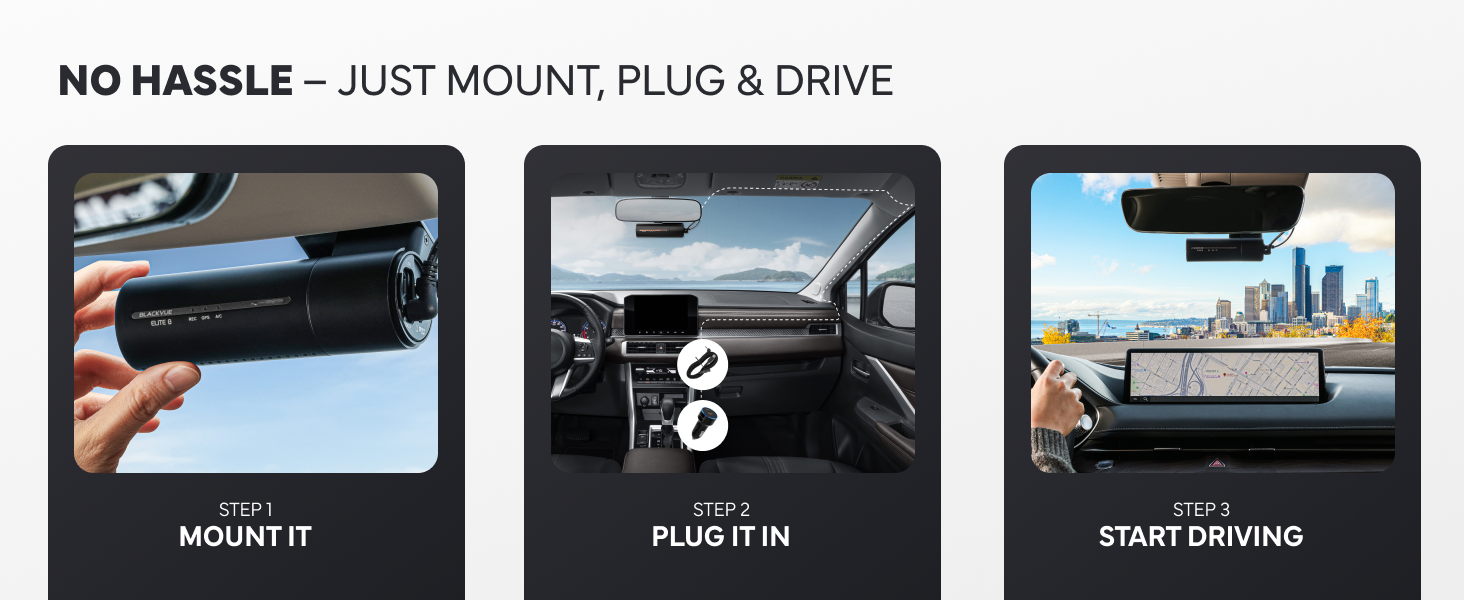
Image: A visual guide showing three steps for installing the dash cam: mounting the camera to the windshield, connecting the power cable, and starting the vehicle.
3. Installa l-Kamera ta 'wara
- Immonta l-kamera ta' wara fuq il-windskrin ta' wara, filwaqt li tiżgura viżjoni ċara. view.
- Connect the rear camera to the front camera using the provided coaxial cable.
- Route the rear camera cable along the vehicle's headliner and pillar trim to the front camera, using the pry tool to tuck the cable neatly.
4. Qabbad Qawwa
- Connect the power cable to the front dash cam.
- Plug the other end of the power cable into your vehicle's 12V power outlet (cigarette lighter socket) or a hardwiring kit (sold separately for advanced parking mode features).
- Route the power cable neatly along the windshield and dashboard edges.

Image: An illustration demonstrating the simple USB-C installation process for the dash cam, showing the camera mounted near the rearview mirror and the power cable connecting to a USB-C port in the car's console.
5. Is-Setup Inizjali u t-Tqabbil tal-App
- Turn on your vehicle's ignition. The dash cam will power on and begin recording.
- Download the BlackVue app from your smartphone's app store.
- Open the app and follow the on-screen instructions for seamless pairing with your dash cam via Wi-Fi. This typically involves connecting to the dash cam's Wi-Fi network.
- Once paired, you can adjust settings, view foo ħajtage, and download recordings.

Image: A sequence of smartphone screens illustrating the seamless app pairing process for the BlackVue dash cam, showing notifications, camera list, and real-time streaming.
Istruzzjonijiet Operattivi
Modi ta 'Reġistrazzjoni
- Reġistrazzjoni Normali: Continuous recording while the vehicle is in motion.
- Reġistrazzjoni ta' Avvenimenti: Automatically triggered by impacts or sudden movements detected by the G-Sensor. These files huma protetti milli jinkiteb mill-ġdid.
- Reġistrazzjoni manwali: Initiated by pressing a button on the dash cam, saving a protected segment of footage.
Modalità ta' Sorveljanza tal-Parkeġġ
The BlackVue Elite 8-2CH offers advanced parking surveillance to monitor your vehicle when parked. Hardwiring is required for full functionality.
- Smart Parking Mode: Detects motion and impacts, saving footage from 10 seconds before the event.
- Power Saving Parking Mode: Consumes less than 1mA in standby and records instantly upon impact, enabling multi-day monitoring.
- Buffered Parking Mode: Records continuously in a low-power state and saves footage including the moments leading up to an event (motion or impact detection).
- Modalità Time Lapse: Records one frame per second, optimizing microSD usage for extended surveillance.

Image: A graphic illustrating the 'Elite Protection 24/7' feature, depicting a car collision being recorded by the dash cam and the footage being sent to the cloud, emphasizing continuous monitoring even when away from the vehicle.

Image: A visual representation of the Power Saving Parking Mode, highlighting its benefits: ultra-low power consumption, capability for several days of protection, and high heat resistance due to a built-in super-capacitor.

Image: A diagram explaining Buffered Parking Mode, showing motion and impact detection (recording 10 seconds pre-impact) and Time Lapse recording (one frame per second for 30x playback speed).
Wi-Fi and Cloud Features
Utilize the BlackVue app to access your dash cam's features:
- Live View: Stream real-time video from both front and rear cameras.
- Video Playback and Download: Review irreġistrat footage and download important clips directly to your smartphone.
- Konfigurazzjoni tas-Settings: Adjust camera settings, recording options, and Wi-Fi preferences.
- BlackVue Cloud: With an internet connection (via a separate Wi-Fi hotspot in your vehicle or home Wi-Fi), access features like remote live view, instant impact alerts, GPS tracking, and cloud backup of event videos.
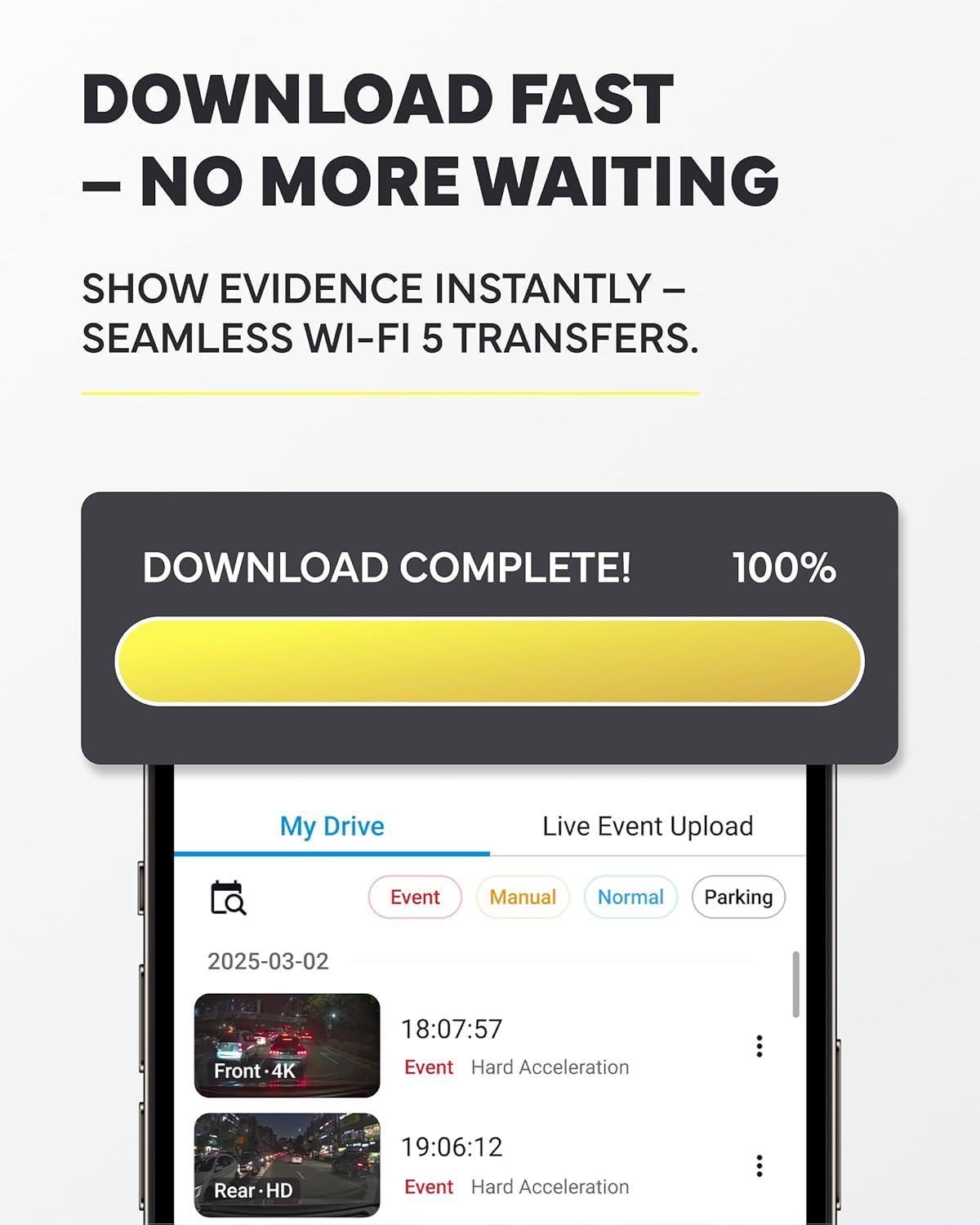
Image: A smartphone screen displaying a 'Download Complete!' notification, indicating successful transfer of dash cam footage via Wi-Fi, with a list of recorded events below.

Image: A graphic detailing BlackVue Cloud features, including the ability to watch, save, and share footage anytime, anywhere, with 1GB of free cloud storage, instant impact alerts, remote live view access, and GPS tracking via the app.
Video Quality Features
- 2K QHD with STARVIS 2: Both front and rear cameras record in 2K Quad High Definition (2560p) at 30 frames per second, utilizing Sony STARVIS 2 image sensors for superior low-light performance and clarity.
- Dual HDR: High Dynamic Range technology is applied to both cameras to ensure balanced exposure and detail in scenes with high contrast, such as bright sunlight and deep shadows.

Image: A side-by-side comparison demonstrating the effect of Dual HDR, showing a 'Before' image with blurry license plates and an 'After' image with clear, readable license plates, highlighting improved clarity day or night.

Image: A comparison illustrating the benefits of STARVIS 2 2K QHD, showing a 'Before' image with grainy, less clear night footage and an 'After' image with significantly improved clarity and detail in low-light conditions.
Manutenzjoni
Ġestjoni tal-Karta MicroSD
- Ifformattjar: Regularly format the microSD card (at least once a month) to prevent recording errors and extend its lifespan. This can be done via the BlackVue app or PC viewer.
- Sostituzzjoni: MicroSD cards have a limited lifespan. Replace the card if you experience frequent recording errors or if it fails to format. Use only high-endurance microSD cards recommended by BlackVue.
Tindif tal-Lentijiet tal-Kamera
Gently wipe the front and rear camera lenses with a soft, lint-free cloth to ensure clear video quality. Avoid using abrasive cleaners that could scratch the lens.
Aġġornamenti tal-Firmware
Periodically check for firmware updates via the BlackVue app or website. Firmware updates can improve performance, add new features, and fix bugs. Follow the instructions provided with the update carefully.
Issolvi l-problemi
Kwistjonijiet Komuni u Soluzzjonijiet
- Il-kamera ma tixgħelx: Check the power cable connection to both the dash cam and the vehicle's power outlet. Ensure the vehicle's ignition is on.
- Recording errors: Format the microSD card. If the issue persists, try a new BlackVue-recommended microSD card.
- Kwistjonijiet ta' konnessjoni Wi-Fi: Ensure the dash cam's Wi-Fi is enabled. Restart both the dash cam and your smartphone. Try re-pairing through the BlackVue app.
- Kwalità fqira tal-vidjo: Clean the camera lenses. Ensure the protective film has been removed from the lenses. Check settings in the BlackVue app to confirm desired resolution and quality.
- Il-GPS mhux qed jaħdem: Kun żgur li l-kamera tad-daxxbord għandha viżibilità ċara view of the sky. GPS signal acquisition can take a few minutes after startup.
For more detailed troubleshooting, refer to the BlackVue support websit jew ikkuntattja lis-servizz tal-konsumatur.
Speċifikazzjonijiet
| Karatteristika | Speċifikazzjoni |
|---|---|
| Dimensjonijiet tal-Prodott | 3.7 x 6.26 x 3.54 pulzieri |
| Piż tal-oġġett | 1.93 liri |
| Teknoloġija tal-Konnettività | Wi-Fi |
| Karatteristiċi Speċjali | Dual 2K QHD + STARVIS 2, Dual HDR, Power Saving Mode, Smart Parking Mode, Wi-Fi & Cloud |
| Riżoluzzjoni tal-Qbid tal-Vidjo | 2560p (2K QHD) |
| Komponenti Inklużi | Karozza Mount |
| Tip ta 'Immuntar | Mount Bracket |
| Tip ta' Memorja Flash | microSD |
| Manifattur | Pittasoft |
Garanzija u Appoġġ
Informazzjoni dwar Garanzija
For detailed warranty information, please refer to the official BlackVue webis-sit jew il-karta tal-garanzija inkluża mal-prodott tiegħek. It-termini tal-garanzija tipikament ikopru difetti fil-manifattura għal perjodu speċifikat mid-data tax-xiri.
Appoġġ għall-Klijent
If you encounter any issues not covered in this manual or require further assistance, please visit the official BlackVue support page or contact their customer service directly. Contact information can usually be found on the BlackVue websit.


