1. Introduzzjoni
This manual provides instructions for setting up, operating, and maintaining your Razer Kraken Kitty V3 Pro Wireless RGB Gaming Headset. Please read this guide thoroughly to ensure proper usage and to maximize your gaming experience.
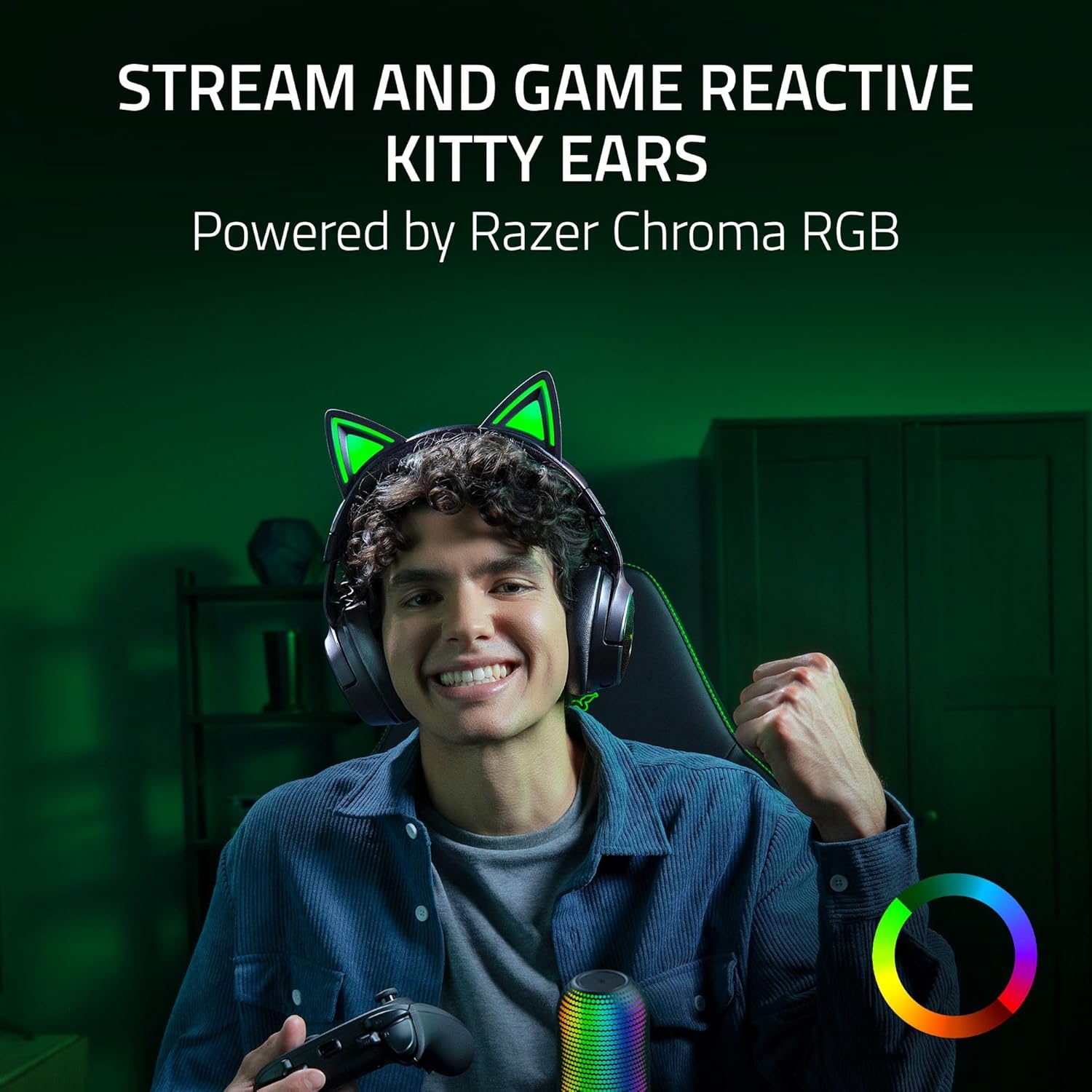
Image 1.1: The Razer Kraken Kitty V3 Pro Wireless RGB Gaming Headset.
2. X'hemm fil-Kaxxa
- Razer Kraken Kitty V3 Pro Gaming Headset
- USB Type C Razer HyperSpeed Wireless Dongle
- Cable USB tat-Tip A għal Tip Ċ
- Kejbil tal-adapter USB tat-Tip A għal Tip C
- Manwal għall-Utent
3. Prodott Aktarview
The Razer Kraken Kitty V3 Pro is a versatile gaming headset designed for immersive audio and clear communication. Key features include:
- Reactive Chroma RGB Kitty Ears: Customizable lighting effects that react to in-game events.
- Three Modes of Connectivity: Razer HyperSpeed Wireless (2.4 GHz), Bluetooth 5.3, and USB Wired.
- Retractable Razer HyperClear Super Wideband Microphone: For high-definition voice quality.
- Sewwieqa Razer TriForce Titanium 40mm: Delivering clear highs, rich mids, and powerful bass.
- THX Awdjo Spazjali: Advanced 7.1 surround sound for realistic positional audio.
- Protein Leatherette with Memory Foam Ear Cushions: Iddisinjat għall-kumdità u l-iżolazzjoni tal-ħoss.

Stampa 3.1: Quddiem view tal-wirja tal-headsetasing the reactive RGB kitty ears.

Immaġni 3.2: Ġenb view of the headset, highlighting the retractable microphone.
4. Setup
4.1 Iċċarġjar tal-Headset
Before first use, fully charge the headset using the provided USB Type A to Type C cable and adapter. Connect the USB-C end to the headset's charging port and the USB-A end to a powered USB port. The LED indicator will show charging status.
4.2 Connecting via Razer HyperSpeed Wireless (2.4 GHz)
- Insert the USB Type C Razer HyperSpeed Wireless Dongle into a compatible USB-C port on your PC, Mac, PlayStation, or Nintendo Switch. Use the USB Type A to Type C adapter cable if a USB-A port is required.
- Power on your headset. It will automatically connect to the dongle.
- Kun żgur li l-headset huwa magħżul bħala l-apparat tal-output u tad-dħul tal-awdjo fis-settings tas-sistema tiegħek.
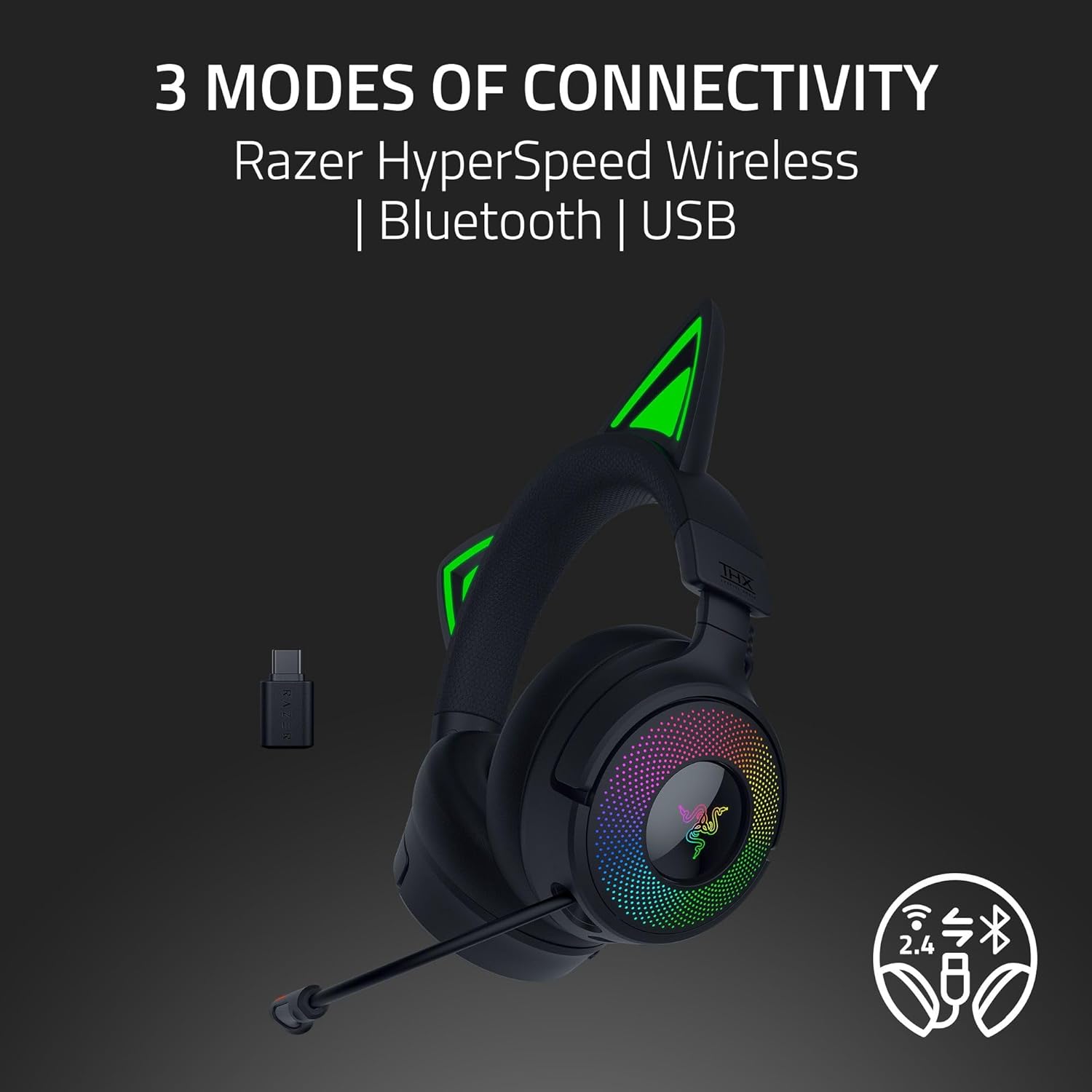
Image 4.1: The headset illustrating its three connectivity options.
4.3 Konnessjoni permezz tal-Bluetooth 5.3
- With the headset powered on, press and hold the Bluetooth button until the LED indicator blinks, indicating pairing mode.
- On your device (smartphone, PC, etc.), enable Bluetooth and select "Razer Kraken Kitty V3 Pro" from the list of available devices.
- L-indikatur LED jixgħel b'mod solidu meta jkun imqabbad.
4.4 Connecting via USB Wired
Connect the headset directly to your device using the USB Type A to Type C cable. This mode provides power and audio without requiring wireless connectivity.
4.5 Installazzjoni tas-Softwer (Razer Synapse)
For full customization of Chroma RGB lighting, THX Spatial Audio, and other advanced settings, download and install the Razer Synapse software from the official Razer website. This software allows for personalized audio profiles u l-effetti tad-dawl.
5. Istruzzjonijiet Operattivi
5.1 Tixgħel/Jitfi
Press and hold the power button on the headset for a few seconds to turn it on or off. An audible cue and LED indicator will confirm the status.
5.2 Aġġustament tal-Volum
Use the volume wheel located on the earcup to adjust the audio output level. Rotate up to increase volume, down to decrease.
5.3 Użu tal-Mikrofonu
The Razer HyperClear Super Wideband Microphone is retractable. Pull it out when needed for communication and push it back into the earcup when not in use. A dedicated mute button on the microphone allows for quick muting/unmuting.

Image 5.1: The retractable microphone in extended position.
5.4 Chroma RGB Customization
Utilize the Razer Synapse software to customize the 16.8 million colors and various lighting effects for the kitty ears and earcup lighting. You can sync these effects with compatible games and devices.
Awdjo Spazjali THX 5.5
Activate THX Spatial Audio through the Razer Synapse software to experience enhanced 7.1 surround sound. Custom-tuned THX Game Profiles are available for select titles to provide realistic positional audio.

Image 5.2: Visual representation of THX Spatial Audio technology.
5.6 Game/Chat Balance
Adjust the balance between game audio and chat audio using the dedicated controls on the headset or through the Razer Synapse software to ensure clear communication without sacrificing game immersion.
6. Manutenzjoni
6.1 Tindif
Gently wipe the headset with a soft, dry cloth. Avoid using harsh chemicals or abrasive materials. For ear cushions, follow specific cleaning instructions provided by Razer or use a damp cloth with mild soap if necessary, ensuring they are completely dry before use.
6.2 Kura tal-Batterija
To prolong battery life, avoid fully discharging the headset frequently. Store the headset in a cool, dry place when not in use. If storing for an extended period, charge the battery to approximately 50%.
7 Issolvi l-problemi
- L-ebda Problemi bl-Awdjo/Mikrofonu: Ensure the headset is properly connected (wireless dongle, Bluetooth, or USB cable). Check system audio settings to confirm the headset is selected as the default input/output device. Verify microphone is not muted.
- Problemi ta' Konnettività: For wireless connections, ensure the dongle is securely plugged in and within range. For Bluetooth, try re-pairing the device. Update drivers and Razer Synapse software to the latest version.
- Dawl RGB Mhux Taħdim: Check Razer Synapse software for lighting settings and ensure the headset firmware is up to date.
- Kwistjonijiet ta' Kumdità: The protein leatherette with memory foam ear cushions are designed for comfort. If discomfort occurs, adjust the headband or take short breaks during extended use.
Għal aktar assistenza, żur is-sit uffiċjali tal-appoġġ ta' Razer websit jew ikkuntattja lis-servizz tal-konsumatur.
8. Speċifikazzjonijiet
| Karatteristika | Speċifikazzjoni |
|---|---|
| Isem tal-Mudell | Razer Kraken Kitty V3 Pro Wireless RGB Gaming Headset |
| Teknoloġija tal-Konnettività | Bluetooth 5.3, Wired USB A, 2.4Ghz Wireless |
| Daqs tas-Sewwieq tal-Awdjo | 40 Millimeters (Razer TriForce Titanium) |
| Mikrofonu | Retractable Razer HyperClear Super Wideband Mic |
| Awdjo Spazjali | THX Spatial Audio (Ħoss Surround 7.1) |
| Kuxxini tal-widnejn | Protein Leatherette with Memory Foam |
| Kontroll tal-Ħoss | Kanċellazzjoni tal-Istorbju Passiv |
| Batterija | 1 batterija tal-jone tal-litju (inkluża) |
| Piż tal-oġġett | 0.89 Kilogrammi (1.96 libbra) |
| Apparati Kompatibbli | Desktops, Laptops, Nintendo Switch, PlayStation, Xbox |
9. Vidjo Uffiċjali tal-Prodott
Video 9.1: Official product trailer for the Razer Kraken Kitty V3 Pro, showcasinil-karatteristiċi u d-disinn tiegħu.
10. Garanzija u Appoġġ
Razer products come with a limited warranty. For detailed warranty information, product registration, and technical support, please visit the official Razer websit fuq www.razer.com. You can also find FAQs and troubleshooting guides online.