Introduzzjoni
Grazzi tax-xiriasing the Matbip Multi-Platform Wireless Gaming Controller. This controller is designed to enhance your gaming experience across various platforms, including Nintendo Switch, Android, iOS, and PC. It features advanced functions such as TURBO burst, macro programming, customizable RGB lighting, and HD vibration, providing precise control and immersive feedback. Please read this manual carefully before use to ensure proper operation and to fully utilize all features.
Prodott Overview
Familiarize yourself with the various components and buttons of your Matbip controller.
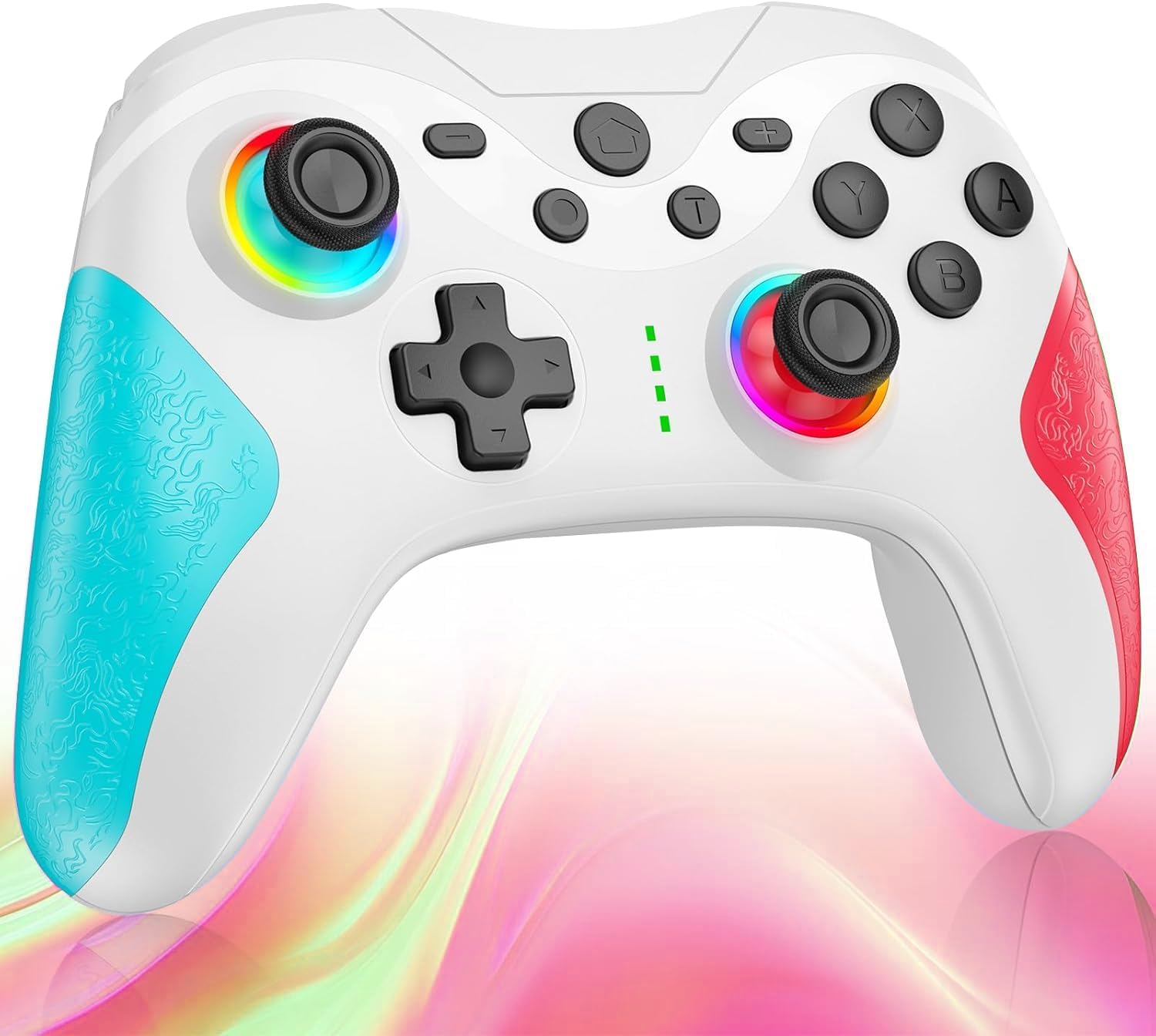
Immaġni: Quddiem view of the Matbip Multi-Platform Wireless Gaming Controller. It features a white body with blue textured grips on the left and red textured grips on the right. The joysticks are illuminated with a rainbow RGB light. Standard buttons (A, B, X, Y), a D-pad, and central function buttons (Home, Plus, Minus, T) are visible.
Komponenti Ewlenin:
- Joysticks tax-Xellug/Lemin: For directional control, with customizable RGB lighting.
- D-Pad: Għal input direzzjonali preċiż.
- Buttuni ta' Azzjoni (A/B/X/Y): Buttuni standard tal-input tal-logħob.
- Shoulder Buttons (L/R/ZL/ZR): Top-mounted trigger and bumper buttons.
- Buttuni ta' wara: Additional programmable buttons on the rear for strategic gameplay.
- Buttuna tad-dar: Jirritorna għall-iskrin ewlieni tas-sistema.
- Buttuni Plus (+) / Inqas (-): System-specific function buttons.
- T Button (TURBO): Activates and manages the TURBO burst function.
- Port tal-Iċċarġjar: Port USB-C għall-iċċarġjar.
- Dwal indikaturi: Uri l-istatus tal-konnessjoni u l-livell tal-batterija.
Setup
1. Iċċarġjar tal-Kontrollur
Before first use, fully charge the controller. Connect the provided USB-C cable to the controller's charging port and the other end to a USB power source (e.g., console, PC, or USB wall adapter). The indicator lights will show charging status and turn off when fully charged.
2. Tqabbil ma 'Apparat
The controller supports Bluetooth wireless connection across multiple platforms.
Għas-Swiċċ tan-Nintendo:
- On the Switch HOME Menu, select Kontrolluri > Ibdel il-Maqbad/Ordni.
- Agħfas u żomm il- Buttuna tad-dar on the Matbip controller for 3-5 seconds until the indicator lights flash rapidly.
- Once paired, the indicator light(s) on the controller will remain solid.
For Android/iOS Devices:
- Ippermetti Bluetooth fuq it-tagħmir Android jew iOS tiegħek.
- Agħfas u żomm il- Buttuna tad-dar on the Matbip controller for 3-5 seconds until the indicator lights flash rapidly.
- On your device's Bluetooth settings, select the controller (e.g., "Matbip Controller") from the list of available devices to pair.
Għall-PC (Windows):
- Ensure your PC has Bluetooth enabled. Go to Settings > Apparati > Bluetooth u apparat ieħor.
- Ikklikkja Żid Bluetooth jew apparat ieħor > Bluetooth.
- Agħfas u żomm il- Buttuna tad-dar on the Matbip controller for 3-5 seconds until the indicator lights flash rapidly.
- Select the controller from the list of devices to pair.
Istruzzjonijiet Operattivi
TURBO Burst Function:
The TURBO function allows for rapid, automatic button presses, ideal for combat games.
- Biex tattiva t-TURBO: Agħfas u żomm il- buttuna T, then press the desired action button (e.g., A, B, X, Y, L, R, ZL, ZR). The button will now continuously activate when held down.
- Biex taġġusta l-veloċità TURBO: Waqt li żżomm il- buttuna T, iċċaqlaq il- right joystick up or down to cycle through 3 different burst speeds.
- Biex tiddiżattiva t-TURBO: Agħfas u żomm il- buttuna T, imbagħad agħfas l-istess buttuna ta' azzjoni mill-ġdid.
Makro Funzjoni:
Program a sequence of button presses to a single back button for complex actions.
- Specific instructions for macro programming will be detailed in the full manual. Generally, this involves entering a programming mode, pressing the sequence, and assigning it to a back button.
Dawl RGB personalizzabbli:
The joysticks feature 9-color RGB lighting to enhance your gaming atmosphere.
- To change RGB color/mode: Press a specific button combination (e.g., T + Left Joystick click) to cycle through different colors and lighting effects.
HD Vibration Adjustment:
Adjust the intensity of the HD vibration feedback to your preference (4 levels).
- To adjust vibration: Press a specific button combination (e.g., T + D-Pad Up/Down) to cycle through the 4 vibration levels.
Sensor tal-ġiroskopji:
The high-precision gyro sensor enables intuitive motion control in supported games.
- The gyro sensor is automatically active when connected to a compatible device (e.g., Nintendo Switch) and used in games that support motion controls.
Sleep Wake-up Function:
The controller supports waking up your Nintendo Switch console from sleep mode.
- When the Switch is in sleep mode, simply press the Buttuna tad-dar on the controller to wake it up and reconnect.
Manutenzjoni
Manutenzjoni xierqa tiżgura l-lonġevità u l-prestazzjoni ottimali tal-kontrollur tiegħek.
- Tindif: Uża drapp artab u niexef biex timsaħ il-kontrollur. Għal ħmieġ iebes, nixxef ftit.ampLaħlaħ id-drapp bl-ilma. Tużax kimiċi ħarxa jew prodotti tat-tindif li joborxu.
- Ħażna: Aħżen il-kontrollur f'post frisk u niexef 'il bogħod mix-xemx diretta, temperaturi estremi, u umdità.
- Kura tal-batterija: Avoid fully discharging the battery frequently. If storing for a long period, charge the controller to about 50% every few months.
- Evita Qtar: Ipproteġi l-kontrollur minn waqgħat u impatti, li jistgħu jagħmlu ħsara lill-komponenti interni.
Issolvi l-problemi
If you encounter issues with your controller, please refer to the following common solutions:
| Problema | Soluzzjoni Possibbli |
|---|---|
| Il-kontrollur ma jixgħelx. | Kun żgur li l-kontrollur huwa ċċarġjat. Qabbad ma' sors ta' enerġija billi tuża l-kejbil USB-C. |
| Controller does not pair. | Ensure Bluetooth is enabled on your device. Make sure the controller is in pairing mode (flashing lights). Try restarting both the controller and the device. |
| Dewmien jew skonnessjoni fl-input. | Ensure there are no strong wireless interferences nearby. Move closer to the device. Re-pair the controller. |
| Il-buttuni jew il-joysticks ma jirrispondux. | Try resetting the controller (refer to the full manual for reset instructions, usually a small pinhole button). Ensure no debris is obstructing the buttons. |
| Il-vibrazzjoni ma taħdimx. | Check if vibration is enabled in the game or system settings. Adjust the vibration intensity on the controller. |
Speċifikazzjonijiet
| Karatteristika | Dettall |
|---|---|
| Dimensjonijiet tal-Prodott | 10 x 15 x 6.5 ċm |
| Piż | 300 g |
| Konnettività | Bluetooth Wireless |
| Kompatibilità | Nintendo Switch, Android, iOS, PC (Windows) |
| Karatteristiċi Speċjali | TURBO Burst, Macro Function, 9-Color RGB Lighting, 4-Level HD Vibration, Gyro Sensor, Back Buttons, Sleep Wake-up |
| ASIN | B0FHWRK7CQ |
| Data ta' Rilaxx | 16 ta’ Lulju, 2025 |
Garanzija u Appoġġ
Matbip is committed to providing high-quality products and customer satisfaction. This product comes with a standard manufacturer's warranty. For detailed warranty information, please refer to the documentation included with your purchase or contact Matbip customer support.
If you require further assistance, have questions, or encounter issues not covered in this manual, please contact our customer support team. A Japanese instruction manual is included with the product to ensure ease of use for first-time users.
Informazzjoni ta' Kuntatt: Please refer to the packaging or the official Matbip webis-sit għad-dettalji ta' kuntatt tal-appoġġ għall-klijenti l-aktar aġġornati.


