1. Introduzzjoni
This manual provides essential information for the safe and efficient use of your Lenovo Idea Tab ZAFR0925US. Please read this manual thoroughly before operating your device and retain it for future reference. The Lenovo Idea Tab is designed to enhance productivity and entertainment with its advanced features and intuitive interface.

Figure 1: Lenovo Idea Tab ZAFR0925US with its included stylus and folio case, showcasinid-displej.
2. X'hemm fil-Kaxxa
Carefully unpack your Lenovo Idea Tab and ensure all items are present:
- Lenovo Idea Tab Tablet
- Quick Start Guide & Safety Information
- Informazzjoni dwar Garanzija
- MicroSD Card Tray Ejection Pin
- Kejbil tal-Iċċarġjar USB-C 2.0
- Pinna tat-Tab Lenovo
- Kawża Foljo

Figure 2: Illustration of the items included in the Lenovo Idea Tab ZAFR0925US package, including the tablet, pen, and folio case.
3. Setup
3.1 Qawwa Inizjali
- Press and hold the power button located on the side of the tablet until the Lenovo logo appears.
- Segwi l-istruzzjonijiet fuq l-iskrin biex tagħżel il-lingwa tiegħek, tikkonnettja ma' netwerk Wi-Fi, u tissettja l-kont Google tiegħek.
3.2 Iċċarġjar tat-Tablet
Connect the provided USB-C charging cable to the tablet's USB-C port and the other end to a compatible power adapter. The battery indicator will show charging status. For optimal performance, fully charge the tablet before first use.
3.3 Daħħal Karta MicroSD
- Sib l-islott tal-kard MicroSD fuq il-ġenb tat-tablet.
- Insert the provided ejection pin into the small hole next to the slot to open the tray.
- Place the MicroSD card onto the tray with the gold contacts facing down.
- Imbotta t-trej bil-mod lura fl-islott sakemm tikklikkja f'postu.
4. Istruzzjonijiet Operattivi
4.1 Wiri u Awdjo
The 11-inch 2.5K IPS touchscreen display offers sharp visuals with a 90Hz refresh rate for smooth interaction. Quad Dolby Atmos-tuned speakers provide rich audio for an immersive experience.

Figure 3: The Lenovo Idea Tab ZAFR0925US display, highlighting its sharp visuals and Dolby Atmos audio capabilities.
4.2 Prestazzjoni u Multitasking
Powered by the MediaTek Dimensity 6300 processor, the tablet supports smooth multitasking and efficient operation.

Figure 4: The Lenovo Idea Tab ZAFR0925US in action, illustrating its smooth performance powered by the MediaTek D6300 processor.
4.3 Lenovo Tab Pen and AI Features
The included Lenovo Tab Pen allows for precise input. Utilize features like Circle to Search with Google for instant information retrieval and translation, and Lenovo AI Notes for enhanced note-taking, rephrasing, and content summarization.

Figure 5: The Lenovo Idea Tab ZAFR0925US showing the 'Circle to Search with Google' feature, allowing users to search or translate content directly on screen.

Figure 6: The Lenovo Idea Tab ZAFR0925US displaying the Lenovo AI Note application, emphasizing its utility with the Lenovo Tab Pen for organizing and sketching ideas.
4.4 Ħajja tal-batterija
The tablet offers up to 12 hours of video playback. The 20W charger ensures quick recharging when needed.

Figure 7: The Lenovo Idea Tab ZAFR0925US shown with a visual representation of its extended battery life, suitable for all-day use.
4.5 Smart Connect
Embrace a unified digital ecosystem with Smart Connect, allowing effortless task transitions across devices without cables or email attachments.
5. Manutenzjoni
5.1 Tindif tal-Apparat
Use a soft, lint-free cloth to clean the screen and body of the tablet. Avoid using harsh chemicals or abrasive materials that could damage the surfaces.
5.2 Kura tal-Batterija
To prolong battery life, avoid exposing the tablet to extreme temperatures. It is recommended to keep the battery charge between 20% and 80% for long-term health.
5.3 Aġġornamenti tas-Software
Iċċekkja u installa aġġornamenti tas-sistema regolarment biex tiżgura li t-tablet tiegħek ikollu l-aħħar karatteristiċi, irqajja tas-sigurtà, u titjib fil-prestazzjoni.
6 Issolvi l-problemi
6.1 L-Apparat Mhux Qed Jixgħel
Ensure the tablet is sufficiently charged. Connect it to the charger and wait a few minutes before attempting to power it on again. If the issue persists, perform a force restart by holding the power button for 10-15 seconds.
6.2 L-iskrin tat-touchscreen ma jirrispondix
If the touchscreen is unresponsive, try restarting the device. If the problem continues, ensure the screen is clean and free of debris. If necessary, perform a factory reset (note: this will erase all data).
6.3 Kwistjonijiet ta' Konnettività tal-Wi-Fi
Check if other devices can connect to the same Wi-Fi network. Restart your router and the tablet. If the issue persists, forget the network on your tablet and reconnect.
7. Speċifikazzjonijiet
| Karatteristika | Speċifikazzjoni |
|---|---|
| Numru tal-Mudell | ZAFR0925US |
| Daqs tal-Iskrin | 11 Pulzier |
| Riżoluzzjoni tal-Iskrin | 2560 x 1600 pixels (2.5K) |
| Proċessur | MediaTek Dimensity 6300 (2.4 GHz) |
| Memorja (RAM) | 4 GB |
| Ħażna | 128 GB |
| Karta Grafika | Integrated Arm Mali-G57 MC2 |
| Sistema Operattiva | Android 15 |
| Tip bla fili | 802.11ax |
| Ħajja Medja tal-Batterija | 12 Sigħat |
| Piż tal-oġġett | 1.05 liri |
| Dimensjonijiet tal-Prodott | 6.54 x 10.02 x 0.28 pulzieri |
| Kulur | Luna Gray |
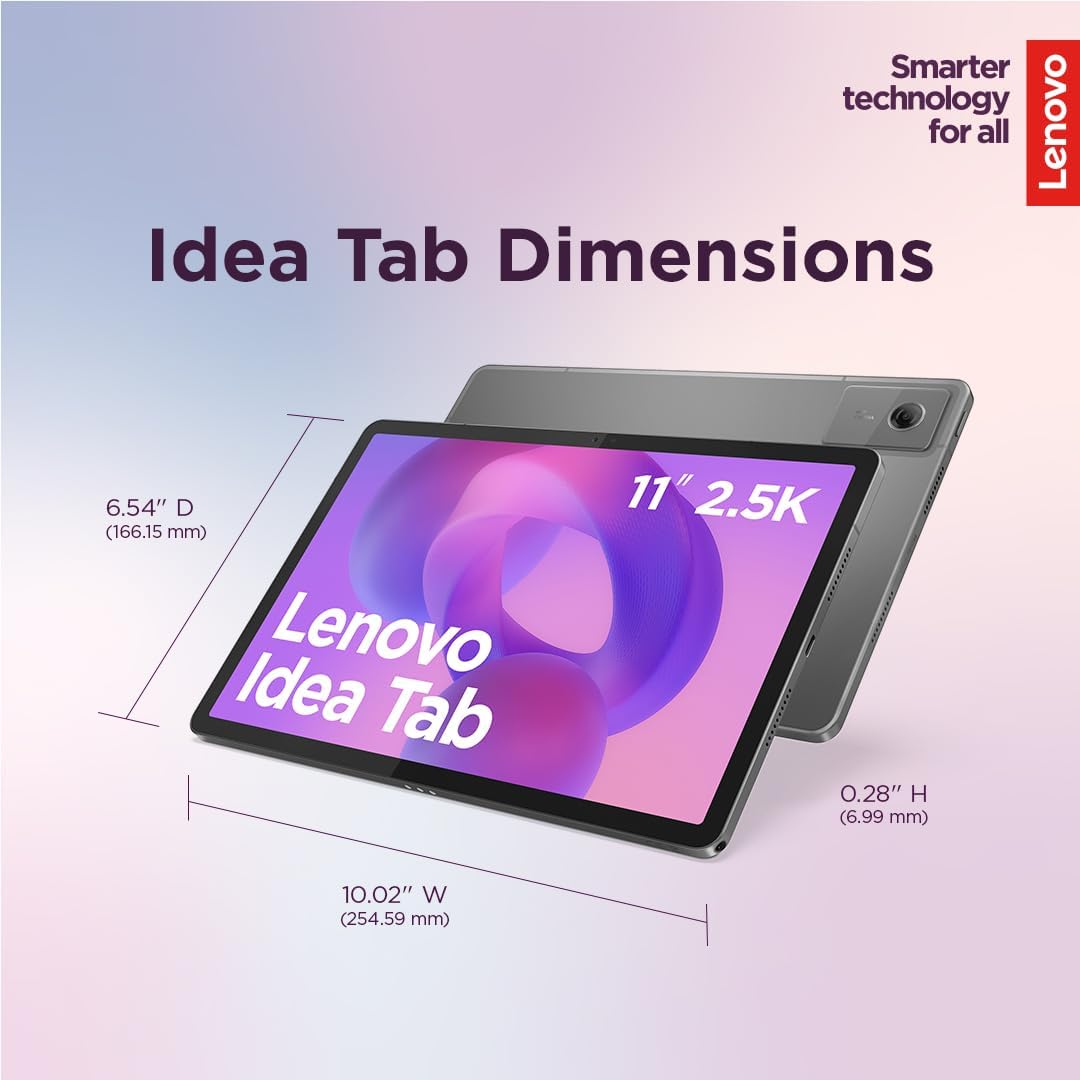
Figura 8: Dimensjonali 'l fuqview of the Lenovo Idea Tab ZAFR0925US, showing its width, depth, and height.
8. Garanzija u Appoġġ
Your Lenovo Idea Tab ZAFR0925US comes with a manufacturer's warranty. Please refer to the specific warranty documentation included in your product packaging for details on coverage, terms, and conditions.
For technical support, service, or additional information, please consult the official Lenovo support website or the contact information provided in the documentation that came with your device.


