1. Introduzzjoni
Thank you for choosing the KTC 27 Inch 4K Gaming Monitor H27P6. This manual provides essential information for setting up, operating, and maintaining your monitor. Please read this manual thoroughly before use to ensure proper functionality and to prevent damage.
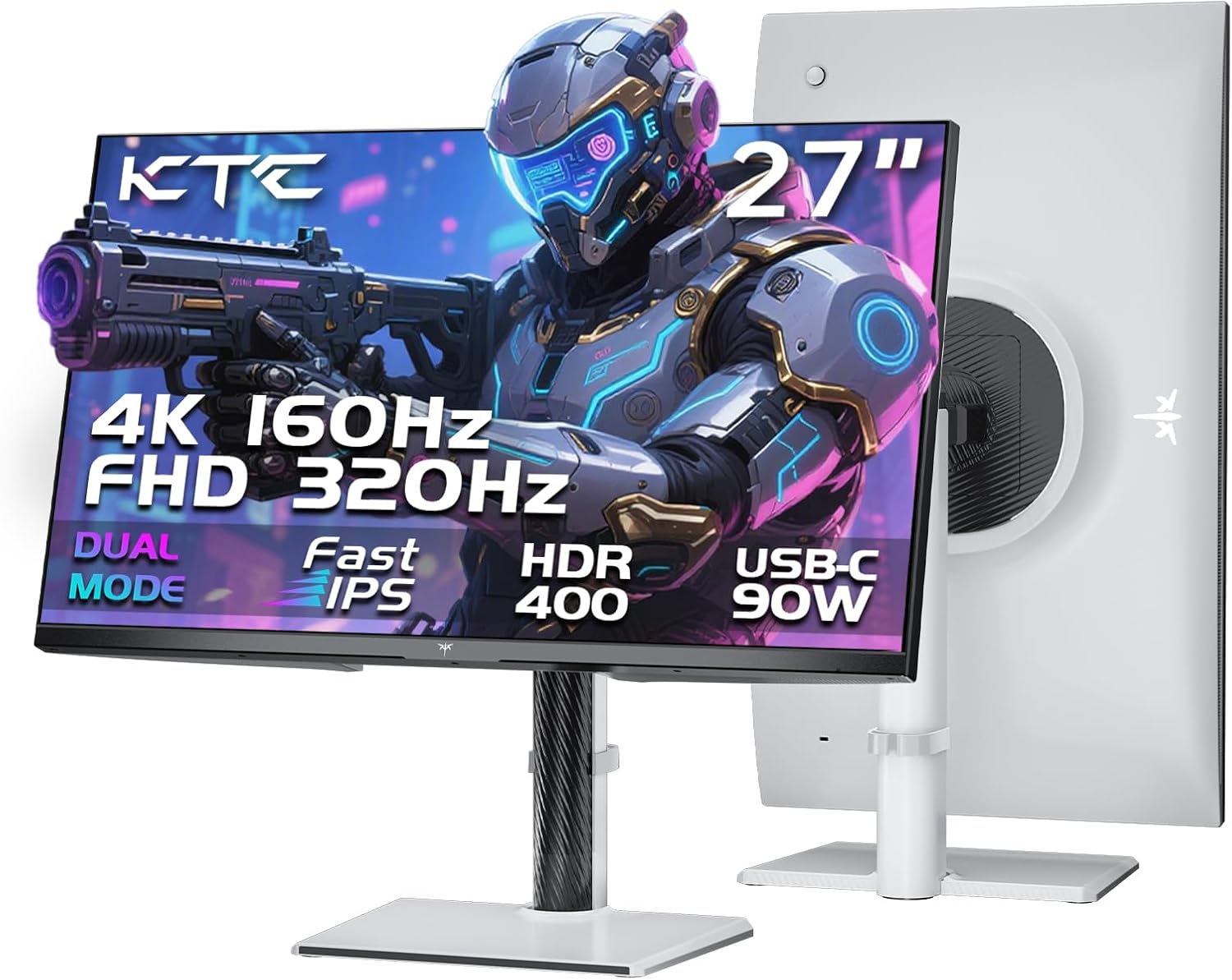
Immaġni 1.1: Minn quddiem u minn wara view of the KTC 27 Inch 4K Gaming Monitor H27P6.
2. Informazzjoni dwar is-Sigurtà
- Tesponix il-monitor għax-xita jew għall-umdità biex tevita perikli ta' nar jew xokk elettriku.
- Tiftaħx il-monitor casing. Ġewwa m'hemm l-ebda partijiet li jistgħu jiġu rranġati mill-utent. Irreferi għal kull manutenzjoni f'idejn persunal kwalifikat.
- Poġġi l-monitor fuq wiċċ stabbli u ċatt.
- Aċċerta ruħek li jkun hemm ventilazzjoni xierqa madwar il-monitor. Timblokkax il-fetħiet tal-ventilazzjoni.
- Uża biss l-adapter tal-enerġija u l-kejbils ipprovduti mill-manifattur.
- Unplug the monitor from the power outlet during lightning storms or when unused for extended periods.
3. Kontenut tal-Pakkett
Ivverifika li l-oġġetti kollha huma preżenti fil-pakkett:
- 27" Dual Mode Monitor (1 unit)
- Monitor Stand (1 unit)
- Quick Start Guide (QSG) (1 unit)
- DP Cable (1 unit)
- Adapter (unità 1)
- Korda tal-Enerġija (unità 1)
4. Assemblaġġ u Setup
4.1. Monitor Stand Assembly
Follow the instructions in the Quick Start Guide to attach the monitor stand to the display panel. Ensure all screws are securely fastened.
4.2. Immuntar VESA
The monitor supports 100x100mm VESA mounting for alternative mounting solutions (e.g., wall mounts, monitor arms). Remove the stand before attaching a VESA-compatible mount.
4.3. Aġġustamenti Ergonomiċi
L-istand tal-monitor jippermetti diversi aġġustamenti biex jottimizza viewkumdità:
- Aġġustament Għoli: Aġġusta l-għoli tal-monitor sa 130mm.
- Pivot: Rotate the screen 90° (portrait mode).
- Dawwar: Dawwar l-iskrin orizzontalment b'±45°.
- Mejjel: Aġġusta l-angolu tal-iskrin minn -5° sa 20°.

Image 4.1: Multi-angle adjustment capabilities and VESA mounting points.
4.4. Kejbils tal-Konnessjoni
Connect the necessary cables to the monitor and your computer or other devices. Ensure the monitor is powered off before connecting or disconnecting cables.
- Qawwa: Qabbad l-adapter tal-enerġija mad-dħul tad-DC tal-monitor u mbagħad ma' sokit tal-enerġija.
- DisplayPort (DP 1.4): For high refresh rate and resolution, connect the provided DP cable to the monitor's DP port and your graphics card's DP port.
- HDMI (HDMI 2.1): Connect an HDMI cable to one of the monitor's HDMI 2.1 ports and your device's HDMI port.
- USB Type-C (90W PD 3.1): Connect a USB-C cable for video, data transfer, and up to 90W power delivery to compatible laptops.
- Hub USB 3.0: Connect the USB-B (upstream) cable from the monitor to your computer to enable the monitor's USB 3.0 (downstream) ports.
- Earphone: Connect headphones or external speakers to the earphone jack.

Immaġni 4.2: Fuqview of the monitor's various input and output interfaces.
5. Istruzzjonijiet Operattivi
5.1. Mixgħul/Itfi u Navigazzjoni OSD
The monitor features a single joystick control located on the back for power and On-Screen Display (OSD) navigation. Push the joystick in to power on/off the monitor. Move the joystick up, down, left, or right to navigate the OSD menu and adjust settings.
5.2. Swiċċjar tal-Modalità Doppja
The monitor supports dual display modes:
- 4K UHD (3840x2160) at 160Hz: Provides high resolution for detailed visuals.
- FHD (1920x1080) at 320Hz: Offers a higher refresh rate for competitive gaming.
Switch between these modes via the monitor's OSD settings or your graphics card control panel.

Image 5.1: Visual representation of the monitor's dual mode display capabilities.
5.3. Adaptive-Sync Technology
Adaptive-Sync technology synchronizes the monitor's refresh rate with your graphics card's frame rate, reducing screen tearing and stuttering for smoother gameplay. Enable this feature in the monitor's OSD and your graphics card settings.
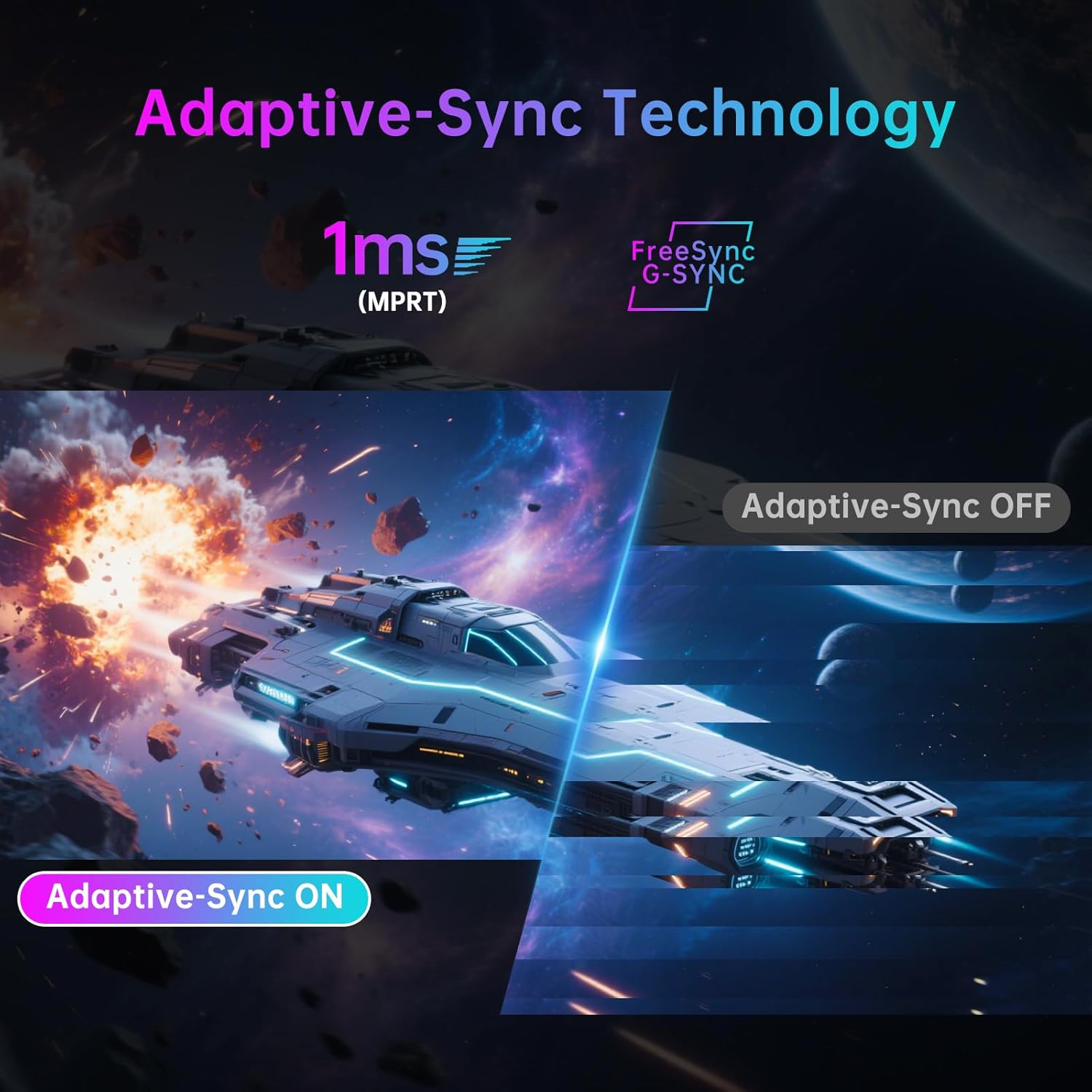
Image 5.2: Demonstration of Adaptive-Sync technology reducing screen tearing.
5.4. Display and Color Settings
The monitor features a Fast IPS panel and supports HDR400, providing accurate colors and contrast.
- Preċiżjoni tal-Kulur: Factory-calibrated with ΔE<2 for 97% DCI-P3 and 99% sRGB coverage.
- HDR400: Enhances contrast and color depth in compatible content.
- Luminożità: 400 cd/m² (tipiku).
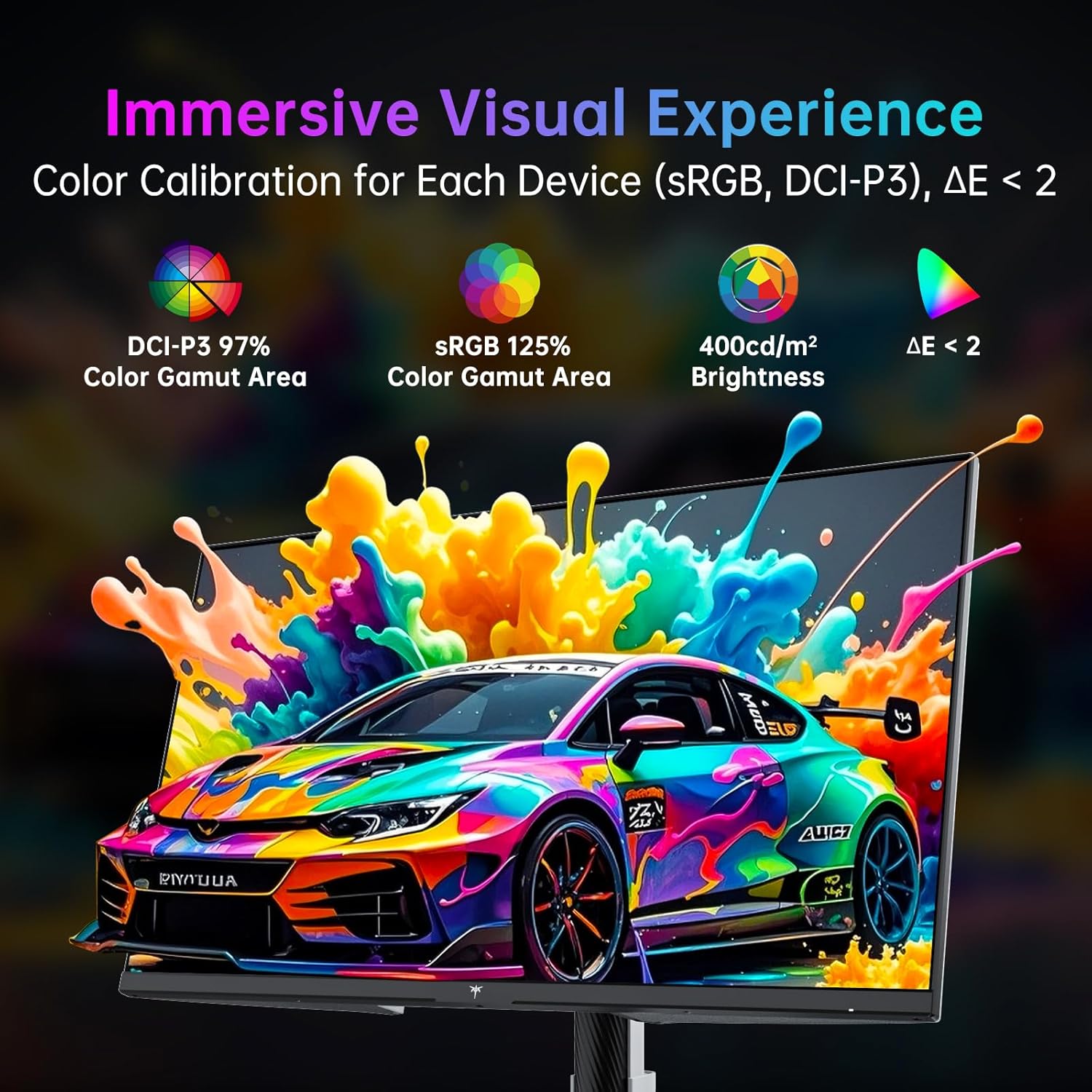
Image 5.3: Details on color calibration and display specifications.

Image 5.4: Visual difference with HDR400 enabled.
5.5. Game Plus Features
Access various gaming-specific features through the OSD:
- Timer: Tajmer fuq l-iskrin biex isegwi l-avvenimenti fil-logħba.
- Crosshair: Customizable on-screen crosshairs for improved aiming.
- FPS Counter: Displays the current frames per second.

Image 5.5: Game Plus features for enhanced gaming experience.
5.6. KVM Support
The monitor includes KVM (Keyboard, Video, Mouse) switch functionality, allowing you to control multiple computers with a single set of keyboard and mouse connected to the monitor's USB ports. Switch between connected computers via the OSD.
5.7. Low Blue Light Mode
Activate the Low Blue Light mode in the OSD to reduce blue light emissions, which can help minimize eye strain during prolonged use.

Image 5.6: Visual explanation of hardware low blue light technology.
6. Manutenzjoni
6.1. Tindif tal-Monitor
- Dejjem aqla l-monitor qabel it-tindif.
- Uża ċarruta ratba u mingħajr ħelu dampMaħsul bl-ilma jew b'tindif tal-iskrin ħafif u mhux abrażiv.
- Tisprejjax it-tindif direttament fuq l-iskrin.
- Evita li tuża benżin, irqaq, prodotti tat-tindif ibbażati fuq l-ammonja, jew materjali li joborxu.
6.2. Ħażna
If storing the monitor for an extended period, disconnect all cables, pack it in its original packaging, and store it in a cool, dry place away from direct sunlight and extreme temperatures.
7 Issolvi l-problemi
| Problema | Kawża Possibbli | Soluzzjoni |
|---|---|---|
| Ebda qawwa | Kejbil tal-enerġija mhux imqabbad; Sokit tal-enerġija difettuż; Monitor mitfi. | Ensure power cable is securely connected. Test power outlet. Press joystick to power on. |
| L-ebda sinjal | Kejbil tal-vidjo mhux imqabbad; Sors ta' input mhux korrett magħżul; Il-kompjuter mhux qed joħroġ sinjal. | Check video cable connections. Select correct input source via OSD. Ensure computer is on and outputting video. |
| Teptip jew distorsjoni tal-immaġni | Loose video cable; Graphics card driver issue; Interference. | Secure video cable. Update graphics drivers. Check for nearby electronic devices causing interference. |
| Il-kuluri jidhru mhux korretti | Color settings misconfigured; Cable issue. | Reset color settings in OSD. Check video cable. |
| Il-portijiet tal-USB ma jaħdmux | Il-kejbil USB upstream mhux imqabbad. | Connect the USB-B (upstream) cable from the monitor to your computer. |
8. Speċifikazzjonijiet
| Karatteristika | Dettall |
|---|---|
| Brand | Estensjoni KTC |
| Numru tal-Mudell | H27P6 |
| Daqs tal-Iskrin | 27 Pulzier |
| Riżoluzzjoni | 4K UHD 2160p (3840 x 2160 Pixel) |
| Riffriskar Rata | 160Hz (4K UHD), 320Hz (FHD) |
| Tip ta' Panel | IPS veloċi |
| Appoġġ HDR | HDR400 |
| Gamut tal-Kulur | 97% DCI-P3, 99% sRGB |
| Luminożità | 400 Kandela (cd/m²) |
| Proporzjon ta' l-aspett | 16:9 |
| Wiċċ tal-Iskrin | Matte |
| Konnettività | 2x HDMI 2.1, 1x DP 1.4, 1x USB Type-C (90W PD 3.1), 1x USB 3.0 (upstream), 2x USB 3.0 (downstream), Earphone Jack |
| Kompatibilità VESA | 100x100mm |
| Ergonomija | Height Adjustment (±130mm), Pivot (±90°), Swivel (±45°), Tilt (-5° to 20°) |
| Dimensjonijiet tal-Prodott | 8 x 24 x 21 pulzieri |
| Piż tal-oġġett | 19.56 liri |
9. Garanzija u Appoġġ
For warranty information and technical support, please refer to the warranty card included with your product or visit the official KTC websit. Żomm l-irċevuta tax-xiri tiegħek bħala prova tax-xiri għal talbiet ta' garanzija.
Tista 'wkoll iżżur il- KTC Store on Amazon għal aktar informazzjoni dwar il-prodott u riżorsi ta' appoġġ.
10. Vidjows tal-Prodott
No official seller videos in the specified m3u8 format were found for embedding in this manual.


