Introduzzjoni
This manual provides essential information for setting up, operating, maintaining, and troubleshooting your Nokia C300 TA-1515 smartphone. Please read this guide carefully to ensure optimal performance and longevity of your device.
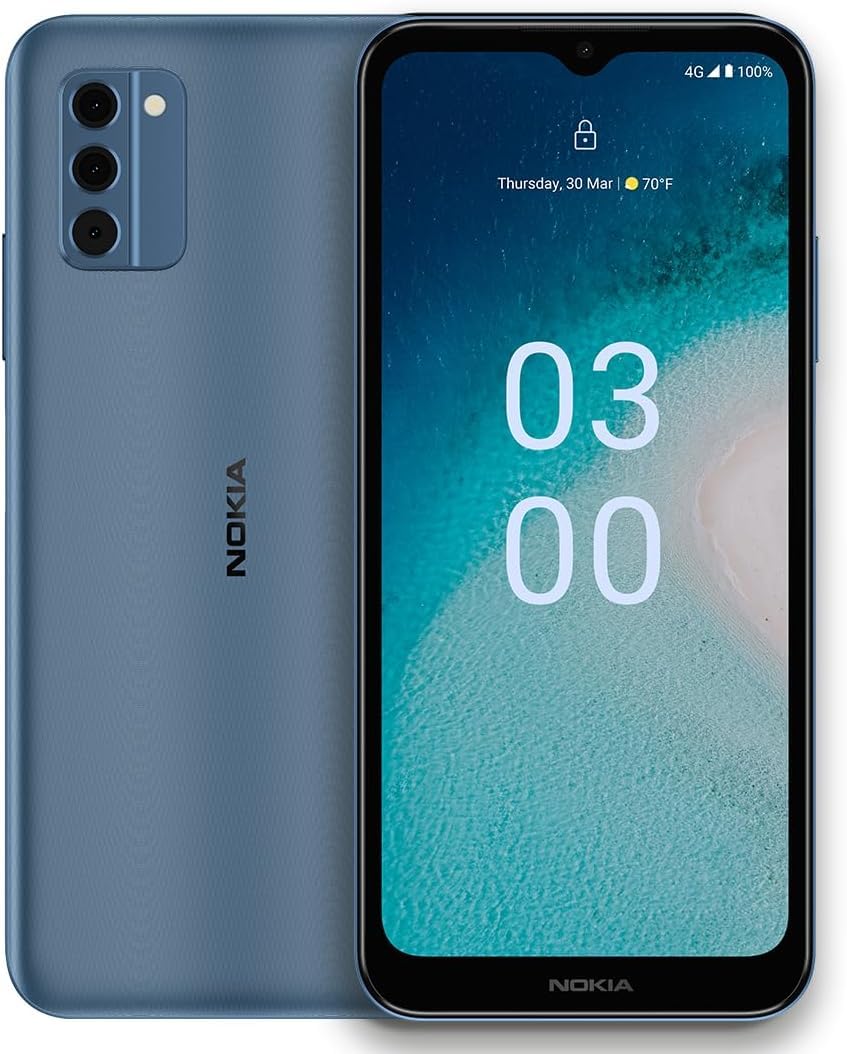
Image: Nokia C300 TA-1515 Smartphone, front view. This image displays the device's sleek design and screen.
Setup
1. Unboxing u Spezzjoni Inizjali
Neħħi bir-reqqa l-oġġetti kollha mill-imballaġġ. Ivverifika li l-komponenti li ġejjin huma preżenti:
- Nokia C300 TA-1515 Smartphone
- USB-C Cable
- Għodda Ejector SIM
Inspect the device for any visible damage. If any components are missing or damaged, contact customer support.
2. Inserting the SIM Card and microSD Card (Optional)
- Sib it-trej tal-kard SIM fuq il-ġenb tat-telefon.
- Daħħal l-għodda tal-ejecter tas-SIM fit-toqba ż-żgħira ħdejn it-trej u agħfas bil-mod sakemm it-trej joħroġ 'il barra.
- Place your Nano-SIM card(s) and/or microSD card (if applicable) into the designated slots on the tray. Ensure the gold contacts face downwards.
- Imbotta t-trej lura fit-telefon bir-reqqa sakemm tikklikkja f'postu.
3. Iċċarġjar tal-batterija
Before first use, fully charge the phone's battery. The Nokia C300 TA-1515 is equipped with a 4000 mAh battery.
- Qabbad il-kejbil USB-C mal-port tal-iċċarġjar tat-telefon.
- Connect the other end of the USB-C cable to a compatible USB power adapter (not included) and plug it into a wall outlet.
- L-indikatur tal-iċċarġjar se jidher fuq l-iskrin. Ħalli t-telefon jiċċarġja sakemm l-ikona tal-batterija tidher mimlija.
4. Tixgħel u Konfigurazzjoni Inizjali
- Press and hold the Power button (usually on the right side) until the Nokia logo appears.
- Segwi l-istruzzjonijiet fuq l-iskrin biex tlesti s-setup inizjali, inkluż l-għażla tal-lingwa, il-konnessjoni Wi-Fi, is-setup tal-kont Google, u s-settings tas-sigurtà.
Tħaddem l-Apparat Tiegħek
1. Navigazzjoni Bażika
- Ġesti tat-Touchscreen: Tektek biex tagħżel, skrolla biex tiskrollja, aqbad biex tagħmel zoom.
- Skrin tad-dar: Aċċessa l-apps, il-widgets, u n-notifiki.
- Panel tan-Notifika: Swipe 'l isfel minn fuq tal-iskrin għal view notifiki u settings veloċi.
- App Drawer: Skrolla 'l fuq mill-qiegħ tal-iskrin biex taċċessa l-applikazzjonijiet installati kollha.
2. Nagħmlu Telefonati u Nibagħtu Messaġġi
- Sejħiet: Iftaħ il- Telefon app, daħħal in-numru, u tektek l-ikona tas-sejħa.
- Messaġġi: Iftaħ il- Messaġġi app, tap "Start chat," enter recipient and message, then send.
3. Connecting to Wi-Fi and Mobile Data
- Wi-Fi: Mur fuq Settings > Netwerk u internet > Wi-Fi. Turn Wi-Fi on, select your network, and enter the password.
- Data mobbli: Mur fuq Settings > Netwerk u internet > Netwerk mobbli. Ensure "Mobile data" is enabled.
4. Użu tal-kamera
Iftaħ il- Kamera app. Tap the shutter button to take photos or the video icon to record videos. Explore different modes and settings within the app.
Manutenzjoni
1. Aġġornamenti tas-Software
Keep your device's software up to date for optimal performance and security. Go to Settings > Sistema > Aġġornament tas-sistema biex tiċċekkja u tinstalla aġġornamenti.
2. Tindif tal-Apparat Tiegħek
Use a soft, lint-free cloth to clean the screen and body of your phone. Avoid abrasive materials or harsh chemicals. Do not expose the device to excessive moisture.
3. Kura tal-batterija
- Evita temperaturi estremi.
- Tħallix il-batterija tixxotta kompletament regolarment.
- Uża biss ċarġers u kejbils approvati.
4. Ġestjoni tal-Ħażna
Regolarment mill-ġdidview u ħassar bla bżonn files, apps, u midja biex tillibera l-ispazju tal-ħażna. Tista' tiċċekkja l-użu tal-ħażna f' Settings > Ħażna.
Issolvi l-problemi
| Problema | Soluzzjoni Possibbli |
|---|---|
| Apparat mhux mixgħul | Kun żgur li l-batterija hija ċċarġjata. Agħfas u żomm il-buttuna tal-Power għal mill-inqas 10 sekondi biex terġa' tibda taħdem. |
| L-apps jiġġarraf jew jiffriża | Agħlaq u erġa' iftaħ l-app. Neħħi l-cache tal-app (Settings > Apps > [Isem tal-App] > Ħażna u cache > Neħħi l-cache). Erġa' ibda t-telefon. |
| Ħajja fqira tal-batterija | Reduce screen brightness, disable unused features (Wi-Fi, Bluetooth, GPS), close background apps. Check battery usage in Settings> Battery. |
| Ma tistax tikkonnettja mal-Wi-Fi | Kun żgur li l-Wi-Fi huwa attivat. Erġa' ibda r-router tiegħek. Insieh in-netwerk u erġa' qabbad. |
| L-ebda dejta mobbli | Ensure mobile data is enabled in settings. Check your SIM card is correctly inserted. Contact your carrier to verify your plan. |
If issues persist, consider performing a factory reset (backup your data first) or contact Nokia support.
Speċifikazzjonijiet
| Karatteristika | Dettall |
|---|---|
| Isem tal-Mudell | Nokia C300 |
| Numru tal-Mudell | TA-1515 |
| Sistema Operattiva | Android 12.0 |
| Daqs tal-Wiri | 6.5 Pulzieri HD+ |
| Riżoluzzjoni | 1520 x 720 |
| RAM | 3 GB |
| Ħażna Interna | 32 GB (espandibbli permezz ta' microSD) |
| Kapaċità tal-batterija | 4000 mAh |
| Konnettività | 4G LTE, GSM, HSPA, Wi-Fi, Bluetooth, GPS |
| X'hemm fil-Kaxxa | Telefon, Kejbil USB-C, Għodda għall-Ejezzjoni tas-SIM |
Garanzija u Appoġġ
Your Nokia C300 TA-1515 comes with a standard manufacturer's warranty. For detailed warranty terms and conditions, please refer to the warranty card included with your purchase or visit the official Nokia support websit.
For technical assistance, troubleshooting, or to find service centers, please visit the official Nokia support portal:
You can also contact your retailer or service provider (e.g., Consumer Cellular) for support related to your specific plan or device purchase.