1. Introduzzjoni
The VSTARCAM CB76-2 Tiny Camera is a compact and portable indoor security camera designed for various monitoring needs. Featuring 2.4GHz WiFi connectivity, a built-in rechargeable battery, IR night vision, and human detection capabilities, it serves as an effective solution for home security, baby monitoring, or pet surveillance. Its 136° wide-angle lens ensures broad coverage, and its small size allows for flexible placement.
2. Prodott Aktarview
2.1 Kontenut tal-Pakkett
Ivverifika li l-oġġetti kollha huma preżenti fil-pakkett:
- VSTARCAM CB76-2 Camera x 1
- Manwal għall-Utent x 1
- Iċċarġjar Cable x 1
- Bracket tal-Immuntar x 1
2.2 Komponenti tal-Kamera
Familiarize yourself with the camera's physical features.

Image: The VSTARCAM CB76-2 Tiny Camera, showing its compact design and integrated stand.

Image: The VSTARCAM CB76-2 camera connected to a charging cable, illustrating its rechargeable battery feature.
The camera features a lens, microphone, power button, reset button, and a charging port. The included bracket allows for flexible positioning.
3. Gwida ta' Setup
3.1 Iċċarġjar inizjali
Before first use, fully charge the camera using the provided charging cable and a standard USB power adapter (not included). A full charge ensures optimal performance and battery life.

Image: Visual guide for the initial setup process, including app download, charging, and connection steps.
3.2 Tniżżil tal-App u Reġistrazzjoni tal-Kont
- Download the "O-KAM Pro" app from your device's app store (App Store for iOS or Google Play for Android).
- Iftaħ l-app u segwi l-istruzzjonijiet fuq l-iskrin biex tirreġistra kont ġdid jew tidħol jekk diġà għandek wieħed.
3.3 Connecting the Camera to Wi-Fi
The camera supports 2.4GHz Wi-Fi connections only. Ensure your router is configured for 2.4GHz or has a mixed mode enabled.
- Power on the camera by long-pressing the power button.
- Open the "O-KAM Pro" app and tap the "+" icon to add a new device.
- Select the option to add a camera and follow the prompts. You may be asked to scan a QR code located on the camera body or connect via Bluetooth.
- Enter your 2.4GHz Wi-Fi network name (SSID) and password when prompted.
- Wait for the camera to connect to your Wi-Fi network. The app will indicate a successful connection.

Image: Illustration of the two connection methods: Bluetooth for initial discovery and 2.4GHz WiFi for continuous operation.
If connection fails, ensure your Wi-Fi is 2.4GHz, the password is correct, and the camera is within range of your router. You may need to reset the camera by long-pressing the reset button until the indicator light changes.
3.4 Installazzjoni Flessibbli
The compact design and included bracket allow for versatile placement. The camera can be placed on a tabletop, shelf, or mounted to a wall or ceiling using the bracket.

Immaġni: Eżamples of flexible camera placement in various indoor environments like home, office, car, and shop.
4. Istruzzjonijiet Operattivi
4.1 Ħaj View u Reġistrazzjoni
Once connected, open the O-KAM Pro app to access the live video feed from your camera. You can initiate manual recordings or capture screenshots directly from the app interface.

Image: A smartphone screen displaying a 4-screen live view from multiple VSTARCAM cameras within the O-KAM Pro app.
4.2 Human Detection and Alerts
The camera features AI human detection. When human movement is detected, the camera will automatically record and send real-time alerts to your smartphone via the O-KAM Pro app.

Image: Depiction of the camera detecting a person and sending a real-time alert notification to a smartphone.
You can customize detection sensitivity and set specific activity zones within the app to reduce false alarms.

Image: An illustration showing how to define a customizable activity zone within the camera's field of view billi tuża l-app.
Viżjoni bil-Lejl 4.3 IR
The camera is equipped with infrared (IR) night vision, allowing it to capture clear images and videos in low-light conditions or complete darkness.
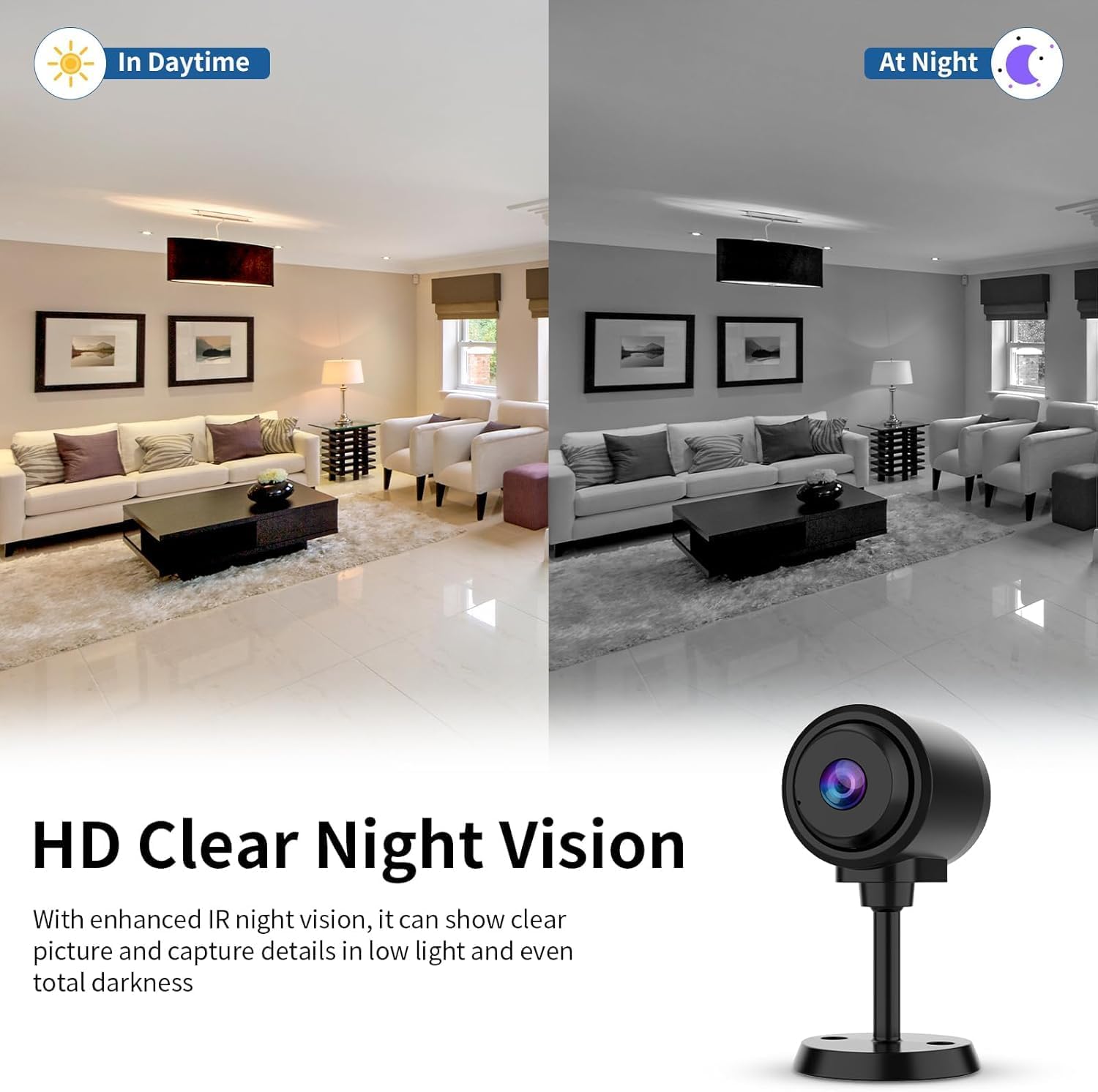
Image: Comparison of daytime and nighttime views, demonstrating the camera's clear night vision capabilities.
4.4 Wide-Angle View
The 136° wide-angle lens provides extensive coverage, minimizing blind spots and allowing you to monitor a larger area with a single camera.

Image: A visual representation of the camera's 136-degree wide-angle field of view f'ambjent ta' kamra tal-għixien.
4.5 Monitoraġġ tal-Awdjo
With a built-in high-fidelity microphone and advanced noise reduction, the camera allows for clear audio pickup. You can hear sounds from the camera's environment through the app.

Image: An illustration showing the camera's sound pickup capability with noise reduction, indicating clear audio capture.
4.6 Għażliet ta' Ħażna
Il-kamera tappoġġja żewġ metodi ta' ħażna għal ikel irreġistrattage:
- Ħażna Lokali: Insert a TF card (up to 256GB, not included) into the camera's slot for continuous or event-based recording.
- Ħażna Cloud: Subscribe to the cloud storage service via the O-KAM Pro app for secure, remote access to your recordings. A free trial may be available.

Image: Visual representation of the camera's flexible storage options, including TF card and cloud storage.
4.7 Multi-User Viewing and Sharing
The O-KAM Pro app allows multiple users to view the camera feed simultaneously on various devices (Android, iOS, Windows). You can share access with family and friends through the app's sharing features.

Image: Depicts multiple users viewing the camera feed on different devices, highlighting the multi-user and sharing capabilities.

Image: Shows various devices (laptop, smartphone) displaying the camera feed, emphasizing remote monitoring and sharing with multiple users.
5. Manutenzjoni
5.1 Tindif
To maintain optimal image quality, regularly clean the camera lens with a soft, dry, lint-free cloth. Avoid using harsh chemicals or abrasive materials that could scratch the lens or camera body.
5.2 Kura tal-Batterija
- For stable and long-lasting monitoring, it is recommended to use the camera connected to a power source via the charging cable, especially for continuous operation.
- If operating on battery, recharge the camera promptly when the battery low indicator appears in the app.
- Avoid exposing the camera to extreme temperatures, which can affect battery life and performance.
5.3 Pożizzjonament Ottimali
Place the camera in an area with good Wi-Fi signal strength to ensure stable connectivity. Avoid placing it near large metal objects or other devices that may cause interference.
6 Issolvi l-problemi
6.1 Il-Kamera Mhux Qed Tikkonnettja mal-Wi-Fi
- Iċċekkja l-Banda tal-Wi-Fi: Kun żgur li n-netwerk Wi-Fi tiegħek huwa 2.4GHz. Il-kamera ma tappoġġjax Wi-Fi ta' 5GHz.
- Password Wi-Fi: Iċċekkja darbtejn li l-password tal-Wi-Fi li daħħalt fl-app hija korretta.
- Qawwa tas-Sinjal: Mexxi l-kamera eqreb lejn ir-router tal-Wi-Fi tiegħek biex ittejjeb is-saħħa tas-sinjal.
- Irrisettja l-Kamera: Long-press the reset button on the camera until the indicator light changes, then attempt the connection process again.
- Settings tal-router: Erġa' ibda r-router tal-Wi-Fi tiegħek.
6.2 Poor Image Quality / Night Vision Issues
- Lenti Naddaf: Gently clean the camera lens with a soft cloth.
- Dawl: Kun żgur li m'hemm l-ebda ostaklu li jimblokka l-kamera view or the IR lights during night vision mode.
- Settings tar-Riżoluzzjoni: Check the video resolution settings in the O-KAM Pro app to ensure it's set to HD.
6.3 Il-Batterija Tiskula Malajr
- Qawwa Kontinwa: For extended use, connect the camera to a continuous power source.
- Frequent Activity: High frequency of motion detection events and recordings will consume more battery. Adjust detection sensitivity or schedule recording times.
- Sinjal Wi-Fi: A weak Wi-Fi signal can cause the camera to work harder, leading to faster battery drain.
- Temperatura: Extreme cold or heat can reduce battery efficiency.
6.4 L-ebda Twissijiet ta' Sejbien ta' Mozzjoni
- Notifiki tal-App: Ensure notifications are enabled for the O-KAM Pro app in your phone's settings.
- Settings tas-Sejbien: Verify that human detection is enabled and sensitivity is appropriately set within the app.
- Żoni ta' Attività: Iċċekkja jekk iż-żoni tal-attività humiex ikkonfigurati b'mod korrett u ma jeskludux iż-żoni li tixtieq timmonitorja.
- Skeda ta 'Reġistrazzjoni: Confirm that the recording schedule in the app is active during the desired monitoring times.
7. Speċifikazzjonijiet
| Isem tal-Mudell | CB76-2 |
| Użu fuq ġewwa/barra | Ġewwa |
| Teknoloġija tal-Konnettività | Mingħajr fili (Wi-Fi 2.4GHz) |
| Sors tal-Enerġija | Elettriku bil-Fili (Batterija Riċarġabbli) |
| Riżoluzzjoni tal-Qbid tal-Vidjo | 1296p |
| ViewIng Angolu | 136 Grad |
| Tip ta' Kontrollur | IOS, Android, MAC, PC (via O-KAM Pro App) |
| Tip ta 'Immuntar | Tabletop Mount, Freestanding |
| Tip ta 'Twissija | Mozzjoni Biss (Sejbien mill-Bniedem) |
| Għażliet ta' Ħażna | Karta TF (sa 256GB), Ħażna fis-Sħab |
| Dimensjonijiet tal-oġġett (L x W x H) | 1.68 x 1.38 x 1.4 pulzieri |
| Piż tal-oġġett | 4.6 uqija |
| Materjal | Plastik |
8. Garanzija u Appoġġ
8.1 Informazzjoni dwar Garanzija
VSTARCAM products are covered by a limited warranty. Please refer to the warranty card included in your package or visit the official VSTARCAM websit għal termini u kundizzjonijiet dettaljati tal-garanzija. Żomm l-irċevuta tax-xiri tiegħek bħala prova tax-xiri għal talbiet ta' garanzija.
8.2 Appoġġ għall-Klijent
For technical assistance, troubleshooting, or any questions regarding your VSTARCAM CB76-2 camera, please contact VSTARCAM customer support. Contact information can typically be found on the official VSTARCAM website or within the O-KAM Pro app's help section.
Riżorsi onlajn:
- Official VSTARCAM Websit: www.vstarcam.com (Nota: Dan huwa detentur tal-post URL, jekk jogħġbok irreferi għad-dokumentazzjoni tal-prodott attwali għal informazzjoni korretta URL)
- O-KAM Pro App: Check the 'Help' or 'FAQ' section within the app.