1. Introduzzjoni
Welcome to the JMGO PicoPlay Portable Mini Projector user manual. This guide provides essential information for the safe and efficient use of your new projector. Please read it thoroughly before operation and retain it for future reference.
Informazzjoni dwar is-Sigurtà
- Do not look directly into the projector lens when the device is operating.
- Żomm l-apparat 'il bogħod mill-ilma jew likwidi oħra.
- Żgura ventilazzjoni xierqa biex tevita sħana żejda.
- Uża biss l-adapter tal-enerġija pprovdut.
- Evita li twaqqa’ l-proġettur jew li tissottomettih għal impatti qawwija.
2. Prodott Aktarview
The JMGO PicoPlay is a versatile portable mini projector designed for immersive entertainment. It combines a 1080P FHD projector, an immersive Bluetooth speaker, and dynamic ambient lighting.
Karatteristiċi ewlenin:
- Riżoluzzjoni Full HD 1080P: Delivers crisp and clear images up to 200 inches.
- 400 ISO Lumens: Provides bright visuals for various environments.
- Google TV with Licensed Netflix: Access a wide range of streaming apps and content.
- 8W Dolby Audio Speakers: Offers rich and powerful sound.
- 88° Rotatable Gimbal: Allows flexible projection angles from wall to ceiling.
- Automatic Image Optimization: Features auto-focus, auto-keystone correction, and intelligent screen alignment.
- 3D and HDR10 Support: Enhances visual depth and color.
- Disinn portabbli: Kompatt u ħfief għal trasport faċli.
- Modalità tad-Dawl Ambjentali: Customizable lighting to set the mood.
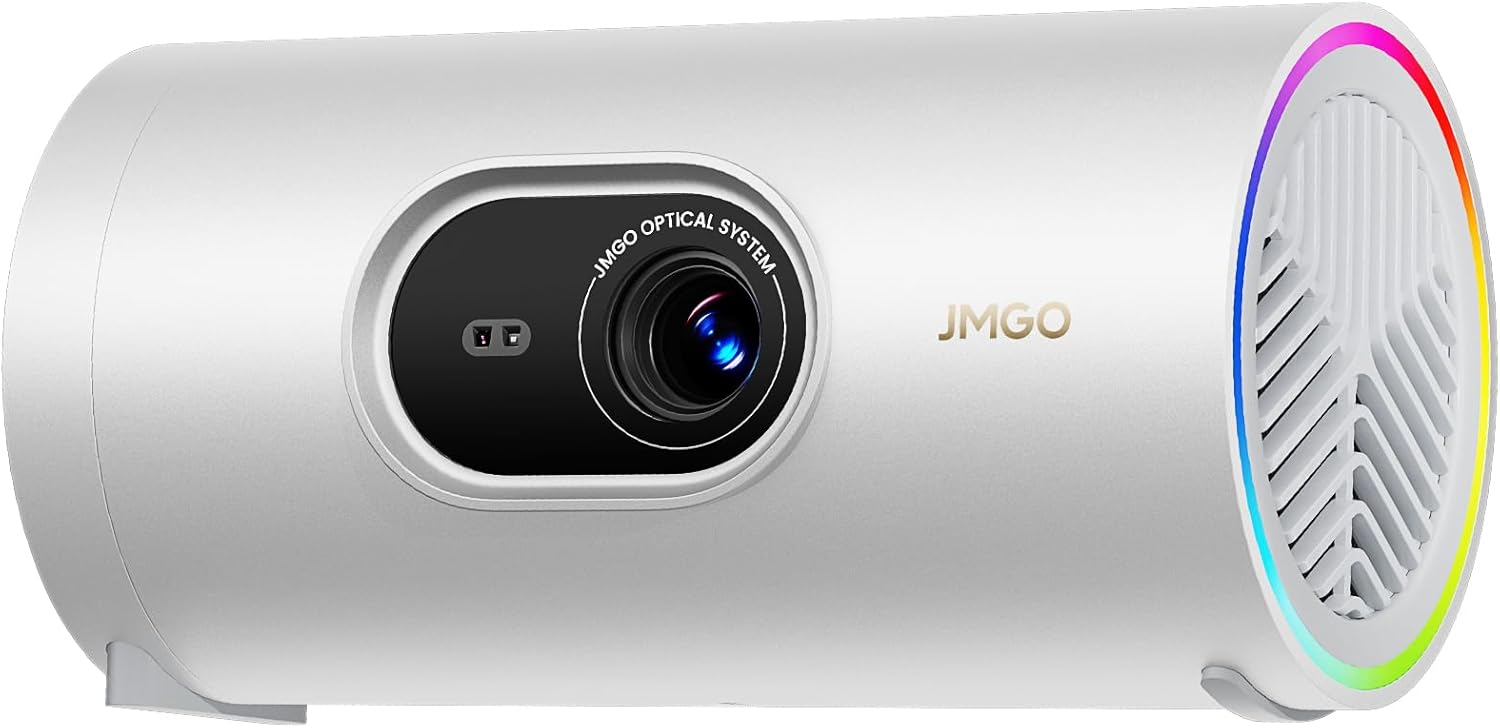
Figure 2.1: The JMGO PicoPlay Portable Mini Projector, showcasing id-disinn kompatt u l-lenti tiegħu.
X'hemm fil-Kaxxa:
- JMGO PicoPlay Projector
- Manwal għall-Utent
- Kontroll mill-bogħod
- Korda tal-Enerġija
- Optical Filter (for ambient light mode)
- Borża tal-Ġarr

Figure 2.2: All items included in the JMGO PicoPlay packaging.
3. Setup
3.1 Tixgħel
- Qabbad il-korda tal-enerġija pprovduta mal-port tad-dħul tal-enerġija tal-proġettazzjoni.
- Ipplaggja l-adapter tal-enerġija f'iżbokk tal-ħajt.
- Alternatively, connect to a 65W Type-C external battery for portable use (sold separately).
- Agħfas il-buttuna tal-qawwa fuq il-proġekter jew il-kontroll mill-bogħod biex tixgħel l-apparat.

Figure 3.1: The PicoPlay projector connected to an external battery for extended use.
3.2 Initial Setup & Remote Pairing
- Upon first power-on, the projector will guide you through the initial setup process.
- Follow the on-screen instructions to select your language and connect to a Wi-Fi network.
- To pair the remote control, press and hold the indicated buttons on the remote until pairing is successful.
- Log in to your Google account to access Google TV features and licensed Netflix.
3.3 Aġġustament tal-Immaġni
The PicoPlay features Flexismart System for automatic image optimization:
- Auto-Focus: Il-proġettur jaġġusta l-fokus awtomatikament għal immaġni ċara.
- Korrezzjoni Auto-Keystone: Corrects distorted images caused by angled projection.
- Allinjament Intelliġenti tal-Iskrin: Automatically aligns the projected image to the screen or wall.
- 88° Rotatable Gimbal: Manually adjust the projection angle by rotating the projector on its base to project from wall to ceiling.

Figure 3.2: Illustration of the automatic focus, keystone correction, and screen alignment.

Figure 3.3: The projector's 88° rotatable gimbal allows for flexible projection angles.
4. Istruzzjonijiet Operattivi
4.1 Navigazzjoni u Kontrolli
Control your PicoPlay using the included remote control, the JMGO app, or the touch buttons on the device.
- Kontroll mill-bogħod: Use the directional pad and dedicated buttons for navigation, volume, and quick access to apps like Netflix and YouTube.
- On-Device Touch Buttons: Located on the projector, these buttons allow basic control for volume, power, and menu navigation.
- JMGO App: Download the official JMGO app for advanced control and settings adjustments from your smartphone.

Figure 4.1: Various control methods for the PicoPlay projector.
4.2 Konnettività
The PicoPlay offers multiple connectivity options:
- HDMI (ARC): Connect external devices like laptops, gaming consoles, or Blu-ray players.
- USB-A: Għall-konnessjoni ta' USB drives jew periferali oħra.
- USB-C: For power input or data transfer.
- Wi-Fi: Qabbad man-netwerk tad-dar tiegħek għal streaming u karatteristiċi online.
- Bluetooth: Pair with external speakers or use the PicoPlay as a standalone Bluetooth speaker.

Figura 4.2: Wara view of the PicoPlay showing available ports.
4.3 Using Google TV & Streaming
With integrated Google TV, you can access a vast library of entertainment:
- Navigate the Google TV interface to browse movies, TV shows, and apps.
- Enjoy licensed Netflix directly on the projector.
- Use Google Cast to stream content from your smartphone or tablet.
- Utilize Google Assistant for voice commands.

Figure 4.3: The Google TV home screen displaying available streaming applications.
4.4 Modalità tal-Ispeaker Bluetooth
Transform your PicoPlay into a powerful Bluetooth speaker:
- Place the projector in a vertical position.
- Select Bluetooth speaker mode from the menu or by pressing the dedicated action button.
- Pair your smartphone or other Bluetooth device with the PicoPlay to play music.
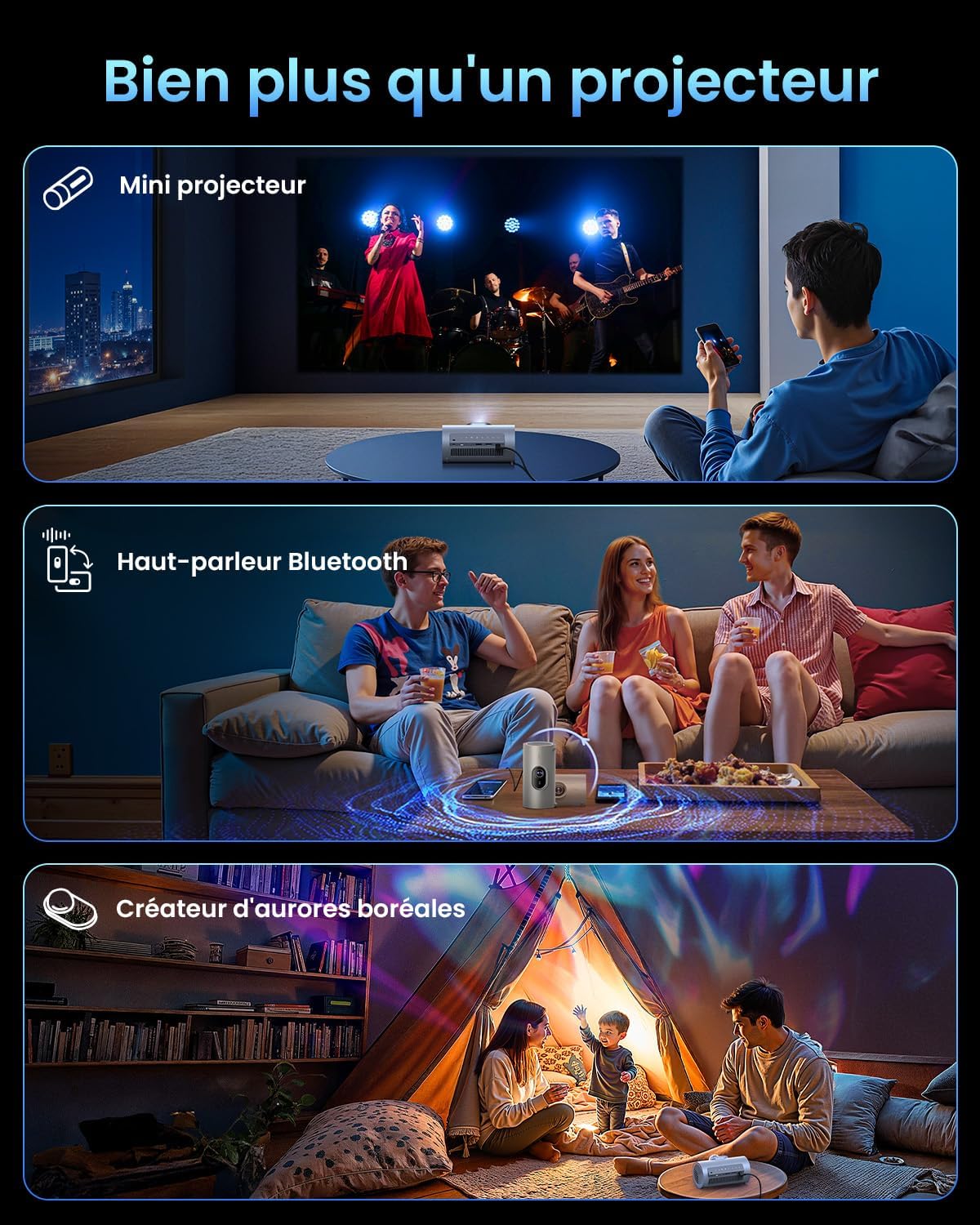
Figure 4.4: The PicoPlay in Bluetooth speaker mode, providing immersive audio.
4.5 Ambient Light Mode
Use the optical filter to create dynamic ambient lighting:
- Attach the optical filter to the projector lens.
- Select Ambient Light mode from the settings.
- Customize colors and effects to create your desired atmosphere.

Figure 4.5: The PicoPlay projecting customizable ambient lighting.
5. Manutenzjoni
5.1 Tindif
- Lenti: Uża drapp artab u mingħajr suf iddisinjat speċifikament għal lentijiet ottiċi. Tużax prodotti tat-tindif li joborxu.
- Barra: Imsaħ il-barra tal-proġettazzjoni b'ċarruta ratba u niexfa. Għal marki iebsa, uża ċarruta kemxejn ratba.amp drapp u nixxef immedjatament.
- Gradilji tal-ventilazzjoni: Use a soft brush or compressed air to gently remove dust from the ventilation grilles.
5.2 Ħażna
When not in use, store the projector in a cool, dry place, away from direct sunlight and extreme temperatures. Use the provided carrying pouch for protection during transport or storage.
6 Issolvi l-problemi
Kwistjonijiet Komuni u Soluzzjonijiet:
| Ħruġ | Kawża Possibbli | Soluzzjoni |
|---|---|---|
| Ebda Qawwa | Kejbil tal-enerġija mhux imqabbad; problema fis-sokit tal-enerġija. | Kun żgur li l-kejbil tal-enerġija huwa konness sew. Ipprova sokit differenti. |
| Ebda Immaġni | Input source incorrect; cable loose; lens cap on. | Select correct input source. Check HDMI/USB connections. Remove lens cap. |
| Immaġni mċajpra | Out of focus; projector too close/far. | Allow auto-focus to adjust. Adjust projector distance from screen. |
| Immaġini Mgħawġa | Projector not aligned with screen. | Allow auto-keystone correction to adjust. Manually adjust if needed. |
| Ebda Ħoss | Volume too low; external audio device connected. | Increase volume. Disconnect external audio or select internal speakers. |
7. Speċifikazzjonijiet
| Karatteristika | Dettall |
|---|---|
| Brand | JMGO |
| Mudell | PicoPlay |
| Teknoloġija tal-Wiri | DLP, LED |
| Riżoluzzjoni Nattiva | 1920 x 1080 (Full HD) |
| Luminożità | 400 ISO Lumens |
| Awdjo | 8W Dolby Audio Speakers |
| Konnettività | Wi-Fi, HDMI (ARC), USB-A, USB-C |
| Karatteristiċi Speċjali | HDR10, 3D, APP Control, Google TV, Netflix, 88° Rotatable Gimbal, Auto-focus |
| Dimensjonijiet (L x W x H) | 8.5 x 8.5 x 16.6 ċm |
| Fattur tal-Formola | Portabbli |
| Użu Rakkomandat | Home cinema, Gaming, Business, Education |
8. Garanzija u Appoġġ
8.1 Garanzija tal-Manifattur
The JMGO PicoPlay projector comes with a 2-year manufacturer warranty. Please retain your proof of purchase for warranty claims.
8.2 Appoġġ għall-Klijent
For technical assistance, troubleshooting, or warranty inquiries, please contact JMGO customer service. You can find contact information on the official JMGO websit jew permezz tal-bejjiegħ bl-imnut tiegħek.

Għal aktar informazzjoni, żur il- JMGO Brand Store.


