Introduzzjoni
The MIKIBY Alux60 is a high-performance 60% compact wired gaming keyboard designed for precision and speed. It features Hall Effect magnetic switches, an aluminum gasket-mounted body, 8K polling rate, and customizable RGB lighting. This manual provides essential information for setting up, operating, maintaining, and troubleshooting your Alux60 keyboard.
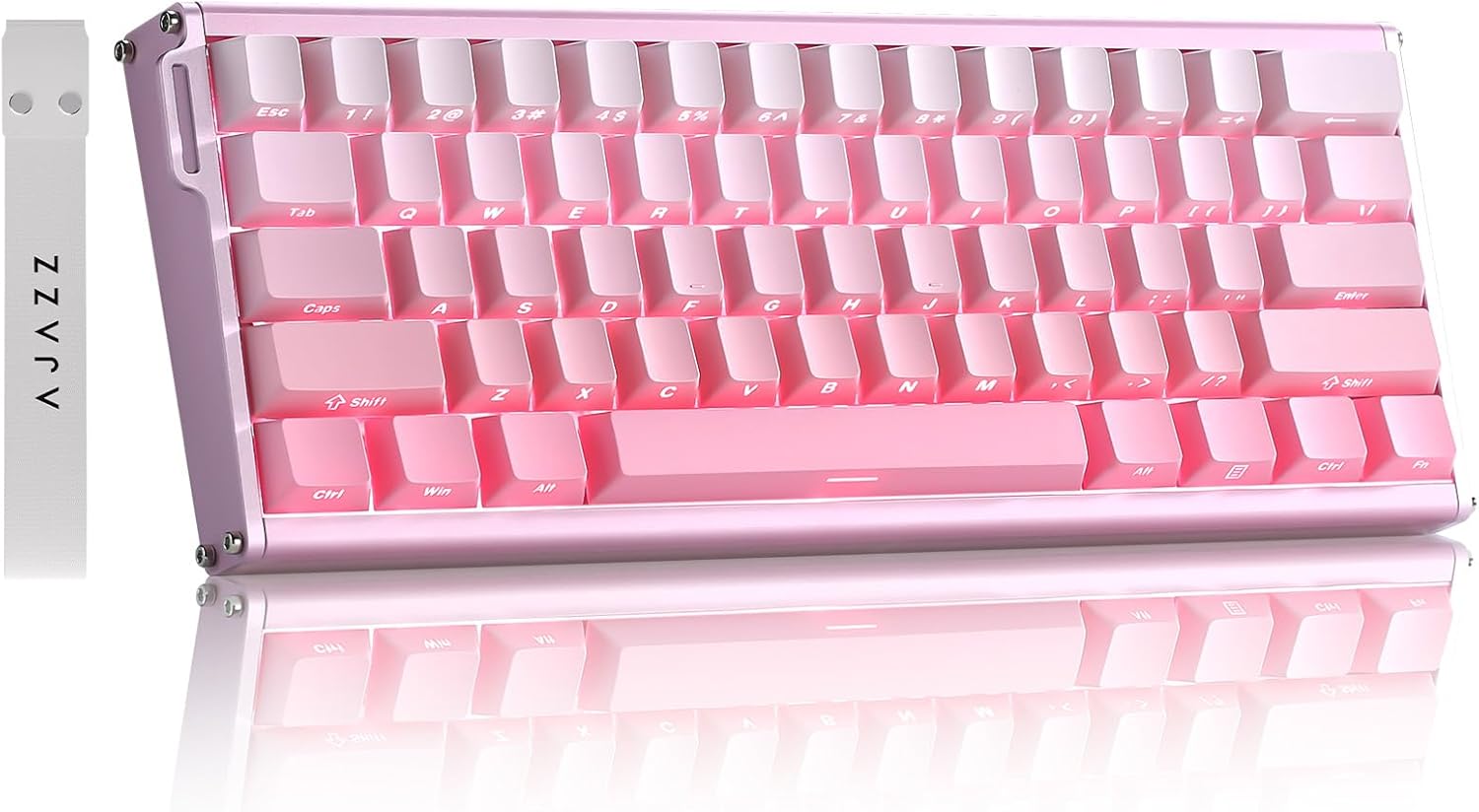
Image: The MIKIBY Alux60 Gaming Keyboard, showcasing its compact 60% layout and pink color scheme.
X'hemm fil-Kaxxa
Jekk jogħġbok kun żgur li l-oġġetti kollha li ġejjin huma inklużi fil-pakkett tiegħek:
- ALUX 60 Keyboard x 1
- USB Cable x 1 (Type-C)
- Żigarella x 1
- Keycap Puller x 1
- Manwal għall-Utent x 1

Image: All components included with the MIKIBY Alux60 keyboard: the keyboard, USB-C cable, ribbon, keycap puller, and user manual.
Setup
1. Tqabbad it-Tastiera
Connect the provided USB-C cable to the port on the keyboard and the other end to an available USB port on your computer. The keyboard is plug-and-play and should be recognized automatically by your operating system.
2. Kompatibilità tas-Sistema
The Alux60 keyboard is compatible with various operating systems. To switch between Windows and Mac modes:
- Għal Mac: Agħfas FN + A
- Għal Windows: Agħfas FN + S
3. Web Personalizzazzjoni tas-Sewwieq
For advanced customization, including DKS, MT, TGL functions, key mapping, macro editing, and RGB lighting settings, use the professional web-based driver. No software installation is required. Access the driver via the link provided in the physical user manual or on the official MIKIBY websit.

Immaġni: L- web-based driver interface for the Alux60 keyboard, showing options for keyboard settings, FN layer settings, macro editing, and lighting settings.
Istruzzjonijiet Operattivi
Hall Effect Magnetic Switches & Rapid Trigger
The Alux60 utilizes Hall Effect magnetic switches, which offer instantaneous actuation and an ultra-low latency of 0.125ms. The Rapid Trigger mode allows for highly customizable actuation sensitivity, enabling faster double-taps and rapid keystrokes, ideal for competitive gaming.

Immaġni: Dettaljata view of a Magnetic Powder Switch, highlighting its components and specifications such as operating force, total travel, and service life.

Image: Visual explanation of Rapid Trigger Mode, demonstrating how it provides ultra-low latency and precise actuation for gaming.
Kontroll tad-Dawl RGB
The keyboard features 16.8 million color dynamic RGB lighting with multiple effects. Adjustments can be made via the web driver or using the following FN key combinations:
- FN + XIxgħel/itfi d-dawl
- FN + ": Keyboard brightness +
- FN +:: Keyboard brightness -
- FN + |: Switch lighting effect
- FN +: Toggle backlight direction
- FN + [{: Adjust keyboard light speed -
- FN + ]}: Adjust keyboard light speed +
- FN + ;: Switch lighting color
- FN + Spacebar: Restore Factory Settings

Image: The Alux60 keyboard displaying its vibrant 16.8 million color RGB backlight, with a visual guide to FN key combinations for lighting control.
Swiċċijiet Hot-Swappable
The Alux60 keyboard supports hot-swappable magnetic switches, allowing you to easily replace switches without soldering. This feature enables customization of your typing experience by swapping in different compatible magnetic switches.

Immaġni: Dettaljata view of the Alux60's hot-swappable design, showing how switches can be removed and replaced, along with the south-facing LEDs.
Shortcuts FN
The keyboard features various FN key combinations for quick access to functions:
- FN + 1!: F1
- FN + 2@: F2
- FN + 3#: F3
- FN + 4$: F4
- FN + 5%: F5
- FN + 6^: F6
- FN + 7&: F7
- FN + 8*: F8
- FN + 9(: F9
- FN + 0): F10
- FN + -=: F11
- FN + =+: F12
- FN + Backspace: Ħassar
- FN + Ikteb: Menu
- FN + Shift Lemin: Right Ctrl
- FN + Dritt Ctrl: Right Alt
- FN + Alt tal-lemin: Right Shift
- FN + /?: Up Arrow
- FN + Alt tal-lemin: Left Arrow
- FN + Dritt Ctrl: Down Arrow
- FN + Shift Lemin: Right Arrow
- FN + Esc:~

Image: A comprehensive guide to FN key combinations for various functions on the Alux60 keyboard.
Qlib N-Key
The Alux60 supports N-Key Rollover (NKRO), which means it can accurately register every key press, even when multiple keys are pressed simultaneously. This is crucial for fast-paced gaming and ensures no input is missed.

Image: A visual representation of N-Key Rollover, showing multiple simultaneous key presses being registered without conflict.
Prodott Overview Video
Video: An official product video from MIKIBY showcasing the Alux60 Gaming Keyboard, its features, and typing sound.
Manutenzjoni
Tindif tat-Tastiera
Biex iżżomm id-dehra u l-funzjonalità tat-tastiera:
- Skonnettja t-tastiera mill-kompjuter tiegħek qabel ma tnaddafha.
- Uża drapp ratba u mingħajr ħelu ftit dampImlaħlaħ bl-ilma jew b'soluzzjoni ħafifa tat-tindif biex timsaħ il-keycaps u x-chassis.
- Għat-trab u l-fdalijiet bejn il-keycaps, uża arja kkompressata.
- Evita li tuża kimiċi ħarxa jew materjali li joborxu.
Sostituzzjoni tal-Keycap u s-Swiċċ
Thanks to the hot-swappable design, keycaps and switches can be easily replaced. Use the included keycap puller to gently remove keycaps. For switches, use the switch puller to carefully extract them. Ensure replacement switches are compatible Hall Effect magnetic switches.
Issolvi l-problemi
| Problema | Kawża Possibbli | Soluzzjoni |
|---|---|---|
| It-tastiera ma tirrispondix | Loose cable connection, incorrect system mode. | Ensure USB-C cable is securely connected. Try a different USB port. Verify correct system mode (FN+A for Mac, FN+S for Windows). |
| Id-dawl RGB mhux qed jaħdem jew mhux korrett | Lighting effect turned off, software glitch. | Agħfas FN + X to toggle lighting. Use FN key combinations to adjust effects. Access the web driver for advanced lighting customization. Try FN + Spacebar to restore factory lighting settings. |
| Iċ-ċwievet mhux qed jirreġistraw jew qed jittajpjaw darbtejn | Dust/debris under switch, switch malfunction, incorrect Rapid Trigger settings. | Clean under keycaps with compressed air. If issue persists, consider replacing the switch (due to hot-swappable design). Adjust Rapid Trigger settings via the web sewwieq. |
| Custom settings not saving | Web driver issue, browser compatibility. | Ensure you are using a compatible browser. Clear browser cache. Re-apply settings in the web driver and ensure they are saved. |

Image: A visual Q&A section addressing common user queries regarding system switching and keyboard customization.
Speċifikazzjonijiet
| Karatteristika | Dettall |
|---|---|
| Mudell | Alux60 |
| Brand | MIKIBY |
| Deskrizzjoni tat-Tastiera | Mechanical, Hall Effect Magnetic Switch |
| Teknoloġija tal-Konnettività | USB-C bil-wajer |
| Numru ta' Ċwievet | 61 |
| Ir-Rata tal-Votazzjoni | 8K (8000Hz) |
| Latency | 0.125ms Latenza Ultra-Baxxa |
| Scan Rata | 128K |
| Tappijiet ewlenin | Side Printed PBT Keycaps |
| Backlighting | 16.8 Million Color Dynamic RGB (South-facing LEDs) |
| Karatteristiċi Speċjali | Ergonomic, Backlit, Low-Profile Key, Hot-Swappable, Rapid Trigger Mode, N-Key Rollover, Web-based Driver |
| Apparati Kompatibbli | Laptop, Gaming Console, PC, Tablet, Smartphone |
| Piż tal-oġġett | 3.52 liri |
| Dimensjonijiet | 14.88 x 5.91 x 2.32 pulzieri (Pakkett) |
| Manifattur | MIKIBY |
| Pajjiż ta' Oriġini | Iċ-Ċina |
Garanzija u Appoġġ
For warranty information and technical support, please refer to the documentation included with your product or visit the official MIKIBY websit. Żomm l-irċevuta tax-xiri tiegħek għal pretensjonijiet ta' garanzija.
MIKIBY Store: Visit MIKIBY Store on Amazon


