1. Introduzzjoni
Thank you for choosing the seenda COE310 Bluetooth Ergonomic Keyboard and Mouse Combo. This manual provides detailed instructions for setting up, operating, and maintaining your new device. Please read it carefully to ensure optimal performance and longevity of your product.
2. Prodott Aktarview
The seenda COE310 combo offers a comfortable and efficient typing experience with its ergonomic design and multi-device connectivity. It is designed to enhance productivity across various platforms.
Karatteristiċi ewlenin:
- Disinn Ergonomiku tal-Mewġa: The keyboard features a wave-curved layout and a cushioned wrist rest to reduce strain during extended use.
- Konnettività Multi-Apparat: Connects to up to three devices via USB-A, Type-C, or Bluetooth, allowing seamless switching.
- Kompatibilità Universali: Supports Windows, macOS, iOS, and Android operating systems with dual layouts for Windows and Mac.
- Batteriji Rikarikabbli: Built-in rechargeable batteries for both keyboard (500mAh) and mouse (300mAh) provide long active use and standby times.
- Operazzjoni Siekta: The mouse features silent clicks for a focused work environment.
- Mejjel aġġustabbli: The keyboard includes five adjustable tilt angles for personalized comfort.
- 12 Shortcuts Keys: Enhance efficiency with dedicated shortcut keys.

Figure 1: seenda COE310 Ergonomic Keyboard and Mouse Combo.
3. Setup
3.1 Kontenut tal-Pakkett
- seenda COE310 Ergonomic Keyboard
- seenda COE310 Wireless Mouse
- USB-A Receiver (stored in mouse)
- Type-C Receiver (stored in mouse)
- Cable tal-Iċċarġjar tal-USB-C
- Manwal għall-Utent
- Gwida Quick Start
3.2 Iċċarġjar tal-Apparati
- Locate the USB-C charging ports on both the keyboard and the mouse.
- Connect the provided USB-C charging cable to the devices and a power source (e.g., computer USB port, USB wall adapter).
- The indicator lights will show charging status. A full charge typically takes 2-3 hours.
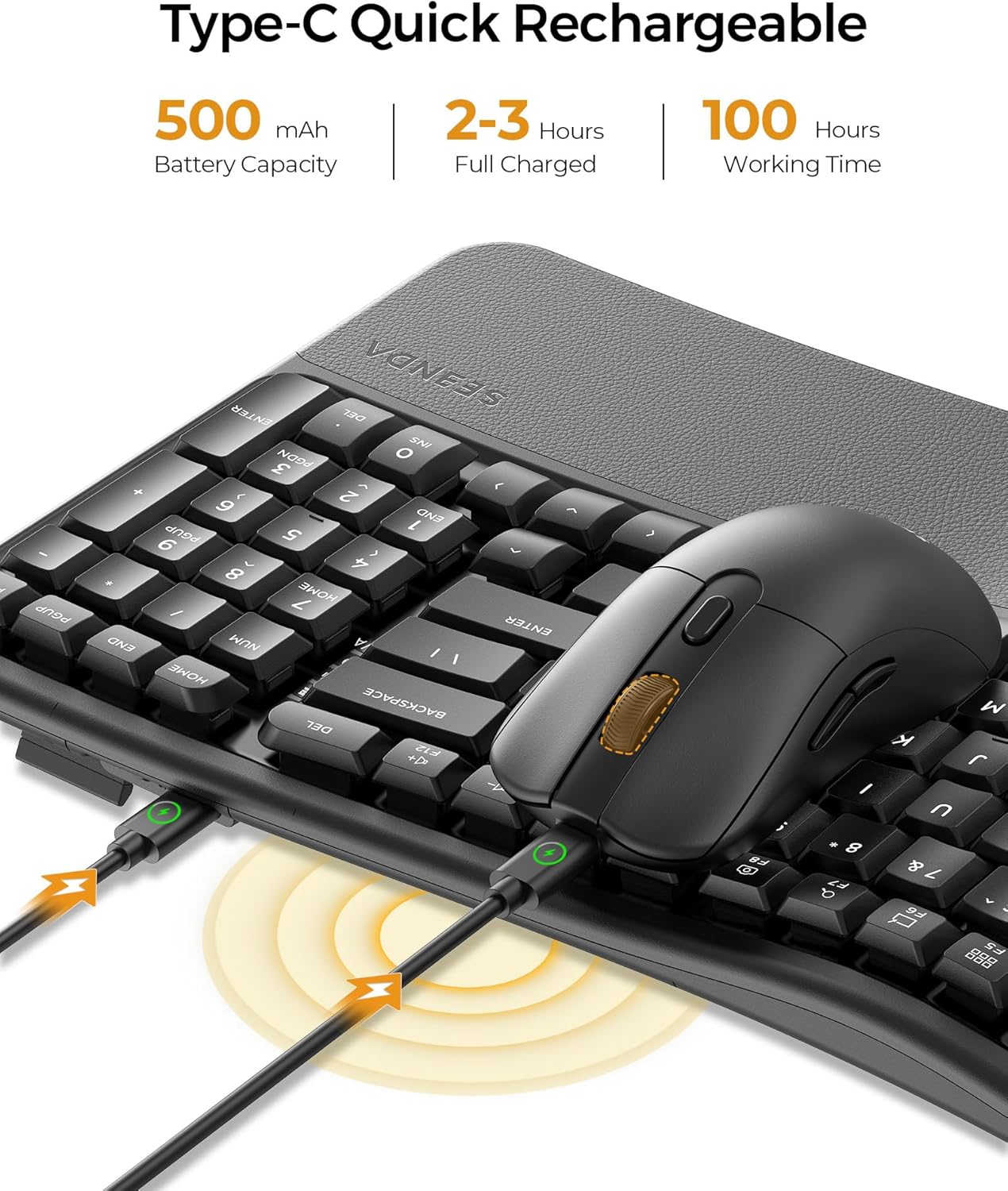
Figure 2: Keyboard and mouse connected to power via USB-C for charging.
3.3 Konnessjoni tal-Maws
The mouse offers three connection modes: 2.4G USB-A, 2.4G Type-C, and Bluetooth.
- For 2.4G USB-A/Type-C Connection:
- Iftaħ il-kompartiment tal-batterija fuq in-naħa ta’ taħt tal-maws.
- Remove the desired USB-A or Type-C receiver.
- Plug the receiver into an available USB-A or Type-C port on your computer or device.
- Ixgħel il-maws billi tuża s-swiċċ tal-enerġija fuq in-naħa ta’ taħt tiegħu.
- Toggle the mode switch button on the mouse to the corresponding 2.4G channel (indicated by a light). The mouse should connect automatically.
- Għal Konnessjoni Bluetooth:
- Ixgħel il-maws billi tuża s-swiċċ tal-enerġija.
- Toggle the mode switch button on the mouse to one of the Bluetooth channels (e.g., BT1 or BT2). The indicator light will flash.
- On your device, go to Bluetooth settings and search for "SEENDA COE310".
- Select the device and follow the on-screen prompts to pair.

Figure 3: Mouse underside showing USB and Type-C receivers.
3.4 Konnessjoni tat-Tastiera
The keyboard also offers three connection modes: 2.4G USB-A, 2.4G Type-C, and Bluetooth.
- For 2.4G USB-A/Type-C Connection:
- Ensure the corresponding USB-A or Type-C receiver is plugged into your device.
- Turn on the keyboard using the power switch (usually on the side or back).
- Press the Fn key + F1 (for USB-A) or Fn key + F2 (for Type-C) to select the channel. The indicator light will confirm connection.
- Għal Konnessjoni Bluetooth:
- Ixgħel it-tastiera.
- Press the Fn key + F3 (for BT1) or Fn key + F4 (for BT2) or Fn key + F5 (for BT3) to select a Bluetooth channel. The indicator light will flash.
- On your device, go to Bluetooth settings and search for "SEENDA COE310".
- Select the device and follow the on-screen prompts to pair.
Vidjo 1: Il-prodott uffiċjali spiċċaview of the seenda COE310 Multi-Device Ergonomic Keyboard and Mouse, demonstrating its features and multi-device connectivity.
4. Istruzzjonijiet Operattivi
4.1 Funzjonijiet tat-Tastiera
- Ittajpjar: The wave-curved design promotes a natural hand position for comfortable typing.
- Mejjel aġġustabbli: Use the adjustable feet on the underside of the keyboard to set your preferred typing angle. There are five adjustable tilts.
- Windows/macOS Layout Switch: Agħfas fn + A to switch to Windows layout or Fn + S biex taqleb għal-layout tal-macOS.
- Ċwievet tax-shortcut: The keyboard includes 12 dedicated shortcut keys for common functions. Refer to the Quick Start Guide for specific key functions.

Figure 4: Keyboard layout with Windows and macOS switch keys highlighted.
4.2 Funzjonijiet tal-Maws
- Aġġustament DPI: The mouse features 3 adjustable DPI settings (1000-1600-2400) for precise cursor control. Press the DPI button on the top of the mouse to cycle through settings.
- Klikks Siekta: Enjoy a quiet working environment with the noiseless click design.
- Buttuni 'l Quddiem/Lura: Uża l-buttuni tal-ġenb għal navigazzjoni rapida web browsers jew file esploraturi.

Figure 5: seenda wireless mouse, highlighting its silent operation.
4.3 Tibdil bejn Apparati
Biex taqleb bejn apparat konness:
- Tastiera: Agħfas Fn + F1/F2/F3/F4/F5 to switch to the corresponding connected device (F1 for USB-A, F2 for Type-C, F3/F4/F5 for Bluetooth channels).
- Ġurdien: Press the mode switch button on the underside of the mouse to cycle through the connected 2.4G (USB-A/Type-C) and Bluetooth channels.
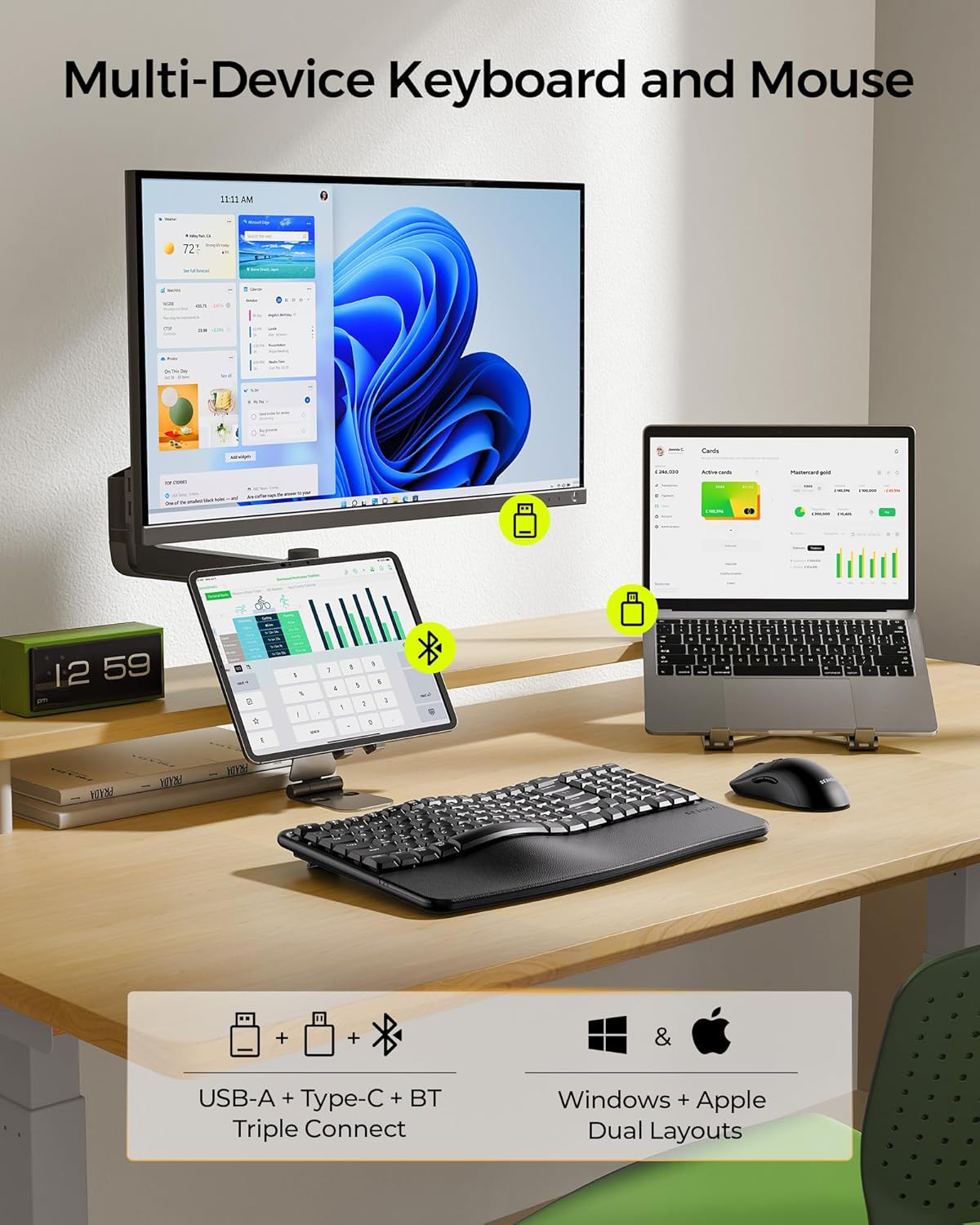
Figure 6: Multi-device connectivity example with the keyboard and mouse.
5. Manutenzjoni
5.1 Tindif
- Use a soft, dry cloth to wipe down the keyboard and mouse surfaces.
- Għal ħmieġ iebes, neħħi ftitampmt id-drapp bl-ilma jew cleaner ħafif u li ma jobrox.
- Avoid using harsh chemicals, solvents, or abrasive materials, as these can damage the finish.
- Do not immerse the devices in water or any liquid.
5.2 Kura tal-Batterija
- Charge the devices regularly to maintain battery health.
- Evita li l-batteriji jiġu skarikati kompletament ta' spiss.
- If storing the devices for an extended period, charge them to about 50% before storage.
5.3 Ħażna
- Store the keyboard and mouse in a cool, dry place away from direct sunlight and extreme temperatures.
- Keep the USB-A and Type-C receivers stored securely in the mouse's compartment when not in use to prevent loss.
6 Issolvi l-problemi
- Apparat mhux qed jikkonnettja:
- Ensure the devices are powered on and fully charged.
- Verify the correct connection mode (2.4G or Bluetooth) is selected on both the keyboard and mouse.
- For 2.4G, ensure the USB-A or Type-C receiver is securely plugged into your device.
- Għall-Bluetooth, kun żgur li l-Bluetooth huwa attivat fuq l-apparat tiegħek u pprova erġa' agħmel il-pairing.
- Try connecting to a different USB port or device to rule out port/device specific issues.
- Konnessjoni b'dewmien jew intermittenti:
- Move the devices closer to your computer to minimize interference.
- Ensure there are no large metal objects or other wireless devices causing interference.
- Check battery levels; low battery can affect performance.
- Keys or mouse buttons not responding:
- Recharge the devices.
- Erġa' ibda l-kompjuter jew l-apparat tiegħek.
- If using 2.4G, try re-inserting the receiver.
- Incorrect key layout (Windows/macOS):
- Agħfas fn + A for Windows layout or Fn + S for macOS layout.
7. Speċifikazzjonijiet
| Karatteristika | Dettall |
|---|---|
| Numru tal-Mudell | COE310 |
| Teknoloġija tal-Konnettività | USB (2.4G), Type-C (2.4G), Bluetooth |
| Apparati Kompatibbli | PC, Laptop, Tablet, Mac, MacBook Pro/Air, iPad, iPhone |
| Kapaċità tal-Batterija tat-Tastiera | 500mAh |
| Kapaċità tal-batterija tal-ġurdien | 300mAh |
| Ħin tax-Xogħol | Up to 100 hours (active use) |
| Ħin ta' Standby | Sa 300 jum |
| Ħin tal-Iċċarġjar | 2-3 sigħat |
| Settings tal-maws DPI | 1000, 1600, 2400 |
| Keyboard Tilt Angles | 5 livelli aġġustabbli |
| Piż tal-oġġett | 2.83 liri |
| Dimensjonijiet tal-Pakkett | 17.28 x 12.01 x 2.13 pulzieri |
8. Garanzija u Appoġġ
seenda products are designed for reliability and performance. For warranty information, technical support, or any inquiries regarding your COE310 keyboard and mouse combo, please refer to the contact information provided in your product packaging or visit the official seenda websit.


