1. Introduzzjoni
This manual provides essential information for setting up, operating, maintaining, and troubleshooting your Roku Smart TV 2025 – 24-Inch Select Series 720p HD TV. Please read these instructions carefully before using your television.
The Roku Select Series HD TV offers a streamlined entertainment experience. It features bright HD picture quality, auto speech clarity, and a night mode. Access free live television directly from the home screen and utilize the voice remote for content discovery across various applications. This television is suitable for various rooms including bedrooms, living rooms, kitchens, or children's rooms.
2. X'hemm fil-Kaxxa
Ivverifika li l-komponenti kollha huma preżenti fl-imballaġġ:
- Roku Select Series 24" HD TV
- Stands u viti
- Roku Voice Remote with batteries
- Gwida Quick Start
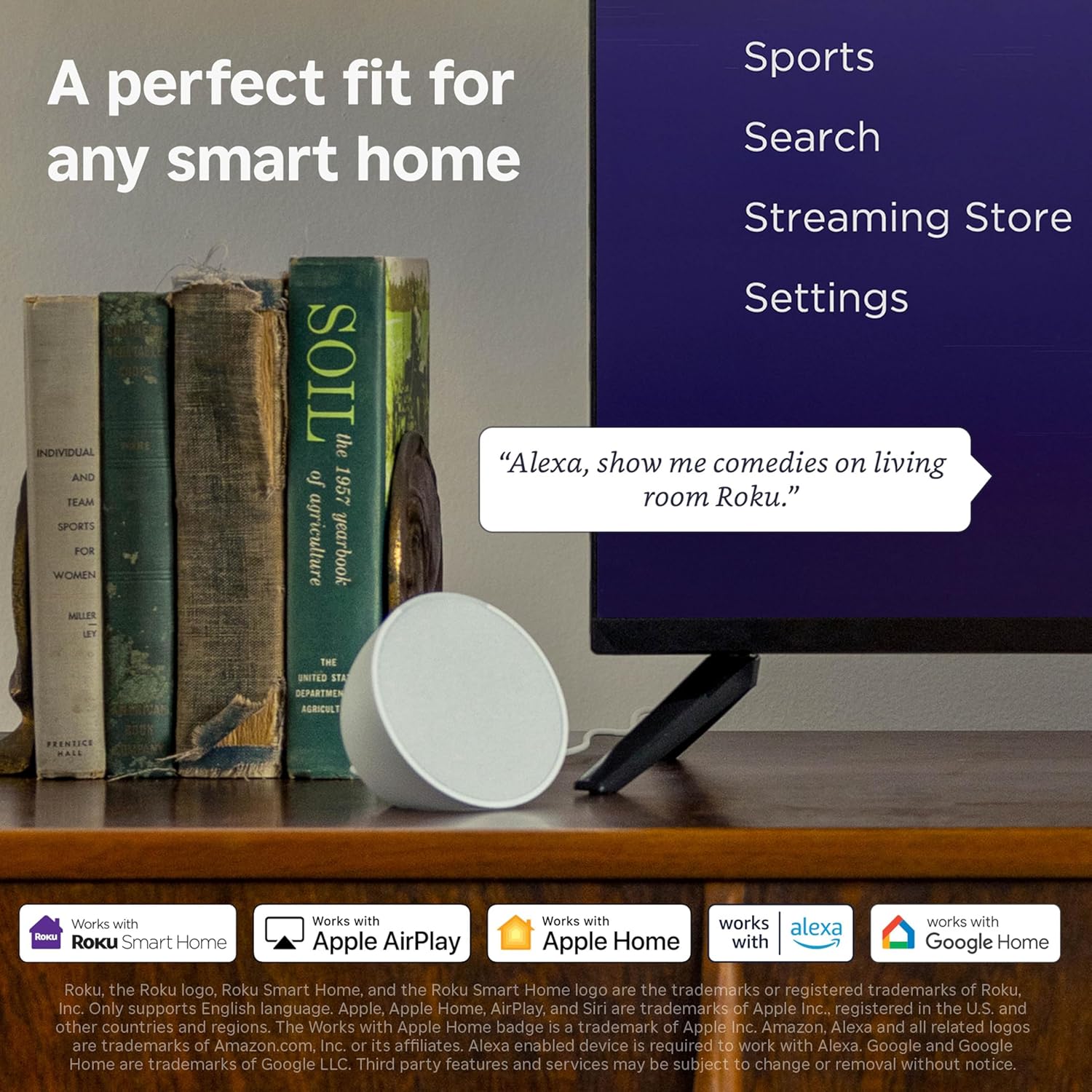
Image: The Roku Select Series TV box contents, showing the television, remote, and stand components.
3. Setup
3.1 Twaħħil tal-Istands tat-TV
- Poġġi l-iskrin tat-TV 'l isfel bir-reqqa fuq wiċċ artab u nadif biex tevita l-grif.
- Allinja kull stand mat-toqob tal-viti korrispondenti fil-qiegħ tat-TV.
- Waħħal l-istands billi tuża l-viti pprovduti. Kun żgur li huma ssikkati sew.
3.2 Konnessjoni tal-Periferali
Your Roku TV includes multiple ports for connecting external devices:
- Portijiet HDMI: Connect devices such as cable boxes, gaming consoles, or Blu-ray players. The HDMI 1 (ARC) port supports Audio Return Channel for simplified audio connections.
- Port USB: Għall-daqq tal-midja minn USB drive jew għall-għoti tal-enerġija lil apparati kompatibbli.
- Input tal-Antenna/Kejbil: Qabbad antenna għal xandiriet bl-ajru jew konnessjoni tat-TV bil-kejbil.
- Output Awdjo Ottiku: Għall-konnessjoni ma' soundbar jew riċevitur tal-awdjo.
- Input AV: Għall-konnessjoni ta' apparati eqdem bl-użu ta' kejbils tal-vidjo kompost u awdjo stereo.

Image: Close-up of the back of the Roku TV, highlighting the HDMI, USB, optical, and AV input ports.
3.3 L-Ewwel Tixgħel u l-Konnessjoni man-Netwerk
- Ipplaggja l-kejbil tal-enerġija fit-TV u mbagħad f'sokit tal-ħajt.
- Daħħal il-batteriji AAA inklużi fil-kontroll remot bil-vuċi.
- Agħfas il-buttuna tal-qawwa fuq ir-remote biex tixgħel it-TV.
- Follow the on-screen instructions to select your language, connect to your Wi-Fi network, and activate your Roku account.
4. Kif Tħaddem it-TV Roku Tiegħek
4.1 L-Użu tal-Kontroll mill-Bogħod bil-Vuċi
The Roku Voice Remote simplifies navigation and content search. It features dedicated buttons for popular streaming services and voice control capabilities.
- Buttuna tal-Vuċi: Press and hold to speak commands for searching content, launching apps, or controlling playback.
- Pad tan-Navigazzjoni: Use the directional arrows and OK button to move through menus and select items.
- Shortcuts tal-App: Dedicated buttons provide quick access to services like Netflix, Disney+, and Prime Video.
- Kontrolli tal-Volum: Adjust TV volume directly from the remote.
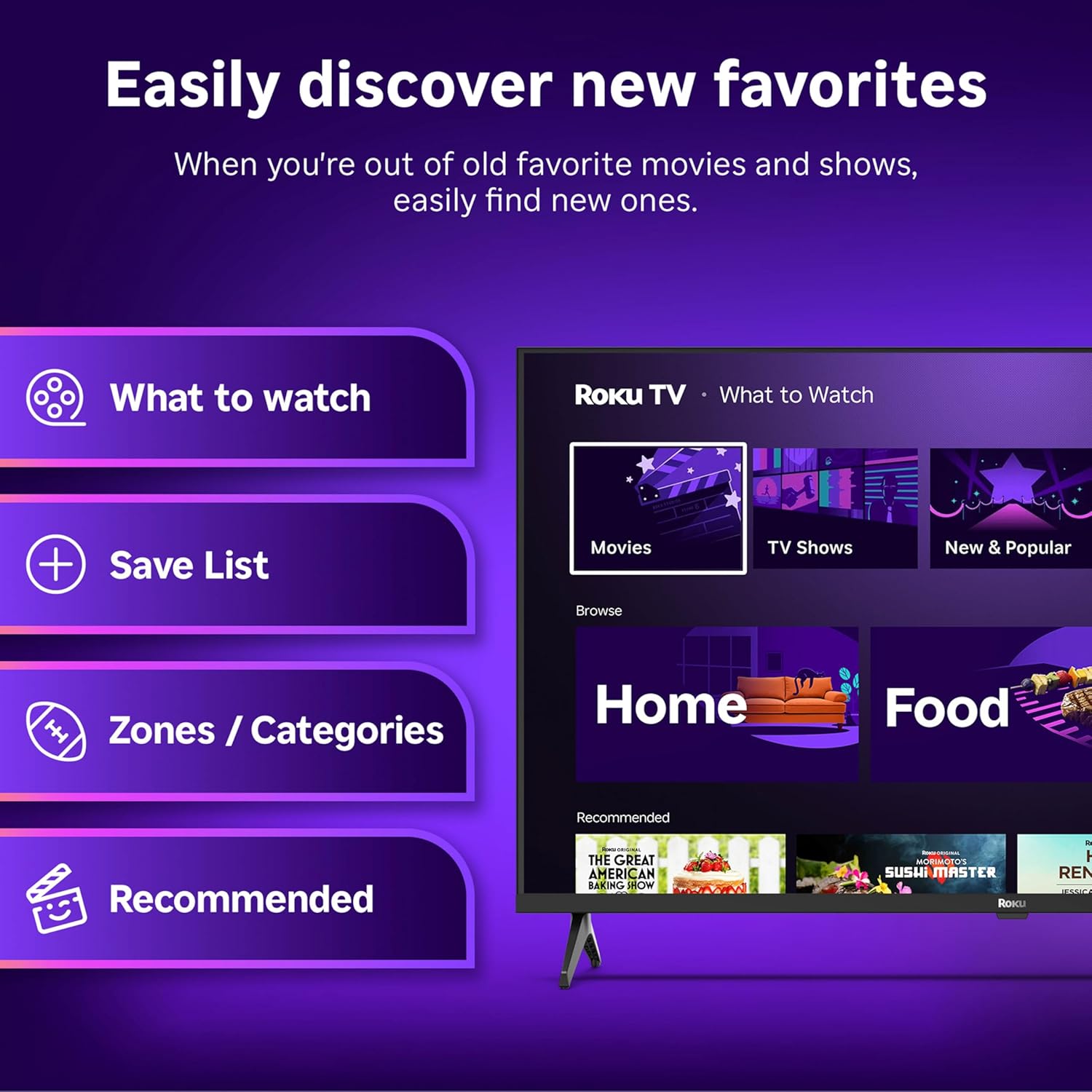
Image: The Roku Voice Remote, showing its layout and key functions.
4.2 Streaming and App Navigation
The Roku TV home screen provides quick access to all your streaming channels and inputs. You can customize the order of your apps for personalized access.
- Skrin tad-dar: Displays your installed apps, recommended content, and TV inputs.
- Ħanut tal-istriming: Browse and add new streaming channels.
- Live TV: Access free live television channels directly from the home screen.
- Fittex: Use the search function or voice remote to find movies, shows, actors, or directors across various services.

Image: The Roku TV user interface, showing the home screen with app tiles and menu options.
4.3 Issettjar tal-Immaġni u l-Ħoss
Your Roku TV features Smart Picture technology to optimize viewing and offers enhanced audio features.
- Smart Picture: Automatically adjusts picture settings based on the content being viewed (e.g., movie, sports, vivid, standard).
- Audio Clarity: Designed for clear speech and louder sound.
- Modalità tal-Headphones Bluetooth: Connect your wireless headphones for private listening.

Image: A vibrant nature scene displayed on the Roku TV, demonstrating the clear picture quality.
4.4 Integrazzjoni ta' Dar Intelliġenti
The Roku TV integrates with various smart home ecosystems for convenient voice control and content sharing.
- Kontroll tal-Vuċi: Compatible with Roku Voice, Siri, Alexa, and Google Assistant for hands-free operation.
- Apple AirPlay: Effortlessly share videos, photos, and music from your Apple devices to your TV.

Image: A Roku TV screen with a smart speaker nearby, illustrating voice control integration with smart home systems.
5. Manutenzjoni
5.1 Tindif tat-TV tiegħek
- Dejjem aqla’ t-TV qabel ma tnaddaf.
- Uża drapp artab u mingħajr suf biex timsaħ bil-mod l-iskrin u l-kabinett.
- Għal marki iebsa, ħassar bil-modampLaħlaħ id-drapp bl-ilma jew b'deterġent tal-iskrin ħafif u mhux abrażiv. Qatt ma tisprejjax id-deterġent direttament fuq l-iskrin.
- Evita li tuża kimiċi ħarxa, pads li joborxu, jew solventi.
5.2 Aġġornamenti tas-Software
Your Roku TV receives automatic software updates to provide new features and improve performance. Ensure your TV is connected to the internet to receive these updates.
6 Issolvi l-problemi
If you encounter issues with your Roku TV, try the following basic troubleshooting steps:
- Ebda Qawwa: Kun żgur li l-kejbil tal-enerġija huwa pplaggjat sew kemm fit-TV kif ukoll f'sokit elettriku li jaħdem. Ipprova sokit differenti.
- Ebda Stampa/Ħoss: Verify that the correct input source is selected. Check all cable connections (HDMI, AV, etc.) are secure.
- Remote Mhux Jirrispondi: Ibdel il-batteriji fir-remote. Kun żgur li m'hemm l-ebda ostaklu bejn ir-remote u t-TV.
- Kwistjonijiet ta' Konnessjoni man-Netwerk: Restart your Wi-Fi router. Go to the TV's network settings to reconnect to your Wi-Fi.
- App Not Loading: Try restarting the app. If the issue persists, remove the app and reinstall it from the Streaming Store.
- Irrisettjar tal-Fabbrika: As a last resort, a factory reset can resolve many software issues. This will erase all personal settings and installed apps. Access this option through the TV's Settings menu.
7. Speċifikazzjonijiet
| Karatteristika | Speċifikazzjoni |
|---|---|
| Brand | Roku |
| Numru tal-Mudell | 24R2D5 |
| Daqs tal-Iskrin | 24 Pulzier |
| Teknoloġija tal-Wiri | LED |
| Riżoluzzjoni | 720p |
| Riffriskar Rata | 60 Hz |
| Proporzjon ta' l-aspett | 16:9 |
| Teknoloġija tal-Konnettività | Bluetooth, WiFi |
| Karatteristiċi Speċjali | Bluetooth Headphone Mode, Dolby Audio, Voice Remote |
| Piż tal-oġġett | 5.7 Liri |
| Dimensjonijiet tal-Prodott | 7 x 21.1 x 14.3 pulzieri |
| Batteriji Meħtieġa | 2 batteriji AAA (għall-kontroll remot) |
8. Garanzija u Appoġġ
For warranty information and technical support, please refer to the documentation included with your product or visit the official Roku support websit. Żomm l-irċevuta tax-xiri tiegħek għal pretensjonijiet ta' garanzija.
Roku offers various support resources, including online FAQs, troubleshooting guides, and customer service contact options.


