1. Prodott Aktarview
The Xprinter XP-420B is a high-speed direct thermal label printer designed for various applications, including shipping labels. It offers a maximum print speed of 152 mm/s (6 inches/second) and a resolution of 203 DPI, ensuring clear and precise prints. Its robust double-walled clamshell design enhances durability, and the intelligent print head temperature control system ensures stable output. This printer is compatible with both Windows and Mac operating systems, making it a versatile solution for your labeling needs.
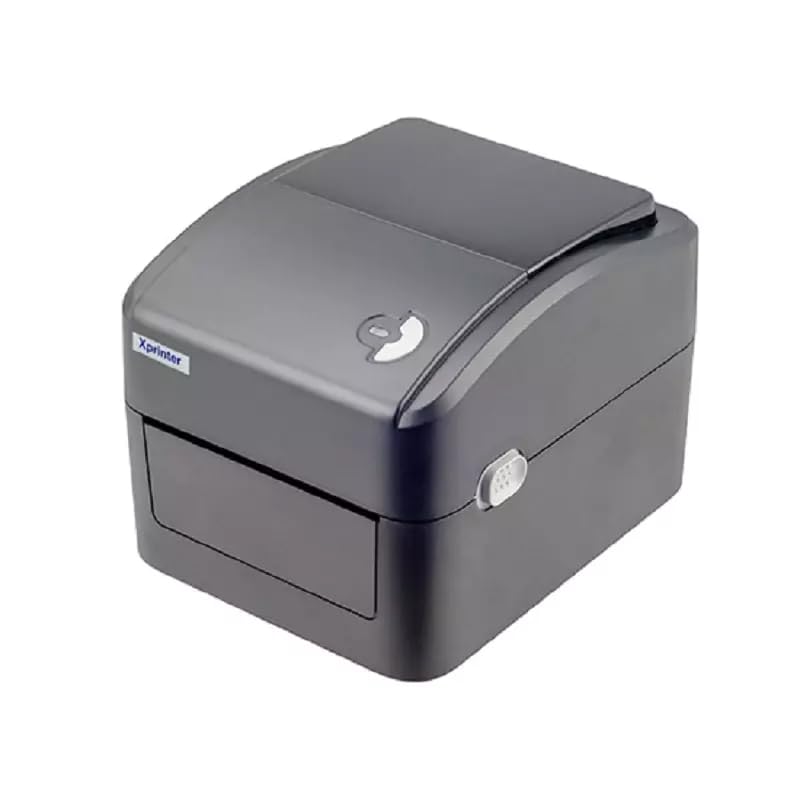
Figura 1: Quddiem view of the Xprinter XP-420B thermal label printer.
2. Gwida ta' Setup
2.1 Żpakkjar u Spezzjoni Inizjali
- Oħroġ il-printer u l-aċċessorji kollha mill-imballaġġ bir-reqqa.
- Verify that all components are present: printer unit, power adapter, USB cable, and user manual.
- Inspect the printer for any visible damage that may have occurred during transit.
2.2 Konnessjoni tal-Istampatur
- Qabbad l-adapter tal-enerġija mal-port tal-enerġija tal-istampatur u mbagħad daħħalh f'sokit tal-enerġija.
- Connect one end of the provided USB cable to the printer's USB port and the other end to an available USB port on your computer.
- Power on the printer using the power switch, usually located on the side or rear.

Figure 2: Xprinter XP-420B showing USB connectivity.
2.3 It-Tagħbija tat-Tikketti
- Iftaħ l-għatu ta' fuq tal-istampatur billi tagħfas il-lukketti tar-rilaxx fuq iż-żewġ naħat.
- Place the roll of thermal labels onto the label spindle, ensuring the labels feed from the bottom of the roll.
- Feed the leading edge of the labels through the label guide until it extends slightly past the print head.
- Adjust the movable label guides to fit the width of your labels snugly, without pinching them.
- Close the top cover firmly until it latches securely.
- The printer will automatically calibrate and detect the label size.
2.4 Installazzjoni tas-sewwieq
Before printing, you must install the appropriate printer drivers on your computer. Drivers are typically provided on a CD included with the printer or can be downloaded from the official Xprinter website. The XP-420B supports both Windows and Mac operating systems.
- Għall-Windows: Run the setup executable from the driver CD or downloaded file u segwi l-istruzzjonijiet fuq l-iskrin.
- Għall-Mac: Download the Mac driver from the Xprinter website and follow the installation prompts.
3. Istruzzjonijiet Operattivi
3.1 Stampar Bażiku
- Kun żgur li l-istampatur ikun mixgħul u konness mal-kompjuter tiegħek.
- Iftaħ id-dokument jew l-applikazzjoni li minnha tixtieq tipprintja (eż., softwer tat-tbaħħir, word processor).
- Agħżel "Stampa" mill-menù tal-applikazzjoni.
- Choose "Xprinter XP-420B" as your printer.
- In the printer settings or preferences, ensure the correct label size is selected. The printer supports adjustable label sizes.
- Ikklikkja "Ipprintja" biex tibgħat ix-xogħol lill-istampatur.
3.2 Adjusting Label Size
The XP-420B allows for adjustable label sizes. This adjustment is primarily done through the printer driver settings on your computer and by physically adjusting the label guides within the printer.
- Software Adjustment: In your printing application or printer driver settings, navigate to the "Page Setup" or "Paper Size" options. Select or define the custom dimensions for your labels (e.g., 4x6 inches for shipping labels).
- Physical Adjustment: As described in Section 2.3, ensure the internal label guides are set correctly to the width of your loaded labels.
4. Manutenzjoni
4.1 Tindif tar-Ras tal-Istampar
Regular cleaning of the print head is crucial for maintaining print quality and extending the printer's lifespan. It is recommended to clean the print head after every roll of labels or if print quality degrades.
- Itfi l-istampatur u skonnettja l-korda tal-enerġija.
- Iftaħ il-qoxra ta 'fuq tal-istampatur.
- Wait a few minutes for the print head to cool down if the printer has been recently used.
- Imsaħ bil-mod il-wiċċ tar-ras tal-istampar b'tajjara bl-alkoħol jew b'ċarruta mingħajr suf.ampened b'alkoħol isopropiliku.
- Ħalli r-ras tal-istampar tinxef kompletament qabel ma tagħlaq l-għatu u terġa' tikkonnettja l-enerġija.
4.2 Tindif Ġenerali
- Uża drapp artab u niexef biex timsaħ il-parti ta' barra tal-istampatur.
- Remove any dust or label debris from the inside of the printer using a soft brush or compressed air.
- Tużax tindif jew solventi li joborxu.
5 Issolvi l-problemi
| Problema | Kawża Possibbli | Soluzzjoni |
|---|---|---|
| Il-printer mhux qed jirrispondi | Power off; USB cable disconnected; Driver issue. | Ensure power is on and connected. Check USB cable. Reinstall printer driver. |
| Kwalità tal-istampar fqira (sfumatura, linji) | Ras tal-istampar maħmuġa; Tip ta' tikketta mhux korrett; Issettjar ta' densità tal-istampar baxxa. | Clean the print head (Section 4.1). Ensure you are using direct thermal labels. Adjust print density in driver settings. |
| It-tikketti mhux qed jitimgħu sew | Labels improperly loaded; Label guides not adjusted; Sensor obstruction. | Reload labels correctly. Adjust label guides. Clean any dust or debris from sensors. |
| Il-printer jistampa tikketti vojta | Labels loaded upside down; Not a direct thermal label. | Ensure labels are loaded with the printable side facing up. Verify labels are direct thermal. |
6. Speċifikazzjonijiet tal-Prodott
| Karatteristika | Dettall |
|---|---|
| Brand | Xprinter |
| Isem tal-Mudell | XP-420B |
| Teknoloġija tal-Konnettività | USB |
| Teknoloġija tal-Istampar | Termali Diretti |
| Riżoluzzjoni | 203 DPI |
| Veloċità Massima tal-Istampar | 152 mm/s (6 pulzieri/sekonda) |
| Memorja | 8MB SDRAM, 8MB Flash |
| Output Printer | Monokromu |
| Piż tal-oġġett | 3 Kilogrammi |
| Dimensjonijiet tal-Prodott | 20D x 6W x 10H Ċentimetri |
| Kompatibilità | Windows, Mac |
7. Garanzija u Appoġġ
7.1 Informazzjoni dwar Garanzija
The Xprinter XP-420B comes with a 1-Sena Garanzija mid-data tax-xiri. Din il-garanzija tkopri difetti fil-manifattura u malfunzjonamenti taħt użu normali. Jekk jogħġbok żomm il-prova tax-xiri tiegħek għal talbiet ta' garanzija.
7.2 Appoġġ għall-Klijent
For technical assistance, troubleshooting beyond this manual, or warranty service, please contact Xprinter customer support. Refer to the contact information provided with your product packaging or visit the official Xprinter webis-sit għad-dettalji ta' appoġġ l-aktar aġġornati.