1. Introduzzjoni
This manual provides essential instructions for setting up, operating, and maintaining your CONSUMER CELLULAR Iris Connect smartphone. The Iris Connect is designed for reliable performance, featuring a 6.5-inch display, 32GB of storage, and running on Android 13. Please read this manual thoroughly to ensure proper use and to maximize your device's capabilities.
2. X'hemm fil-Kaxxa
Upon unboxing your CONSUMER CELLULAR Iris Connect, verify that all the following items are included:
- CONSUMER CELLULAR Iris Connect Smartphone
- Cable USB
- Gwida Quick Start
3. Device Overview
Familiarize yourself with the physical components of your Iris Connect smartphone.

Figura 3.1: Quddiem u lura view of the Iris Connect smartphone, highlighting its sleek design and camera placement.

Figura 3.2: Quddiem view of the Iris Connect, showcasing the 6.5-inch display and front-facing camera.
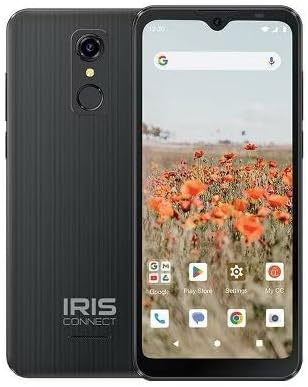
Figura 3.3: Lura view of the Iris Connect, showing the main camera, flash, and fingerprint sensor.
Komponenti Ewlenin:
- Display ta' 6.5 pulzier: High Definition+ screen for clear visuals.
- Kamera ta' Quddiem (8MP): Located at the top of the display for selfies and video calls.
- Main Camera (13MP): Located on the rear, for high-resolution photos and videos.
- Skaner tal-marki tas-swaba ': Integrated on the rear for secure unlocking.
- Buttuna tal-Qawwa: Typically on the right side, used to turn the device on/off or wake/sleep the screen.
- Buttuni tal-Volum: Maġenb il-buttuna tal-qawwa, għall-aġġustament tal-livelli tal-awdjo.
- Port USB-C: Fil-qiegħ, għall-iċċarġjar u t-trasferiment tad-dejta.
- Jack Awdjo 3.5mm: Għall-konnessjoni tal-headphones.
4. Setup
4.1. Daħħal il-Karta SIM u l-Karta MicroSD
- Sib it-trej tas-SIM fuq il-ġenb tat-tagħmir tiegħek.
- Insert the SIM ejector tool (not included, use a thin paperclip) into the small hole next to the tray and press gently until the tray pops out.
- Place your Nano-SIM card(s) into the designated slots with the gold contacts facing down.
- If desired, insert a microSD card (up to 256GB) into its dedicated slot for expanded storage.
- Erġa’ daħħal it-trej fl-apparat bir-reqqa sakemm tikklikkja f’postu.
4.2. L-Assistent tal-Ixgħel u s-Setup Inizjali
- Agħfas u żomm il- Buttuna tal-Qawwa sakemm jixgħel l-iskrin.
- Segwi l-istruzzjonijiet fuq l-iskrin biex tagħżel il-lingwa tiegħek, tikkonnettja ma' netwerk Wi-Fi, u tissettja l-kont Google tiegħek.
- You may be prompted to transfer data from an old device or set up security features like the fingerprint scanner.
4.3. Iċċarġjar tal-Apparat
Before first use, it is recommended to fully charge your device. The Iris Connect features a 3500 mAh battery with an approximate charging time of 2.5 hours.
- Qabbad il-kejbil USB mal-port USB-C fil-qiegħ tat-telefon tiegħek.
- Connect the other end of the USB cable to a compatible power adapter (not included) and plug it into a wall outlet.
- L-indikatur tal-iċċarġjar se jidher fuq l-iskrin.
5. Istruzzjonijiet Operattivi
5.1. Navigazzjoni Bażika
- Mess: Tektek ikona biex tiftaħ app jew tagħżel oġġett.
- Swipe: Iddreggja subgħajk fuq l-iskrin biex tiskrollja jew tinnaviga bejn l-iskrins.
- Oqros: Uża żewġ swaba’ biex tagħmel zoom in jew zoom out fuq ir-ritratti u web paġni.
- Skrin tad-dar: Iċ-ċentru ċentrali għall-apps u l-widgets tiegħek.
- App Drawer: Skrolla 'l fuq mill-iskrin tad-dar biex taċċessa l-applikazzjonijiet installati kollha.
5.2. Nagħmlu Sejħiet
- Tektek il- Telefon ikona fuq l-iskrin tad-dar tiegħek jew fil-kexxun tal-app.
- Daħħal in-numru tat-telefon billi tuża t-tastiera tan-numri jew agħżel kuntatt mill-ktieb tal-indirizzi tiegħek.
- Tektek il- Ċempel buttuna biex tibda s-sejħa.
5.3. Tibgħat Messaġġi
- Iftaħ il- Messaġġi app.
- Tektek il- Ibda chat or Messaġġ ġdid ikona.
- Daħħal in-numru tar-riċevitur jew agħżel mill-kuntatti, imbagħad ittajpja l-messaġġ tiegħek.
- Tektek il- Ibgħat buttuna.
5.4. Konnessjoni mal-Wi-Fi
- Mur fuq Settings > Netwerk u internet > Internet.
- Ixgħel il-Wi-Fi On.
- Agħżel in-netwerk Wi-Fi mixtieq tiegħek mil-lista u daħħal il-password jekk tintalab.
5.5. Tqabbil tal-Bluetooth
- Mur fuq Settings > Apparati konnessi > Preferenzi ta' konnessjoni > Bluetooth.
- Toggle Bluetooth On.
- Agħżel Par apparat ġdid and choose your desired device from the list. Follow any on-screen prompts to complete pairing.
5.6. Użu tal-kamera
The Iris Connect features a 13MP main camera and an 8MP front-facing camera.
- Iftaħ il- Kamera app.
- Tektek il- Shutter buttuna biex tieħu ritratt.
- Switch between photo and video modes, or front and rear cameras, using the on-screen icons.
5.7. Skaner tal-marki tas-swaba '
To set up the fingerprint scanner for secure unlocking:
- Mur fuq Settings > Sigurtà u privatezza > Jisfrutta l-apparat > Marki tas-swaba'.
- Follow the on-screen instructions to register your fingerprint(s).
6. Manutenzjoni
6.1. Tindif tal-Apparat
To keep your device clean and functional:
- Uża drapp artab u mingħajr suf biex timsaħ l-iskrin u l-qafas.
- Evita li tuża kimiċi ħarxa, prodotti tat-tindif li joborxu, jew sprejs tal-ajrusol.
- Ensure ports are free of dust and debris.
6.2. Kura tal-batterija
To optimize your battery life (up to 26 hours of use):
- Evita temperaturi estremi.
- Do not leave the device charging for extended periods after it's full.
- Adjust screen brightness and close unused apps to conserve power.
6.3. Aġġornamenti tas-Software
Iċċekkja regolarment għal aġġornamenti tas-softwer biex tiżgura li t-tagħmir tiegħek ikollu l-aħħar karatteristiċi u irqajja tas-sigurtà:
- Mur fuq Settings > Sistema > Aġġornament tas-sistema.
- Segwi l-istruzzjonijiet fuq l-iskrin biex tniżżel u tinstalla kwalunkwe aġġornament disponibbli.
7 Issolvi l-problemi
This section addresses common issues you might encounter with your Iris Connect smartphone.
- Apparat mhux mixgħul: Kun żgur li l-batterija hija ċċarġjata. Qabbad il-ċarġer u stenna ftit minuti qabel ma tipprova tixgħelha mill-ġdid.
- L-ebda sinjal tan-netwerk: Check if your SIM card is correctly inserted. Verify that Airplane Mode is off (swipe down from the top of the screen to check quick settings). Contact your service provider if the issue persists.
- L-apps jiġġarraf jew jiffriża: Try restarting the app. If the issue continues, restart the phone. You may also clear the app's cache or data via Settings > Apps > [Isem tal-App] > Ħażna u cache.
- Prestazzjoni bil-mod: Close unused apps, clear cache, or consider uninstalling rarely used applications to free up storage.
- Unable to connect to Wi-Fi/Bluetooth: Ensure Wi-Fi/Bluetooth is enabled in settings. Try forgetting the network/device and reconnecting. Restart your phone and the router/Bluetooth device.
- Forgot screen lock password/pattern: Jekk għandek kont tal-Google marbut, tista' tirrisettjah. Inkella, jista' jkun meħtieġ reset tal-fabbrika (dan iħassar id-dejta kollha).
For more complex issues, please refer to the official CONSUMER CELLULAR support resources or contact their customer service.
8. Speċifikazzjonijiet
Detailed technical specifications for the CONSUMER CELLULAR Iris Connect smartphone (Model: SH4650).
| Karatteristika | Speċifikazzjoni |
|---|---|
| Isem tal-Mudell | Iris Connect |
| Numru tal-Mudell | SH4650 |
| Sistema Operattiva | Android 13.0 |
| Daqs tal-Wiri | 6.5 Pulzier |
| Riżoluzzjoni tal-Wiri | 1440 x 810 |
| Mudell tas-CPU | Snapdragon 710 |
| Veloċità tas-CPU | 2 GHz |
| Daqs tal-Memorja RAM Installata | 3 GB |
| Ħażna Interna | 32 GB |
| Ħażna espansibbli | Sa 256GB permezz ta 'microSD |
| Kamera Prinċipali | 13 MP |
| Kamera ta' Quddiem | 8 MP |
| Kapaċità tal-batterija | 3500 Milliamp Sigħat |
| Klassifikazzjoni tal-Qawwa tal-Batterija | 3600 (likely Wh or similar unit, as mAh is 3500) |
| Ħin tal-Iċċarġjar | 2.5 Sigħat |
| Konnettività | 4G LTE, Bluetooth, Wi-Fi |
| Karatteristiċi Speċjali | Dual Camera, Expandable Storage, Fingerprint Scanner, Long Battery Life |
| Awdjo Jack | 3.5 Millimetru |
| Dimensjonijiet | 8 x 6 x 3 pulzieri |
| Piż tal-oġġett | 6.5 uqija |
9. Garanzija u Appoġġ
For information regarding your product's warranty, please refer to the warranty card included with your purchase or visit the official CONSUMER CELLULAR website. For technical assistance, troubleshooting beyond this manual, or customer service inquiries, please contact CONSUMER CELLULAR support directly.
CONSUMER CELLULAR Official Websit: www.consumercellular.com


