Introduzzjoni
The Wahoo TRACKR Radar Tail Light is an advanced cycling safety device designed to enhance rider awareness and visibility. It integrates a powerful tail light with a radar system to detect approaching vehicles from behind, providing real-time alerts to the cyclist. This manual provides essential information for the proper setup, operation, and maintenance of your TRACKR device.

Immaġni: Quddiem view of the Wahoo TRACKR Radar Tail Light, showcasing its compact design and red lens.
Setup
1. Iċċarġjar tal-Apparat
Before initial use, fully charge the TRACKR Radar Tail Light. The device features a USB-C charging port for convenience.
- Connect the provided USB-C cable to the charging port on the TRACKR.
- Connect the other end of the cable to a standard USB power adapter or computer USB port.
- The charging indicator light will illuminate during charging and change color or turn off when fully charged.
2. Mounting the TRACKR
The TRACKR Radar Tail Light includes a versatile rubberized mounting system designed to securely attach to various seat post shapes and sizes.
- Select a suitable position on your bicycle's seat post, ensuring the light faces directly backward and is unobstructed.
- Attach the rubber strap mount firmly around the seat post.
- Ensure the TRACKR is securely fastened and does not move during cycling.

Image: The Wahoo TRACKR Radar Tail Light securely mounted on a bicycle's seat post, viewed mill-ġenb.
3. Tqabbil ma 'Apparat
The TRACKR can be seamlessly integrated with Wahoo ELEMNT bike computers, compatible third-party bike computers, and the Wahoo App for enhanced functionality.
- For Wahoo ELEMNT Bike Computers: Power on your ELEMNT device. Navigate to the sensor pairing menu and select "Add Sensor." The TRACKR should appear in the list of available sensors. Follow the on-screen prompts to complete pairing.
- For Wahoo App: Download and open the Wahoo App on your smartphone. Ensure Bluetooth is enabled. Select "Pair New Device" and follow the in-app instructions to connect your TRACKR.
- For Other Compatible Devices: Refer to your device's instruction manual for specific sensor pairing procedures. The TRACKR supports ANT+ and Bluetooth connectivity.
Operazzjoni
Qawwa mixgħul/mitfi
Press and hold the power button located on the device to turn the TRACKR on or off. The light will illuminate to indicate it is active.
Radar Functionality
The TRACKR radar system detects approaching vehicles from up to 150 meters (164 yards) behind you. Alerts are provided in real-time on paired ELEMNT bike computers, compatible bike computers, and fitness watches.
- In-Ride Alerts: Visual and/or audible notifications on your paired device will indicate the presence and proximity of vehicles.
- Quick Alert: A continuous flash pattern on the tail light signals when a car enters the radar’s detection zone, increasing your visibility to the driver.

Image: A Wahoo ELEMNT bike computer screen displaying visual alerts for vehicles detected by the TRACKR radar.
Light Modes and Features
- Memorja tal-Modalità: The TRACKR remembers your last-used light mode for convenience between rides.
- Dawl tal-brejk: The light automatically increases luminosity when braking, providing a clear signal to following traffic.
- Battery Extender Mode: This mode reduces light luminosity to conserve battery power when no vehicles are detected by the radar.
- Dawl Adattiv: The light adjusts based on detected vehicles and ambient conditions.
Wahoo App and ANT+ Smart Light Control
Utilize the Wahoo App to customize TRACKR settings, including turning specific features on or off to comply with regional traffic regulations. For hands-free control, the TRACKR supports ANT+ Smart Light Control via ELEMNT bike computers.
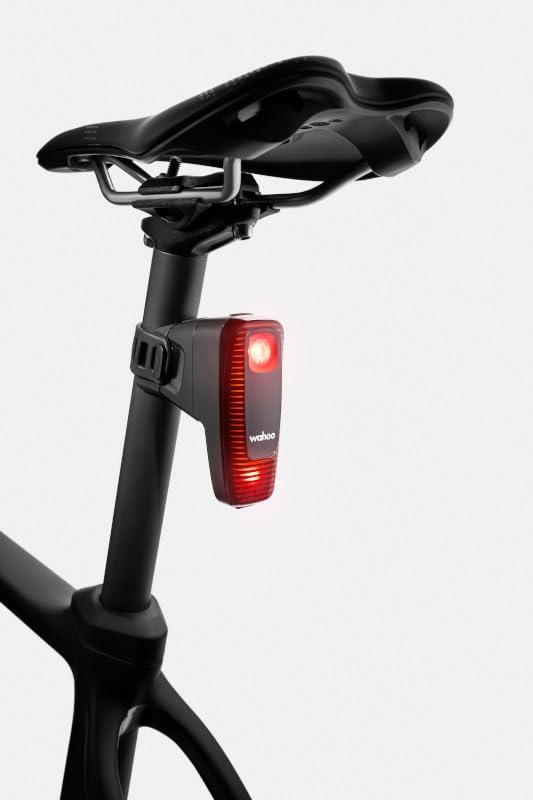
Image: A cyclist on a road with the Wahoo TRACKR Radar Tail Light active, as a car passes by, illustrating the device's function in real-world conditions.
Manutenzjoni
Tindif
Regularly clean the TRACKR device, especially the light lens and radar sensor area, to ensure optimal performance. Use a soft, damp drapp. Evita prodotti tat-tindif jew solventi li joborxu.
Kura tal-batterija
To maximize battery life, avoid fully discharging the device frequently. Charge the device regularly, especially if it will be stored for an extended period.
Ħażna
Store the TRACKR in a cool, dry place away from direct sunlight and extreme temperatures when not in use.
Issolvi l-problemi
- L-Apparat Mhux Jixgħel: Ensure the device is fully charged. If the issue persists, try a different USB-C cable and power source.
- Not Pairing with Bike Computer/App:
- Ensure the TRACKR is powered on and within range of the pairing device.
- Check that Bluetooth (for app) or ANT+ (for bike computer) is enabled on your pairing device.
- Restart both the TRACKR and the pairing device.
- Consult the Wahoo App or your bike computer's manual for specific pairing instructions.
- Radar Not Detecting Vehicles:
- Ensure the radar sensor area is clean and unobstructed.
- Verify the TRACKR is mounted correctly and facing directly backward.
- Check for any software updates for your paired device or the Wahoo App.
- Light Not Functioning Correctly:
- Iċċekkja l-livell tal-batterija.
- Ensure no settings in the Wahoo App or paired computer are disabling specific light functions.
For further assistance, refer to the Wahoo Fitness support resources.
Speċifikazzjonijiet
| Karatteristika | Dettall |
|---|---|
| Numru tal-Mudell | RADAR TRACKER |
| Dimensjonijiet tal-oġġett (LxWxH) | 3.23 x 1.57 x 3.54 pulzieri |
| Piż tal-oġġett | 99 Gramm |
| Kulur | Iswed |
| Sors tal-Enerġija | Mħaddma bil-batterija |
| Tip ta 'Wiri | LED |
| Apparati Kompatibbli | Smartphone, Wahoo ELEMNT Bike Computers, compatible ANT+ devices |
| Konnettività | ANT+, Bluetooth |
| Medda ta' Sejbien tar-Radar | Up to 150m (164 yards) |
| UPC | 850048106543 |
Garanzija
The Wahoo TRACKR Radar Tail Light comes with a 1-year manufacturer's warranty from the date of purchase. Please retain your proof of purchase for warranty claims. The warranty covers defects in materials and workmanship under normal use.
Appoġġ
For product support, frequently asked questions, or to contact customer service, please visit the official Wahoo Fitness website. You can also find additional resources and firmware updates there.
Wahoo Fitness Websit: www.wahoofitness.com


