1. Introduzzjoni
This manual provides essential information for the proper installation, operation, and maintenance of your Hyzom Wireless Repeater Internet Amplifier. Please read this manual thoroughly before using the device to ensure optimal performance and safety.

Figure 1: Hyzom Wireless Repeater Internet Amplifier with four adjustable antennas and Ethernet ports.
2. Kontenut tal-Pakkett
- Hyzom Wireless Repeater Internet Ampaktar ħaj
- Manwal għall-Utent (dan id-dokument)
- Ethernet Cable (optional, for wired mode)
3. Setup
The Hyzom Wireless Repeater can be set up in two main modes: Repeater Mode (Wireless) or AP Mode (Wired).
3.1. Repeater Mode (Wireless Extension)
- Qawwa Mixgħul: Plug the Wireless Repeater into an electrical outlet. Wait for the power indicator light to turn solid.
- Connect to Repeater's Wi-Fi: On your computer or mobile device, connect to the Wi-Fi network named "Wireless_Repeater" (or similar, check device label). No password is required for the initial connection.
- Paġna tas-Setup tal-Aċċess: Iftaħ a web browser and enter the default IP address (e.g., 192.168.1.1 or check manual/device label) in the address bar. This will open the repeater's setup page.
- Agħżel il-Modalità tar-Ripetitur: On the setup page, select "Repeater Mode". The device will scan for available Wi-Fi networks.
- Agħżel in-Netwerk Tiegħek: Select your existing home Wi-Fi network (SSID) from the list.
- Daħħal il-Password: Enter the password for your existing home Wi-Fi network.
- Configure Extended Network (Optional): You can choose to keep the same SSID for the extended network or create a new one (e.g., "YourNetwork_EXT"). It is recommended to use a different SSID for the extended network to easily identify it.
- Applika s-Settings: Click "Apply" or "Save". The repeater will restart and connect to your main router.
- Ivverifika l-Konnessjoni: Once the repeater restarts, connect your devices to the new extended Wi-Fi network. Check the signal strength and internet access.
Vidjo 1: Prodott Fuqview - Demonstrates the physical aspects and basic setup of the Wireless Repeater. This video is provided by the seller.

Figure 2: WPS One-Touch Connection. Press the WPS button on your router, then press the WPS button on the extender to establish a connection automatically.
3.2. AP Mode (Wired Access Point)
- Qawwa Mixgħul: Plug the Wireless Repeater into an electrical outlet.
- Qabbad il-Kejbil tal-Ethernet: Connect an Ethernet cable from your main router (or an active network port) to the LAN/WAN port on the Wireless Repeater.
- Paġna tas-Setup tal-Aċċess: Follow steps 3.1.2 and 3.1.3 to access the setup page.
- Agħżel il-Modalità AP: Fil-paġna tas-setup, agħżel "AP Mode".
- Configure AP Settings: Set a new SSID and password for your access point.
- Applika s-Settings: Click "Apply" or "Save". The repeater will restart and function as a wired access point.
- Ivverifika l-Konnessjoni: Connect your wireless devices to the new access point's Wi-Fi network.
4. Istruzzjonijiet Operattivi
4.1. Tqegħid Ottimali
For best performance, place the Wireless Repeater halfway between your main router and the area where you need improved Wi-Fi coverage. Avoid placing it near large metal objects, concrete walls, or devices that emit strong electromagnetic interference (e.g., microwaves, cordless phones).

Figure 3: Optimal placement of the extender to cover the entire home without dead zones.
4.2. Indikaturi LED
- LED tal-qawwa: Solid blue indicates the device is powered on.
- Wi-Fi LED: Solid blue indicates a successful Wi-Fi connection. Blinking indicates activity.
- LEDs tal-Qawwa tas-Sinjal: Multiple solid blue LEDs indicate strong signal from the router. Fewer LEDs indicate weaker signal. Adjust placement if signal is weak.
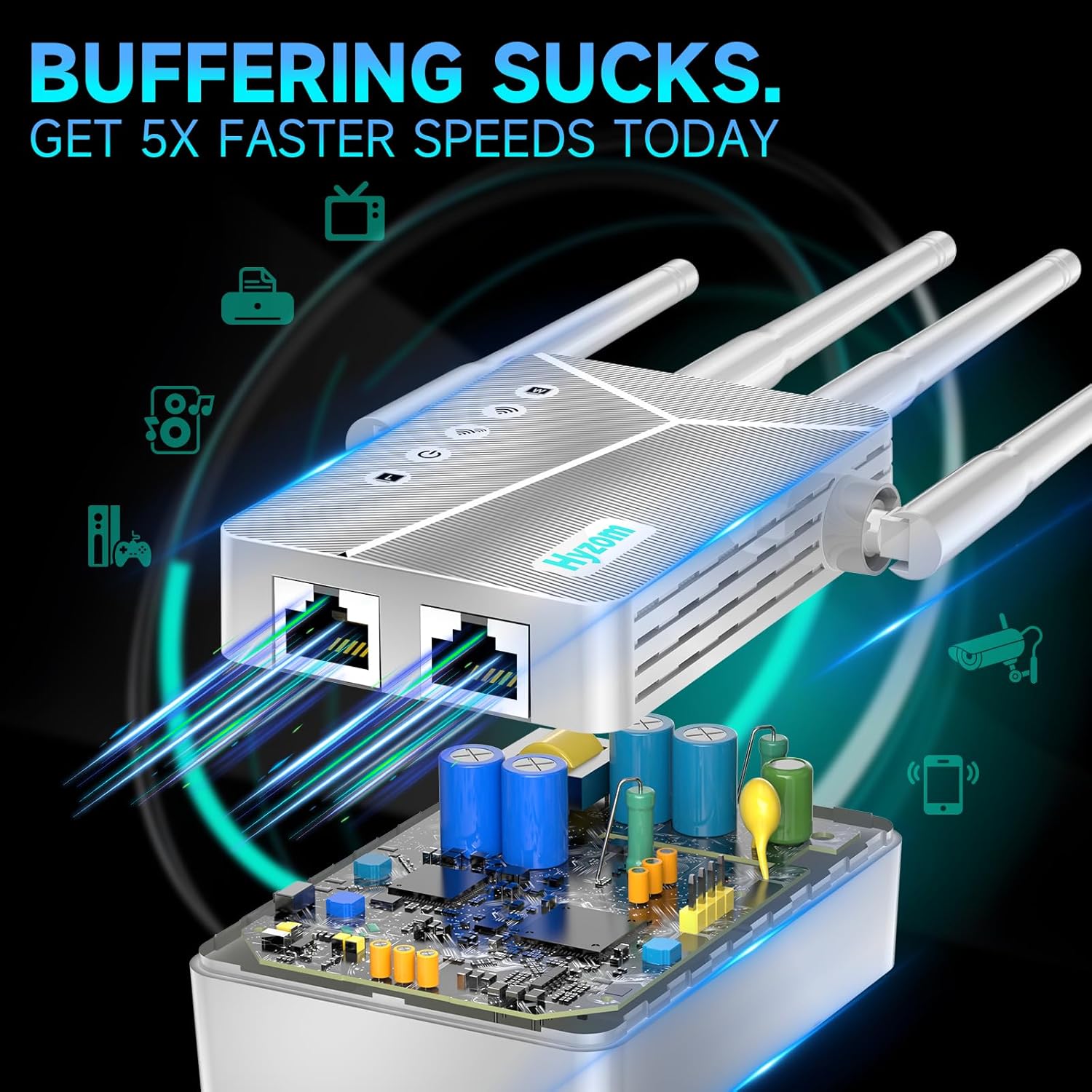
Figure 4: LED indicators on the device for power, Wi-Fi, and signal strength.
4.3. Adjusting Antennas
The four external antennas can be adjusted to optimize signal direction and coverage. Experiment with different angles to find the best configuration for your environment.

Figure 5: Adjustable antennas for customized signal direction and enhanced coverage.
5. Manutenzjoni
- Tindif: Uża drapp artab u niexef biex tnaddaf l-apparat. Tużax prodotti tat-tindif likwidi jew aerosols.
- Ventilazzjoni: Kun żgur li l-apparat jitqiegħed f'żona ventilata sew biex tevita li jisħon iżżejjed. Timblokkax it-toqob tal-ventilazzjoni.
- Aġġornamenti tal-Firmware: Iċċekkja perjodikament il-manifattur websit għal aġġornamenti tal-firmware biex tiġi żgurata prestazzjoni u sigurtà ottimali.
- Ibda mill-ġdid: If you experience connectivity issues, try restarting the device by unplugging it for 10 seconds and then plugging it back in.
6 Issolvi l-problemi
- Ebda Aċċess għall-Internet:
- Kun żgur li r-router prinċipali tiegħek għandu aċċess għall-internet.
- Check the signal strength LEDs on the repeater. If weak, reposition the repeater closer to the main router.
- Verify that you entered the correct password for your main Wi-Fi network during setup.
- Try restarting both your main router and the repeater.
- Weak Signal from Repeater:
- Relocate the repeater to a position that is roughly halfway between your router and the desired coverage area.
- Adjust the antennas for better signal reception and transmission.
- Minimize obstructions like thick walls or large electronic devices between the router and repeater.
- Cannot Access Setup Page:
- Ensure your device is connected to the repeater's default Wi-Fi network (e.g., "Wireless_Repeater").
- Verify the IP address entered in the browser. Try clearing your browser's cache.
- Temporarily disable any VPN or firewall software on your computer/mobile device.
- Il-Konnessjoni Tinqata’ Spiss:
- Iċċekkja għal interferenza minn apparat elettroniku ieħor.
- Ensure the repeater is not overloaded with too many connected devices.
- Consider updating the repeater's firmware.

Figure 6: Common issue of poor connection in Wi-Fi dead zones, which the repeater aims to resolve.
7. Speċifikazzjonijiet
| Karatteristika | Dettall |
|---|---|
| Isem tal-Mudell | Wireless Repeater Internet Amplifier 300mbps |
| Brand | Hyzom |
| Standard Wireless | IEEE 802.11 B/G/N |
| Rata ta' Trasferiment tad-Data | Sa 300 Mbps |
| Banda ta' Frekwenza | 2.4 GHz |
| Antenni | 4 External Adjustable Antennas |
| Portijiet | 1 x LAN/WAN Ethernet Port |
| Sigurtà | Kriptaġġ WPA/WPA2 |
| Dimensjonijiet | 6.3 x 3.7 x 1.3 pulzieri |
| Piż tal-oġġett | 7 uqija |
8. Garanzija u Appoġġ
For warranty information and technical support, please refer to the contact details provided on the product packaging or visit the official Hyzom websit.
Manifattur: Hyzom
ASIN: B0F43QCKL8
Data L-Ewwel Disponibbli: 8 ta’ April, 2025