1. Introduzzjoni
This manual provides detailed instructions for the setup, operation, and maintenance of your Phomemo M834 Bluetooth Thermal Printer. The M834 is a portable, inkless thermal printer designed for high-clarity document printing, offering 300 dpi resolution and versatile paper compatibility. It supports both Bluetooth and USB connections for various devices.

Image 1.1: The Phomemo M834 thermal printer in use, connected to a smartphone, printing documents.
2. Kontenut tal-Pakkett
Jekk jogħġbok ivverifika li l-oġġetti kollha huma preżenti fil-pakkett tiegħek:
- Phomemo M834 Thermal Printer
- Cable tal-Iċċarġjar tal-USB
- 200 Sheets of Folded Thermal Printer Paper (8.5" x 11")
- Manwal għall-Utent (dan id-dokument)
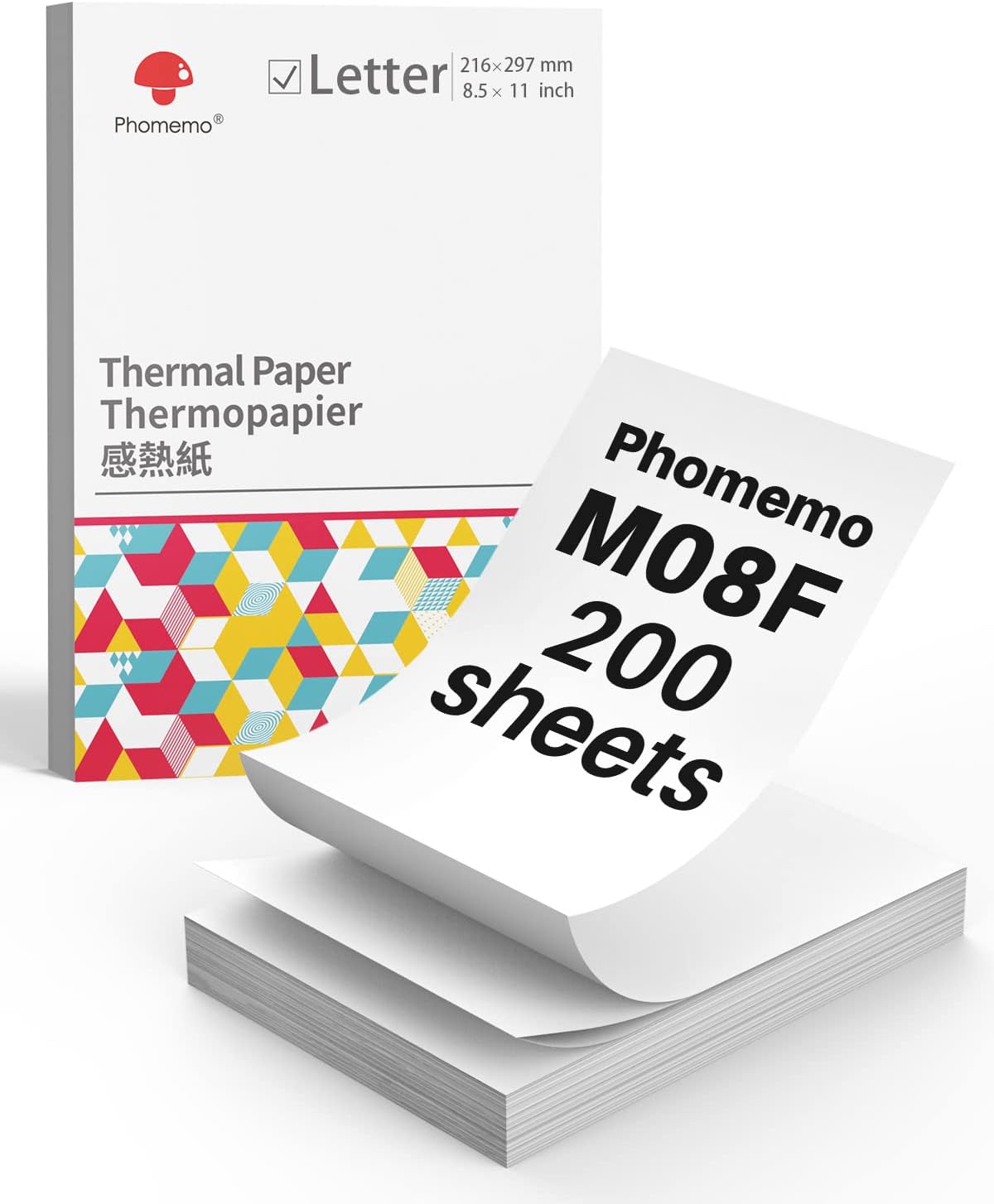
Image 2.1: A box containing 200 sheets of Phomemo M08F Letter-sized thermal paper.
3. Setup Inizjali
3.1 Iċċarġjar tal-Printer
Before first use, fully charge the printer. Connect the provided USB cable to the printer's charging port and a power adapter (not included) or a computer's USB port. The indicator light will show charging status.
3.2 Installing the Phomemo App
For mobile printing, download the 'Phomemo' app from your device's app store (available for iOS and Android). Follow the in-app instructions for initial setup and pairing.
3.3 Tagħbija ta' Karta Termali
The Phomemo M834 supports various thermal paper types, including folded sheets. Ensure the paper is inserted correctly for optimal printing.
- Open the paper cover of the printer.
- Insert the thermal paper with the printable side facing up. For folded paper, ensure it feeds smoothly from the stack.
- Adjust the paper guides to fit the width of the paper.
- Agħlaq il-qoxra tal-karta sew.

Image 3.1: Illustration of Phomemo continuous folding paper, showing 8.5" x 11" dimensions.

Image 3.2: A hand demonstrating how to easily tear thermal paper along its perforated edge after printing.
4. It-Tħaddim tal-Printer
4.1 Connecting via Bluetooth (Mobile Devices)
The M834 printer connects wirelessly to smartphones and tablets via Bluetooth.
- Kun żgur li l-istampatur ikun mixgħul u fil-medda tat-tagħmir mobbli tiegħek.
- Ippermetti Bluetooth fuq it-tagħmir mobbli tiegħek.
- Open the Phomemo app. The app will guide you to discover and pair with the M834 printer.
- Once paired, you can select documents or images within the app to print.
4.2 Connecting via USB (Computers)
For Windows, macOS, Linux, and ChromeOS computers, connect the printer using the provided USB cable.
- Connect one end of the USB cable to the printer and the other end to your computer.
- The computer should automatically detect the printer. If necessary, install the appropriate printer drivers from the Phomemo official websit.
- Once installed, the M834 will appear as an available printer in your system's print dialogue.

Image 4.1: Visual representation of the two connection methods: Bluetooth for mobile devices (Android, iOS, Tablets) and USB for computers (Windows, Mac OS, Chrome OS, Linux).
4.3 Stampar ta' Dokumenti
After connecting, select the document or image you wish to print from your device. Adjust print settings such as paper size (US Letter, A4, 4.33'', 3.14'', 2.08'') and orientation as needed before initiating the print job.

Image 4.2: A side-by-side comparison highlighting the enhanced clarity of 300dpi printing (Phomemo M834) compared to 203dpi.
5. Manutenzjoni
5.1 Tindif tar-Ras tal-Istampar
To maintain print quality, periodically clean the print head. Use a cotton swab lightly dampImxarrab bl-alkoħol isopropiliku. Imsaħ bil-mod il-wiċċ tar-ras tal-istampar. Ħalliha tinxef kompletament qabel l-użu.
5.2 Kura Ġenerali
- Keep the printer in a clean, dry environment.
- Evita li tesponi l-istampatur għad-dawl tax-xemx dirett jew għal temperaturi estremi.
- Use only Phomemo-approved thermal paper for optimal results and to prevent damage.
- Do not attempt to disassemble the printer.

Image 5.1: Information highlighting the use of BPA-Free thermal paper, emphasizing its inkless and harmless properties.
6 Issolvi l-problemi
6.1 L-ebda Output tal-Istampar
- Iċċekkja l-Enerġija: Ensure the printer is powered on and has sufficient battery charge.
- Tagħbija tal-Karta: Verify that thermal paper is loaded correctly with the printable side facing up.
- Konnessjoni: Confirm that the printer is properly connected via Bluetooth or USB.
6.2 Kwalità tal-Istampar Fqira
- Naddaf ir-Ras tal-Istampar: A dirty print head can cause streaks or faded prints. Refer to Section 5.1.
- Kwalità tal-Karta: Kun żgur li qed tuża karta termali ta' kwalità għolja.
- Orjentazzjoni tal-Karta: Make sure the thermal paper is inserted with the correct side facing the print head.
6.3 Kwistjonijiet ta' Konnessjoni Bluetooth
- Irristartja l-Apparati: Turn off and on both the printer and your mobile device.
- Tinsa l-Apparat: In your device's Bluetooth settings, 'forget' or 'unpair' the M834 and then attempt to pair again through the Phomemo app.
- Permessi tal-App: Ensure the Phomemo app has necessary Bluetooth permissions.
7. Speċifikazzjonijiet
| Karatteristika | Speċifikazzjoni |
|---|---|
| Mudell | Phomemo M834 |
| Riżoluzzjoni tal-Istampar | 300 dpi |
| Teknoloġija tal-Istampar | Termali (Mingħajr Linka) |
| Konnettività | Bluetooth, USB |
| Kapaċità tal-batterija | 2600mAh (up to 160+ pages continuous printing) |
| Daqsijiet tal-Karta Sostnuti | US Letter, A4, 4.33'', 3.14'', 2.08'' |
| Tipi ta' Karta Appoġġjati | Roll, Fold, Ordinary Thermal Paper |
| Sistemi Operattivi Appoġġjati | Android, iOS, Windows 10/11, Linux, ChromeOS, macOS |
8. Garanzija u Appoġġ
8.1 Informazzjoni dwar Garanzija
For detailed warranty information, please refer to the warranty card included with your product or visit the official Phomemo websit. It-termini u l-kundizzjonijiet tal-garanzija jistgħu jvarjaw skont ir-reġjun u d-data tax-xiri.
8.2 Appoġġ għall-Klijent
If you encounter any issues or have questions not covered in this manual, please contact Phomemo customer support through their official website or the contact information provided in your product packaging. When contacting support, please have your product model (M834) and purchase details ready.


