1. Introduzzjoni
Thank you for choosing the Tibuta Android 13 Tablet. This manual provides essential information to help you set up, operate, and maintain your device. Please read this manual carefully before using your tablet to ensure optimal performance and longevity.
2. X'hemm fil-Kaxxa
Meta tiftaħ il-pakkett, jekk jogħġbok ivverifika li l-oġġetti kollha li ġejjin huma inklużi:
- Tibuta Android 13 Tablet
- Ċarġer tal
- Cable USB
- Manwal tal-Utent (dan id-dokument)
- Karta ta' Garanzija
3. Prodott Aktarview
Familiarize yourself with the physical components of your Tibuta tablet.

Figure 3.1: Tablet Components (Side View)
This image illustrates the location of the power button, Type-C port, volume controls, Micro SD card slot, camera, reset button, headphone jack, and speakers on the tablet's exterior.

Figure 3.2: Tablet Components (Front and Back View)
Din l-immaġni tipprovdi deskrizzjoni dettaljata view of the tablet, highlighting the speaker, front camera, reset button, volume controls, power button, 3.5mm headphone jack, rear camera, SD card slot, and Type-C port. It also shows the included power adapter and Type-C cable.
4. Setup
4.1 Iċċarġjar inizjali
Before first use, fully charge your tablet using the provided charger and USB cable. Connect the Type-C cable to the tablet's Type-C port and the charger to a power outlet. The battery indicator on the screen will show charging progress.
4.2 Power On/Off
- Biex Tixgħel: Press and hold the Power button (refer to Figure 3.1 or 3.2) until the screen lights up.
- Biex Tifi: Press and hold the Power button until a menu appears. Select 'Power off' and confirm.
- Biex terġa' tibda: From the same menu, select 'Restart'.
4.3 Konfigurazzjoni Inizjali
Upon first power-on, follow the on-screen prompts to set up your tablet. This includes selecting your language, connecting to a Wi-Fi network, and signing in with your Google account. A Google account is required to download apps from the Google Play Store.
4.4 Daħħal Micro SD Card
To expand storage, insert a Micro SD card (up to 1TB, not included) into the Micro SD card slot (refer to Figure 3.1 or 3.2). Ensure the tablet is powered off before inserting or removing the card.
5. Istruzzjonijiet Operattivi
5.1 Navigazzjoni Bażika
The tablet features a sensitive touchscreen. Use standard Android gestures:
- Tektek: Agħżel oġġett jew iftaħ app.
- Swipe: Skrollja minn paġni jew listi.
- Oqros: Iżżumja 'l ġewwa jew 'il barra fuq l-immaġnijiet u web paġni.
- Stampa Twila: Aċċessa l-menus kuntestwali jew iċċaqlaq l-ikoni.
5.2 Konnessjoni mal-Wi-Fi
Mur fuq Settings > Netwerk u internet > Wi-Fi. Turn on Wi-Fi, select your desired network, and enter the password if prompted. The tablet supports 2.4G and 5G Wi-Fi (802.11ac, 802.11b, 802.11g, 802.11n).
5.3 Tqabbil tal-Bluetooth
To connect Bluetooth devices (e.g., headphones, keyboard, mouse):
- Mur fuq Settings> Apparat konness> Preferenzi ta 'konnessjoni> Bluetooth.
- Ixgħel il-Bluetooth.
- Kun żgur li l-apparat Bluetooth tiegħek jinsab fil-modalità ta' tqabbil.
- Select your device from the list and follow any on-screen instructions to complete pairing.
5.4 Użu tal-Kamera
The tablet is equipped with a 5MP front camera and an 8MP rear camera. Open the Camera app to capture photos and videos. The rear camera features PDAF Phase Auto-focus and an LED flash.

Figure 5.1: Camera and Split-Screen Functionality
This image demonstrates the tablet's dual camera capabilities for capturing moments and its split-screen feature for multitasking, such as video calls while viewdokumenti.
5.5 Split-Screen Function
The Android 13 operating system supports split-screen mode, allowing you to use two applications simultaneously. To activate, open an app, then swipe up from the bottom of the screen to access recent apps. Long-press the app icon at the top of the window and select 'Split screen'. Choose a second app to open alongside it.
5.6 Customization and Personalization
Android 13 offers extensive customization options. You can personalize your tablet by changing wallpapers, adding widgets to your home screen, and organizing app icons to suit your preferences.
Figure 5.2: Customizable Interface
This image highlights the ability to customize widgets and change app icons, allowing users to personalize their tablet experience.
5.7 Eye Protection Mode
To reduce eye strain, especially during prolonged use, activate the eye protection mode. This feature reduces the amount of blue light emitted by the screen. You can usually find this option in the Quick Settings panel or under Settings> Display.
Figure 5.3: Eye Protection Feature
This image demonstrates the tablet's eye protection mode, which reduces blue light to prevent discomfort during extended viewing.
5.8 Projezzjoni bla fili
The tablet supports wireless projection, allowing you to cast your screen to compatible larger display devices such as smart TVs or projectors. This is ideal for presentations or sharing media with others.
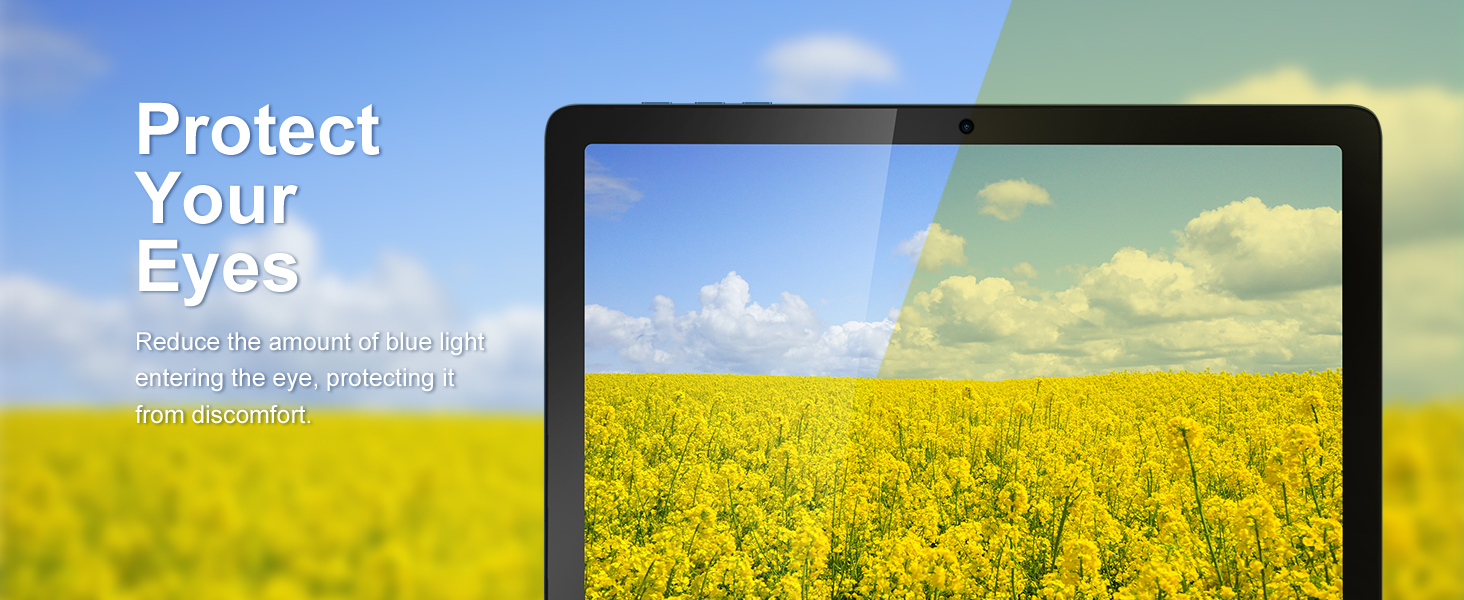
Figure 5.4: Wireless Projection in Use
This image depicts the tablet's wireless projection capability, enabling users to connect to larger screens for shared viewesperjenzi.
5.9 Funzjonalità tal-GPS
The tablet includes GPS for navigation and location-based services. Ensure location services are enabled in Settings> Location for optimal performance with mapping applications.

Figura 5.5: Navigazzjoni GPS
This image shows the tablet utilizing GPS for navigation, displaying a map with a highlighted route.
5.10 Media Consumption and Gaming
The 10.1-inch IPS HD display (1280x800 pixels) and Octa-Core processor provide a smooth experience for watching videos and playing games. The tablet supports Widevine L1 for high-definition streaming content. The Mali-G52 MC2 GPU enhances gaming performance.

Figure 5.6: Enhanced Gaming Experience
This image highlights the tablet's improved gaming performance, featuring gyroscope motion control and a Mali-G72 GPU for a responsive gaming experience.
6. Manutenzjoni
6.1 Tindif tal-Apparat
Use a soft, lint-free cloth to clean the screen and body of the tablet. Avoid using harsh chemicals or abrasive materials that could damage the surfaces.
6.2 Kura tal-Batterija
The tablet is equipped with a 7000mAh battery, providing approximately 8 hours of average use. To prolong battery life:
- Evita temperaturi estremi.
- Tħallix il-batterija tixxotta kompletament ta' spiss.
- Use the provided charger.
- Aġġusta l-luminożità tal-iskrin għal livell komdu.
6.3 Aġġornamenti tas-Software
Your tablet runs on Android 13. Periodically check for system updates in Settings > Sistema > Aġġornament tas-sistema to ensure you have the latest features and security patches.
6.4 Ġestjoni tal-Ħażna
The tablet comes with 64GB of internal storage (ROM) and 4GB of RAM. You can expand storage up to 1TB using a Micro SD card. Regularly manage your files and uninstall unused applications to maintain optimal performance.
7 Issolvi l-problemi
Hawn huma soluzzjonijiet għal kwistjonijiet komuni li tista' tiltaqa' magħhom:
- Apparat mhux qed jixgħel: Ensure the battery is charged. If not, connect the charger and wait a few minutes before attempting to power on again.
- Prestazzjoni bil-mod: Close unused applications, clear cache, or restart the tablet. Consider freeing up storage space.
- Problemi ta' konnettività tal-Wi-Fi: Check if Wi-Fi is enabled. Restart your router and the tablet. Ensure you are within range of the Wi-Fi signal.
- L-apps jiġġarraf: Ensure apps are updated to their latest versions. Clear the app's cache or data in Settings > ApplikazzjonijietJekk il-problema tippersisti, iddiżinstalla u erġa' installa l-app.
- L-iskrin ma jirrispondix: Agħmel restart furzat billi żżomm il-buttuna tal-Power għal madwar 10-15-il sekonda.
8. Speċifikazzjonijiet
Detailed technical specifications for the Tibuta Android 13 Tablet (Model A20 8GB+64GB):
| Karatteristika | Speċifikazzjoni |
|---|---|
| Brand | Tibuta |
| Isem tal-Mudell | A20 |
| Numru tal-Mudell | 8GB + 64GB |
| Sistema Operattiva | Android 13 |
| Brand tal-proċessur | MediaTek Octa-Core |
| Veloċità tal-Proċessur | 1.3 GHz |
| Daqs tal-Iskrin | 10.1 Pulzier |
| Riżoluzzjoni tal-Iskrin | 1280 x 800 Pixels (IPS HD) |
| RAM | 4 GB |
| Kapaċità tal-Ħżin | 64 GB (Expandable up to 1TB via Micro SD) |
| Marka taċ-Ċipset tal-Grafika | PowerVR |
| GPU | Mali-G52 MC2 |
| Konnettività | Bluetooth, Wi-Fi (802.11ac, 802.11b, 802.11g, 802.11n) |
| Teknoloġija bla fili | 2.4GHz + 5GHz Wi-Fi, Bluetooth 4.2 |
| Tip ta' Konnettur | USB Tip-Ċ |
| Ħajja tal-Batterija (Medja) | 8 sigħat |
| Dimensjonijiet tal-oġġett (L x W x H) | 24.8 x 16.7 x 1.2 ċentimetru |
| Piż tal-oġġett | 538.8 Gramm |
| Kamera ta' Quddiem | 5 MP |
| Kamera ta' wara | 8 MP |
9. Garanzija u Appoġġ
9.1 Garanzija tal-Manifattur
The Tibuta Android 13 Tablet comes with a 1-year manufacturer's warranty. Please refer to the included Warranty Card for detailed terms and conditions.
9.2 Appoġġ għall-Klijent
If you encounter any issues not covered in this manual or require further assistance, please contact Tibuta customer support. Contact information can typically be found on the manufacturer's webis-sit jew il-karta tal-garanzija.


