Introduzzjoni
This manual provides detailed instructions for the installation, operation, and maintenance of your Imou Cruiser SC 4G 5MP Outdoor IP Camera. This camera features UHD 3K resolution for detailed images, 4G LTE connectivity for independent operation without Wi-Fi, four spotlights that emit white or infrared light, and two red and blue indicator lights to enhance alarm visibility. Please read this manual thoroughly before use and retain it for future reference.
Informazzjoni dwar is-Sigurtà
- Tiżgura l-provvista tal-enerġija voltage jaqbel mar-rekwiżiti tal-kamera biex jipprevjeni l-ħsara.
- Install the camera in a location where it is protected from extreme weather conditions, unless specifically designed for such environments.
- Evita li tpoġġi l-kamera ħdejn sorsi ta’ sħana jew fix-xemx diretta għal perjodi twal.
- Tippruvax tiżżarma jew timmodifika l-kamera. Irreferi għal kull manutenzjoni f'idejn persunal kwalifikat.
- Żomm il-kamera u l-aċċessorji tagħha fejn ma jintlaħqux mit-tfal.
Kontenut tal-Pakkett
Jekk jogħġbok iċċekkja l-kontenut tal-pakkett malli tiftaħ. Jekk xi oġġetti huma nieqsa jew bil-ħsara, ikkuntattja lill-bejjiegħ tiegħek.
- Imou Cruiser SC 4G 5MP Camera
- Adapter tal-Enerġija
- Mudell tal-Immuntar
- Pakkett tal-Invita
- Konnettur li ma jgħaddix ilma minnu
- Gwida Quick Start
Prodott Overview
Familiarize yourself with the main components of your Imou Cruiser SC 4G 5MP camera.
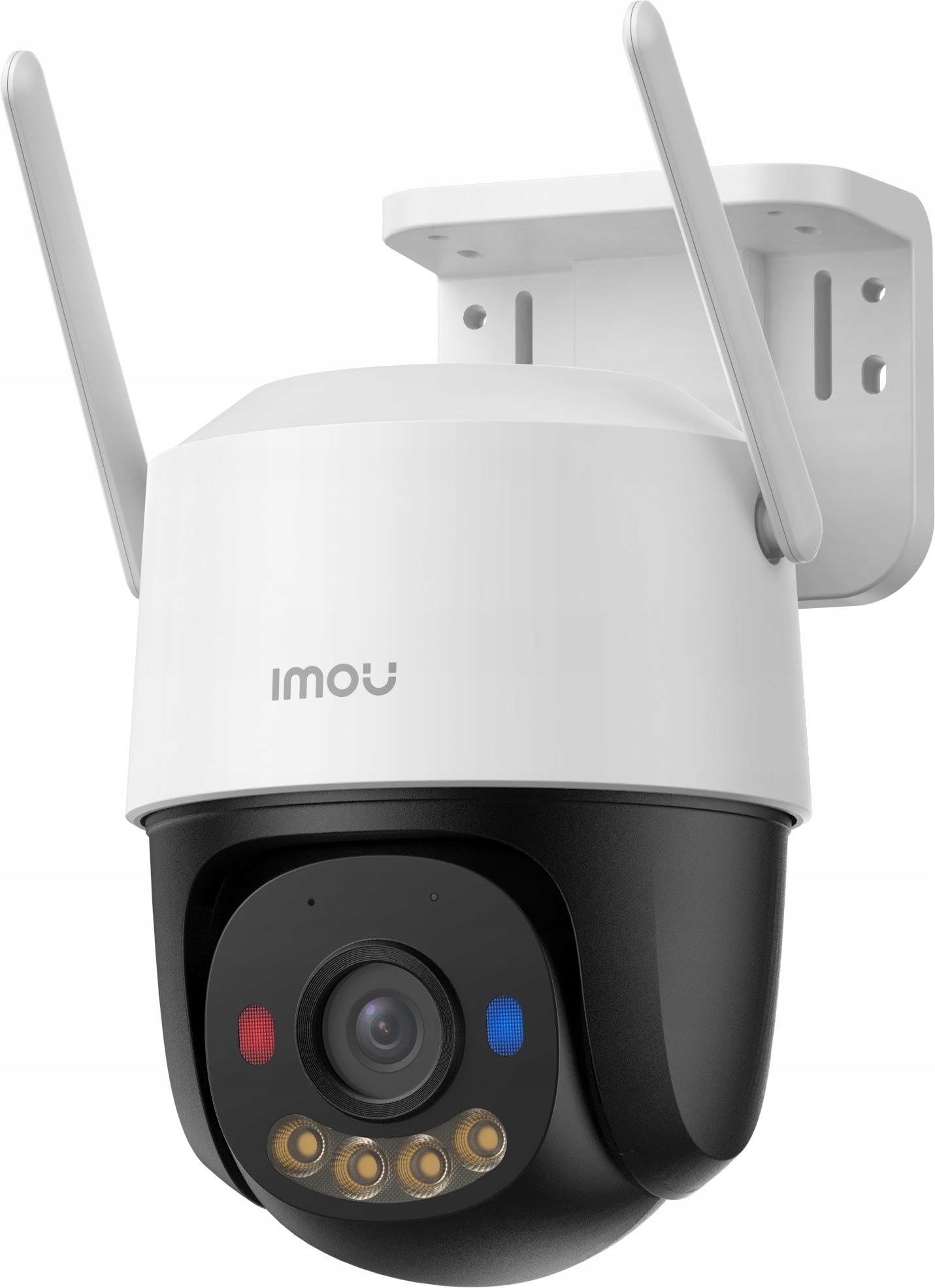
Figura 1: Imou Cruiser SC 4G 5MP Outdoor IP Camera. This image shows the front view of the camera, highlighting its lens, spotlights, and overall design.
The camera features a high-resolution lens, four integrated spotlights (for both white light and infrared illumination), two prominent red and blue alarm indicator lights, a built-in microphone, a speaker for two-way audio, a SIM card slot for 4G connectivity, a reset button, and a power input port.
Setup
1. Ipprepara għall-Installazzjoni
- Choose a suitable outdoor location with good 4G signal reception.
- Kun żgur li l-wiċċ tal-immuntar huwa b'saħħtu biżżejjed biex isostni l-piż tal-kamera.
2. Installazzjoni ta' SIM Card
- Locate the SIM card slot on the camera (refer to the Quick Start Guide for exact location).
- Insert a standard 4G LTE SIM card into the slot, ensuring correct orientation.
- Secure the waterproof connector cover if applicable.
3. Ixgħel
- Qabbad l-adapter tal-enerġija mal-port tad-dħul tal-enerġija tal-kamera.
- Plug the power adapter into a power outlet. The camera will begin to power on and initialize.
4. App Setup (Imou Life App)
- Download the 'Imou Life' app from your smartphone's app store (iOS or Android).
- Register for an Imou account or log in if you already have one.
- Tektek l-ikona '+' fir-rokna ta' fuq tal-lemin tal-app biex iżżid apparat ġdid.
- Skennja l-kodiċi QR li jinsab fuq il-kamera jew fuq l-imballaġġ tagħha.
- Follow the on-screen prompts to complete the device setup.
5. Installazzjoni Fiżika
- Use the provided mounting template to mark screw positions on the wall or ceiling.
- Ħaffer toqob pilota u daħħal ankri tal-ħajt jekk meħtieġ.
- Secure the camera mounting base with the provided screws.
- Aġġusta l-angolu tal-kamera kif meħtieġ għall-aqwa kopertura.
Operazzjoni
1. Ħaj View
- Open the Imou Life app and select your camera from the device list.
- The live video feed will appear, allowing you to monitor your property in real-time.
2. Reġistrazzjoni u Daqq
- The camera supports continuous recording or event-triggered recording (e.g., motion detection).
- Biex view irreġistrat footage, access the playback feature within the Imou Life app. You can browse by date and time.
3. Motion Detection & Alarm
- Configure motion detection sensitivity and detection zones in the app settings.
- When motion is detected, the camera can trigger an alarm, activate the spotlights, and flash the red and blue indicator lights to deter intruders.
- You will receive notifications on your smartphone when an alarm is triggered.
4. Diskors f'Żewġ Direzzjonijiet
- Waqt li tkun ħaj view, tap the microphone icon in the Imou Life app to speak through the camera's speaker.
- The camera's built-in microphone allows you to hear audio from the camera's location.
5. Modi ta' Viżjoni bil-Lejl
- The camera automatically switches to infrared (IR) night vision in low light conditions, providing clear black and white images.
- You can also configure the camera to use its white light spotlights for full-color night vision when motion is detected or on a schedule.
Manutenzjoni
1. Tindif
- Naddaf il-lenti tal-kamera regolarment b'ċarruta ratba u niexfa biex tiżgura kwalità ta' immaġni ċara.
- Wipe the camera casing b'reklamaramp cloth as needed. Do not use harsh chemicals or abrasive cleaners.
2. Aġġornamenti tal-Firmware
- Periodically check for firmware updates via the Imou Life app.
- Keeping your camera's firmware updated ensures optimal performance, security, and access to new features.
3. Ġestjoni tal-Ħażna
- If using a local storage card (e.g., microSD), ensure it is functioning correctly and has sufficient space.
- Manage cloud storage subscriptions and settings through the Imou Life app.
Issolvi l-problemi
- Q: Camera is not powering on.
- A: Check if the power adapter is securely connected to both the camera and the power outlet. Ensure the outlet is functional.
- Q: No 4G connection.
- A: Verify that the SIM card is correctly inserted and activated. Check 4G signal strength in the camera's location. Contact your mobile carrier if necessary.
- Q: Cannot add device to the Imou Life app.
- A: Ensure your smartphone has a stable internet connection. Reset the camera by pressing the reset button for 10 seconds and try adding it again. Make sure you are scanning the correct QR code.
- Q: Poor image quality.
- A: Clean the camera lens. Ensure there are no obstructions in front of the lens. Check network conditions; a weak 4G signal can affect streaming quality.
- Q: Motion detection is not working or is too sensitive.
- A: Adjust the motion detection sensitivity and detection zones in the Imou Life app settings. Ensure the camera's firmware is up to date.
Speċifikazzjonijiet
| Brand | Imou |
| Numru tal-Mudell | mudell134 |
| Riżoluzzjoni | UHD 3K (5MP) |
| Konnettività | 4G LTE (independent of Wi-Fi) |
| Spotlights | 4 (emit white or infrared light) |
| Dwal ta' Allarm | 2 (red and blue indicator lights) |
| Komponenti Inklużi | Delivered as a kit |
| Numru ta' Oġġetti | 1 |
Garanzija u Appoġġ
For warranty information and technical support, please refer to the warranty card included with your product or visit the official Imou website. You can also contact Imou customer service through the Imou Life app for assistance.