1. Introduzzjoni
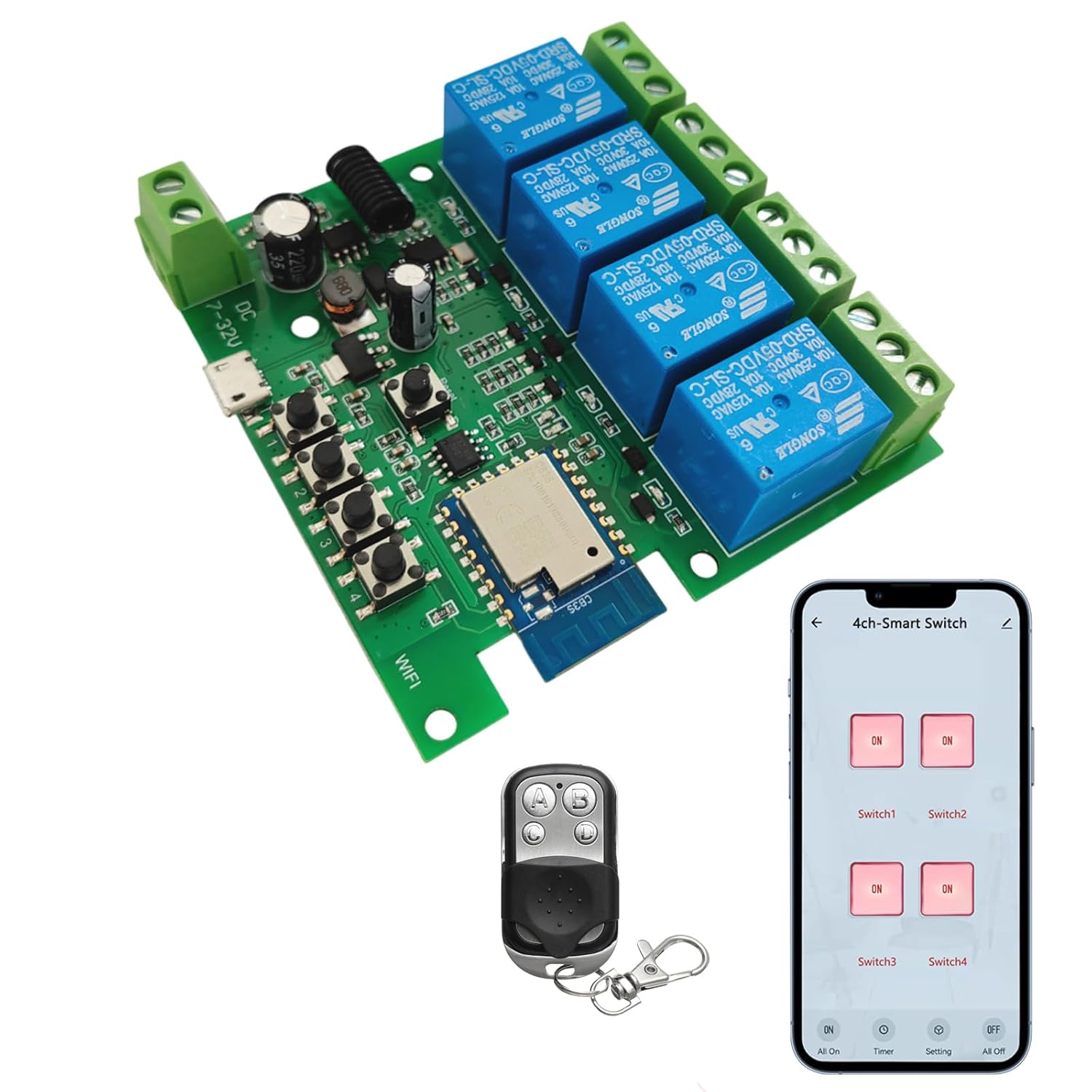
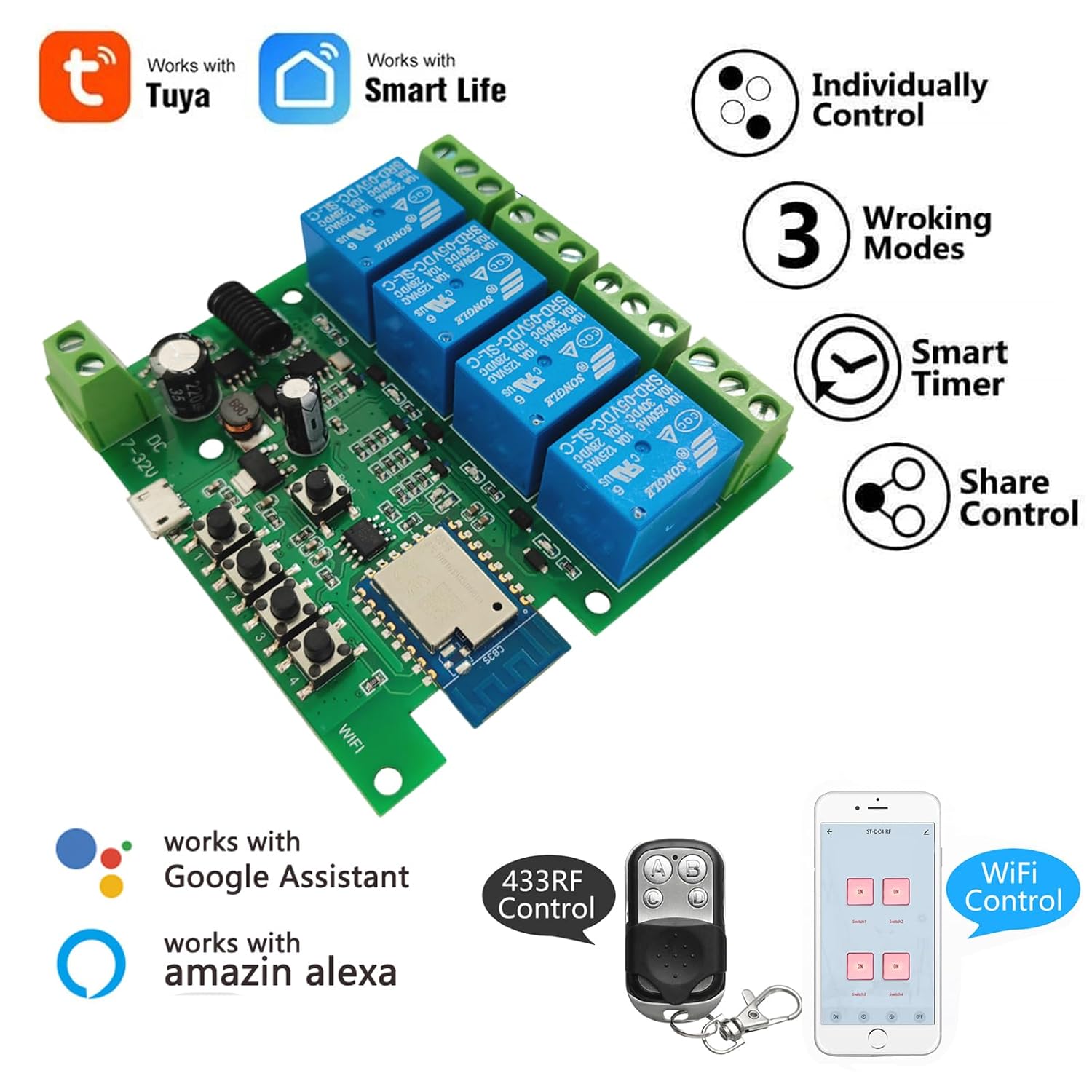
The Newgoal 4-Channel Smart Wireless Relay Switch is a versatile device designed for home automation, allowing remote control of connected appliances or power circuits. It supports multiple operating modes, including momentary (inching), self-locking, and interlock, and can be controlled via the Tuya Smart Life mobile application, a 433MHz RF remote control, or voice commands through Amazon Alexa and Google Home.
2. Informazzjoni dwar is-Sigurtà
- Ensure all power is disconnected before installation or wiring to prevent electric shock.
- This device operates with electrical currents. If you are unsure about electrical wiring, consult a qualified electrician.
- Do not exceed the maximum rated current of 10 Amperes jew voltage ta '250V AC/DC.
- The device supports 2.4GHz Wi-Fi networks only. It is not compatible with 5GHz Wi-Fi or Mesh Wi-Fi systems.
- Żomm l-apparat 'il bogħod mill-ilma u temperaturi estremi.
3. Kontenut tal-Pakkett
- 1 x Newgoal 4-Channel WiFi Relay Module
- 1 x 433 MHz RF Remote Control
- 1 x User Manual (English and Chinese)
4. Speċifikazzjonijiet
| Karatteristika | Speċifikazzjoni |
|---|---|
| Mudell | 4CH Tuya App/Smart Life |
| Dimensjonijiet | 7.4 x 7.4 x 1.9 ċm |
| Piż | 98 g |
| Provvista tal-Enerġija | USB 5V or AC/DC 7-32V |
| Kurrent Rated | 10 Amperes (per channel) |
| Vol Operattivtage (Relay Output) | AC 0-250V / DC 0-30V |
| Tip ta' Kuntatt | Normally Open (NO), Common (COM), Normally Closed (NC) |
| Tip ta 'Ċirkwit | 4-mod |
| Konnettività bla fili | Wi-Fi 2.4GHz (IEEE 802.11 b/g/n) |
| Kontroll RF | 433MHz (Fixed code / Learning code, up to 14 codes per gang) |
| Appoġġ għall-App | Tuya Smart Life (Android/iOS) |
| Kontroll tal-Vuċi | Amazon Alexa, Google Home |
| Modi Operattivi | Momentary (Inching), Self-locking, Interlock |
5. Prodott Aktarview

6. Setup
6.1 It-Tħaddim tal-Apparat
The relay module can be powered in two ways:
- USB 5V: Connect a standard Micro USB cable to the 'Power Input 1' port.
- AC/DC 7-32V: Connect a power source within this voltage range to the 'Power Input 2' screw terminals.
Note: The power supply input is for the PCBA (circuit board) only. The relays themselves are switches without output; they control the power to your connected devices.
6.2 Wiring Connected Devices
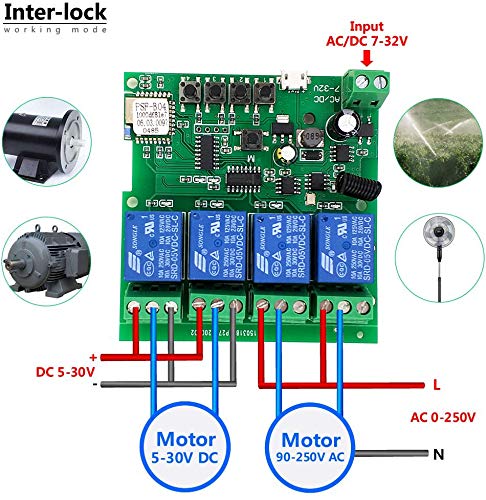
Refer to the wiring diagrams in Section 9 for specific connection instructions based on your desired operating mode and device type. Each relay has Normally Open (NO), Common (COM), and Normally Closed (NC) terminals. Connect your appliance's power line through the appropriate relay terminals.
6.3 App Installation and Device Pairing (Tuya Smart Life)
- Niżżel il- Tuya Smart or Ħajja Intelliġenti app mill-App Store (iOS) jew mill-Google Play Store (Android).
- Irreġistra jew idħol fil-kont tiegħek.
- Ensure your smartphone is connected to a 2.4GHz Wi-Fi network. The device does not support 5GHz Wi-Fi.
- Power on the Newgoal relay module. The WiFi LED should blink, indicating it's in pairing mode. If not, press and hold the central button on the module for 5 seconds until the LED blinks rapidly.
- In the app, tap '+' to add a device. The app should automatically discover the device nearby. Follow the on-screen instructions to connect the device to your Wi-Fi network.
- Once connected, you can rename the device and individual channels within the app.
6.4 RF Remote Control Pairing
To pair the 433MHz RF remote control with the relay module:
- Press and hold one of the manual switch buttons (RF Pairing Button) on the relay module for 3 seconds. The corresponding LED will illuminate.
- While the LED is lit, press the desired button on your 433MHz remote control. The LED on the module will flash to confirm successful pairing.
- Repeat this process for each channel you wish to control with the remote. The module can learn up to 14 different 433MHz codes per channel.
To clear all paired RF codes for a specific channel, press and hold the corresponding manual switch button for 15 seconds until the LED flashes rapidly and then turns off.
7. Modi Operattivi
The Newgoal 4-Channel Smart Wireless Relay Switch supports three operating modes, which can be configured via the Tuya Smart Life app:
- Momentary (Inching) Mode: In this mode, the relay turns on for a set duration (e.g., 1 second) and then automatically turns off. This is ideal for applications like garage door openers or momentary button presses. You can configure two wiring ways: turn on for 1s then auto-off, or turn off for 1s then auto-on.
- Modalità li tissakkar waħedha: The relay acts like a standard toggle switch. Pressing the button (in app or on remote) turns the relay ON, and pressing it again turns it OFF. This is suitable for controlling lights or other devices that need to stay on or off until manually changed.
- Interlock Mode: (Supported on 2-gang and 4-gang versions) In this mode, only one relay can be ON at a time. If one relay is activated, any other active relay in the group will automatically turn OFF. This is useful for controlling motors with forward/reverse functions or ensuring only one device operates at a time.
8. Kontroll tal-App (Tuya Smart Life)
Once paired, the Tuya Smart Life app provides comprehensive control and automation features:
- Remote On/Off: Control connected devices from anywhere with an internet connection.
- Skedi tal-Ħinijiet: Set schedules for devices to turn on or off automatically at specific times.
- Funzjoni tal-Countdown: Set a timer for a device to automatically turn off after a specified duration.
- Kondiviżjoni tal-Apparat: Aqsam il-kontroll tal-apparat mal-membri tal-familja.
- Ġestjoni tal-Grupp: Ggruppa apparati multipli flimkien għal kontroll simultanju.
- Awtomazzjoni tax-Xena: Create custom scenes and automations based on conditions like time, weather, or other smart devices.


8.1 Integrazzjoni tal-Kontroll tal-Vuċi
The device is compatible with Amazon Alexa and Google Home. After linking your Tuya Smart Life account in the Alexa or Google Home app, you can use voice commands to control your connected devices. For example:
- "Alexa, ixgħel is-Swiċċ 1."
- "Hey Google, turn off the living room light."
Note: Currently, US/UK English and German voice commands are supported.

9. Dijagrammi tal-Wajers
Proper wiring is crucial for safe and correct operation. Always ensure power is off before making any connections.


10. Manutenzjoni
- Żomm l-apparat nadif u ħieles mit-trab.
- Avoid exposing the device to moisture or direct sunlight.
- Iċċekkja l-konnessjonijiet tal-wajers regolarment biex tiżgura li huma sikuri.
- Periodically update the Tuya Smart Life app to ensure optimal performance and access to new features.
11 Issolvi l-problemi
- L-apparat mhux qed jikkonnettja mal-Wi-Fi:
- Ensure your Wi-Fi network is 2.4GHz. 5GHz networks are not supported.
- Make sure the device is within range of your Wi-Fi router during pairing.
- Check if the Wi-Fi password entered in the app is correct.
- Try resetting the device by holding the central button for 5 seconds until the WiFi LED blinks rapidly, then attempt pairing again. - Ir-remote RF mhux qed jaħdem:
- Ensure the remote control has a working battery (27A 12V).
- Re-pair the remote control with the specific channel on the module (refer to Section 6.4).
- Ensure the remote is within the maximum range of 30 meters (98 feet). - Connected appliance not responding:
- Verify that the relay module is powered on and the WiFi LED is solid (indicating a stable connection).
- Check the wiring connections to the appliance (refer to Section 9). Ensure they are secure and correct for the chosen operating mode.
- Confirm the appliance itself is functional. - Il-kontroll tal-vuċi mhux qed jaħdem:
- Ensure your Tuya Smart Life account is correctly linked to your Amazon Alexa or Google Home app.
- Check that the device names in the smart assistant app match those in Tuya Smart Life.
- Verify your voice commands are in a supported language (US/UK English, German).
12. Garanzija u Appoġġ
For warranty information and technical support, please refer to the documentation provided with your purchase or contact Newgoal customer service through their official channels. Keep your purchase receipt for warranty claims.


