1. Introduzzjoni
This user manual provides detailed instructions for the safe and efficient use of your BenQ PD3226G 32-inch 4K UHD 144Hz Designer Monitor. Please read this manual thoroughly before operating the device and retain it for future reference. Adhering to these instructions will ensure optimal performance and longevity of your monitor.
2. Prodott Aktarview
The BenQ PD3226G is a 32-inch 4K UHD (3840x2160) monitor designed for professionals requiring high color accuracy and smooth performance. Key features include:
- 4K, 144Hz Display: Enjoy motion clarity and accurate colors with 4K resolution and a 144Hz refresh rate.
- Accurate & Consistent Colors: Features 95% P3, 100% sRGB/Rec.709 color spaces, and factory-calibrated Delta E ≤ 2 for visual fidelity.
- Reliable Color Management: Supports effortless calibration with BenQ Palette Master Ultimate's intuitive menus, ensuring compliance with international standards.
- All-in-One Thunderbolt 4: Seamlessly delivers up to 90W power, 40Gbps data transfers, and supports two 4K or one 8K display when used with Thunderbolt 4 certified cables.
- Panel Nano Matte: Diffuses ambient light, enhancing eye comfort during extended design sessions with its TÜV certified reflection-free feature.
- Built-in KVM: Control two systems with one keyboard and mouse, with easy switching via the wireless Hotkey Puck for enhanced efficiency.

3. Setup
3.1. Unboxing u Assemblea
Carefully remove the monitor and its components from the packaging. Ensure all parts are present before proceeding with assembly.

- Waħħal l-Istand: Securely attach the monitor stand to the back of the display panel. Ensure it clicks into place or is fastened according to the quick-release mechanism.
- Pożizzjona l-Monitor: Poġġi l-monitor immuntat fuq wiċċ stabbli u ċatt.
- Immuntar VESA (Mhux obbligatorju): For alternative mounting solutions, the monitor supports VESA 100x100mm mounting. Remove the stand and attach a compatible VESA mount.

3.2. Connecting to Your Devices
The BenQ PD3226G offers a variety of input ports for versatile connectivity.
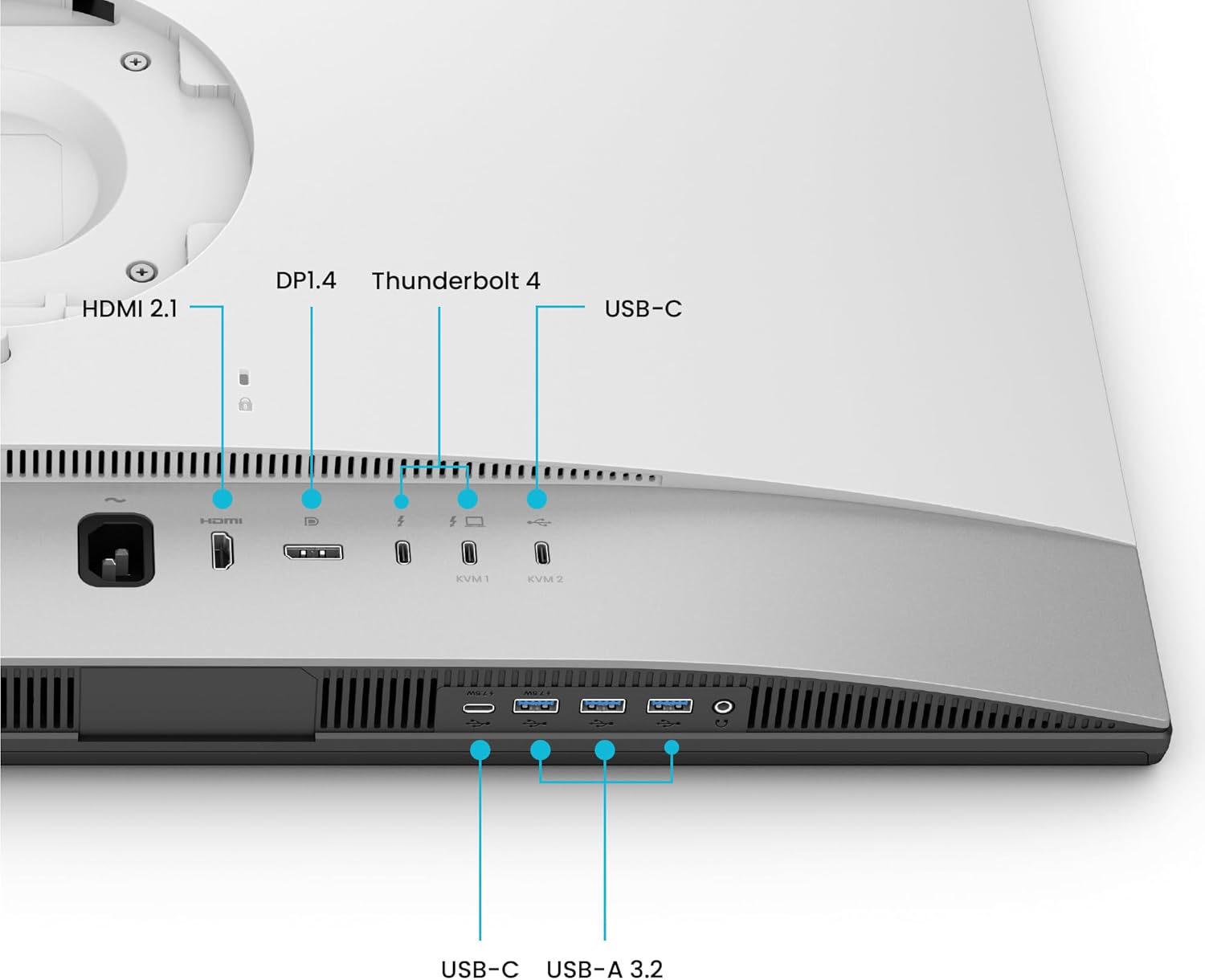
- Konnessjoni tal-Enerġija: Qabbad il-korda tal-enerġija mad-dħul tal-enerġija tal-monitor u mbagħad ma' sokit tal-enerġija.
- Inputs tal-Vidjo:
- Thunderbolt 4: Use a Thunderbolt 4 certified cable to connect your computer for video, data, and up to 90W power delivery. This port also supports daisy-chaining to another compatible monitor.
- HDMI 2.1: Connect devices using an HDMI cable for high-resolution video and audio.
- DisplayPort 1.4: Connect devices using a DisplayPort cable for high-resolution video and audio.
- Portijiet USB: Utilize the USB-C and USB-A 3.2 ports for connecting peripherals such as keyboards, mice, and external storage devices.
- Funzjonalità KVM: The monitor features a built-in KVM switch. Connect two computers to the monitor using the appropriate video and USB upstream cables. This allows you to control both systems with a single keyboard and mouse connected to the monitor's USB ports.
4. Istruzzjonijiet Operattivi
4.1. Power On/Off
Agħfas il-buttuna tal-qawwa li tinsab fuq il-monitor biex tixgħelu jew titfih. Id-dawl indikatur tal-qawwa jixgħel meta l-monitor ikun attiv.
4.2. On-Screen Display (OSD) Navigation and Hotkey Puck
Adjust monitor settings using the On-Screen Display (OSD) menu. The included Hotkey Puck provides quick access and navigation for various settings.
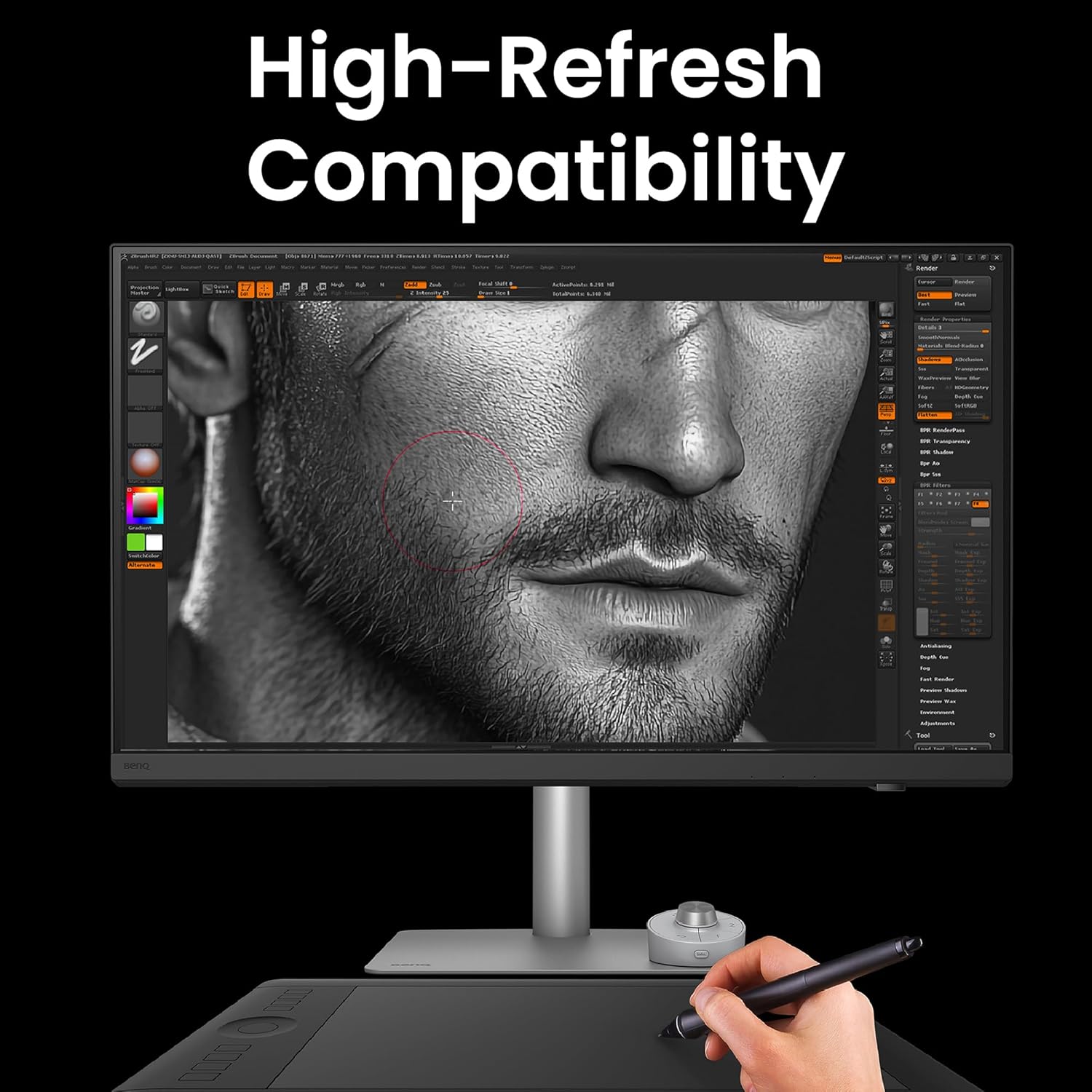
- Puck tal-Hotkey: Use the dial and programmable buttons on the Hotkey Puck to navigate the OSD, switch input sources, adjust brightness, contrast, and volume, or activate custom color modes.
- Menu OSD: Access the main OSD menu to configure display settings, color modes, input selection, and KVM options.
4.3. Color Management
The BenQ PD3226G is designed for precise color reproduction.

- Kalibrazzjoni tal-Fabbrika: The monitor is factory-calibrated to ensure a Delta E ≤ 2 for immediate color accuracy out of the box.
- Modi tal-Kulur: Select from various pre-set color modes (e.g., sRGB, P3, Rec.709) optimized for different design workflows.
- Software Calibration: Utilize BenQ Palette Master Ultimate software for advanced hardware calibration and to maintain color accuracy over time.
4.4. KVM Switch Operation
To switch between two connected systems using the KVM function:
- Ensure both computers are connected to the monitor via their respective video inputs and USB upstream cables.
- Use the Hotkey Puck or the OSD menu to select the desired input source (KVM1 or KVM2). The monitor will automatically switch the display, keyboard, and mouse control to the selected system.
4.5. Daisy Chain Setup
The Thunderbolt 4 port supports daisy-chaining for connecting multiple monitors. Connect the Thunderbolt 4 output of your primary monitor to the Thunderbolt 4 input of a secondary compatible monitor. This allows for extended desktop setups with simplified cabling.
5. Manutenzjoni
5.1. Tindif tal-Monitor
To maintain the display's quality and longevity:
- Dejjem itfi l-monitor u aqla’ l-korda tal-enerġija qabel ma tnaddaf.
- Uża ċarruta ratba u mingħajr ħelu dampMaħsul bl-ilma jew b'tindif tal-iskrin ħafif u mhux abrażiv.
- Imsaħ l-iskrin bil-mod. Evita li tapplika pressjoni eċċessiva.
- Do not use alcohol, ammonia, or abrasive cleaners, as these can damage the Nano Matte Panel.
- Importanti: The Nano Matte Panel has a specialized reflection-free coating. DO NOT TEAR OR ATTEMPT TO REMOVE THIS LAYER. It is an integral part of the monitor's design and performance. Removing it will cause irreversible damage and void the warranty.

5.2. Kura Ġenerali
- Evita li tpoġġi oġġetti tqal fuq il-monitor jew il-kejbils tiegħu.
- Keep the monitor away from direct sunlight, excessive heat, or moisture.
- Żgura ventilazzjoni xierqa madwar il-monitor biex tevita sħana żejda.
6 Issolvi l-problemi
If you encounter issues with your BenQ PD3226G monitor, refer to the following common problems and solutions:
- Ebda Wiri/Skrin Iswed:
- Kun żgur li l-kejbil tal-enerġija huwa konness sew kemm mal-monitor kif ukoll mas-sokit tal-enerġija.
- Ivverifika li l-kejbil tal-vidjo (Thunderbolt 4, HDMI, jew DisplayPort) huwa konness sew kemm mal-monitor kif ukoll mal-kompjuter tiegħek.
- Check if the correct input source is selected in the OSD menu or via the Hotkey Puck.
- Confirm your computer's display settings are configured to output to the external monitor.
- Incorrect Colors/Image Quality Issues:
- Irrisettja l-monitor għas-settings awtomatiċi tal-fabbrika permezz tal-menù tal-OSD.
- Ensure the correct color mode is selected for your task (e.g., sRGB, P3).
- If using software calibration, ensure the calibration profile is active and up-to-date.
- Check your graphics card drivers for updates.
- KVM Mhux Qed Jiswiċċja:
- Verify that both computers are properly connected with both video and USB upstream cables to the monitor.
- Ensure the KVM function is enabled and configured correctly in the OSD menu.
- Try restarting the monitor and the connected computers.
- Ebda Ħsejjes:
- Check the monitor's volume settings in the OSD menu.
- Verify your computer's audio output is set to the BenQ monitor.
- Ensure the audio cable (if separate from video) is connected, or that the video cable supports audio transmission.
For further assistance, please refer to the BenQ support websit jew ikkuntattja lis-servizz tal-konsumatur.
7. Speċifikazzjonijiet
| Karatteristika | Speċifikazzjoni |
|---|---|
| Numru tal-Mudell | PD3226G |
| Daqs tal-Iskrin | 32 Pulzier |
| Riżoluzzjoni | 4K UHD (3840 x 2160 Pixel) |
| Riffriskar Rata | 144Hz |
| Tip ta' Panel | IPS |
| Gamut tal-Kulur | 95% P3, 100% sRGB/Rec.709 |
| Eżattezza tal-Kulur | Delta E ≤ 2 (Factory Calibrated) |
| Konnettività | Thunderbolt 4 (90W PD), HDMI 2.1, DisplayPort 1.4, USB-C, USB-A 3.2 |
| Swiċċ KVM | Mibnija fil- |
| Wiċċ tal-Panel | Nano Matte (Reflection-Free) |
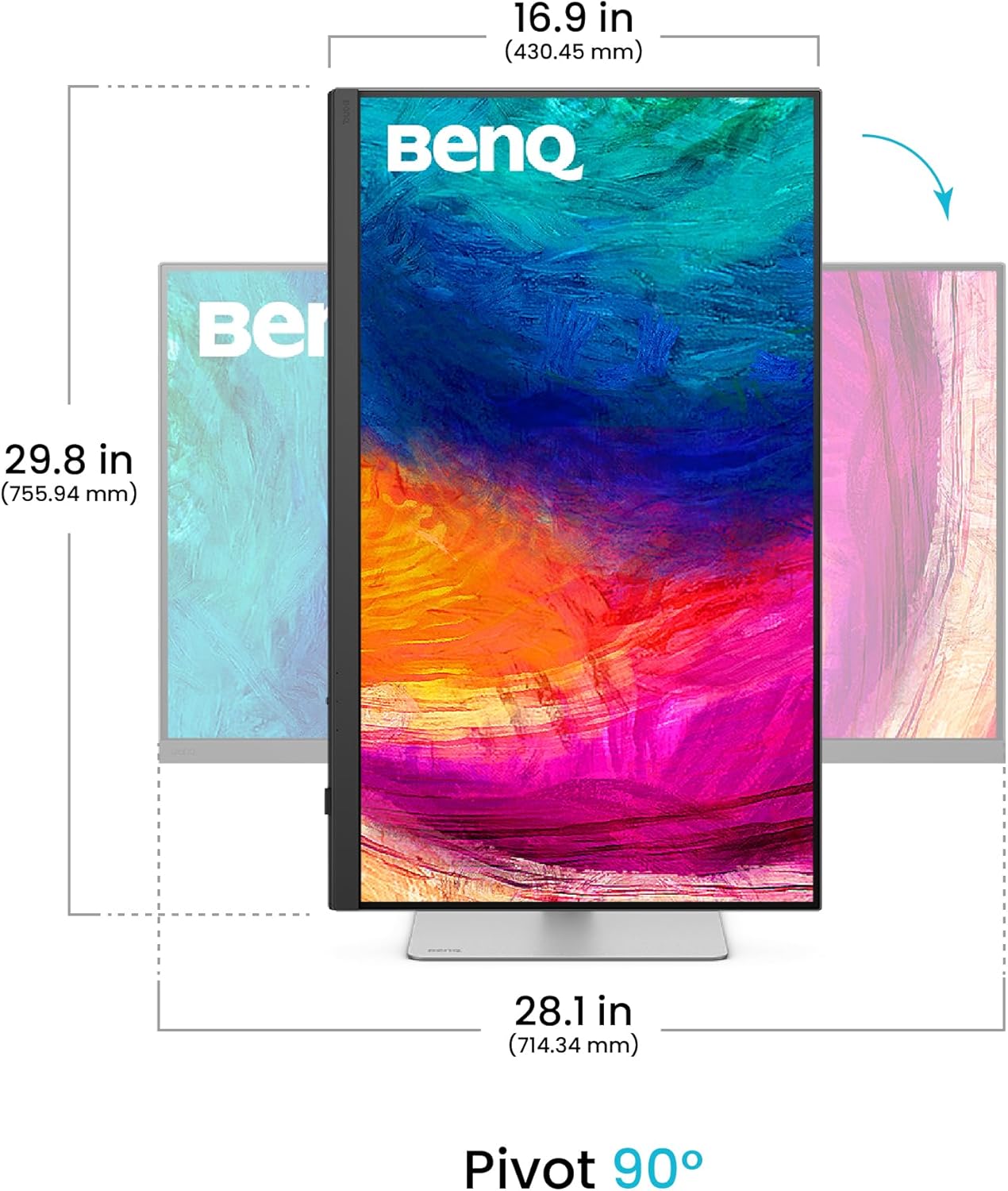
| Ergonomija | Height Adjustable, Tilt, Swivel, Pivot (90°) |
| Piż tal-oġġett | 14.6 liri |
| Dimensjonijiet tal-Prodott (LxWxH) | 19 x 9.5 x 25.1 pulzieri |
| Muntatura VESA | 100 x 100 mm |
7.1. Aġġustamenti Ergonomiċi
L-istand tal-monitor jippermetti diversi aġġustamenti biex jottimizza tiegħek viewesperjenza:
- Aġġustament Għoli: Adjust the monitor height by 150mm.
- Mejjel: Tilt the screen from -5° to 20° for comfortable viewangoli.
- Pivot: Dawwar l-iskrin 90° għall-modalità ritratt viewing.

8. Garanzija u Appoġġ
For information regarding the standard manufacturer's warranty for your BenQ PD3226G monitor, please refer to the warranty card included in your product packaging or visit the official BenQ support website. BenQ also offers optional extended protection plans for purchase.
For technical support, driver downloads, and frequently asked questions, please visit the BenQ support portal: www.benq.com/en-us/support.html


