1. Introduzzjoni
Thank you for choosing the navycrest A2Pro 4K & 5G WiFi Dash Cam. This device is designed to provide comprehensive front and rear vehicle recording, ensuring your safety and peace of mind on the road. Featuring 4K front recording, 5G WiFi connectivity, and 24/7 parking monitoring with the included hardwire kit, the A2Pro offers advanced functionality for reliable vehicle surveillance. Please read this manual thoroughly before operation to ensure proper installation and usage.
2. X'hemm fil-Kaxxa
Oħroġ il-komponenti kollha mill-pakkett bir-reqqa u ċċekkja mal-lista t'hawn taħt:
- A2Pro Front Dash Camera
- Kamera ta' wara
- Hardwire Kit (Type C)
- Suction Cup Mount
- 64GB Karta tal-Memorja
- Installation Tools (Fuse Taps)

Image: All components included in the A2Pro Dash Cam bundle.
3. Prodott Aktarview
Familiarize yourself with the main parts of your A2Pro Dash Cam system:
- Front Camera Unit: Main recording unit with 4K lens, 3-inch IPS display, and control buttons.
- Kamera ta' wara: Connects to the main unit for 2.5K rear recording.
- Muntaġġ tat-tazza tal-ġbid: For secure attachment of the front camera to the windshield.
- Kit tal-wajer: Enables 24/7 parking mode by connecting directly to your vehicle's fuse box.
- Slot tal-Kard tal-Memorja: Supports up to 64GB (included) for video storage.

Image: Front dash camera, rear camera, and a representation of the smartphone application interface.
4. Setup u Installazzjoni
4.1. Installing the Front Dash Camera
- Naddaf iż-żona tal-windskrin fejn bi ħsiebek twaħħal id-dash cam.
- Attach the suction cup mount to the front camera.
- Press the suction cup firmly against the windshield and lock it into place.
- Aġġusta l-angolu tal-kamera biex tiżgura viżjoni ċara view tat-triq 'il quddiem.
- Insert the 64GB memory card into the designated slot until it clicks.
4.2. Installazzjoni tal-Kamera ta' Wara
- Identify a suitable location on your rear windshield, ensuring a clear view.
- Naddaf il-wiċċ tal-immuntar sewwa.
- Waħħal il-kamera ta' wara billi tuża l-kuxxinett adeżiv tagħha.
- Route the rear camera cable to the front dash camera, tucking it neatly along the vehicle's headliner and A-pillars.
- Connect the rear camera cable to the dedicated port on the front dash camera.
4.3. Hardwire Kit Installation for 24/7 Parking Mode
The included Type C Hardwire Kit is essential for enabling the 24/7 Parking Mode feature. This kit connects directly to your vehicle's fuse box to provide continuous power even when the engine is off.
- Sib il-kaxxa tal-fjusijiet tal-vettura tiegħek (irreferi għall-manwal tas-sid tal-vettura tiegħek).
- Identify a constant power fuse (B+) and an ACC (Accessory) fuse that powers on/off with the ignition.
- Using the provided fuse taps, connect the red wire (B+) of the hardwire kit to the constant power fuse and the yellow wire (ACC) to the accessory fuse.
- Connect the black wire (GND) to a metal bolt or screw on the vehicle's chassis for grounding.
- Route the Type C connector cable from the hardwire kit to the front dash camera and plug it into the Type C power input port.
- Ensure all connections are secure and cables are neatly tucked away to avoid interference with driving.
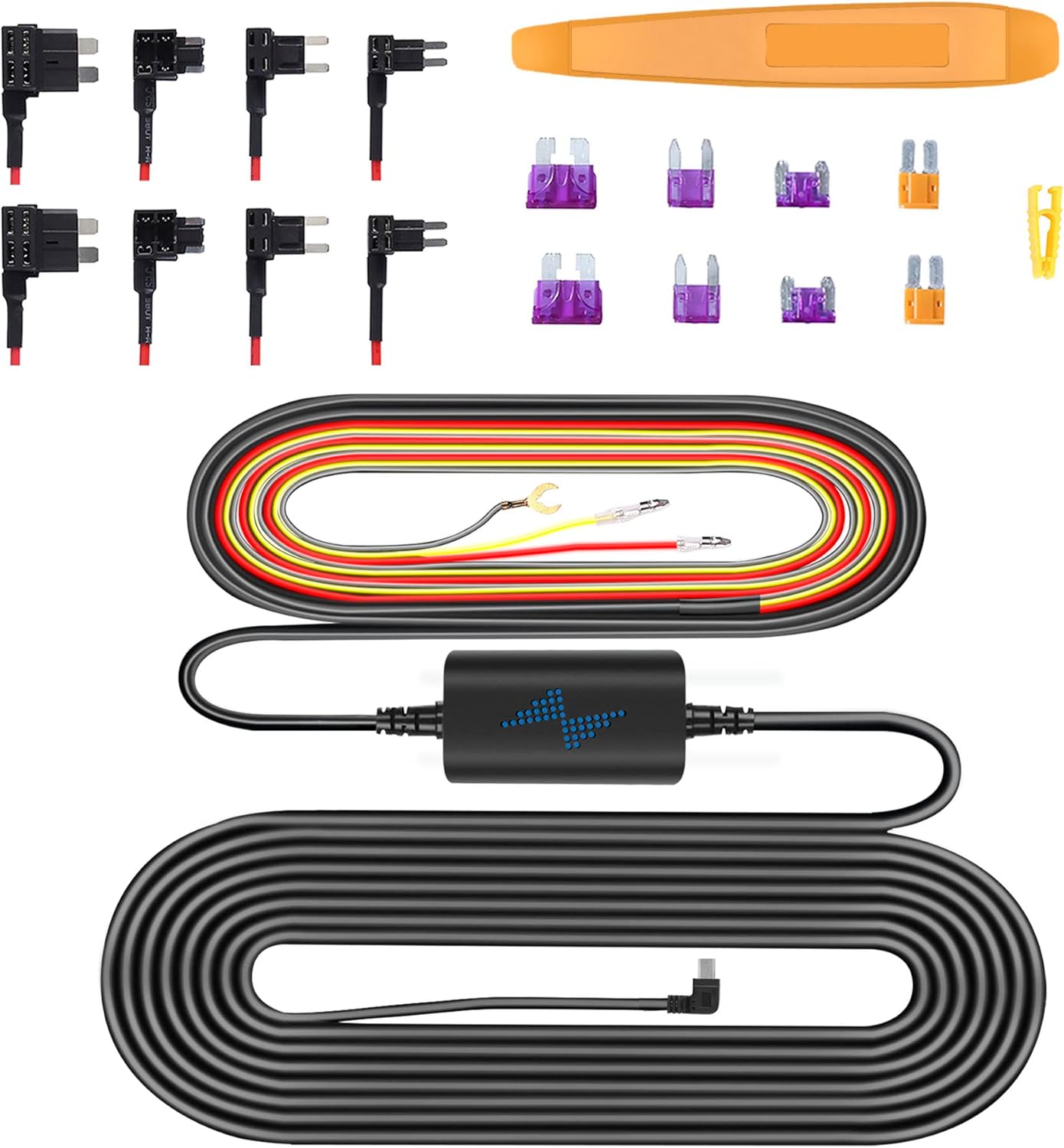
Image: Components of the Type C Hardwire Kit, including various fuse taps for different vehicle types.
5. Istruzzjonijiet Operattivi
5.1. Tixgħil / Mitfi
- Qawwa Mixgħul: Id-dash cam tixgħel awtomatikament u tibda tirrekordja meta tkun imqabbda ma' sors ta' enerġija u l-ignition tal-vettura tkun mixgħula.
- Itfi: The dash cam will automatically power off shortly after the vehicle's ignition is turned off.
5.2. Reġistrazzjoni Bażika
- Reġistrazzjoni Loop: The dash cam continuously records video in short segments (e.g., 1, 3, or 5 minutes). When the memory card is full, it automatically overwrites the oldest unlocked footage.
- Reġistrazzjoni ta' Emerġenza (G-Sensor): Fil-każ ta' impatt jew ħabta f'daqqa, is-sensor G integrat awtomatikament jiskopri l-avveniment u jissakkar is-segment tal-vidjo attwali, u jipprevjeni li jiġi miktub fuqu minn reġistrazzjoni f'linja.
5.3. Konnettività tal-Wi-Fi u Użu tal-App
The A2Pro features 5G WiFi for fast connection to your smartphone. Download the dedicated app (refer to the packaging or quick start guide for app name) from your app store.
- Ippermetti l-Wi-Fi fuq id-dash cam tiegħek permezz tal-menù tas-settings.
- Fuq l-ismartphone tiegħek, qabbad man-netwerk Wi-Fi tad-dash cam (l-SSID u l-password se jintwerew fuq l-iskrin tad-dash cam).
- Iftaħ l-app għal view foo ħajtage, daqq ta' vidjows irreġistrati, tniżżil files għat-telefon tiegħek, u aġġusta s-settings tal-kamera.
5.4. 24/7 Parking Mode
With the hardwire kit properly installed, the dash cam can monitor your vehicle even when parked. This mode activates when the vehicle's ignition is off.
- Sejbien tal-Moviment: The camera will start recording if it detects motion around your vehicle.
- Sejbien tal-Impatt: If an impact is detected while parked, the camera will automatically record and lock the footage.
- Reġistrazzjoni Time-Lapse: Some parking modes offer time-lapse recording, compressing long periods into short videos.

Image: Visual representation of the 24/7 Parking Mode feature, showing the dash cam monitoring a parked vehicle for suspicious events.
6. Manutenzjoni
- Formattjar tal-Karta tal-Memorja: It is recommended to format the memory card regularly (e.g., once a month) to ensure optimal performance and prevent data corruption. This can be done through the dash cam's settings menu.
- Cleaning Lenses and Screen: Use a soft, lint-free cloth to gently wipe the camera lenses and LCD screen. Avoid using abrasive cleaners or solvents.
- Aġġornamenti tal-Firmware: Iċċekkja l-manifattur webŻur is-sit perjodikament għal aġġornamenti tal-firmware biex tiżgura li d-dash cam tiegħek għandha l-aħħar karatteristiċi u tiswija ta' żbalji.
7 Issolvi l-problemi
| Problema | Soluzzjoni Possibbli |
|---|---|
| Id-dash cam ma tixgħelx. | Check power connection. Ensure the vehicle's ignition is on (if not using hardwire kit). Verify hardwire kit connections if applicable. |
| Ir-reġistrazzjoni tieqaf jew tiffriża. | Format the memory card. Try a different, high-speed (Class 10 or U3) memory card. |
| Problemi bil-konnessjoni tal-Wi-Fi. | Ensure Wi-Fi is enabled on the dash cam. Restart both the dash cam and your smartphone. Check Wi-Fi password. |
| Il-modalità tal-parkeġġ mhux qed taħdem. | Verify hardwire kit installation and connections. Ensure parking mode is enabled in settings. |
| Kwalità fqira tal-vidjo. | Clean the camera lenses. Ensure the protective film is removed from the lenses. Check resolution settings. |
8. Speċifikazzjonijiet
| Karatteristika | Dettall |
|---|---|
| Isem tal-Mudell | A2Pro |
| Brand | navycrest |
| Riżoluzzjoni tal-Qbid tal-Vidjo | 4K (Front) + 2.5K (Rear) |
| Teknoloġija tal-Konnettività | Wi-Fi (5G) |
| Tip ta 'Wiri | LCD |
| Tip ta 'Immuntar | Dashboard Mount (Suction Cup) |
| Komponenti Inklużi | Memory Card, Suction Cup, Hardwire Kit |
| Tip ta 'Servizz tal-Vettura | Karozza |
9. Garanzija u Appoġġ
For product support, technical assistance, or warranty inquiries, please contact navycrest customer service. Refer to the product packaging or the official navycrest webis-sit għall-aktar informazzjoni ta' kuntatt aġġornata.
Jekk jogħġbok żomm il-prova tax-xiri tiegħek għal pretensjonijiet ta' garanzija.


