1. Introduzzjoni
This manual provides essential information for the safe and efficient operation of your Next YE-65GFSG8-QLED 65-inch UHD 4K Google QLED TV. Please read this manual thoroughly before using the television and retain it for future reference. Your new television combines QLED display technology with the Google TV operating system, offering a high-quality viewing experience and smart features.
2. Informazzjoni Importanti dwar is-Sigurtà
Always follow these basic safety precautions when operating your television:
- Sors tal-Enerġija: Kun żgur li t-TV huwa konness ma' provvista tal-enerġija fil-volum speċifikattagfirxa e.
- Ventilazzjoni: Timblokkax il-fetħiet tal-ventilazzjoni. Ħalli biżżejjed spazju madwar it-TV għal fluss tal-arja xieraq.
- Ilma u Umdità: Tesponix it-TV għax-xita jew għall-umdità. Tpoġġix oġġetti mimlija b'likwidi, bħal vażuni, fuq it-TV.
- Tindif: Skonnettja t-TV mill-plagg tal-elettriku qabel ma tnaddaf. Uża drapp artab u niexef. Tużax prodotti tat-tindif likwidi jew prodotti tat-tindif bl-ajrusol.
- Pjazzament: Poġġi t-TV fuq wiċċ stabbli u livellat. Evita li tpoġġih fid-dawl tax-xemx dirett jew ħdejn sorsi ta’ sħana.
- Sajjetti: During lightning storms or when unused for long periods, unplug the TV from the power outlet and disconnect the antenna.
- Servizzi: Tippruvax isservi dan il-prodott int stess. Irreferi l-manutenzjoni kollha lil persunal tas-servizz kwalifikat.
3. Kontenut tal-Pakkett
Verify that all items are present in your TV package:
- Next YE-65GFSG8-QLED 65-inch UHD 4K Google QLED TV
- Kontroll mill-bogħod
- Kejbil tal-Enerġija
- Stand tat-TV (2 biċċiet) u Viti
- Manwal għall-Utent (dan id-dokument)
- Gwida Quick Start
4. Setup
4.1 Installazzjoni Fiżika
You can install your TV on a stand or mount it on a wall. Ensure the TV is placed on a stable surface or securely mounted.

Immaġni: TV Dimensions. This image illustrates the physical dimensions of the 65-inch television, including its width, height, and diagonal screen size of 164 cm (65 inches).
Installazzjoni tal-istand:
- Poġġi t-TV b'attenzjoni wiċċu 'l isfel fuq wiċċ artab u ċatt biex tevita li l-iskrin isir ħsara.
- Attach the two stand pieces to the designated slots on the bottom of the TV.
- Waħħal l-istands bil-viti pprovduti.
- Erfa’ t-TV bir-reqqa għall-pożizzjoni wieqfa tiegħu fuq wiċċ stabbli.
Immuntar tal-ħajt:
For wall mounting, use a VESA-compatible wall mount kit (sold separately) that matches the TV's VESA pattern. Follow the instructions provided with your wall mount kit. It is recommended to have professional assistance for wall mounting.
4.2 Konnessjoni tal-Periferali
Connect your external devices to the appropriate ports on the back of your TV.
Immaġni: Rear Panel Connections. This image displays the various input and output ports located on the back of the television, including HDMI, USB, DVB-S, DVB-T, CI Module, Mini AV-IN, Optical Out, and Ethernet.
- HDMI (ARC): Connect Blu-ray players, game consoles, or other HDMI devices. HDMI 1 supports Audio Return Channel (ARC).
- USB (2x): Qabbad apparati tal-ħażna USB għad-daqq tal-midja.
- DVB-S / DVB-T: Connect satellite (DVB-S) or terrestrial (DVB-T) antenna cables.
- CI Module: Insert a Common Interface (CI) module for encrypted digital channels.
- Mini AV-IN: Connect older devices using an AV adapter cable.
- Barra ottika: Connect to an external audio system for digital audio output.
- Ethernet: Qabbad kejbil Ethernet għal konnessjoni tal-internet bil-fili.
- Qawwa: Qabbad il-kejbil tal-enerġija mat-TV u mbagħad ma' sokit tal-ħajt.
4.3 L-Ewwel Tixgħil u l-Ewwel Setup
- After connecting all cables, plug the power cord into an electrical outlet.
- Agħfas il-buttuna tal-qawwa fuq il-kontroll remot jew fuq it-TV.
- The TV will guide you through the initial setup process, which includes:
- Għażla tal-lingwa
- Konnessjoni ma 'Wi-Fi jew Ethernet
- Signing in with your Google Account (required for Google TV features)
- Aċċettazzjoni tat-termini u l-kundizzjonijiet
- Channel scanning (for DVB-S/T)
- Segwi l-istruzzjonijiet fuq l-iskrin biex tlesti s-setup.
5. Tħaddem it-TV tiegħek
5.1 Funzjonijiet ta' Kontroll mill-bogħod
The remote control allows you to navigate the TV's features. Familiarize yourself with its buttons:
- Qawwa: Ixgħel jew jitfi t-TV.
- Google Assistent: Jattiva l-kmandi tal-vuċi.
- Tastiera tan-Navigazzjoni ('Il fuq/'l isfel/Xellug/Lemin/OK): Jinnaviga l-menus u jagħżel l-għażliet.
- Dahar: Terġa' lura għall-iskrin ta' qabel.
- Dar: Jaċċessa l-iskrin ewlieni ta' Google TV.
- Volum +/-: Jaġġusta l-livell tal-volum.
- Kanal +/-: Jibdel il-kanali tat-TV.
- Input: Jagħżel sorsi ta' input (HDMI, AV, eċċ.).
- Buttuni tal-App: Aċċess dirett għal applikazzjonijiet popolari ta' streaming.
5.2 Navigating Google TV Interface
Google TV organizes your entertainment with a personalized home screen. Content from your apps is brought together and organized for easy discovery.

Immaġni: Google TV Interface. This image shows the main Google TV home screen with various streaming app icons and content recommendations, demonstrating the user interface.
- Skrin tad-dar: Displays personalized recommendations, installed apps, and quick access to content.
- For You Tab: Provides tailored content suggestions based on your viewdrawwiet.
- Live Tab: Accesses live TV channels from integrated services.
- Apps Tab: Shows all installed applications. You can download more from the Google Play Store.
- Library Tab: Accesses your purchased or rented content from Google Play.
5.3 Issettjar tal-Immaġni u l-Ħoss
Biex taġġusta s-settings tal-istampa u tal-ħoss:
- Agħfas il- Settings button (usually a gear icon) on your remote.
- Innaviga lejn Wiri u Ħoss.
- Settings tal-Istampa: Adjust brightness, contrast, color, sharpness, and select picture modes (e.g., Standard, Vivid, Movie, Game). Your QLED TV offers enhanced color saturation.
- Settings tal-ħoss: Adjust bass, treble, balance, and select sound modes (e.g., Standard, Music, Movie, Speech).

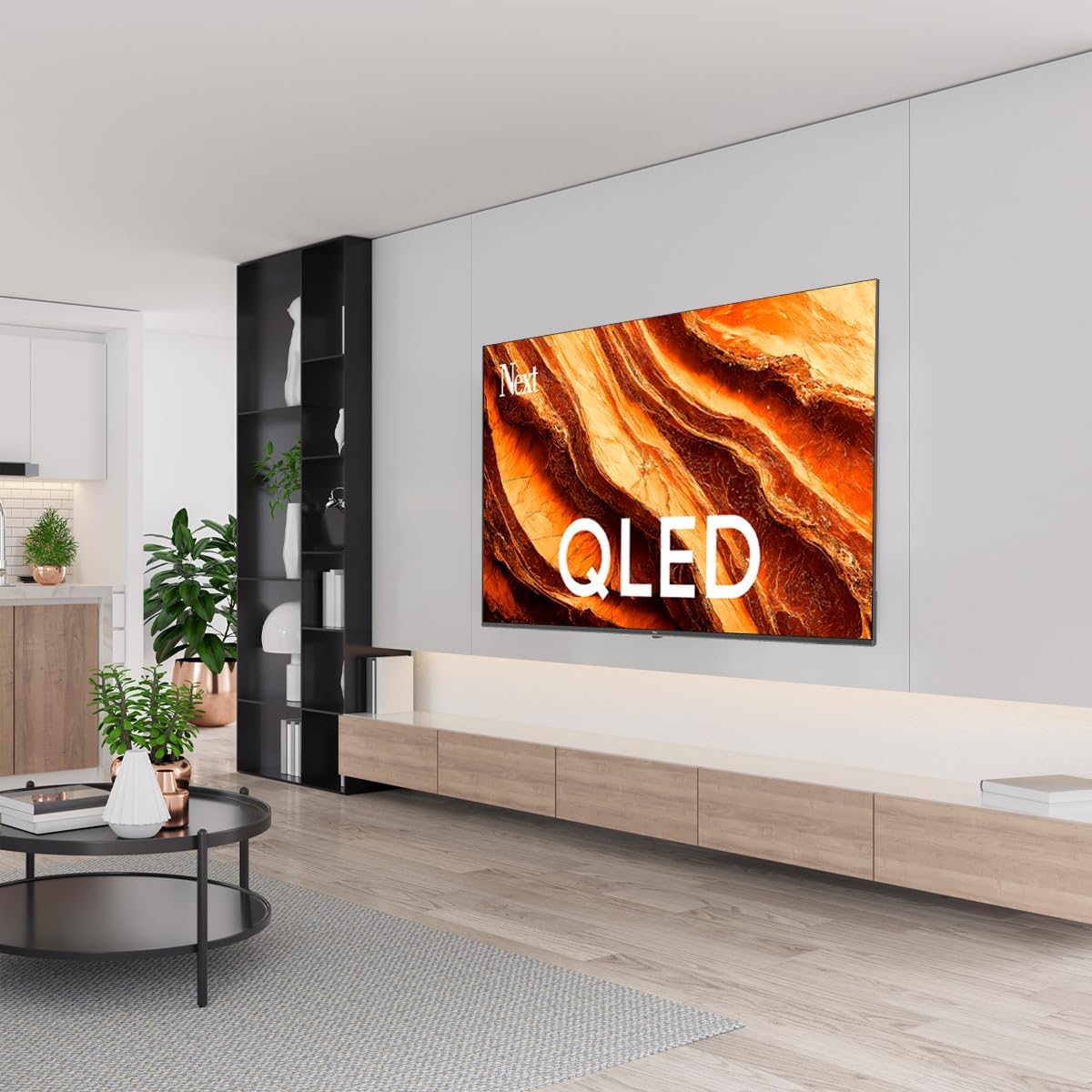
Immaġni: QLED Color Saturation. This image visually demonstrates the high color saturation achieved with QLED technology, showing a vibrant and rich color display.

Immaġni: HDR (High Dynamic Range). This image illustrates the visual impact of HDR, showcasing improved contrast and color detail in a scene when HDR is enabled versus when it is off.
5.4 Issettjar tan-Netwerk
To connect your TV to the internet:
- Agħfas il- Settings buttuna fuq il-bogħod tiegħek.
- Innaviga lejn Netwerk u Internet.
- Agħżel Wi-Fi to connect to a wireless network or ensure Ethernet is connected for a wired connection.
- For Wi-Fi, select your network from the list and enter the password.
6. Manutenzjoni
6.1 Tindif tat-TV
- Dejjem aqla’ t-TV qabel ma tnaddaf.
- Use a soft, dry, lint-free cloth to gently wipe the screen and TV body.
- Għal marki iebsa, ħassar bil-modampen the cloth with water or a specialized screen cleaner (ensure it's safe for TV screens). Never spray cleaner directly onto the screen.
- Evita li tuża cleaners li joborxu, xama', jew solventi.
6.2 Aġġornamenti tas-Software
Your TV may receive software updates to improve performance and add new features. It is recommended to keep your TV's software updated.
- Kun żgur li t-TV tiegħek huwa konness mal-internet.
- Agħfas il- Settings buttuna fuq il-bogħod tiegħek.
- Innaviga lejn Sistema > Dwar > Aġġornament tas-sistema.
- Agħżel Iċċekkja għal aġġornament.
- Segwi l-istruzzjonijiet fuq l-iskrin biex tniżżel u tinstalla kwalunkwe aġġornament disponibbli.
7 Issolvi l-problemi
Jekk tiltaqa' ma' problemi bit-TV tiegħek, irreferi għall-problemi u s-soluzzjonijiet komuni li ġejjin:
| Problema | Kawża / Soluzzjoni Possibbli |
|---|---|
| Ebda qawwa | Check if the power cord is securely plugged into the TV and the wall outlet. Ensure the outlet is working. |
| L-ebda stampa, iżda l-ħoss huwa preżenti | Check the input source. Ensure the connected device is turned on and functioning correctly. |
| L-ebda ħoss, iżda l-istampa hija preżenti | Check the volume level and mute status. Verify audio cable connections for external devices. Check TV sound settings. |
| Il-kontroll mill-bogħod ma jaħdimx | Ibdel il-batteriji. Kun żgur li m'hemm l-ebda ostaklu bejn ir-remote u s-senser IR tat-TV. |
| Ma tistax tikkonnettja mal-Wi-Fi | Ensure your Wi-Fi router is on and within range. Re-enter the Wi-Fi password carefully. Try restarting the TV and router. |
| L-apps huma bil-mod jew qed jiffriżaw | Close unused apps. Clear app cache (Settings > Apps > See all apps > [App Name] > Clear cache). Ensure a stable internet connection. |
Jekk il-problema tippersisti wara li tipprova dawn is-soluzzjonijiet, jekk jogħġbok ikkuntattja l-appoġġ għall-klijenti.
8. Speċifikazzjonijiet
Technical specifications for the Next YE-65GFSG8-QLED 65-inch UHD 4K Google QLED TV:
- Ditta: Li jmiss
- Sena Mudell: 2025
- Riżoluzzjoni: 4K (3840x2160)
- Teknoloġija tal-Wiri: QLED
- Daqs tal-iskrin: 65 pulzieri (165 ċm)
- Proporzjon tal-aspett: 16:9
- Rata ta' Aġġornar: 60 Hz
- Karatteristiċi ewlenin: Disinn mingħajr qafas
- Konnettività: Bluetooth, Ethernet, HDMI (ARC), USB (2x), Wi-Fi
- Dimensjonijiet tal-Prodott: 27.8D x 144.6W x 88.9H ċm
- Piż: 16.3 Kilogrammi
- Sistema Operattiva: Google TV
- Komponenti Inklużi: Kontroll mill-bogħod
- Pajjiż ta' Oriġini: Turkija
9. Garanzija u Appoġġ
Your Next YE-65GFSG8-QLED TV comes with a manufacturer's warranty. Please refer to the warranty card included in your package for specific terms and conditions, including the warranty period and coverage details.
For technical support, service requests, or further assistance, please contact Next customer service. Contact information can typically be found on the manufacturer's webis-sit jew fid-dokumentazzjoni tal-garanzija.
- Appoġġ onlajn: Visit the official Next website for FAQs, troubleshooting guides, and support contact details.
- Ċentri tas-Servizzi: For hardware issues, locate an authorized service center near you.


