1. Introduzzjoni
This manual provides essential information for the safe and efficient use of your AT&T Cingular Flex 2 Smart Flip Phone (Model 6723D). Please read these instructions carefully before operating your device to ensure optimal performance and longevity.
The Cingular Flex 2 is a compact flip phone designed for reliable communication. It features a vibrant display, a built-in camera for capturing moments, and 4GB of internal storage for essential files and applications. The device operates on KaiOS, offering a streamlined user experience.
2. X'hemm fil-Kaxxa
Ivverifika li l-oġġetti kollha huma preżenti fil-pakkett tal-prodott tiegħek:
- AT&T Cingular Flex 2 Smart Flip Phone
- Adapter tal-Enerġija
- Batterija tal-jone tal-litju (installata minn qabel jew separata)
3. Device Overview
Familiarize yourself with the physical components of your AT&T Cingular Flex 2 phone.
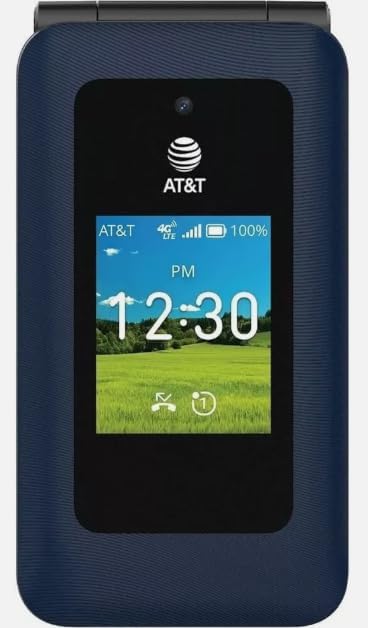
Figura 3.1: Quddiem view of the AT&T Cingular Flex 2 Smart Flip Phone, showing the main display with time, network signal, and battery indicator.

Figura 3.2: Wara view of the AT&T Cingular Flex 2 Smart Flip Phone, highlighting the textured back cover and the speaker grille at the top.
Komponenti Ewlenin:
- Display Estern: Shows notifications, time, and caller ID when closed.
- Wirja Ewlenija: Internal screen for navigation and content.
- Tastiera: Numeric and navigation buttons for input.
- Kamera: Located on the device for capturing photos and videos.
- Buttuni tal-Volum: Aġġusta l-livelli tal-awdjo.
- Power/End Call Button: Turns the device on/off and ends calls.
- Port tal-Iċċarġjar: Għall-konnessjoni tal-adapter tal-enerġija.
4. Setup
4.1. Daħħal is-SIM Card u l-Batterija
- Kun żgur li t-telefon ikun mitfi.
- Neħħi bir-reqqa l-għatu ta' wara tat-telefon.
- If the battery is installed, remove it by gently lifting it from the notch.
- Locate the SIM card slot, typically beneath the battery compartment. Insert your SIM card with the gold contacts facing down and the notched corner aligned correctly.
- Insert the battery, ensuring the contacts align with those in the phone.
- Erġa' poġġi l-għatu ta' wara sakemm tikklikkja sew f'postu.
4.2. Iċċarġjar tal-Apparat
- Qabbad l-adapter tal-enerġija mal-port tal-iċċarġjar fuq it-telefon tiegħek.
- Ipplaggja l-adapter tal-enerġija fi żbokk elettriku standard.
- Ħalli t-telefon jiċċarġja kompletament qabel l-ewwel użu. L-indikatur tal-batterija fuq l-iskrin se juri l-istatus tal-iċċarġjar.
4.3. Tixgħil / Mitfi
- Biex Tixgħel: Agħfas u żomm il-buttuna tal-Qawwa/Tmiem tas-Sejħa sakemm l-iskrin jixgħel.
- Biex Tifi: Agħfas u żomm il-buttuna Power/End Call, imbagħad agħżel 'Power Off' mill-għażliet fuq l-iskrin.
5. Kif Tħaddem it-Telefon Tiegħek
5.1. Navigazzjoni Bażika
The Cingular Flex 2 uses a physical keypad for navigation. Use the directional pad (D-pad) to move between menu items and the center button to select. The left and right soft keys perform actions indicated on the screen above them.
5.2. Tagħmel u Riċeviment Sejħiet
- Biex Tagħmel Sejħa: Enter the phone number using the keypad and press the Call button (usually the green button).
- Biex Twieġeb Sejħa: Meta jdoqq it-telefon, agħfas il-buttuna tas-Sejħa.
- Biex Intemm Sejħa: Press the Power/End Call button (usually the red button).
5.3. Tibgħat u Tirċievi Messaġġi
Innaviga lejn l-applikazzjoni 'Messaġġi' mill-menù prinċipali.
- To Send a New Message: Select 'New Message', enter the recipient's number or select from contacts, then type your message using the keypad.
- Note on Multimedia Messaging: Sending photos via text message may not be consistently supported. Receiving multimedia messages can also be intermittent.
- Voice to Text: This device does not support voice-to-text input for messaging.
5.4. Użu tal-kamera
The phone includes a built-in camera. You can access it via the main menu or by pressing the dedicated camera shortcut button on the side of the device.
- Nieħdu Ritratti: Open the camera app, frame your shot, and press the center button or camera button to capture.
- Vidjos ta 'Reġistrazzjoni: Switch to video mode within the camera app and press the record button.
5.5. Internet and Applications
The Cingular Flex 2 runs on KaiOS. Access the KaiOS store for additional applications. Pre-installed apps include YouTube and a feature-reduced version of Google Maps. Be aware that some utility apps downloaded from the store may display advertisements.
6. Manutenzjoni
6.1. Kura tal-batterija
- Evita li tesponi l-batterija għal temperaturi estremi.
- Charge the battery using only the provided power adapter.
- Unplug the charger once the battery is fully charged to conserve energy.
6.2. Tindif tal-Apparat Tiegħek
Uża drapp artab, niexef u mingħajr suf biex tnaddaf l-iskrin u l-qafas tat-telefon. Evita li tuża kimiċi ħarxa jew materjali li joborxu.
6.3. Aġġornamenti tas-Software
Periodically check for software updates in the phone's settings menu to ensure your device has the latest features and security enhancements.
7 Issolvi l-problemi
If you encounter issues with your Cingular Flex 2, refer to the following common problems and solutions:
| Problema | Soluzzjoni Possibbli |
|---|---|
| Slow interface or app loading | Close unused applications. Restart the phone. Consider uninstalling less frequently used apps to free up resources. |
| Operating System crashes | Restart the device. Ensure the software is up to date. If persistent, a factory reset may be necessary (back up data first). |
| Wi-Fi or network connectivity issues | Toggle Wi-Fi/Mobile Data off and on. Restart the phone. Check router or network settings. Ensure notifications for network disconnections are managed in settings to avoid excessive alerts. |
| Keyboard input errors (e.g., double key strokes) | Ensure you are pressing keys firmly and deliberately. If the issue persists, contact customer support. |
| Cannot send photos via text message | This is a known limitation for some devices. Try alternative methods for sharing images if available, or reduce image size if an option. |
| Ħajja fqira tal-batterija | Reduce screen brightness. Close background apps. Limit use of power-intensive features like GPS. Ensure the battery is fully charged. |
7.1. Irrisettja l-Fabbrika
Ir-risettjar tal-fabbrika se jħassar id-dejta kollha mit-telefon tiegħek u jirrestawrah għas-settings oriġinali tal-fabbrika. Dan jista' jsolvi problemi persistenti tas-softwer. Back up all important data before performing a factory reset. Consult your phone's settings menu for the 'Reset' or 'Erase all data' option.
8. Speċifikazzjonijiet
Detailed technical specifications for the AT&T Cingular Flex 2 Smart Flip Phone (Model 6723D):
| Karatteristika | Speċifikazzjoni |
|---|---|
| Isem tal-Mudell | Cingular Flex 2 |
| Numru tal-Mudell tal-Oġġett | 6723D |
| Brand | AT&T |
| Sistema Operattiva | KaiOS |
| Kapaċità tal-Ħżin tal-Memorja | 4 GB |
| Daqs tal-Memorja RAM Installata | 512 MB |
| Mudell tas-CPU | Mediatek Dimensity 1100 |
| Riżoluzzjoni | 720 x 1520 |
| Teknoloġija tal-Konnettività | 4G LTE |
| Teknoloġija Ċellulari | 4G |
| Trasportatur Wireless | Jinfetaħ |
| GPS | Veru |
| Fattur tal-Formola | Flip |
| Kulur | Classic Navy |
| Kapaċità tal-batterija | 1400 Milliamp Sigħat |
| Klassifikazzjoni tal-Qawwa tal-Batterija | 2800 Amp Sigħat |
| Piż tal-oġġett | 7.4 uqija (0.21 Kilogrammi) |
| Dimensjonijiet tal-Pakkett | 4.69 x 2.91 x 2.13 pulzieri |
| Manifattur | AT&T |
| Data L-Ewwel Disponibbli | 11 ta’ Frar, 2025 |
9. Garanzija u Appoġġ
For warranty information, please refer to the documentation provided with your purchase or visit the official AT&T support website. If you require technical assistance or have questions not covered in this manual, please contact AT&T customer support.
Tista' ssib riżorsi ta' appoġġ addizzjonali u informazzjoni ta' kuntatt fuq AT&T Store on Amazon.


