1. Introduzzjoni
Welcome to the CyberpowerPC Gamer Xtreme GXi3200BSTV10 Gaming Desktop PC. This manual provides essential information for setting up, operating, maintaining, and troubleshooting your new gaming system. Designed for high-performance gaming and demanding applications, this PC features an Intel Core i5-14400F processor, NVIDIA GeForce RTX 5060 graphics, 16GB DDR5 RAM, and a 1TB PCIe SSD, all running on Windows 11 Home.
For optimal performance and longevity, please read this manual thoroughly before using your computer.
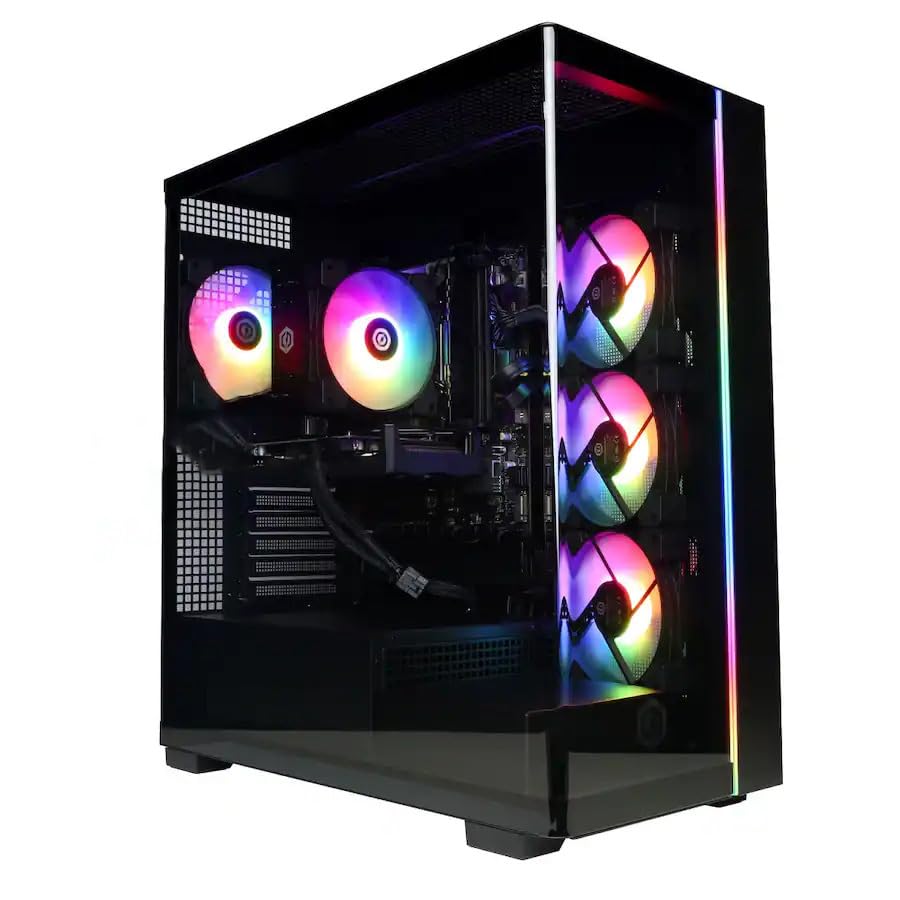
Immaġni: Quddiem view of the CyberpowerPC Gamer Xtreme GXi3200BSTV10 Gaming Desktop PC, showcasing its sleek design and RGB lighting elements.
2. X'hemm fil-Kaxxa
Upon unpacking your CyberpowerPC Gamer Xtreme GXi3200BSTV10, please ensure all the following items are present:
- CyberpowerPC Gamer Xtreme GXi3200BSTV10 Desktop PC
- Kejbil tal-Enerġija
- Tastiera tal-Logħob RGB
- Ġurdien tal-Logħob RGB
- Dokumentazzjoni (inkluż dan il-manwal)

Image: The included CyberpowerPC NOHI 2 Black Wired RGB 104-Key Keyboard and CyberPowerPC Elite M2 Black Wired RGB 4-Button Mouse.
3. Gwida ta' Setup
Follow these steps to set up your new CyberpowerPC Gamer Xtreme desktop:
3.1 Spakkjar u Tqegħid
- Carefully remove the PC and all accessories from the packaging. Retain the packaging for future transport or warranty claims.
- Poġġi l-PC fuq wiċċ stabbli u ċatt b'ventilazzjoni adegwata. Kun żgur li hemm spazju vojt madwar il-ventijiet tad-dħul u tal-ħruġ tal-arja.
- Remove any protective films or internal packing materials from the PC case.
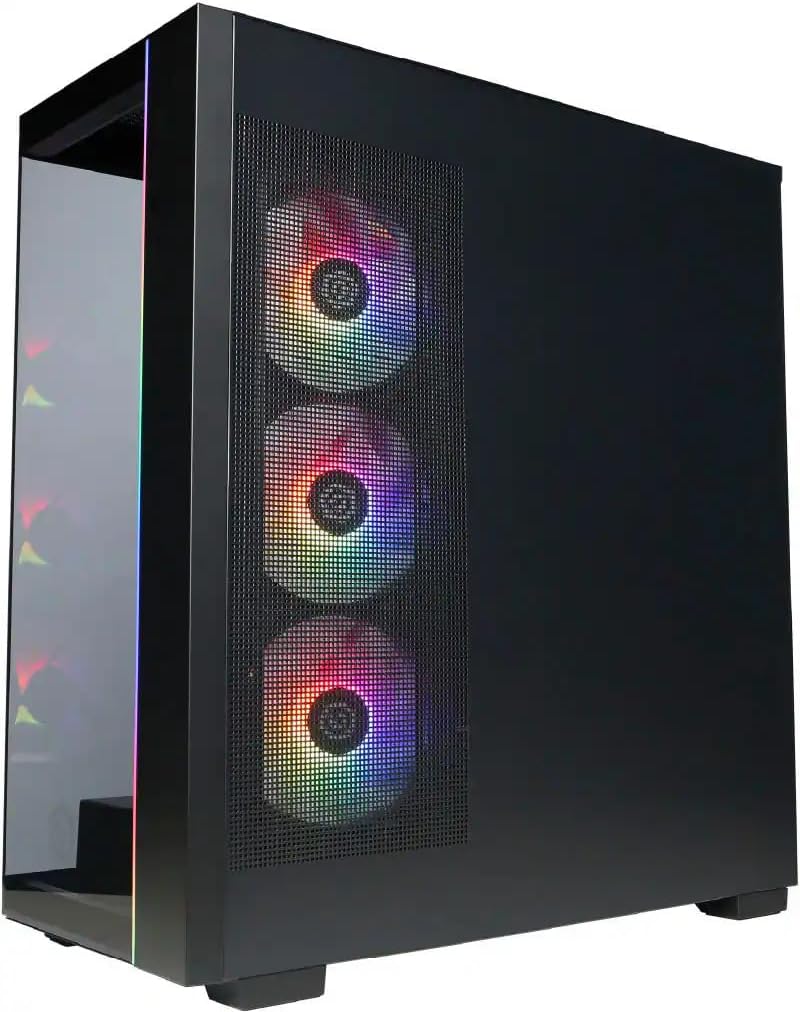
Immaġni: Ġenb view of the PC case, highlighting the mesh panel for airflow and the RGB fans visible through it.
3.2 Konnessjoni tal-Periferali
Connect your monitor, keyboard, mouse, and other devices to the appropriate ports on the back of the PC.
- Monitor: Connect your monitor to one of the graphics card's display outputs (DisplayPort or HDMI). Ensure it's connected to the dedicated graphics card (NVIDIA GeForce RTX 5060), not the motherboard's integrated graphics ports.
- Tastiera u maws: Connect the included RGB keyboard and mouse to any available USB ports.
- Netwerk: For wired internet, connect an Ethernet cable to the RJ-45 port. For wireless internet, ensure the Wi-Fi antennas (if provided) are attached.
- Awdjo: Qabbad l-ispikers jew il-headphones mal-jacks tal-output tal-awdjo.
3.3 Power Connection and Initial Boot
- Qabbad il-kejbil tal-enerġija mal-unità tal-provvista tal-enerġija (PSU) tal-PC u mbagħad ma' sokit elettriku ertjat.
- Press the power button located on the front or top of the PC.
- Follow the on-screen instructions to complete the Windows 11 Home setup process. This may include setting up your user account, network connection, and privacy settings.
4. It-Tħaddim tal-PC Tiegħek
This section covers basic operation of your CyberpowerPC Gamer Xtreme.
4.1 Power On/Off u Nerġgħu
- Qawwa Mixgħul: Agħfas il-buttuna tal-qawwa darba.
- Itfi: Ikklikkja l-buttuna Start fil-Windows, imbagħad agħżel Power > Shut down.
- Ibda mill-ġdid: Ikklikkja l-buttuna Start fil-Windows, imbagħad agħżel Power > Restart.
- Forza l-Għeluq: If the system is unresponsive, press and hold the power button for 5-10 seconds until the PC turns off. Use this only as a last resort.
4.2 Konnettività tan-Netwerk
- Bil-fili (Ethernet): Once the Ethernet cable is connected, Windows 11 should automatically detect and connect to the network.
- Wireless (Wi-Fi): Click the Wi-Fi icon in the taskbar, select your desired network, enter the password, and click Connect.
4.3 Kontroll tad-Dawl RGB
Your system features customizable RGB lighting for fans, case, and CPU cooler. Control software for RGB lighting may be pre-installed or available for download from the CyberpowerPC website. Refer to the specific software's instructions for detailed customization options.

Immaġni: Dettaljata view of the RGB fans, illustrating the vibrant lighting effects within the PC case.

Image: Close-up of the CPU cooler, showing its design and integrated RGB lighting.
5. Manutenzjoni
Manutenzjoni regolari tgħin biex tiżgura l-lonġevità u l-prestazzjoni ottimali tal-PC tiegħek.
5.1 Tindif
- Barra: Uża artab, damp cloth to clean the exterior of the case. Avoid harsh chemicals.
- Trab: Periodically clean dust from the internal components, especially fans and heatsinks, using compressed air. Ensure the PC is powered off and unplugged before opening the case.
- Filtri tal-arja: If your case has removable air filters, clean them regularly to maintain optimal airflow.
5.2 Aġġornamenti tas-Software
- Aġġornamenti tal-Windows: Regularly check for and install Windows updates to ensure security and performance improvements. Go to Settings > Windows Update.
- Aġġornamenti tas-sewwieq: Keep your graphics card drivers (NVIDIA GeForce) and other component drivers updated for best performance and compatibility. Visit the respective manufacturer's websiti għall-aħħar sewwieqa.
5.3 Backup tad-Dejta
Regularly back up your important data to an external drive or cloud storage to prevent data loss in case of hardware failure or other issues.
6 Issolvi l-problemi
Din it-taqsima tipprovdi soluzzjonijiet għal kwistjonijiet komuni li tista’ tiltaqa’ magħhom.
6.1 Ebda Qawwa
- Kun żgur li l-kejbil tal-enerġija huwa konness sew kemm mal-PC kif ukoll mas-sokit tal-ħajt.
- Check if the power switch on the PSU (located at the back of the PC) is in the 'ON' position.
- Ittestja s-sokit b'apparat ieħor biex tikkonferma li għandu l-enerġija.
6.2 L-ebda Wiri fuq il-Monitor
- Verify that the monitor is powered on and its video cable is securely connected to the graphics card (NVIDIA GeForce RTX 5060) on the PC.
- Kun żgur li s-sors tad-dħul tal-monitor huwa ssettjat b'mod korrett (eż., HDMI 1, DisplayPort).
- Try connecting the monitor to a different display output port on the graphics card.
6.3 System Running Slowly
- Iċċekkja t-Task Manager (Ctrl+Shift+Esc) għal applikazzjonijiet li jikkunsmaw riżorsi eċċessivi tas-CPU, RAM, jew tad-diska.
- Kun żgur li l-Windows u s-sewwieqa huma aġġornati.
- Run a full system scan for malware or viruses.
- Verify that the PC has adequate ventilation and is not overheating.
7. Speċifikazzjonijiet
Detailed technical specifications for your CyberpowerPC Gamer Xtreme GXi3200BSTV10:

Image: Infographic summarizing key specifications including Intel Core i5-14400F, NVIDIA GeForce RTX 5060, 16GB DDR5 RAM, and 1TB PCIe NVMe M.2 SSD.
| Komponent | Speċifikazzjoni |
|---|---|
| Proċessur | Intel Core i5-14400F (10-Core, 2.5 GHz base, up to 4.7 GHz Turbo Boost) |
| Karta Grafika | NVIDIA GeForce RTX 5060 8GB GDDR7 |
| RAM | 16GB DDR5 6000 MHz |
| Ħażna | SSD ta' 1TB PCIe NVMe M.2 |
| Sistema Operattiva | Windows 11 Home |
| Konnettività bla fili | Wi-Fi (802.11ax), Bluetooth |
| Awdjo | 7.1-Kanal Awdjo Definizzjoni Għolja |
| Wiri Outputs | 3x DisplayPort, 1x HDMI |
| Portijiet USB | 1x USB-C 3.2, 3x USB-A 3.2, 4x USB-A 2.0 |
| Dimensjonijiet (LxWxH) | 18.1 x 9.2 x 20 pulzieri |
| Piż tal-oġġett | 40 liri |
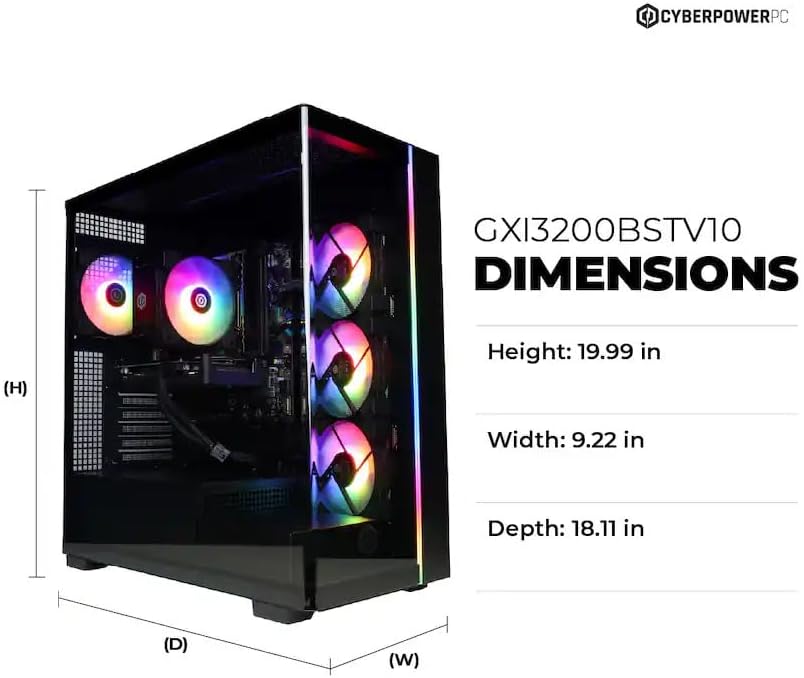
Image: Diagram illustrating the dimensions of the CyberpowerPC Gamer Xtreme GXi3200BSTV10: Height 19.99 in, Width 9.22 in, Depth 18.11 in.
8. Garanzija u Appoġġ
8.1 Garanzija tal-Manifattur
Your CyberpowerPC Gamer Xtreme GXi3200BSTV10 comes with a Garanzija tal-Manifattur ta' 1 SninDin il-garanzija tkopri difetti fil-materjali u fix-xogħol taħt użu normali. Jekk jogħġbok żomm il-prova tax-xiri tiegħek għal talbiet ta' garanzija.
For specific terms and conditions of the warranty, please refer to the documentation included with your PC or visit the official CyberpowerPC websit.
8.2 Appoġġ Tekniku
If you encounter issues that cannot be resolved using the troubleshooting steps in this manual, please contact CyberpowerPC technical support. Have your model number (GXi3200BSTV10) and serial number ready when contacting support.
You can typically find support contact information on the CyberpowerPC webis-sit jew fid-dokumentazzjoni pprovduta mas-sistema tiegħek.