1. Prodott Aktarview
This manual provides instructions for the Acer Vero 24-inch FHD IPS Monitor and the accompanying ErgoFlexy Dual Monitor Mount. The monitor features a 1920x1080 resolution, 120Hz refresh rate, 4ms response time, anti-glare screen, integrated speakers, and VESA mount compatibility. The dual monitor mount allows for ergonomic adjustments including tilt, swivel, and height.
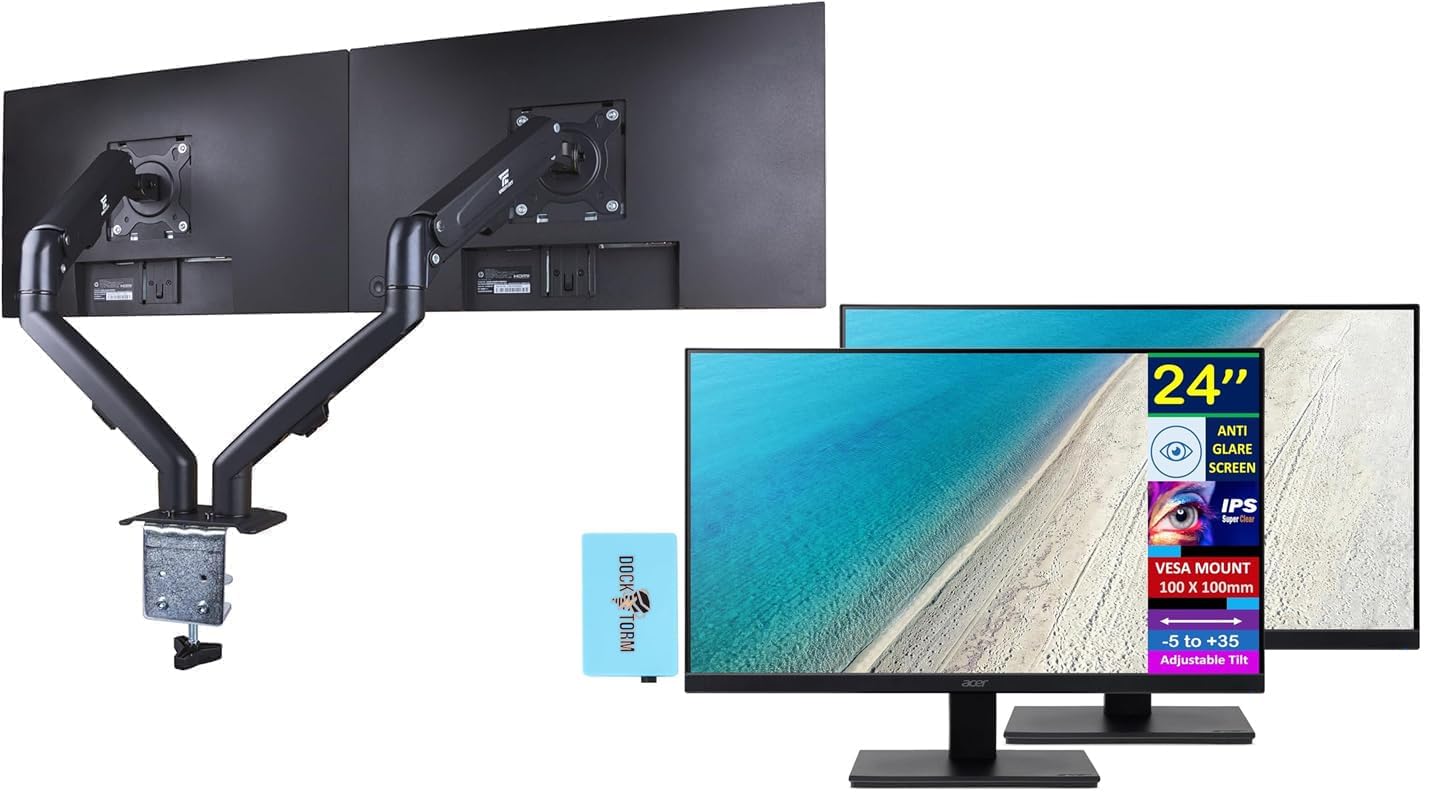
Image 1.1: Two Acer Vero 24-inch monitors attached to the ErgoFlexy Dual Monitor Mount, showcasing the setup.
2. Kontenut tal-Pakkett
Ivverifika li l-komponenti kollha huma preżenti fil-pakkett. Jekk xi oġġetti huma neqsin jew bil-ħsara, ikkuntattja lill-bejjiegħ tiegħek.
- Acer Vero 24-inch FHD IPS Monitor (x2)
- ErgoFlexy Dual Monitor Mount (x1)
- Kejbils tal-Enerġija (x2)
- HDMI Cables (x2)
- VGA Cables (x2)
- Dockztorm Hub (x1)
- Manwal għall-Utent (dan id-dokument)
- Mounting Hardware (screws, washers, Allen keys)
3. Istruzzjonijiet ta' Setup
3.1 Monitor Assembly (if not using mount)
If you are not using the dual monitor mount, you can assemble the monitor with its included stand.
- Neħħi l-monitor b'attenzjoni mill-imballaġġ tiegħu.
- Attach the stand base to the stand neck. Secure with the provided screw.
- Attach the assembled stand to the back of the monitor until it clicks into place or is secured with screws.

Stampa 3.1: Quddiem view of the Acer Vero 24-inch monitor with its standard stand.

Stampa 3.2: Wara view of the Acer Vero 24-inch monitor, highlighting the VESA mounting holes and input ports.
3.2 ErgoFlexy Dual Monitor Mount Installation
The ErgoFlexy Dual Monitor Mount is designed for desks with a thickness between 10mm and 18mm.
- Waħħal l-Iskrivanija Clamp: Sikura l-iskrivanija clamp component of the mount to the edge of your desk. Tighten the screw until the mount is stable.
- Arma l-Armi: Connect the monitor arms to the central pole of the desk clamp.
- Attach Monitors:
- Remove any pre-attached stands from the monitors.
- Align the VESA mounting holes (100mm x 100mm) on the back of each Acer Vero monitor with the mounting plate on each arm.
- Secure the monitors to the mounting plates using the provided screws.

Immaġni 3.3: Ġenb view of the dual monitor setup, illustrating the monitor arms and their connection points.
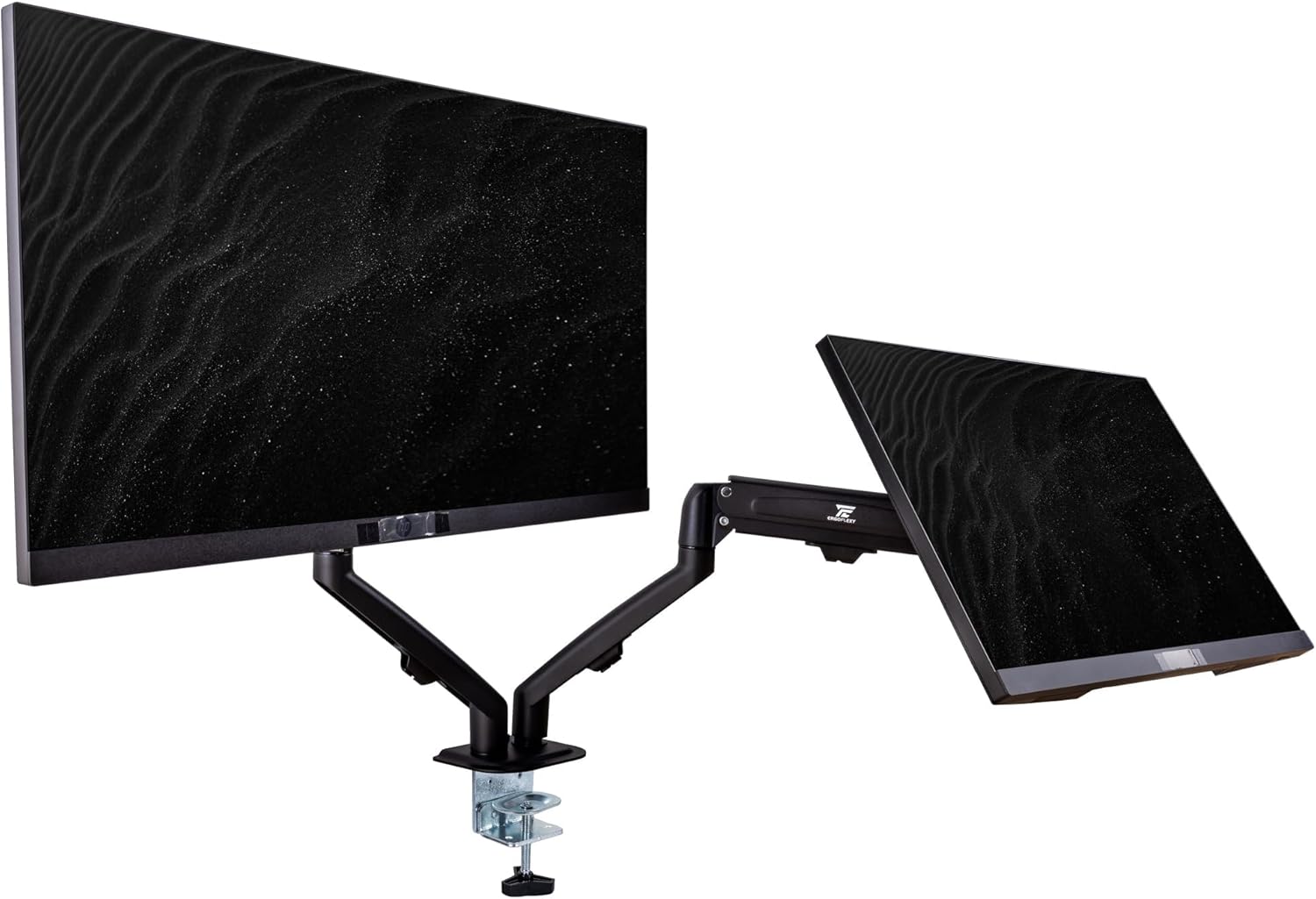
Image 3.4: Diagram detailing the maximum height, extension, swivel, and tilt ranges of the ErgoFlexy Dual Monitor Mount, along with supported screen sizes (17"-27") and weight capacity (2-7kg).
3.3 Kejbils tal-Konnessjoni
Connect the necessary cables to each monitor and your computer.
- Cable tal-Enerġija: Qabbad tarf wieħed tal-kejbil tal-enerġija mad-dħul tal-enerġija tal-monitor u t-tarf l-ieħor ma' sokit tal-enerġija.
- Cable tal-vidjo: Connect either an HDMI cable or a VGA cable from your computer's video output to the corresponding input port on each monitor. The monitor supports 1 x HDMI and 1 x VGA.
- Kejbil tal-Awdjo: If using external speakers or headphones with the monitor's audio output, connect an audio cable from the monitor's audio line out to your audio device.
- Dockztorm Hub: Connect the Dockztorm Hub to your computer via USB for additional connectivity.
4. Istruzzjonijiet Operattivi
4.1 Tixgħel/Jitfi
- To power on the monitor, press the power button located on the monitor's frame.
- To power off, press and hold the power button until the monitor turns off.
4.2 Aġġustament tas-Settings tad-Displej
Use the OSD (On-Screen Display) menu buttons, typically located on the bottom or back of the monitor, to adjust settings such as:
- Luminożità/Kuntrast: Adjust for optimal visual comfort.
- Settings tal-Kulur: Modify color temperature, gamma, and saturation.
- Għażla tal-Input: Manually switch between HDMI and VGA inputs if auto-detection fails.
- Settings tal-awdjo: Control volume for integrated speakers or connected audio devices.
4.3 Ergonomic Adjustments with ErgoFlexy Mount
The ErgoFlexy Dual Monitor Mount allows for flexible positioning of your monitors.
- Aġġustament Għoli: Lift or lower the monitor arms along the central pole to achieve your desired viewing għoli.
- Mejjel: Adjust the monitor screen vertically from -5 to +35 degrees for optimal viewing angle. The mount itself supports +90° / -45° tilt.
- Dawwar: Rotate the monitor horizontally up to 180 degrees (+/- 90 degrees from center) on the mount. The mount supports +/- 180° swivel.
- Rotazzjoni: Pivot the monitor from landscape to portrait orientation (0 to 90 degrees). The mount supports 180° rotation.
- Estensjoni: Extend or retract the monitor arms to adjust the distance from your eyes. The maximum extension is 15 inches (28mm).

Immaġni 4.1: Proġett tal-ġenbfile of the Acer Vero 24-inch monitor, demonstrating its slim design.
5. Manutenzjoni
5.1 Cleaning the Monitor Screen
To clean the anti-glare screen, use a soft, lint-free cloth lightly dampmaħsul bl-ilma jew b'prodott speċjalizzat għat-tindif tal-iskrin.
- Tisprejjax it-tindif direttament fuq l-iskrin.
- Evita li tuża prodotti tat-tindif li joborxu, alkoħol, jew soluzzjonijiet ibbażati fuq l-ammonja, għax dawn jistgħu jagħmlu ħsara lill-wiċċ tal-iskrin.
- Ensure the monitor is powered off and unplugged before cleaning.
5.2 Kura Ġenerali
- Keep the monitor and mount in a clean, dry environment.
- Evita li tesponi l-prodott għal temperaturi jew umdità estremi.
- Timblokkax il-fetħiet tal-ventilazzjoni fuq il-monitor.
6 Issolvi l-problemi
| Problema | Kawża Possibbli | Soluzzjoni |
|---|---|---|
| L-ebda immaġni fuq l-iskrin |
|
|
| Immaġni teptip jew instabbli |
|
|
| L-ebda awdjo mill-ispikers integrati |
|
|
| Monitor mount feels unstable |
|
|
7. Speċifikazzjonijiet
| Karatteristika | Speċifikazzjoni |
|---|---|
| Daqs tal-Wiri | 24 pulzieri |
| Tip ta' Panel | IPS |
| Riżoluzzjoni (Massimu) | FHD (1920 x 1080) |
| Proporzjon ta' l-aspett | 16:9 |
| Riffriskar Rata | 120Hz |
| Ħin ta' Rispons | 4ms (GTG) |
| Luminożità | 250 nits |
| Proporzjon ta' Kuntrast | 1000:1 |
| ViewAngolu tal-Inġenju (H/V) | 178° / 178° |
| Appoġġ tal-Kulur | 16.7 Miljun Kulur |
| Kisi tal-iskrin | Kontra d-dija |
| Portijiet | 1 x HDMI, 1 x VGA, Linja tal-awdjo Dħul/Ħruġ |
| Kelliema Integrati | Iva |
| Kompatibilità tal-Immonta VESA | 100mm x 100mm |
| Monitor Mejjel | -5° sa +35° |
| Dimensjonijiet tal-Prodott (W x D x H) | 21.26 x 7.72 x 16.69 pulzieri (bl-istand) |
| Piż tal-oġġett | 9.70 lb (monitor only) |
| Mount Swivel Angle | +/- 180 ° |
| Mount Rotation Angle | 180° |
| Mount Tilt Angle | +90° / -45° |
| Mount Max Extension | 15 pulzieri (28mm) |
| Mount Fit Desk Thickness | 10 - 18mm |
| Mount Weight Capacity | 2 - 7 Kg per arm |
8. Informazzjoni dwar Garanzija
For detailed warranty information regarding your Acer Vero monitors and ErgoFlexy Dual Monitor Mount, please refer to the warranty card included in your product packaging or visit the official Acer websit.
Optional protection plans are available for purchase separately, offering extended coverage beyond the standard manufacturer's warranty. These plans typically cover defects and malfunctions for a specified period (e.g., 3-year or 4-year plans).
9. Appoġġ
If you encounter issues not covered in the troubleshooting section or require further assistance, please contact Acer customer support.
- Appoġġ Acer Websit: Żur www.acer.com/support for drivers, FAQs, and contact information.
- Riżorsi onlajn: Iċċekkja l- Ħanut Acer fuq Amazon għal informazzjoni addizzjonali dwar il-prodott.


