1. Introduzzjoni
The M-VAVE Chocolate Plus is a versatile wireless MIDI foot controller designed for musicians and producers. It offers seamless control over various music applications and digital audio workstations (DAWs) across multiple platforms including Windows, macOS, iOS, and Android. This manual provides detailed instructions for setup, operation, and maintenance to ensure optimal performance of your device.
2. Prodott Aktarview
2.1. Karatteristiċi ewlenin
- Konnettività Wireless: Bluetooth (BT) MIDI for wireless operation across Windows, macOS, iOS, and Android.
- Disinn kompatt: Portable with 4 assignable foot switches, suitable for stage jew użu fl-istudjo.
- Batterija rikarikabbli: Built-in battery provides extended usage (up to 12 hours on a 2.5-hour charge).
- Kontroll tal-APP: Seamless integration with music apps for detailed settings, customization, and firmware updates.
- Kostruzzjoni Durabbli: Made with high-quality metal for long-lasting performance.

Image: M-VAVE Chocolate Plus MIDI Foot Controller showcasing its main features like display screen, metal footswitch, USB MIDI, BLE MIDI, MIDI customization, and smart app control.
2.2. Komponenti u Kontrolli
Familiarize yourself with the various parts and controls of the Chocolate Plus foot controller:
- Foot Switches A, B, C, D: Main control buttons for various functions.
- Skrin tad-displej: Shows current settings, bank numbers, and other information.
- Port USB: Used for connecting to a computer and charging the device.
- Port HOST: For connecting external pedals or devices.
- Power Switch (U/H): Selects between USB (U) and HOST (H) port activation.
- Indikatur tal-Iċċarġjar: Light indicating charging status.
- Wireless Instruction Light: Jindika l-istatus tal-konnessjoni Bluetooth.
- Pedal Jack: Input for an external expression pedal (not included).

Image: A detailed diagram illustrating the M-VAVE Chocolate Plus foot controller's components, including foot switches (A, B, C, D), display screen, USB port, HOST port, power switch, charging indicator, wireless instruction light, and pedal jack.
3. Setup
3.1. Iċċarġjar tal-Apparat
The Chocolate Plus features a built-in rechargeable Lithium Polymer battery. Before initial use, ensure the device is fully charged.
- Connect the device to a USB power source using the provided USB cable.
- Ċarġ sħiħ jieħu madwar 2.5 sigħat.
- The device provides up to 12 hours of continuous usage on a full charge.

Image: An illustration highlighting the M-VAVE Chocolate Plus's battery specifications: Lithium Ion Battery, 12 hours usage time, and 2.5 hours for a full charge.
3.2. Metodi ta 'Konnessjoni
The Chocolate Plus supports both wired and wireless connections to various devices.
3.2.1. Wired Connection (Computer)
- Connect the Chocolate Plus to your computer using a USB cable.
- Ensure the power switch on the device is set to the U (USB) mode. In this mode, the HOST port is inactive.
- The device will be recognized as a MIDI input device by your computer.
3.2.2. Wireless Connection (Mobile Devices)
- Ensure the power switch on the device is set to the H (HOST) mode. In this mode, the USB port primarily supplies power.
- Activate Bluetooth on your mobile phone or tablet.
- Open the M-VAVE CubeSuite app (see Section 3.3) and connect to the Chocolate Plus via Bluetooth.
- The Bluetooth transmission range is approximately 2 meters.

Image: A visual guide demonstrating the two primary connection methods for the M-VAVE Chocolate Plus: wired USB connection to a computer (U mode) and wireless Bluetooth connection to a mobile phone (H mode).
3.3. App Installation and Firmware Updates
The M-VAVE CubeSuite app is essential for configuring the Chocolate Plus and performing firmware updates. It is compatible with iOS, Android, Windows, and macOS.
- Niżżel l-App: Scan the QR code provided in the product packaging or visit the official M-VAVE website to download the CubeSuite software. For iOS users, the app is available on the Apple App Store. For Android users, direct APK download may be required, which might trigger security warnings. Proceed with caution and ensure the download source is official.
- Installazzjoni: Follow the on-screen prompts to install the application. On Android, you may need to grant permission for installation from unknown sources.
- Qabbad permezz tal-Bluetooth: Turn on Bluetooth on your device (phone/tablet/computer) and connect to the Chocolate Plus. Open the CubeSuite app and select your device from the list.
- Aġġornamenti tal-Firmware: The app facilitates firmware updates. It is recommended to keep your device's firmware updated for optimal performance and access to new features. Note that a separate app might be required for firmware updates on some platforms.

Image: A step-by-step guide illustrating how to download, install, and connect the M-VAVE CubeSuite app to the Chocolate Plus controller, including notes on potential security prompts during installation.
4. Operazzjoni
4.1. Basic Foot Switch Functions
- Foot Switches A, B, C, D: These four switches can be assigned to various MIDI commands (Program Change, Control Change, Note On/Off, SYSEX) or other functions via the app.
- Changing Groups (Banks): Pressing Foot Switches A and B simultaneously (labeled E) allows you to change groups or banks of presets. Similarly, pressing Foot Switches C and D simultaneously (labeled F) also changes groups. The display screen will show the current group number.

Image: The M-VAVE Chocolate Plus foot controller demonstrating its use for controlling various functions such as effects, music score page turning, and music players.
4.2. Kontroll u Personalizzazzjoni tal-App
The CubeSuite app provides extensive customization options for the Chocolate Plus:
- Program Change (PC) and Control Change (CC): Assign PC and CC messages to individual foot switches for controlling presets and parameters in your DAW or effects units.
- Note On/Off and SYSEX: Configure switches to send Note On/Off messages or System Exclusive messages for advanced control.
- Modi Personalizzati: Create and save custom control modes tailored to your specific needs.
- Bank Management: Manage up to 27 groups (banks) of presets, each with unique assignments for the four foot switches.
- Keyboard Modes: Utilize Keyboard A or Keyboard B modes for functions like sheet music page turning.
- Multimedia Keyboard Mode: Control media playback functions such as play/pause, fast forward, rewind, song switching, and volume adjustment.

Image: The M-VAVE CubeSuite app interface displaying multiple modes and personalized customization options, including Program Change, Custom Control, Advanced Custom Mode, and various Keyboard Modes for the Chocolate Plus.
4.3. Applikazzjonijiet Speċifiċi
4.3.1. Sheet Music Page Turning
In the CubeSuite app, select "Keyboard A" or "Keyboard B" mode. Press the assigned foot switches to turn pages in digital sheet music applications.
4.3.2. Song Switching and Volume Control
Select "MultiMedia Keyboard" mode in the app. Use the foot switches to control functions like previous song, next song, volume up, and volume down.
4.3.3. Connecting to M-VAVE Black Box / Looper Pro
The Chocolate Plus can integrate with other M-VAVE devices. For example, to connect to an M-VAVE Black Box or Looper Pro:
- Black Box Connection:
- Wirelessly connect your phone to the Chocolate Plus.
- Flip the Chocolate Plus switch to the H iffissar.
- Connect the Chocolate Plus with the Black Box using a USB cable.
- Turn on the Bluetooth function of the Black Box.
- Looper Pro Connection:
- Connect the Chocolate Plus to a computer via USB cable.
- Flip the Chocolate Plus switch to the U iffissar.
- Ensure the Looper Pro is powered on. The Looper Pro and Chocolate Plus Bluetooth functions will automatically recognize and connect.
5. Manutenzjoni
To ensure the longevity and proper functioning of your M-VAVE Chocolate Plus, follow these maintenance guidelines:
- Tindif: Uża drapp artab u niexef biex tnaddaf il-barra tal-apparat. Evita li tuża prodotti tat-tindif jew solventi li joborxu.
- Ħażna: Aħżen l-apparat f'post frisk u niexef 'il bogħod mix-xemx diretta u minn temperaturi estremi.
- Kura tal-batterija: Għal ħajja ottimali tal-batterija, evita li tiċċarġja kompletament il-batterija ta' spiss. Jekk taħżinha għal perjodi twal, iċċarġja l-batterija għal madwar 50% kull ftit xhur.
- Evita Likwidi: Keep the device away from water and other liquids to prevent damage to internal components.
6 Issolvi l-problemi
If you encounter issues with your M-VAVE Chocolate Plus, refer to the following common troubleshooting steps:
- L-Apparat Mhux Jixgħel:
- Ensure the device is charged. Connect it to a USB power source and allow it to charge for at least 30 minutes.
- Iċċekkja l-pożizzjoni tas-swiċċ tal-enerġija.
- Kwistjonijiet ta' Konnessjoni Bluetooth:
- Ensure the device is in H (HOST) mode for wireless connection.
- Verify Bluetooth is enabled on your mobile device or computer.
- Make sure the device is within the 2-meter Bluetooth range.
- Try restarting both the Chocolate Plus and your connecting device.
- Jekk qabel kien imqabbad, ipprova neħħi l-akkoppjar u erġa' qabbad l-apparat.
- USB Connection Not Recognized:
- Ensure the device is in U (USB) mode.
- Try a different USB cable and a different USB port on your computer.
- Ensure necessary drivers are installed (usually plug-and-play, but check M-VAVE website if issues persist).
- App Installation/Firmware Update Problems:
- For Android, if you encounter security warnings, ensure you are downloading from the official M-VAVE source and temporarily allow installation from unknown sources if necessary.
- Ensure you have the correct version of the CubeSuite app for your operating system.
- Some firmware updates may require a separate utility app; refer to the M-VAVE websit għal struzzjonijiet speċifiċi.
- If issues persist, try installing the app on a different compatible device (e.g., a Windows computer if having trouble on iOS/Android).
- Foot Switches Not Responding:
- Verify the device is properly connected (wired or wireless).
- Check the app settings to ensure the foot switches are correctly assigned to the desired functions.
- Perform a factory reset if customization issues are suspected (refer to app for this function).
For further assistance, please refer to the official M-VAVE support resources or contact customer service.
7. Speċifikazzjonijiet
| Karatteristika | Dettall |
|---|---|
| Isem tal-Mudell | Chocolate Plus |
| Numru tal-Mudell tal-Oġġett | FBA_M008_Chocolate_Black |
| Dimensjonijiet | 8 x 1.5 x 1.5 pulzieri (20.32 x 3.81 x 3.81 ċm) |
| Piż | 7 uqija (198 gramma) |
| Tip ta' Materjal | Metall |
| Teknoloġija tal-Konnettività | USB, Bluetooth (BLE) |
| Interface tal-Ħardwer | USB 2.0, USB 3.0 |
| Apparati Kompatibbli | MIDI foot controller, PC, Mac, iOS, Android |
| Softwer Appoġġjat | M-VAVE CubeSuite App |
| Tip ta 'batterija | Polimer tal-litju (1 inkluż) |
| Ħajja tal-batterija | Up to 12 hours (after 2.5 hours charge) |
| Number of Keys/Buttons | 4 assignable foot switches |

Image: The M-VAVE Chocolate Plus MIDI Foot Controller shown with its physical dimensions: 212mm length, 17mm height, and 36mm width.
8. X'hemm fil-Kaxxa
The M-VAVE Chocolate Plus package includes:
- M-VAVE Chocolate Plus Wireless MIDI Foot Controller
- Cable tal-Iċċarġjar tal-USB
- Manwal għall-Utent (dan id-dokument)
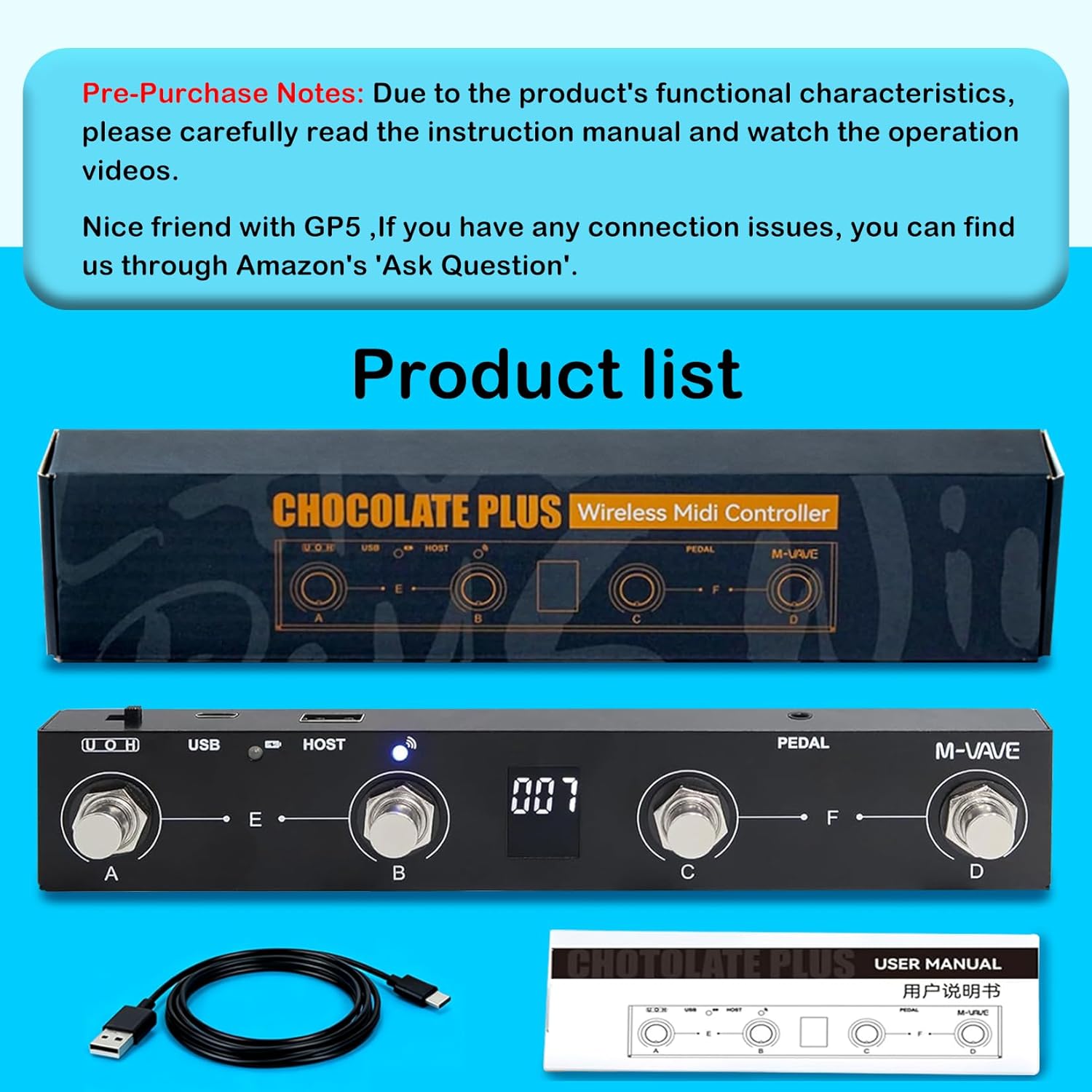
Image: The M-VAVE Chocolate Plus product packaging, showing the foot controller, a USB cable, and the user manual.
9. Garanzija u Appoġġ
For warranty information, technical support, or any product-related inquiries, please contact M-VAVE customer service through the retailer where the product was purchased or visit the official M-VAVE websit għal riżorsi ta' appoġġ.


