Introduzzjoni
This user manual provides comprehensive instructions for the setup, operation, and maintenance of your Prechen 12.3-inch Portable Touchscreen Monitor. Designed for versatility and portability, this monitor enhances your productivity and entertainment experience across various devices.
Karatteristiċi Ewlenin
- FHD Portable Touchscreen: 12.3-inch IPS display with 1920x720 resolution for vibrant colors and clear images. Features responsive 10-point capacitive touch functionality.
- Ultimate Portability and Flexibility: Lightweight design with a foldable stand, ideal for use in the office, home, or while traveling.
- Għażliet ta' Konnessjoni Multipli: Supports HDMI and USB-C connections for compatibility with laptops, phones, and other devices.
- Built-in Speakers & CNC Materials: Equipped with dual speakers for clear audio. Constructed with precise CNC technology to ensure accurate dimensions and improved overall quality.
- Real-Time System Monitoring: Seamlessly integrates with AIDA64 (software not included) for monitoring CPU, GPU, and system health on Windows.

Figure 1: The Prechen 12.3-inch monitor highlighting its 10-point multi-touch capability and CNC metal shell design.
Kontenut tal-Pakkett
Jekk jogħġbok kun żgur li l-oġġetti kollha huma preżenti fil-pakkett:
- Prechen 12.3" Portable Touchscreen Monitor
- Foldable Stand/Protective Cover
- USB-C to USB-C Cable (for power, video, and touch)
- HDMI to HDMI Cable (for video)
- USB-A to USB-C Cable (for power/touch when using HDMI)
- Adapter tal-Enerġija
- Manwal għall-Utent (dan id-dokument)
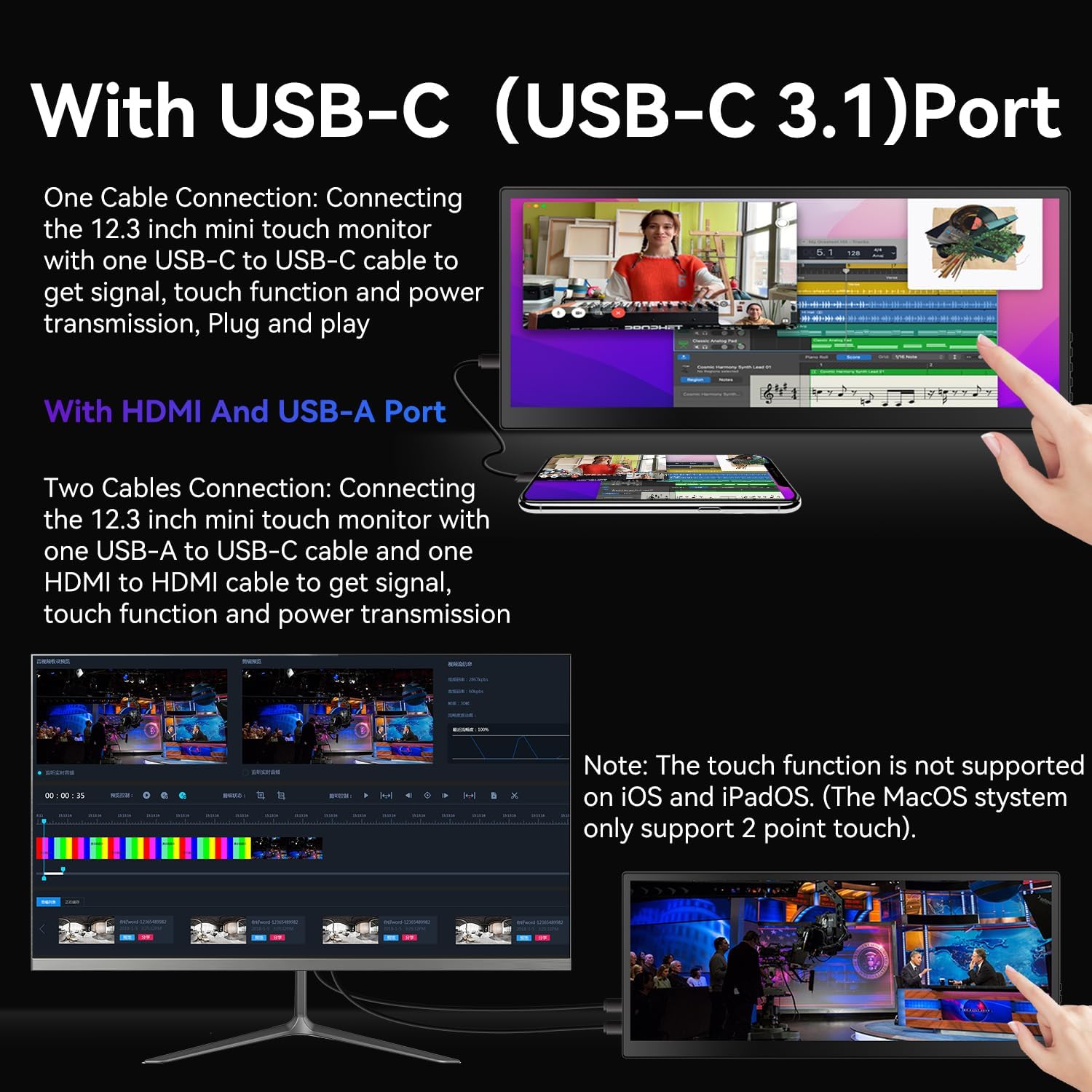
Figure 2: Contents of the package, including the monitor, cables, and power adapter.
Setup
The Prechen portable monitor offers flexible connectivity options:
1. Single Cable Connection (USB-C 3.1 DP ALT-MODE or Thunderbolt 3/4)
For devices with a full-featured USB-C port (supporting DisplayPort Alternate Mode or Thunderbolt), a single USB-C to USB-C cable can provide power, video, and touch functionality.
- Connect one end of the included USB-C to USB-C cable to the monitor's USB-C port.
- Connect the other end of the USB-C to USB-C cable to your device's compatible USB-C port.
- The monitor should automatically detect the signal and power on.

Figure 3: Illustration of connecting the monitor using a single USB-C cable for power, video, and touch.
2. Dual Cable Connection (HDMI + USB-A)
For devices without a full-featured USB-C port, you will need to use both an HDMI cable for video and a USB-A to USB-C cable for power and touch functionality.
- Connect one end of the included HDMI cable to the monitor's HDMI port and the other end to your device's HDMI port.
- Connect the USB-C end of the USB-A to USB-C cable to the monitor's USB-C port.
- Connect the USB-A end of the USB-A to USB-C cable to your device's USB-A port or a power adapter.
- Ensure both cables are securely connected for proper operation and touch functionality.

Figure 4: Setup using HDMI for video and USB-A to USB-C for power and touch.
Important Notes for Setup:
- Provvista tal-Enerġija: If your device cannot provide sufficient power via USB-C, please use the included power adapter to ensure stable operation.
- Funzjonalità Touch:
- MacBook only supports 1-point touch. Ensure the mouse cursor is on the monitor for touch input.
- iPhone, iPad, and Game Devices (e.g., PS3/4/5, Switch, X-box, Steam-Deck, Fire TV stick/cube) MA support the touch function due to system limitations.
- For Windows, you may need to go to "Tablet PC Settings" in the Control Panel to set up the touch function if it's the first touchscreen connected.
It-tħaddim tal-Monitor
Kontrolli Bażiċi
The monitor features intuitive buttons for control:
- ON/OFF: Press and hold to power the monitor on or off.
- FUQ ISFEL: Navigate menu options or adjust settings.
- Menu: Access the on-screen display (OSD) menu.
- Ritorn: Go back to the previous menu or exit the OSD.
- Awdjo Jack: Connect external headphones or speakers.

Figura 5: Aktarview of the monitor's control buttons and input/output ports.
Modi tal-Wiri
Once connected, you can configure your computer's display settings to utilize the portable monitor in various modes:
- Modalità Estiża: Extends your desktop across both screens, providing more workspace. This is ideal for multitasking.
- Modalità Duplikata: Mirrors your primary display, showing the same content on both screens. Useful for presentations or sharing content.
- Second Screen Only Mode: Displays content only on the portable monitor, turning off your primary display.

Figure 6: The monitor set up in Extended Mode, providing additional screen real estate.

Figure 7: The monitor displaying content in Duplicated Mode, mirroring the main screen.
Touch Funzjonalità
The 10-point capacitive touchscreen allows for intuitive interaction:
- Use gestures like tap, pinch-to-zoom, and swipe for navigation and control.
- Adjust text size or image zoom directly on the screen.
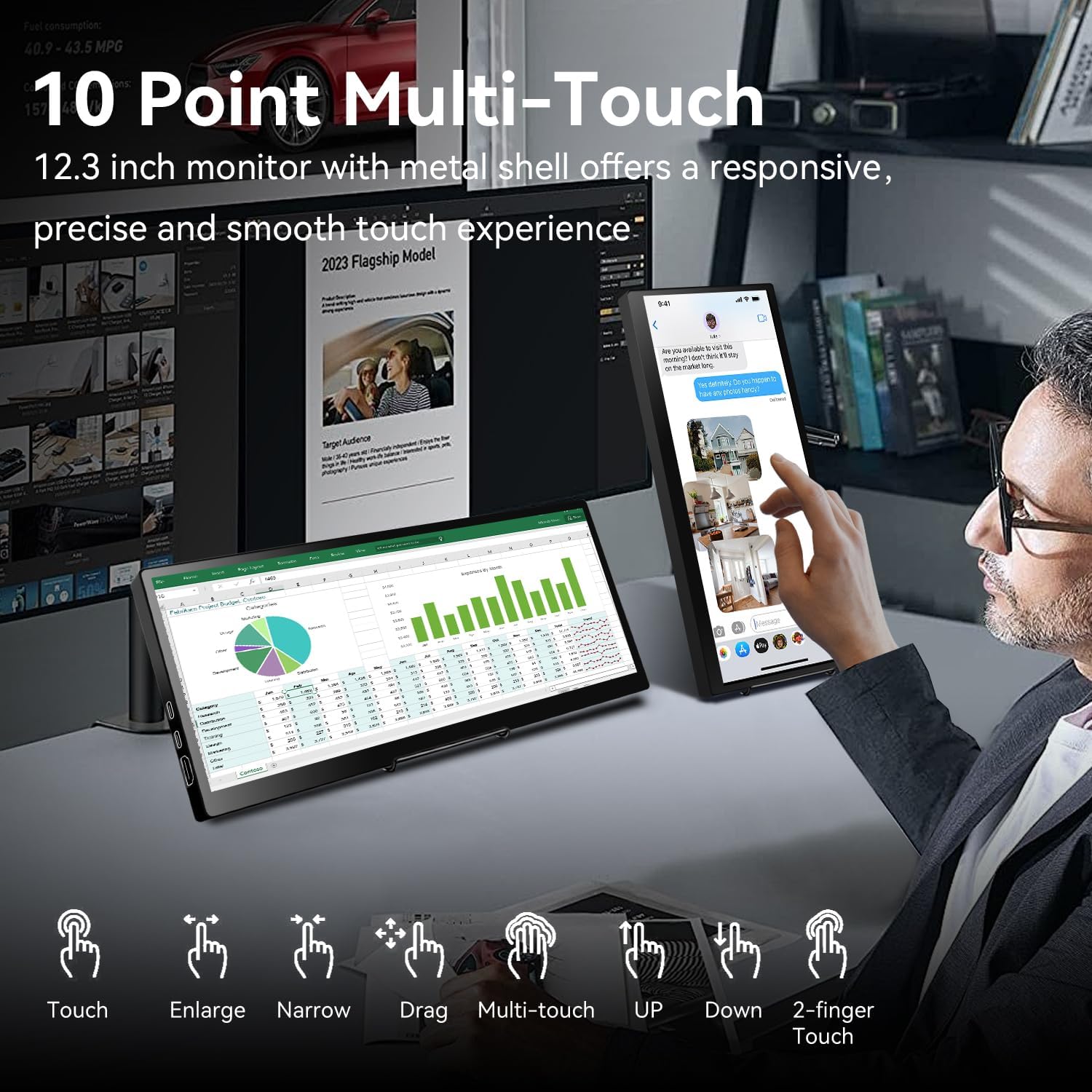
Figure 8: Various multi-touch gestures supported by the monitor, including touch, enlarge, narrow, drag, and 2-finger touch.
System Monitoring (AIDA64)
For Windows users, the monitor can be used for real-time system monitoring:
- Integrate with AIDA64 (software not included) to display CPU, GPU, and other system performance metrics.
- This provides a quick glance at your computer's health without interrupting your main workflow.
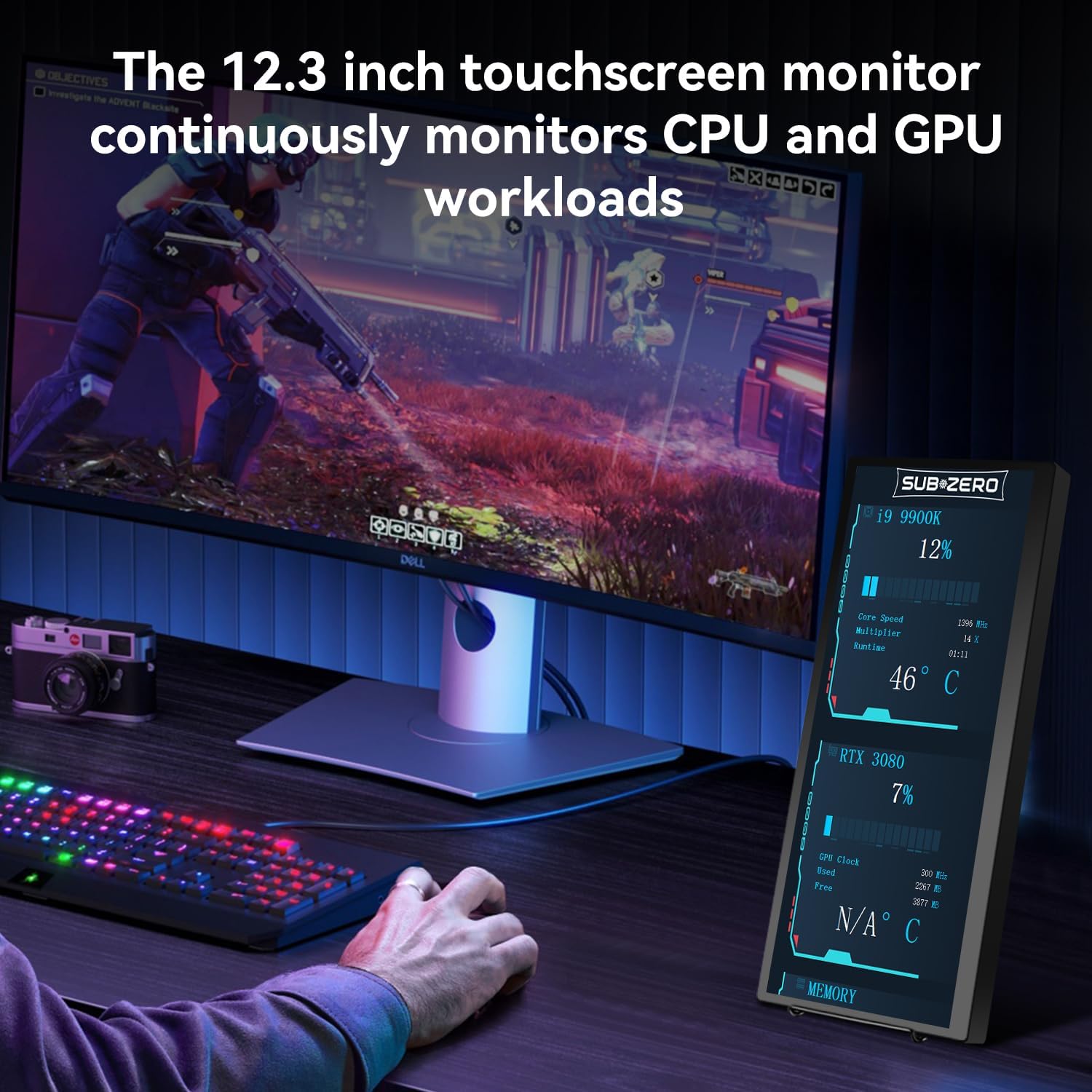
Figure 9: The monitor used to display real-time CPU and GPU workload information.
Manutenzjoni
- Tindif: Use a soft, lint-free cloth to clean the screen. For stubborn smudges, slightly dampNaddaf id-drapp bl-ilma jew b'prodott tat-tindif li ma jagħmilx ħsara lill-iskrin. Evita kimiċi ħarxa.
- Immaniġġjar: Always handle the monitor with care. Avoid dropping it or placing heavy objects on it.
- Ħażna: When not in use, store the monitor in its protective cover to prevent scratches and damage.
- Temperatura: Avoid exposing the monitor to extreme temperatures or direct sunlight for prolonged periods.
Issolvi l-problemi
If you encounter issues with your Prechen monitor, please refer to the following common solutions:
- Ebda Wiri/Qawwa:
- Kun żgur li l-kejbils kollha (USB-C, HDMI, enerġija) huma konnessi sew.
- If using a single USB-C cable, verify your device's USB-C port supports DisplayPort Alternate Mode and sufficient power delivery. Try connecting the external power adapter.
- Test with different cables if possible.
- Il-Funzjoni Touch Ma Taħdimx:
- Confirm that the USB-A to USB-C cable (for HDMI connections) or the full-featured USB-C cable is connected, as touch requires a USB data connection.
- For Windows, navigate to "Control Panel" > "Tablet PC Settings" and follow the setup prompts to calibrate the touchscreen.
- Remember that iPhone, iPad, and most game devices do not support touch functionality with this monitor. MacBook supports only 1-point touch.
- Display is Squished or Stretched:
- Adjust the aspect ratio settings on your connected device (laptop/PC display settings).
- The monitor's native resolution is 1920x720. Ensure your device's output resolution is compatible or set to extend mode for optimal display.
- No Sound from Monitor Speakers:
- Check your device's audio output settings to ensure sound is directed to the Prechen monitor.
- Adjust the volume on both your device and the monitor.
Speċifikazzjonijiet
| Karatteristika | Dettall |
|---|---|
| Brand | Prechen |
| Numru tal-Mudell | HD-123 |
| Daqs tal-Iskrin | 12.3 Pulzier |
| Riżoluzzjoni | 1920x720 Pixel |
| Proporzjon ta' l-aspett | 16:9 |
| Luminożità tal-Immaġni | 450 Kandela |
| Wiċċ tal-Iskrin | Tleqq |
| Dimensjonijiet tal-Prodott | 0.59 x 11.8 x 5.1 pulzieri |
| Piż tal-oġġett | 2.97 liri |
| Kompatibilità VESA | 75x75mm (as per images) |
Appoġġ għall-Klijent
For further assistance, technical support, or warranty inquiries, please contact Prechen customer service through the retailer's platform or visit the official Prechen websit.
Żur il- Prechen Store on Amazon għal aktar informazzjoni.


