1. Introduzzjoni
The Osee G7 Pro is a high-brightness 7-inch touchscreen camera monitor designed for professional video production. It features a 3000-nit display, HDR capabilities, camera control functions, and extensive monitoring tools. This manual provides detailed instructions for setting up, operating, and maintaining your G7 Pro monitor.
2. Karatteristiċi ewlenin
- 3000-Nit High Brightness Display: Ensures clear visibility in outdoor environments without the need for a sunshade.
- Kontroll tal-Kamera: Direct control over camera functions (WB, ISO, Aperture, Shutter Speed, Record/Shoot, Touch Focus) via a Type-C cable when powered by an NP-F battery. Supported cameras include EOS R5 II, EOS R6 II, EOS R6, EOS R8, EOS 5D Mark IV, A7 IV, ZV-E10M2, FX3, Z9, Z6 III, Z6 II, Z6, GFX100 II, X-H2, X-H2S, X-T5, X-S20, LUMIX GH5S, LUMIX GH6, LUMIX S5, LUMIX S5 II, E2, E2C.
- Touch to Focus & Dynamic Focus Tracking: Trigger photo capture and track focus directly from the touchscreen.
- Kuntrast imtejjeb: New IPS technology and anti-reflection coating provide a 1300:1 contrast ratio.
- 3G-SDI & 4K HDMI Connectivity: Supports up to 1080p60 via SDI and 4Kp30 via HDMI for versatile signal input/output.
- Advanced Analysis Modes: Simultaneous display of waveform, histogram, and vectorscope. Customizable false color and 8 preview MySets.
- 3D-LUT Support: Precise 3D-LUT reproduction for accurate skin tones and HDR footage, with 22-bit internal processing for 18 stops of dynamic range. Upload LUTs via SD card.
- Provvista ta 'Enerġija Flessibbli: Can be powered by NP-F battery, D-tap, or Type-C cable. The monitor can also power the camera via USB-PD.
- New User Interface (UI): Optimized UI logic and reorganized function layout for improved user experience.
- Kostruzzjoni Durabbli: High-aluminum silicate glass touchscreen and internal die-cast aero aluminum plate for shock resistance and effective heat dissipation.
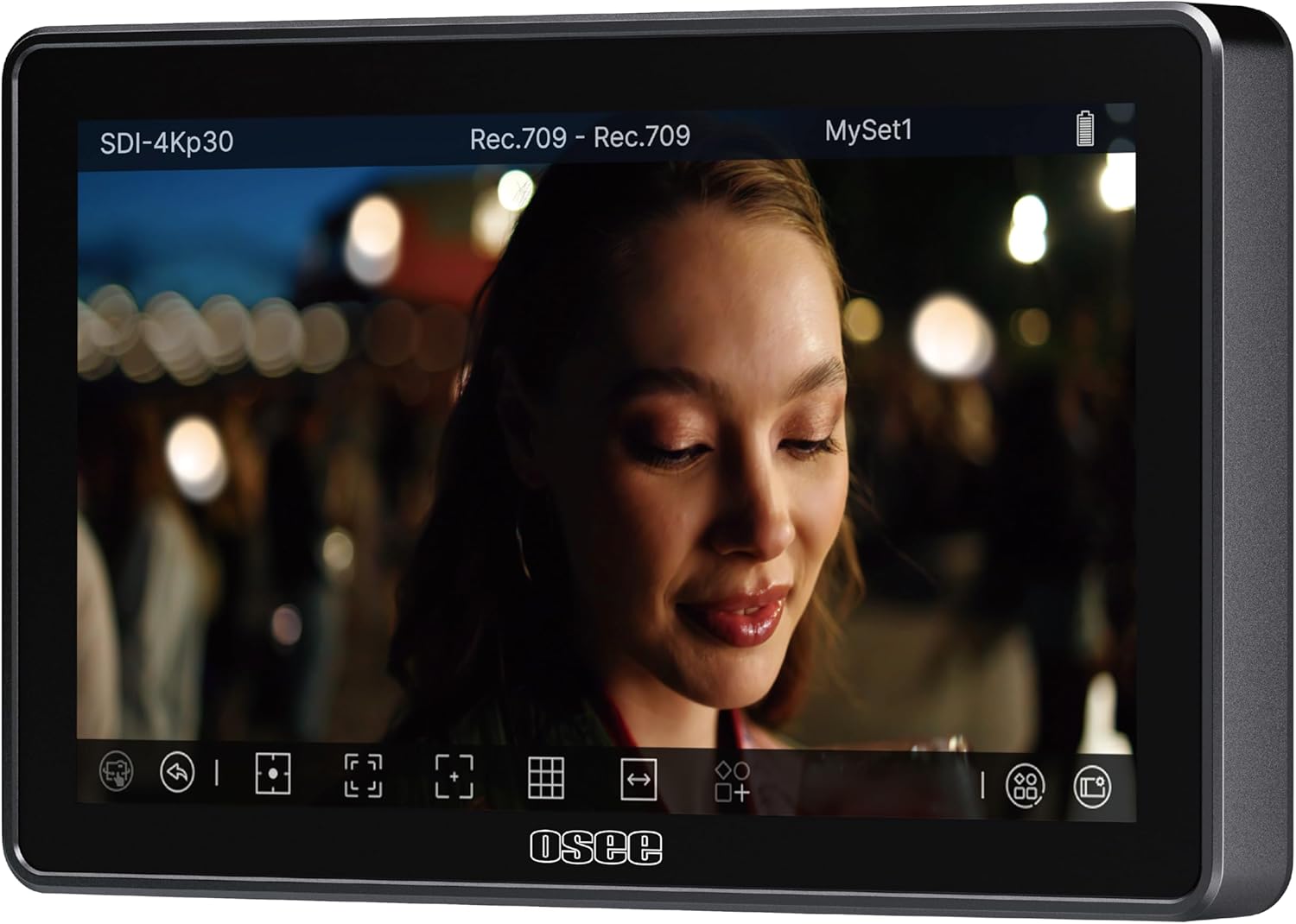
Figure 2.1: The Osee G7 Pro monitor displaying a video feed with its user interface elements visible at the bottom.

Figure 2.2: Illustration of the camera control feature, showing the monitor connected to a camera and listing compatible camera models.
3. Setup
3.1 Żpakkjar u Spezzjoni Inizjali
Carefully unpack the Osee G7 Pro monitor and all included accessories. Verify that all components listed in the packaging are present and undamaged. The package typically includes the camera monitor.
3.2 It-Tħaddim tal-Monitor
The G7 Pro offers flexible power options:
- Batterija NP-F: Attach a compatible NP-F battery to the battery plate on the rear of the monitor. This is required for camera control functionality.
- D-tap: Connect a D-tap power source using a D-tap DC cable.
- Tip-Ċ: Use a Type-C cable to connect to a compatible power source.

Figure 3.1: Powering options for the Osee G7 Pro, including NP-F battery, D-tap, and Type-C connections. The diagram also shows the monitor powering a camera via Type-C.
3.3 Konnessjoni ma' Kamera
The G7 Pro features 3G-SDI and 4K HDMI input/output ports.
- Konnessjoni HDMI: Use an HDMI cable to connect your camera's HDMI output to the monitor's HDMI input. The monitor supports up to 4Kp30 signals.
- SDI Connection: Use an SDI cable to connect your camera's SDI output to the monitor's SDI input. The monitor supports up to 1080p60 signals.
- Camera Control Connection: For camera control functionality, connect your camera to the monitor via a Type-C cable. Ensure the monitor is powered by an NP-F battery for this feature to be active.

Figura 3.2: Wara view of the Osee G7 Pro highlighting the 3G-SDI and 4K HDMI input/output interfaces.
4. Istruzzjonijiet Operattivi
4.1 Operazzjoni Bażika
- Power On/Off: Press and hold the power button to turn the monitor on or off.
- Interface touchscreen: Navigate the monitor's functions and settings using the touchscreen. The optimized UI provides intuitive access to various tools.
4.2 Kontroll tal-Kamera
Once connected via Type-C and powered by an NP-F battery, you can control supported camera functions directly from the G7 Pro's touchscreen.
- Funzjonijiet appoġġjati: Adjust White Balance (WB), ISO, Aperture, Shutter Speed, initiate Record/Shoot, and utilize Touch Focus.
- Kontroll tal-Qlib: A one-click option allows switching between monitor and camera control.
- Touch to Focus: Tap on the screen to set focus. The monitor supports dynamic focus tracking for moving subjects.
4.3 Monitoring Tools and Analysis Modes
The G7 Pro offers a suite of professional monitoring tools to assist with exposure, focus, and color accuracy.
- Waveform, Histogram, Vectorscope: These tools can be displayed simultaneously to provide comprehensive video signal analysis.
- Kulur Falz: Customizable false color modes assist in evaluating exposure levels.
- Assistenza għall-Fokus Peaking: Jenfasizza ż-żoni ffukati għal fokus manwali preċiż.
- Zebra: Indicates overexposed areas.
- 3D-LUTs: Apply up to 10 custom 3D-LUTs for accurate color preview. Upload LUTs via an SD card.
- MySets: Configure and save up to 8 custom monitoring tool layouts (MySets) for quick access during different shooting scenarios.

Figura 4.1: Eżamples of the G7 Pro's analysis modes, such as false color, peaking focus assist, zebras, and waveform, aiding in precise image evaluation.
5. Manutenzjoni
5.1 Tindif tal-Monitor
To clean the touchscreen and body of the monitor, use a soft, lint-free cloth. For stubborn smudges, a small amount of screen cleaning solution can be applied to the cloth (not directly to the screen). Avoid abrasive materials or harsh chemicals.
5.2 Aġġornamenti tal-Firmware
It is recommended to regularly check for and install the newest firmware versions to ensure optimal performance and access to new features. Refer to the Osee official website for firmware download instructions.
5.3 Ħażna
When not in use, store the monitor in a dry, cool place, away from direct sunlight and extreme temperatures. Use a protective case to prevent scratches and impacts.
6 Issolvi l-problemi
6.1 No Signal Displayed
- Ensure all HDMI/SDI cables are securely connected to both the camera and the monitor.
- Verify that the camera is outputting a compatible video signal (up to 4Kp30 for HDMI, up to 1080p60 for SDI).
- Try disconnecting and reconnecting the video cable.
- Check the camera's video output settings.
6.2 Camera Control Not Working
- Confirm the monitor is powered by an NP-F battery. Camera control is only enabled with this power source.
- Ensure your camera model is listed as supported for camera control.
- Verify the Type-C cable is correctly connected between the monitor and the camera.
- Check for available firmware updates for both the monitor and your camera.
6.3 Tisħin żejjed jew Ħoss tal-fann
The G7 Pro features a silent fan with a temperature sensor designed to balance noise and heat. If you experience unusual overheating or excessive fan noise, ensure the fan vents are not obstructed. Prolonged use in extremely hot environments may affect performance.
6.4 Display Artifacts or Glitches
In rare cases, minor display artifacts may occur. These are often temporary and do not affect the image quality. If persistent, try restarting the monitor or checking for firmware updates.
7. Speċifikazzjonijiet
| Karatteristika | Speċifikazzjoni |
|---|---|
| Numru tal-Mudell | G7Pro |
| Daqs tal-Iskrin | 7 pulzieri |
| Luminożità | 3000 nits |
| Proporzjon ta' Kuntrast | 1300:1 |
| Riżoluzzjoni | 1920x1080 (1080p) |
| Pixel Density (PPI) | 360 PPI |
| Profond tal-Kulur | 10 Bit |
| Riffriskar Rata | 60Hz |
| Inputs tal-Vidjo | 3G-SDI (up to 1080p60), 4K HDMI (up to 4Kp30) |
| Outputs tal-Vidjo | 3G-SDI (up to 1080p60), 4K HDMI (up to 4Kp30) |
| Provvista tal-Enerġija | NP-F Battery, D-tap, Type-C |
| Dimensjonijiet | 9 x 8 x 1.53 pulzieri |
| Piż tal-oġġett | 1.76 liri |
| Manifattur | Osee |
8. Garanzija u Appoġġ
8.1 Garanzija tal-Prodott
The Osee G7 Pro monitor typically comes with a 1-year warranty. Please refer to your purchase documentation or the official Osee websit għal termini u kundizzjonijiet speċifiċi tal-garanzija.
8.2 Appoġġ għall-Klijent
For technical assistance, troubleshooting, or any questions regarding your Osee G7 Pro monitor, please contact the Osee customer service team. Osee provides lifetime technical support and 24/7 live chat services.
- Appoġġ onlajn: Visit the official Osee websit għal FAQs, riżorsi ta' appoġġ, u informazzjoni ta' kuntatt.
- Live Chat: Disponibbli 24/7 għal assistenza immedjata.
- Appoġġ bl-Email: Contact via email for detailed inquiries.

Figure 8.1: Osee customer support team available for assistance.


