Introduzzjoni
This manual provides comprehensive instructions for the setup, operation, maintenance, and troubleshooting of your Cradlepoint S700 LTE Router. The S700 is a semi-rugged device designed for demanding environments, offering multi-WAN connectivity, advanced security features, and seamless integration with Cradlepoint's NetCloud Service for cloud-based management.
Il-karatteristiċi ewlenin jinkludu:
- Semi-rugged design for demanding conditions.
- Multi-WAN connectivity supporting LTE and WAN for high availability.
- Robust security features for secure networking.
- Seamless integration with Cradlepoint’s NetCloud Service for advanced cloud-based management.
- Includes a 3-year NetCloud IoT Essentials plan, AC power supply, and antennas.
X'hemm fil-Kaxxa
Ivverifika li l-oġġetti kollha huma preżenti fil-pakkett:
- Cradlepoint S700 LTE Router
- Antennas (Quantity may vary based on model variant)
- Provvista tal-Enerġija AC

Image: The Cradlepoint S700 LTE Router, showing its compact, semi-rugged design from a side angle.
Setup
Follow these steps to set up your Cradlepoint S700 LTE Router:
- Daħħal SIM Card: Locate the SIM card slot on the side of the router. Insert your activated LTE SIM card into the slot until it clicks into place. Ensure the SIM card is correctly oriented.
- Waħħal Antenni: Screw the provided antennas onto the corresponding connectors on the back of the router. Ensure they are finger-tight. The router typically has multiple antenna ports for LTE and Wi-Fi.
- Qabbad l-Enerġija: Connect the AC power supply to the router's power input port and then plug the power adapter into a standard electrical outlet. The router will begin to power on.
- L-Ewwel Bidu: Allow the router a few minutes to boot up. Observe the LED indicators on the device for status. Refer to the LED indicator section for details.
- Konnessjoni tan-Netwerk:
- Wi-Fi: On your computer or mobile device, search for available Wi-Fi networks. Select the network name (SSID) broadcast by the S700 router (usually printed on a label on the device) and enter the Wi-Fi password (also on the label).
- Ethernet: Qabbad kejbil Ethernet minn wieħed mill-portijiet LAN tar-router mal-port Ethernet tal-kompjuter tiegħek.
- Access Management Interface: Iftaħ a web browser and navigate to the router's default IP address (e.g., 192.168.0.1 or 192.168.1.1). Log in using the default credentials (usually 'admin' for username and a password printed on the device or 'password'). Change default credentials immediately for security.

Immaġni: Ġenb view of the S700 router, highlighting the SIM card slot cover.

Immaġni: Wara view of the S700 router, showing the multiple gold-colored antenna connectors and a GPS port.
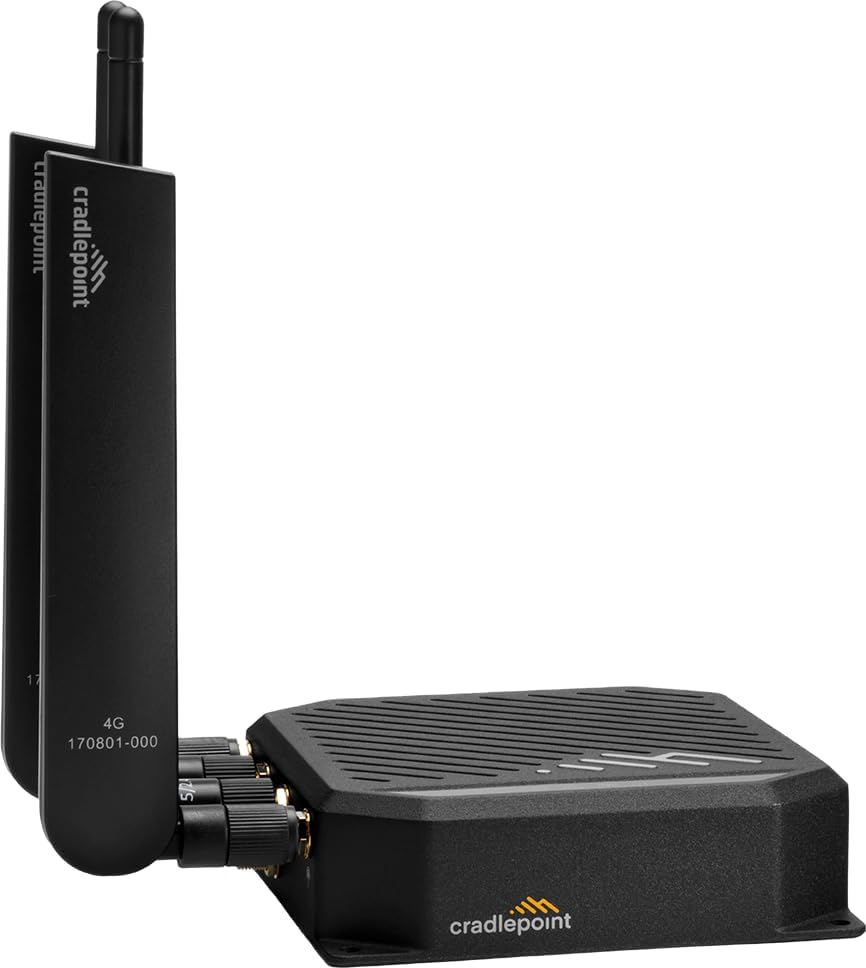
Image: The Cradlepoint S700 router with its antennas fully attached and upright, ready for operation.
Tħaddim tar-Router
Indikaturi LED
The S700 router features several LED indicators to provide status information:
- LED tal-qawwa: Jindika l-istatus tal-enerġija (Mixgħul/Mitfi).
- LTE Signal Strength LEDs: Multiple LEDs indicate the strength of the cellular signal. More lit LEDs mean a stronger signal.
- Wi-Fi LED: Jindika attività tal-Wi-Fi.
- Ethernet LEDs: Indicate connection and activity on Ethernet ports.
Ġestjoni NetCloud
Your S700 router is designed for seamless integration with Cradlepoint NetCloud. NetCloud provides cloud-based management, monitoring, and troubleshooting capabilities. To utilize NetCloud, ensure your router is registered and connected to your NetCloud account.
- Konfigurazzjoni mill-bogħod: Configure router settings from anywhere via the NetCloud Portal.
- Aġġornamenti tal-Firmware: Manage and deploy firmware updates remotely.
- Monitoring & Alerts: Monitor device status, data usage, and receive alerts for critical events.
- Għodod għas-soluzzjoni tal-problemi: Access diagnostic tools for remote troubleshooting.
For detailed NetCloud operations, refer to the NetCloud documentation available on the Cradlepoint support websit.
Manutenzjoni
Proper maintenance ensures the longevity and optimal performance of your S700 router:
- Żomm ventilat: Ensure the router is placed in a location with adequate airflow to prevent overheating. Do not block ventilation slots.
- Naddaf regolarment: Gently wipe the exterior of the router with a soft, dry cloth. Avoid using liquid cleaners or aerosols.
- Aġġornamenti tal-Firmware: Regularly check for and apply firmware updates through the NetCloud Portal or the router's local administration page. Updates often include security patches and performance improvements.
- Post Sikur: Place the router in a secure, stable location away from direct sunlight, extreme temperatures, and moisture.
- Kura tal-antenna: Ensure antennas are securely attached and not bent or damaged.
Issolvi l-problemi
This section addresses common issues you might encounter with your S700 router.
| Problema | Kawża Possibbli | Soluzzjoni |
|---|---|---|
| No Power LED / Router not powering on. | Power adapter not connected, faulty outlet, or faulty adapter. | Check power connections. Try a different outlet. Ensure the power adapter is the correct one for the router. |
| No Internet Connection (LTE). | No SIM card, inactive SIM, poor signal, incorrect APN settings, or data cap reached. | Verify SIM card insertion and activation. Check signal strength LEDs. Confirm APN settings in the router's interface. Contact your cellular provider. |
| Wi-Fi not visible or unable to connect. | Wi-Fi disabled, incorrect password, or interference. | Ensure Wi-Fi is enabled in router settings. Double-check Wi-Fi password. Try changing Wi-Fi channel or location. |
| Slow Internet Speed. | Poor signal strength, network congestion, or router placement. | Relocate router for better signal. Check for network congestion with your cellular provider. Ensure antennas are properly oriented. |
| Ma nistax naċċessa r-routers web interface. | Incorrect IP address, network configuration issue, or router frozen. | Verify router's IP address. Ensure your device is on the same network segment. Try restarting the router. Reset to factory defaults if necessary (Note: This will erase all configurations). |
For more advanced troubleshooting, consult the comprehensive documentation available on the Cradlepoint support websit jew ikkuntattja l-appoġġ tekniku.
Speċifikazzjonijiet
| Karatteristika | Dettall |
|---|---|
| Brand | punt tal-benniena |
| Isem tal-Mudell | S700 |
| Numru tal-Mudell tal-Oġġett | TB03-0700C4D-NN |
| Teknoloġija tal-Konnettività | LTE |
| Komunikazzjoni mingħajr fili Standard | 802.11ax (Wi-Fi 6) |
| Klassi ta' Banda ta' Frekwenza | Doppju-Band |
| Frekwenza | 5 GHz |
| Throughput | Up to 480 Mbps (Router), 150 Mbps (Modem) |
| Karatteristika Speċjali | WPS |
| Apparati Kompatibbli | Kompjuter Personali |
| Użi Rakkomandati | Negozju |
| Komponenti Inklużi | AC Power Supply, Antennas, Router |
| Manifattur | CradlePoint |
| L-Ewwel Data Disponibbli | 26 ta’ Lulju, 2023 |
Garanzija u Appoġġ
The Cradlepoint S700 LTE Router typically comes with a manufacturer's warranty. Specific warranty terms and duration may vary based on region and purchase agreement. Please refer to the warranty information provided with your product packaging or visit the official Cradlepoint website for detailed warranty policies.
Appoġġ Tekniku:
For technical assistance, troubleshooting beyond this manual, or inquiries regarding your NetCloud IoT Essentials plan, please contact Cradlepoint Support:
- Appoġġ onlajn: Visit the official Cradlepoint Support Portal for knowledge base articles, FAQs, and support ticket submission.
- Appoġġ tat-Telefon: Contact numbers are typically available on the Cradlepoint website under the 'Support' section.
- NetCloud Portal: Utilize the NetCloud Portal for remote diagnostics and management, which can often resolve issues without direct support contact.
Please have your router's serial number and NetCloud account details ready when contacting support.


