Prodott Overview
The SMART Board MX286-V5 is an 86-inch 4K Ultra HD collaboration display designed for interactive learning and professional environments. Featuring HyPr Touch Technology, this touchscreen monitor offers a responsive and intuitive user experience. It comes equipped with 8 GB DDR4 SDRAM, a 16:9 aspect ratio, and a resolution of 3840 x 2160 pixels, delivering crisp and vibrant visuals. Connectivity options include USB, HDMI, VGA, and Bluetooth, running on Android 13 for versatile functionality.
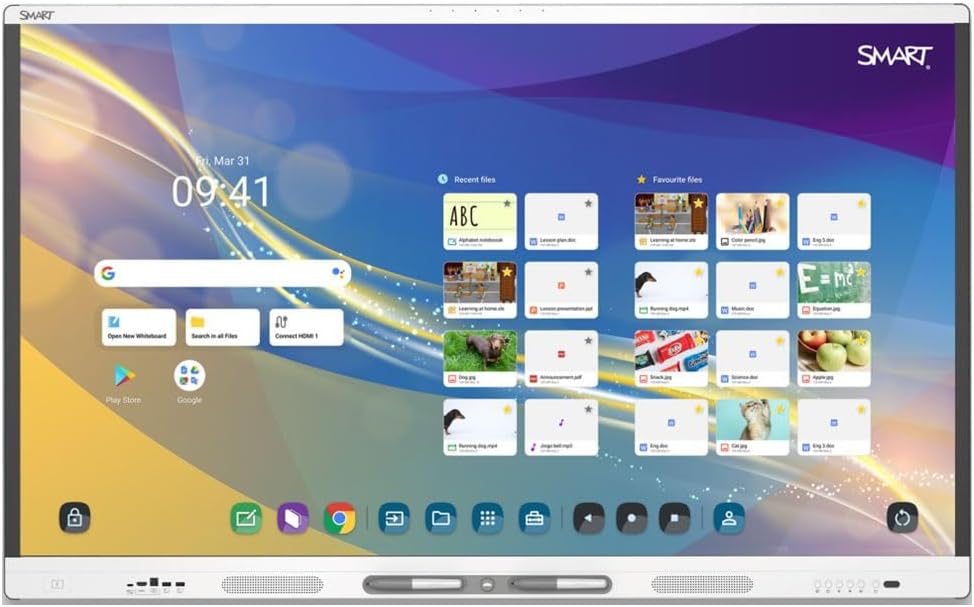
Figure 1: The SMART Board MX286-V5 display showing its interactive home screen with various applications and files.
Gwida ta' Setup
1. Spakkjar
- Carefully open the packaging and remove the display. It is recommended to have at least two people for safe handling due to the size and weight (149.6 pounds).
- Check all contents against the packing list to ensure all accessories are present.
- Żomm l-imballaġġ oriġinali għal trasport jew ħażna fil-futur.
2. Mounting/Placement
- Ensure the mounting surface or stand can support the display's weight (149.6 pounds).
- Follow the instructions provided with your specific wall mount or stand for secure installation.
- Place the display in a location with adequate ventilation and away from direct sunlight or heat sources.
3. Konnessjoni Periferali
- Qawwa: Connect the power cable to the display's power input and then to a grounded electrical outlet.
- HDMI/VGA: Connect external devices (e.g., computers, media players) using HDMI or VGA cables to the corresponding input ports on the display.
- USB: Use the USB ports to connect external storage devices, cameras, or other USB peripherals.
- Netwerk: Connect an Ethernet cable for wired network access, or configure Wi-Fi settings after powering on.
Istruzzjonijiet Operattivi
1. Tixgħil / Mitfi
- Qawwa Mixgħul: Press the power button located on the display's frame. The display will boot up to the Android 13 home screen.
- Itfi: Press and hold the power button until a power-off menu appears, then select 'Power Off'. Alternatively, a short press will put the display into standby mode.
2. Navigazzjoni Bażika
- Ġesti mess: Use single tap for selection, drag for moving items, pinch-to-zoom for scaling, and swipe for scrolling.
- Skrin tad-dar: The central hub for accessing apps, settings, and input sources.
- Side Toolbar: Access common tools like pen, eraser, and screenshot from the floating toolbar on the side of the screen.

Figure 2: The SMART Board MX286-V5 demonstrating its interactive whiteboard feature with numbered elements, ideal for educational activities.
3. Funzjonalità tat-Touchscreen
- The HyPr Touch Technology supports multiple touch points, allowing for collaborative interaction.
- Use your finger or the included stylus for precise input.

Figure 3: The SMART Board MX286-V5 showcasing various ready-made activity templates within its software, facilitating quick content creation.
4. Għażla tas-Sors tal-Input
- From the home screen or the quick settings panel, select the desired input source (e.g., HDMI 1, VGA, Internal Android).
5. Android OS Features
- Access pre-installed applications or download new ones from the Google Play Store.
- Adjust display settings, network connections, and user profiles through the Settings menu.

Figure 4: A user interacting with the SMART Board MX286-V5, demonstrating its large interactive surface and collaborative capabilities.
Manutenzjoni u Kura
1. Tindif tal-Iskrin
- Turn off and unplug the display before cleaning.
- Uża drapp ratba u mingħajr ħelu ftit dampMaħsul bl-ilma jew b'tindif tal-iskrin li ma jobrox.
- Do not spray liquid directly onto the screen. Avoid using harsh chemicals, alcohol, or ammonia-based cleaners.
2. Kura Ġenerali
- Keep the display free from dust by regularly wiping the frame and vents.
- Kun żgur li jkun hemm ventilazzjoni xierqa madwar id-displej biex tevita li jisħon iżżejjed.
- Avoid placing heavy objects on the display or subjecting it to physical shock.
Issolvi l-problemi
| Problema | Kawża Possibbli | Soluzzjoni |
|---|---|---|
| Ebda Qawwa | Kejbil tal-enerġija skonnettjat; Problema fil-plakka tal-enerġija | Check power cable connection; Try a different outlet; Ensure power button is pressed. |
| Ebda Immaġni fuq l-Iskrin | Incorrect input source; Loose video cable | Select correct input source (HDMI/VGA); Reconnect video cables securely. |
| Touchscreen ma jirrispondix | Software glitch; Calibration needed | Restart the display; Check for firmware updates; Perform touchscreen calibration if available in settings. |
| Ebda Ħoss | Volume too low; Muted; External device audio settings | Increase volume; Unmute display; Check audio output settings on connected device. |
| Kwistjonijiet ta' Konnessjoni Wi-Fi | Password mhux korretta; Problema bir-router; Interferenza tas-sinjal | Verify Wi-Fi password; Restart router; Move display closer to router or reduce interference. |
Speċifikazzjonijiet Tekniċi
| Karatteristika | Speċifikazzjoni |
|---|---|
| Dimensjonijiet tal-Prodott | 3.5 x 47.2 x 78.03 pulzieri |
| Piż tal-oġġett | 149.6 liri |
| Daqs tal-Wiri tal-Iskrin Permanenti | 86 pulzieri |
| Proporzjon ta' l-aspett | 16:9 |
| Riżoluzzjoni | 4K UHD 2160p (3840 x 2160) |
| Deskrizzjoni tal-wiċċ tal-iskrin | Tleqq |
| Teknoloġija tal-Wiri | LCD b'backlight LED |
| Luminożità | 400 Nit |
| RAM | 8 GB DDR4 SDRAM |
| Sistema Operattiva | Android 13 |
| Touch Teknoloġija | HyPr Touch Technology |
| Konnettività | USB, HDMI, VGA, Bluetooth |
Garanzija u Appoġġ
For detailed warranty information and technical support, please refer to the official Smart Ink website or contact their customer service directly. Warranty terms and conditions may vary by region and purchase date.
Appoġġ onlajn: Żur il- Smart Ink Store on Amazon għal informazzjoni dwar il-prodott u riżorsi.


