1. Introduzzjoni
Welcome to the user manual for your TP-Link AXE5400 Tri-Band Mesh Wi-Fi 6E Range Extender, model RE815XE. This device is designed to expand your existing Wi-Fi network coverage, providing a stable and high-speed wireless connection throughout your home or office. The RE815XE utilizes Tri-Band Wi-Fi 6E technology to deliver enhanced performance and reduce network congestion.
2. Prodott Aktarview
The TP-Link RE815XE is equipped with four external antennas and 6x high-power FEMs to ensure maximum Wi-Fi performance and extended coverage. It supports Beamforming technology, which detects device locations and concentrates Wi-Fi signals for stronger, more reliable connections.

Figura 1: Quddiem view of the TP-Link RE815XE Range Extender, showing the power, 2.4G, 5G, and 6G LED indicators.
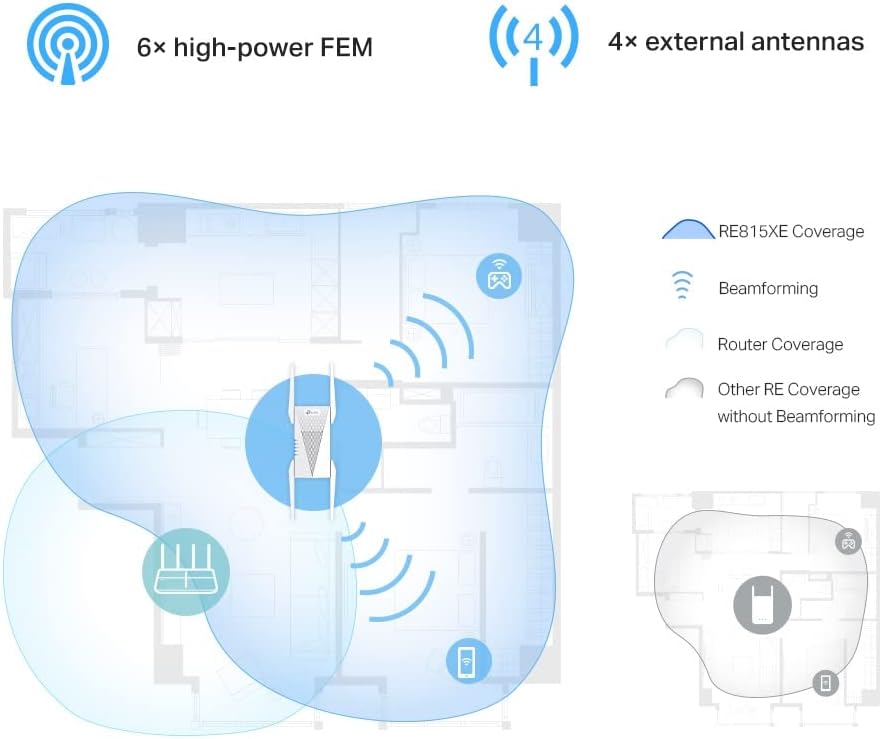
Figura 2: Illustration of the RE815XE's extended coverage and Beamforming technology.
3. Karatteristiċi ewlenin
- AXE5400 Tri-Band Wi-Fi: Boosts overall speeds up to an incredible 5400 Mbps across 2.4 GHz, 5 GHz, and 6 GHz bands.
- Banda ta' 6 GHz: Provides a dedicated, clearer band to prevent Wi-Fi interference and congestion, ideal for Wi-Fi 6E compatible devices.
- Wisa' tal-Banda tal-Kanal ta' 160 MHz: Expands bandwidth to double the network speed of traditional 80 MHz channels, enhancing data throughput.
- Roaming bla xkiel: Part of the OneMesh™ system, allowing your devices to automatically switch to the router or extender that provides the fastest connection as you move around your home.
- Improved Capacity, Less Lag: Supports more connected devices simultaneously, ensuring smooth streaming and gaming experiences.
- Installazzjoni sempliċi: Easy setup via the TP-Link Tether App or a web browser.

Figura 3: Fuqview of the RE815XE's Wi-Fi capabilities, including speed distribution across bands and key technologies.
4. Kontenut tal-Pakkett
Upon opening the package, verify that you have received the following items:
- TP-Link AXE5400 Tri-Band Mesh Wi-Fi 6E Range Extender (RE815XE)
- Gwida ta 'Installazzjoni Mgħaġġla
- Ethernet Cable (optional, may vary by region)
5. Setup u Installazzjoni
5.1. Linji Gwida dwar it-Tqegħid
For optimal performance, place the range extender between your main router and the area where you need improved Wi-Fi coverage. Avoid placing it near large metal objects, concrete walls, or other sources of interference such as microwave ovens or cordless phones.

Figura 4: Recommended placement for the range extender to maximize coverage.
5.2. Tixgħel
- Plug the RE815XE into an electrical outlet near your main router.
- Wait for the Power LED to turn solid blue, indicating the device is ready.
5.3. Configuration via TP-Link Tether App (Recommended)
- Niżżel il- TP-Link Tether App mill-App Store jew Google Play Store.
- Connect your smartphone or tablet to the RE815XE's default Wi-Fi network (e.g., "TP-Link_Extender").
- Open the Tether App and follow the on-screen instructions to set up your range extender. This typically involves selecting your main Wi-Fi network and entering its password.
- Once configured, the Signal LED on the extender should turn solid blue, indicating a successful connection to your router.
5.4. Konfigurazzjoni permezz Web Browser
- Plug the RE815XE into an electrical outlet.
- Connect your computer to the RE815XE's default Wi-Fi network (e.g., "TP-Link_Extender") or via an Ethernet cable.
- Iftaħ a web browser u tip tplinkrepeater.net or 192.168.0.254 fil-bar tal-indirizz.
- Oħloq password għall-login meta tintalab.
- Follow the on-screen instructions to select your main Wi-Fi network and enter its password.
- Once configured, the Signal LED on the extender should turn solid blue.
6. Istruzzjonijiet Operattivi
6.1. OneMesh™ Functionality
The RE815XE supports TP-Link OneMesh™, which creates a unified Wi-Fi network with a single Wi-Fi name (SSID) when paired with a compatible TP-Link OneMesh™ router. This allows your devices to automatically switch to the router or extender that provides the fastest connection as you move around your home.
6.2. Indikaturi LED
| LED | Status | Indikazzjoni |
|---|---|---|
| Qawwa | Blu Solidu | Extender is powered on and functioning normally. |
| Mitfi | Extender is powered off. | |
| 2.4G / 5G / 6G | Blu Solidu | Connected to the router's 2.4 GHz / 5 GHz / 6 GHz network. |
| Mitfi | Not connected to the respective band. | |
| Sinjal | Blu Solidu | Good connection to the router. |
| Aħmar Solidu | Poor connection to the router. Relocate the extender closer to the router. | |
| Mitfi | No connection to the router. |
7. Manutenzjoni
- Aġġornamenti tal-Firmware: Regularly check for and install firmware updates via the Tether App or the web interfaċċja ta' ġestjoni biex tiżgura prestazzjoni u sigurtà ottimali.
- Tindif: Żomm l-apparat nadif u ħieles mit-trab. Uża drapp artab u niexef għat-tindif. Tużax prodotti tat-tindif likwidi jew aerosols.
- Ventilazzjoni: Ensure the extender is placed in a well-ventilated area to prevent overheating. Do not block the ventilation openings.
- Rebooting: If you experience intermittent connectivity or performance issues, try rebooting the extender by unplugging it from the power outlet for 10 seconds and then plugging it back in.
8 Issolvi l-problemi
8.1. Extender is not connecting to the router.
- Ensure your main router is powered on and broadcasting a Wi-Fi signal.
- Verify that you have entered the correct Wi-Fi password for your main network during setup.
- Relocate the extender closer to your main router. The Signal LED should turn solid blue for a good connection.
- Ipprova erġa' ibda kemm ir-router kif ukoll l-estensur.
8.2. Wi-Fi signal is weak or drops frequently.
- Adjust the position of the extender. It should be within the range of your main router but also close enough to the areas needing coverage.
- Check for sources of interference (e.g., microwaves, cordless phones, thick walls).
- Kun żgur li l-antenni tal-estensur huma orjentati sew.
- Update the firmware of both your router and the extender to the latest version.
8.3. Cannot access the web paġna tal-ġestjoni.
- Kun żgur li t-tagħmir tiegħek huwa konness man-netwerk Wi-Fi tal-estensur jew permezz ta' kejbil Ethernet.
- Ivverifika li qed tuża l-indirizz korrett: tplinkrepeater.net or 192.168.0.254.
- Neħħi l-cache u l-cookies tal-browser tiegħek, jew ipprova mod ieħor web browser.
- Iddiżattiva temporanjament kwalunkwe softwer VPN jew firewall fuq il-kompjuter tiegħek.
9. Speċifikazzjonijiet
| Karatteristika | Dettall |
|---|---|
| Mudell | RE815XE |
| Standard Wireless | IEEE 802.11ax/ac/n/a (5 GHz/6 GHz), IEEE 802.11ax/n/g/b (2.4 GHz) |
| Rata ta' Trasferiment tad-Data | Sa 5400 Mbps (2402 Mbps fuq 6 GHz, 2402 Mbps fuq 5 GHz, 574 Mbps fuq 2.4 GHz) |
| Antenni | 4 Antenni Esterni |
| Dimensjonijiet | 8.27 x 5.47 x 4.8 pulzieri (Dimensjonijiet tal-Pakkett) |
| Piż tal-oġġett | 1.17 liri |
| Kulur | Abjad |
| Apparati Kompatibbli | Wi-Fi enabled devices (routers, smartphones, tablets, laptops, computers, smart TVs, gaming consoles, printers, security cameras) |
10. Garanzija u Appoġġ
Għal informazzjoni dwar il-garanzija u appoġġ tekniku, jekk jogħġbok irreferi għat-TP-Link uffiċjali website or contact TP-Link customer service directly. The specific warranty period may vary by region and retailer. Keep your purchase receipt for warranty claims.
Appoġġ TP-Link Websit: https://www.tp-link.com/support/


