Introduzzjoni
This manual provides detailed instructions for the safe and efficient operation of your Bisofice H10 PDA Terminal. Please read this manual thoroughly before using the device and retain it for future reference.
The Bisofice H10 is a versatile handheld PDA terminal featuring Android 14, an Octa-Core 2.3 GHz processor, a 1D/2D barcode scanner, a 58mm thermal receipt printer, NFC functionality, and comprehensive connectivity options including 4G, Wi-Fi, GPS, and Bluetooth. It is designed for various applications such as retail, warehousing, and logistics.

Image: The Bisofice H10 PDA Terminal, showcasing its integrated thermal printer issuing a receipt and its touchscreen interface with various applications.

Image: A visual representation of the H10's core specifications, including its Android 14 operating system, Octa-Core 2.3GHz CPU, and 3GB RAM + 32GB ROM memory configuration.
Kontenut tal-Pakkett
Please check the package contents upon unboxing. If any items are missing or damaged, contact customer support.
- Bisofice H10 PDA Terminal
- Rechargeable Lithium Battery (pre-installed or separate)
- Power Adapter (AC 100~240V input, DC 5V/2A output)
- Kejbil USB Type-C
- Thermal Paper Roll (one pre-installed or included)
- Manwal għall-Utent (dan id-dokument)
Apparat Matulview
Familiarize yourself with the various components and ports of the H10 PDA Terminal.

Image: A detailed diagram illustrating the front and back views of the H10 terminal, highlighting the printer, scanner, camera, volume buttons, power button, Type-C port, SIM/SD card slots, and battery compartment.
- Printer: Integrated thermal printer for receipts.
- Professional 2D Scanner: For reading 1D and 2D barcodes.
- Kamera: Rear 5MP Auto Focus with Flash LED.
- Buttuni tal-Volum: Adjust device volume.
- Buttuna tal-Qawwa: Power on/off, sleep/wake.
- Port tat-Tip-C: Għall-iċċarġjar u t-trasferiment tad-dejta.
- Nano SIM Slot: For cellular network connectivity.
- Micro SIM Slot: For cellular network connectivity.
- Slott Mikro SD: Għal ħażna espansibbli.
- Micro PSAM Slot: For secure access modules (if applicable).
- Batterija: Batterija tal-litju rikarikabbli.
Gwida ta' Setup
1. Installazzjoni u Iċċarġjar tal-batterija
The H10 PDA Terminal comes with a 7.7V/3000mAh (equal to 3.85V/6000mAh) rechargeable lithium battery. It may be pre-installed or require installation.
- If the battery is not installed, open the battery compartment cover on the back of the device.
- Insert the lithium battery, ensuring the contacts align correctly.
- Agħlaq l-għatu tal-kompartiment tal-batterija sew.
- Connect the USB Type-C cable to the device's Type-C port and the other end to the power adapter.
- Plug the power adapter into a wall outlet. The device will begin charging.

Image: The H10 terminal with its battery compartment visible, indicating a 3000mAh rechargeable lithium battery and a charging icon.
2. Installazzjoni tal-Karta SIM u l-Karta Micro SD
To utilize cellular data or expand storage, install the appropriate cards.
- Kun żgur li l-apparat ikun mitfi.
- Locate the SIM/SD card slots, typically under the battery cover or a dedicated slot.
- Carefully insert your Nano SIM, Micro SIM, and/or Micro SD card into their respective slots, following the orientation indicated on the device.
- Close any covers securely.
3. L-Ewwel Tixgħil
Press and hold the Power button on the side of the device until the screen lights up. Follow the on-screen prompts for initial Android 14 setup.
Istruzzjonijiet Operattivi
1. Power On/Off and Sleep Mode
- Qawwa Mixgħul: Press and hold the Power button until the device vibrates and the screen turns on.
- Itfi: Press and hold the Power button until a power menu appears. Select "Power Off".
- Sleep/Qawmien: Agħfas fil-qosor il-buttuna tal-Enerġija biex tpoġġi l-apparat fil-modalità sleep jew biex tqajmu.
2. Using the 1D/2D Barcode Scanner
The H10 features an integrated scanner for efficient data capture.
- Iftaħ l-applikazzjoni tal-iskennjar fuq l-apparat.
- Point the scanner window (located at the top of the device) towards the barcode.
- Ensure the barcode is within the scanner's field of view. The device will emit a sound or vibrate upon successful scan.
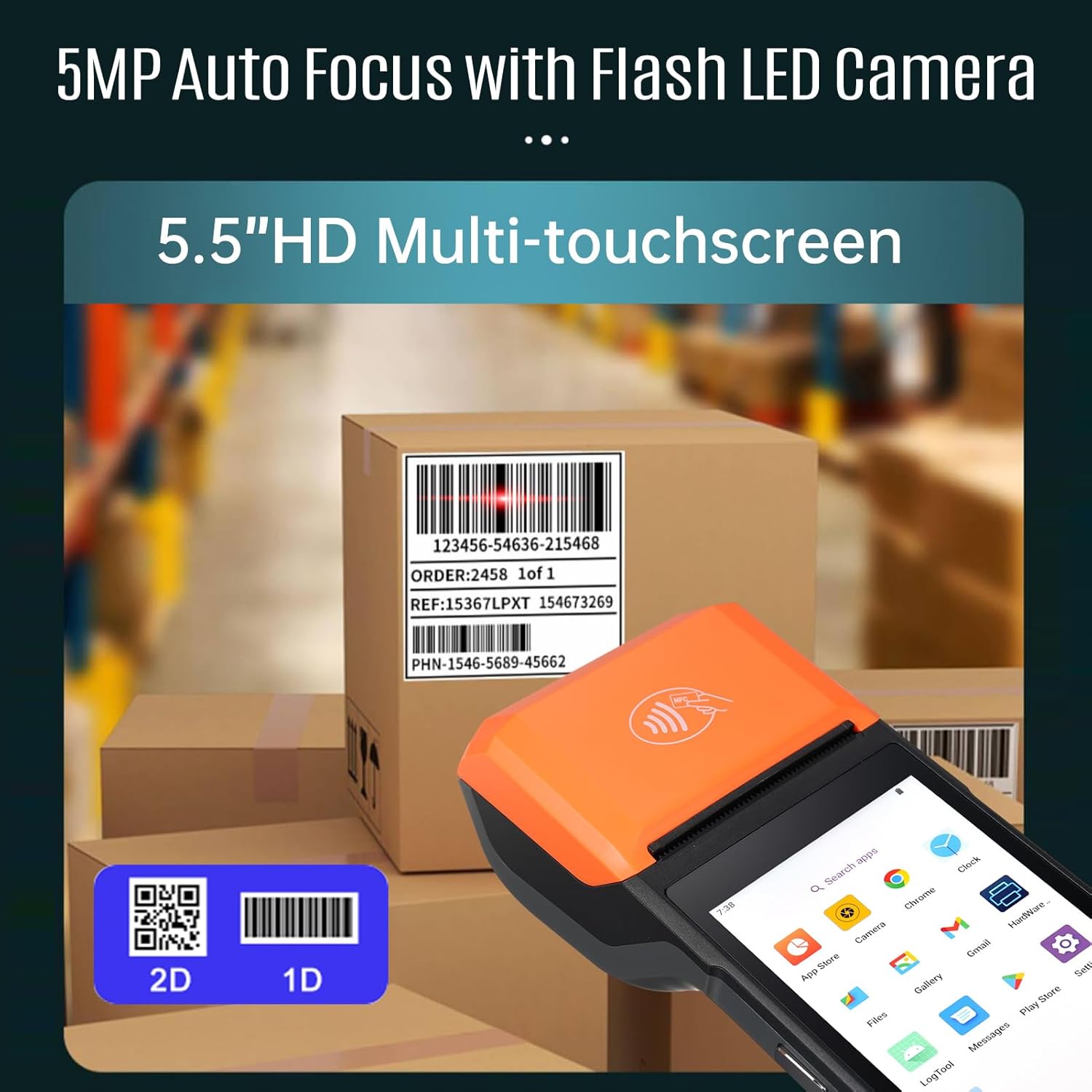
Image: The H10 terminal positioned to scan a 1D barcode on a cardboard box, demonstrating its scanning capability for both 1D and 2D codes.
3. Operating the Thermal Receipt Printer
The built-in 58mm thermal printer allows for on-the-go receipt printing.
- Ensure a thermal paper roll is correctly installed (refer to Maintenance for paper replacement).
- From your application, select the print option.
- Confirm print settings if prompted. The receipt will automatically print from the top slot.
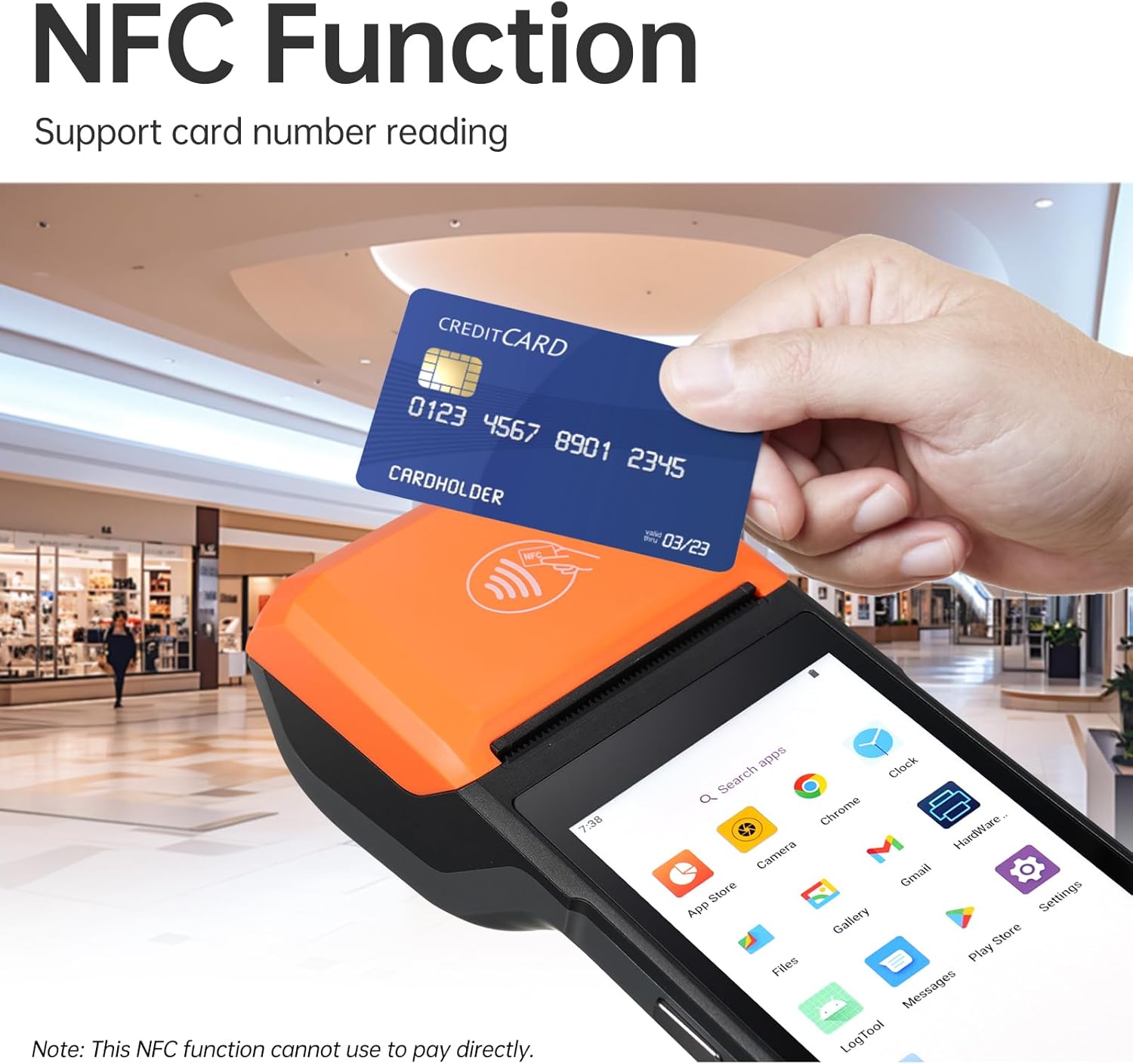
Image: A close-up of the H10's integrated thermal printer, detailing its specifications: 80mm/s printing speed, 58mm paper width, and a recommended 40mm paper roll diameter.
4. Using NFC Functionality
The H10 supports NFC for reading compatible cards (Type A, Type B, Mifare, Felica).
- Open an application that utilizes NFC functionality.
- Hold the NFC-enabled card close to the NFC detection area on the device (usually near the top or back).
- The device will read the card data, and the application will process it accordingly.
Note: This NFC function is primarily for data reading and may not support direct payment transactions without specific application integration.

Image: A hand holding a credit card near the H10 terminal, illustrating its NFC card reading capability.
5. Connectivity (Wi-Fi, 4G, Bluetooth, GPS)
The H10 offers multiple connectivity options:
- Wi-Fi: Go to Settings > Network & Internet > Wi-Fi to connect to available wireless networks.
- 4G: Ensure a valid SIM card is installed. Go to Settings > Network & Internet > Mobile network to enable mobile data.
- Bluetooth: Go to Settings > Connected devices > Bluetooth to pair with Bluetooth peripherals.
- GPS: Location services are enabled via Settings > Location.

Image: The H10 terminal overlaid on a global map, with icons representing 2G, 3G, 4G, Bluetooth, Wi-Fi, and GPS connectivity.
Manutenzjoni
1. Tindif tal-Apparat
Biex iżżomm prestazzjoni u dehra ottimali:
- Uża drapp ratba u mingħajr ħelu ftit dampened with water or a screen cleaner to wipe the screen and body.
- Tużax kimiċi ħarxa, prodotti tat-tindif li joborxu, jew solventi.
- Ensure no liquid enters the ports or openings.
- For the scanner window, use a soft, dry cloth to avoid scratching.
2. Thermal Paper Roll Replacement
When the printer runs out of paper or the print quality degrades, replace the thermal paper roll.
- Gently open the printer cover located at the top of the device.
- Remove the empty paper roll core, if any.
- Insert a new 58mm thermal paper roll, ensuring the paper feeds out from the bottom of the roll and into the printer mechanism.
- Pull a small amount of paper out past the printer slot.
- Agħlaq l-għatu tal-istampatur sew sakemm tikklikkja f'postu.

Image: A visual guide demonstrating the process of opening the printer compartment and inserting a new thermal paper roll into the H10 terminal.
Issolvi l-problemi
| Problema | Kawża Possibbli | Soluzzjoni |
|---|---|---|
| L-apparat ma jixgħelx. | Low battery or battery not installed correctly. | Charge the device for at least 30 minutes. Ensure the battery is properly seated. |
| Printer not printing. | No paper, paper jammed, or printer cover not closed. | Replace paper roll. Clear any paper jams. Ensure printer cover is securely closed. |
| L-iskaner tal-barcode mhux qed jaħdem. | Scanner application not open, barcode damaged, or poor lighting. | Open the scanning application. Ensure barcode is clear and well-lit. Try scanning a different barcode. |
| L-ebda konnessjoni Wi-Fi. | Wi-Fi is off, incorrect password, or out of range. | Check Wi-Fi settings. Re-enter password. Move closer to the Wi-Fi router. |
| L-apparat huwa bil-mod jew ma jirrispondix. | Too many applications running, low memory, or software glitch. | Close unnecessary applications. Restart the device. Clear cache if possible. |
Speċifikazzjonijiet
Below are the key technical specifications for the Bisofice H10 PDA Terminal.

Image: A comprehensive table outlining the technical specifications of the H10 PDA Terminal, including OS, processor, display, memory, camera, printer, card slots, network, battery, adapter, ports, environment, dimensions, weight, NFC, and certifications.
| Karatteristika | Dettall |
|---|---|
| Mudell | H10 |
| Sistema Operattiva | Android 14 (Ċertifikat GMS) |
| Proċessur | Octa-Core 2.3 GHz |
| Wiri | 5.5" HD+ (1440x720) IPS Multi-touchscreen |
| Memorja | 3GB RAM + 32GB ROM DDR4 |
| Kamera | Rear 5.0MP Auto Focus with Flash LED, Support 1D/2D Scanning |
| Printer | Built-in 58mm thermal printer, Print speed: 80mm/s, Paper roll: Ø40mm |
| Slots tal-Kards | Nano SIM×1, Micro SIM×1, Micro SD×1, Micro PSAM×1 |
| Netwerk | 2G/3G/4G, Wi-Fi (2.4G/5G, IEEE 802.11 a/b/g/n), Bluetooth (BT3.0/4.2/5.3 BLE), GPS (GPS, AGPS) |
| Batterija | Removable Lithium Polymer battery 7.7V/3000mAh (equal to 3.85V/6000mAh) |
| Adapter | Input: AC 100~240V, Output: DC 5V/2A |
| Portijiet | 1×Type-C (OTG supported) |
| Ambjent | Operating temp: -10~50°C, Storage temp: -20~60°C |
| Dimensjonijiet | 219 × 80 × 17.9mm |
| Piż | 345g (apparat biss) |
| NFC | Type A&B card, Mifare card, Felica card; ISO/IEC 1443 and ISO 15693 compliant |
| Ċertifikati | FCC, CE, ROSH, GMS |
Garanzija u Appoġġ
The Bisofice H10 PDA Terminal comes with a standard manufacturer's warranty. Please refer to your purchase documentation for specific warranty terms and conditions.
For technical support, troubleshooting assistance, or warranty claims, please contact Bisofice customer service through their official website or the retailer where the product was purchased. Keep your purchase receipt and product serial number handy when contacting support.
You can visit the Bisofice store on Amazon for more information: Bisofice Amazon Store


