1. Introduzzjoni
This manual provides detailed instructions for the setup, operation, and maintenance of your GIEC G5300 4K Ultra HD Blu Ray Player. Designed for an enhanced home entertainment experience, this player supports true 4K ultra-high-definition picture quality, HDR10, Dolby Vision, BT.2020 color spaces, and Dolby audio decoding for immersive visuals and sound.
2. Informazzjoni dwar is-Sigurtà
- Ensure proper ventilation around the player to prevent overheating.
- Tesponix l-unità għax-xita jew l-umdità biex tnaqqas ir-riskju ta 'nar jew xokk elettriku.
- Avoid placing heavy objects on top of the player.
- Tiftaħx is-casing; irreferi s-servizz kollu lil persunal kwalifikat.
- Keep the player away from direct sunlight, heat sources, and strong magnetic fields.
- Uża biss l-adapter tal-enerġija fornut mal-unità.
3. Kontenut tal-Pakkett
Jekk jogħġbok iċċekkja li l-oġġetti kollha elenkati hawn taħt huma inklużi fil-pakkett tiegħek:
- GIEC G5300 Blu-ray Player (x1)
- Cable HDMI (x1)
- Kontroll mill-bogħod (x1)
- Manwal għall-Utent (x1)
4. Prodott Aktarview
4.1 Panel ta 'Quddiem

Figura 4.1: Quddiem view of the GIEC G5300 Blu Ray Player, showing the disc tray, display, USB port, and control buttons (power, play/pause, eject).
- Trej tad-Diska: Daħħal diski Blu-ray jew DVD hawn.
- Panel tal-Wiri: Shows playback status and time.
- Port USB 3.0: Qabbad apparati tal-ħażna USB għad-daqq tal-midja.
- Buttuni tal-Kontroll: Power On/Off, Play/Pause, Eject.
4.2 Il-Pannell ta' Wara u l-Konnessjonijiet

Figura 4.2: Wara view of the GIEC G5300 Blu Ray Player, highlighting various input/output ports including LAN, HDMI 2.0, HDMI 1.4, USB 3.0, Coaxial, and Optical outputs.
- Port tal-LAN: For network connection (e.g., firmware updates).
- HDMI 2.0 Output (Video/Audio): Primary HDMI output for 4K video and audio.
- HDMI 1.4 Output (Audio Only): Dedicated HDMI output for audio to an AV receiver.
- USB 3.0 Input: Qabbad apparati tal-ħażna USB għad-daqq tal-midja.
- Output koassjali: Output awdjo diġitali.
- Output ottiku: Output awdjo diġitali.
5. Setup
5.1 Installazzjoni tal-Batterija tal-Kontroll mill-Bogħod
Daħħal żewġ batteriji AAA (mhux inklużi) fil-kontroll remot, waqt li tiżgura l-polarità korretta.
Video 5.1: This video demonstrates how to install batteries into the remote control and connect the Blu-ray player to a TV using an HDMI cable.
5.2 Connecting to a Display Device (TV/Projector)
- Connect one end of the supplied HDMI cable to the HDMI 2.0 Output (Video/Audio) port fuq wara tal-plejer Blu-ray.
- Connect the other end of the HDMI cable to an available HDMI input port on your TV or projector.
- For separate audio output, connect another HDMI cable from the HDMI 1.4 Output (Audio Only) port to your AV receiver, or use the Coaxial/Optical outputs.
5.3 Konnessjoni tal-Enerġija
- Connect the power cable to the power input on the rear of the Blu-ray player.
- Ipplaggja t-tarf l-ieħor tal-kejbil tal-enerġija f'sokit tal-ħajt.
- Turn on your TV/projector and select the correct HDMI input source corresponding to the port you connected the Blu-ray player to.
- Press the Power button on the Blu-ray player or remote control to turn on the unit.
6. Istruzzjonijiet Operattivi
6.1 Daqq tad-Diska
- Ensure the player is powered on and connected to your display device.
- Agħfas il- EJETTA buttuna fuq il-pannell ta’ quddiem jew fuq il-kontroll remot biex tiftaħ it-trej tad-diska.
- Carefully place a Blu-ray or DVD disc onto the tray with the label side facing up.
- Agħfas il- EJETTA button again to close the tray. The player will automatically begin loading and playing the disc.
- Use the remote control for playback functions such as Play, Pause, Stop, Fast Forward, and Rewind.
6.2 Daqq tal-Midja USB
The GIEC G5300 supports playback of various media files minn apparat tal-ħażna USB.
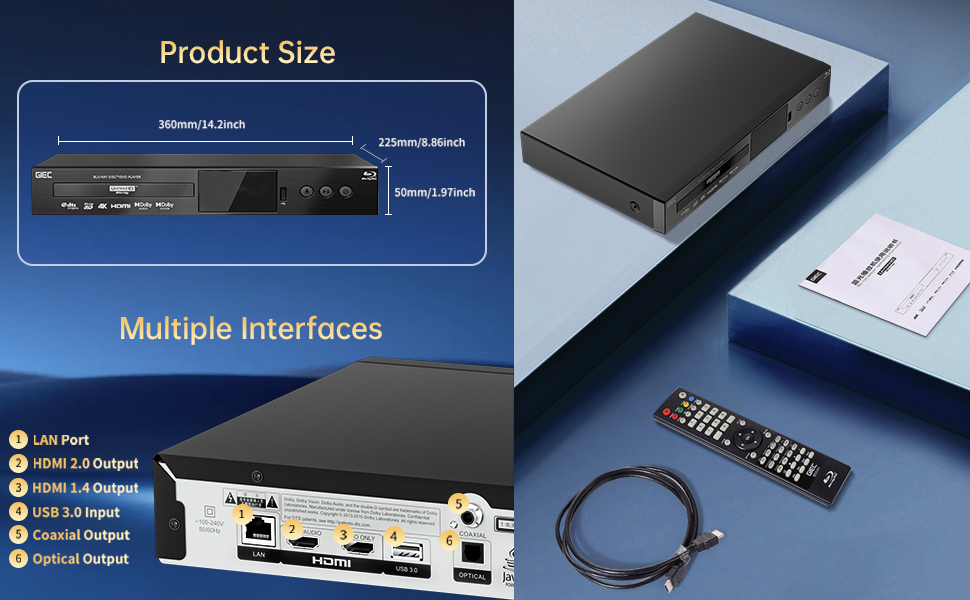
Figure 6.1: Illustration of the multiple disc, video, and audio formats supported by the player.
- Insert your USB storage device into the USB 3.0 Port on the front or rear panel.
- Navigate to the "Video," "Music," or "Photo" section on the player's main menu using the remote control.
- Agħżel mixtieq tiegħek file from the USB device to begin playback.
Formati appoġġjati:
- Tipi ta' Diska: BD, BD-R, BD-RE, DVD-R/RW, DVD+R/RW, DVD-Video, VCD, CD, CD-R/RW.
- Formati tal-vidjo: MPEG-1, MPEG-2, MPEG-4, VC1, H.264, MOV, MKV, AVI, TS.
- Formati Awdjo: AAC, APE, CUE, FLAC, OGG, MP3, WAV.
7. Karatteristiċi
- 4K Ultra HD Playback: Experience movies and shows in stunning 4K resolution with clearer images and richer colors.
- Appoġġ HDR10: Enjoy a wider range of brightness and contrast, revealing more detail in both dark and bright scenes.
- Dolby Vision: Enhances image quality by dynamically adjusting brightness and expanding dynamic range for more detailed and vivid pictures.
- BT.2020 Color Spaces: Provides a broader color gamut than standard 1080p Blu-ray, resulting in purer, more natural, and realistic colors.
- Dolby Sound & DTS Decoding: Supports Dolby audio decoding and DTS effects for an immersive 5.1 stereo surround sound experience.
- 3D Blu-ray Playback: Compatible with 3D Blu-ray discs for an immersive three-dimensional viewing experience (requires a 3D-compatible TV and glasses).
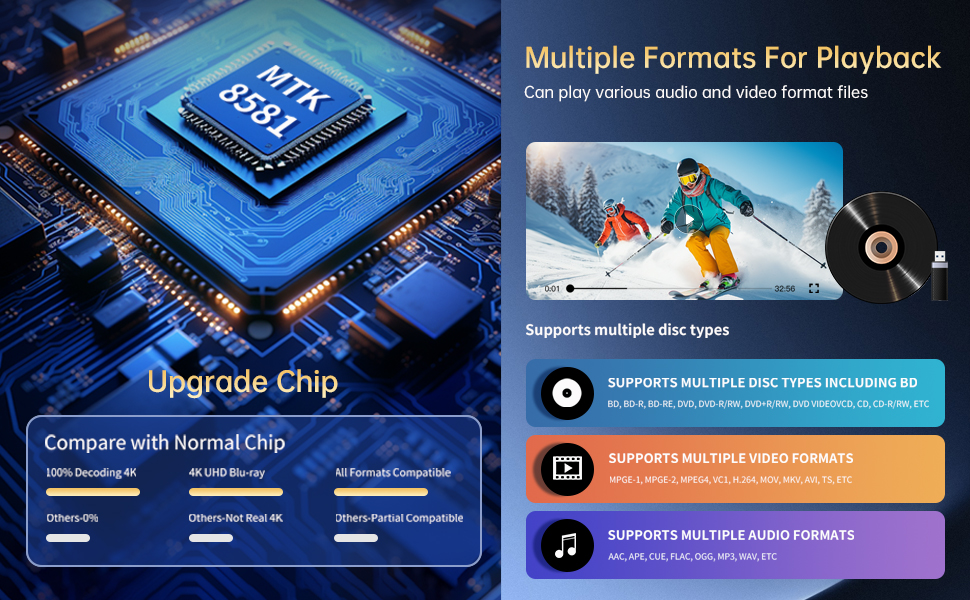
Figure 7.1: Visual comparison illustrating the difference between 8-bit (16.67 million colors) and 10-bit (1.07 billion colors) color depth, highlighting the enhanced detail and delicacy of 10-bit color.

Figure 7.2: The GIEC G5300 Blu Ray Player connected to a TV, showcasing its support for 4K UHD, 3D, HDR, HDR10+, Dolby, and Dolby Vision technologies.
8. Manutenzjoni
- Tindif: Use a soft, dry cloth to clean the exterior of the player. Do not use liquid or aerosol cleaners.
- Kura tad-Diska: Handle discs by their edges. Clean discs with a soft, lint-free cloth, wiping from the center outwards.
- Ventilazzjoni: Kun żgur li l-fetħiet tal-ventilazzjoni tal-plejer mhumiex imblukkati biex tevita li jisħon iżżejjed.
9 Issolvi l-problemi
If you encounter issues with your Blu-ray player, please refer to the following common solutions:
- Ebda Qawwa: Check if the power cable is securely connected to both the player and the power outlet. Ensure the outlet is functional.
- Ebda Stampa/Ħoss: Verify that the HDMI cable is correctly connected to both the player and the TV/receiver. Ensure the correct HDMI input is selected on your TV/receiver.
- Id-Diska Mhux Qed Tilgħab: Check if the disc is clean and free of scratches. Ensure the disc is inserted correctly with the label side up. The player supports Region A Blu-ray discs and all region DVD discs.
- Il-Kontroll mill-bogħod Mhux Jaħdem: Check the batteries in the remote control and replace them if necessary. Ensure there are no obstructions between the remote and the player.
10. Speċifikazzjonijiet
| Karatteristika | Dettall |
|---|---|
| Isem tad-Ditta | GIEC |
| Isem tal-Mudell | G5300 |
| Piż tal-oġġett | 4.18 libbra (1.9 Kilogrammi) |
| Dimensjonijiet tal-Prodott | 14.2 x 8.9 x 2 pulzieri |
| Kulur | Iswed |
| Tip tal-Midja | Diska Blu-Ray, DVD |
| Riżoluzzjoni | 3840x2160 (4K Ultra HD) |
| Karatteristiċi Speċjali | Anti-Shock, Compact, Dust Proof, Multi-Format Playback, Surround Sound, HDR10, Dolby Vision, BT.2020 Color Spaces |
| Tip ta' Konnettur | HDMI (Dual Outputs), USB 3.0, Coaxial, Optical, LAN |
| Teknoloġija tal-Konnettività | HDMI |
11. Garanzija u Appoġġ
For warranty information or technical support, please refer to the documentation included with your purchase or contact GIEC customer service. Keep your proof of purchase for warranty claims.


