1. Introduzzjoni
This manual provides essential information for the proper installation, operation, and maintenance of your SPIRIT SP POS 58 IVU Thermal Receipt Printer. Please read this manual thoroughly before using the printer to ensure optimal performance and longevity. This printer is designed for efficient receipt printing in various business environments, including shops and restaurants.
2. Informazzjoni dwar is-Sigurtà
- Always use the power adapter supplied with the printer. Using an incorrect adapter may damage the device or pose a safety risk.
- Tesponix il-printer għall-ilma, umdità, jew temperaturi estremi.
- Evita li tpoġġi l-istampatur fid-dawl tax-xemx dirett jew ħdejn sorsi ta’ sħana.
- Ensure the printer is placed on a stable, flat surface to prevent accidental falls.
- Do not attempt to disassemble or repair the printer yourself. Refer to qualified service personnel for any repairs.
- Żomm l-istampatur 'il bogħod mit-tfal.
3. Kontenut tal-Pakkett
Ivverifika li l-oġġetti kollha huma preżenti fil-pakkett:
- SPIRIT SP POS 58 IVU Thermal Receipt Printer
- Adapter tal-Enerġija
- Cable USB
- Starter Thermal Paper Roll
- Manwal għall-Utent (dan id-dokument)
4. Prodott Aktarview
The SPIRIT SP POS 58 IVU is a compact thermal receipt printer designed for high-speed, inkless printing. It features a 58mm paper width and USB connectivity for versatile use.
4.1 Quddiem View
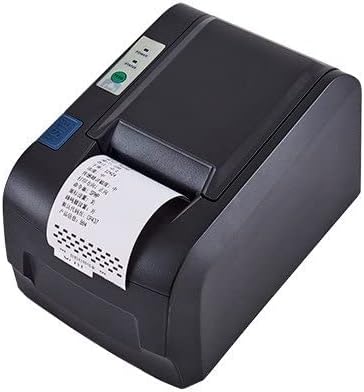
Immaġni: Quddiem view of the SPIRIT SP POS 58 IVU Thermal Receipt Printer, showing a printed receipt exiting the front slot. The power and status indicator lights are visible on the top panel.
4.2 Fuq View
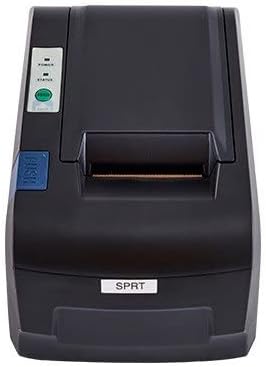
Immaġni: Minn fuq għal isfel view of the SPIRIT SP POS 58 IVU Thermal Receipt Printer, highlighting the power and status indicators, the 'PUSH' button for opening the paper cover, and the paper exit slot.
4.3 Internal Components (Paper Compartment Open)

Image: The SPIRIT SP POS 58 IVU Thermal Receipt Printer with its top cover open, revealing the thermal paper roll compartment and the print head mechanism. This view is essential for paper loading.
5. Setup
5.1 Disimballaġġ
- Oħroġ il-printer u l-aċċessorji kollha mill-imballaġġ bir-reqqa.
- Żomm l-imballaġġ għal trasport jew ħażna fil-futur.
5.2 Qawwa tal-Konnessjoni
- Kun żgur li l-istampatur huwa mitfi.
- Connect the power adapter cable to the power port on the back of the printer.
- Ipplaggja l-adapter tal-enerġija fi żbokk tal-elettriku adattat.
5.3 Tagħbija ta' Karta Termali
- Press the 'PUSH' button located on the side of the printer to open the top cover.
- Insert a new 58mm thermal paper roll into the compartment, ensuring the paper feeds from the bottom and the leading edge is straight.
- Pull a small amount of paper out past the cutting edge.
- Agħlaq l-għatu ta’ fuq sew sakemm jikklikkja f’postu.
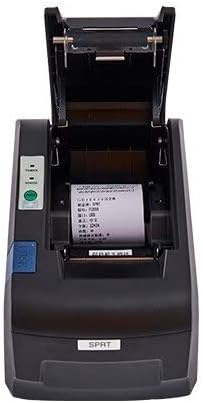
Immaġni: Fuq view of the printer with the paper cover open, showing a thermal paper roll correctly placed within the compartment, ready for the cover to be closed.
5.4 Driver Installation (USB Connection)
- Qabbad l-istampatur mal-kompjuter tiegħek billi tuża l-kejbil USB ipprovdut.
- Ixgħel l-istampatur.
- For Windows operating systems, the printer drivers may install automatically. If not, insert the driver CD (if provided) or download the latest drivers from the manufacturer's websit.
- Segwi l-istruzzjonijiet fuq l-iskrin biex tlesti l-installazzjoni tas-sewwieq.
- After installation, verify the printer is recognized in your computer's 'Devices and Printers' settings.
6. Istruzzjonijiet Operattivi
6.1 Tixgħel/Jitfi
- To power on, ensure the power adapter is connected and press the power button. The 'POWER' indicator light will illuminate.
- To power off, press and hold the power button until the 'POWER' indicator light turns off.
6.2 Dwal Indikaturi
- QAWWA (Aħdar): Jindika li l-istampatur huwa mixgħul.
- STATUS (Red/Orange): Indicates an error condition, such as out of paper or print head overheating. Refer to the troubleshooting section.
6.3 Stampar Bażiku
- Kun żgur li l-istampatur huwa konness mal-kompjuter tiegħek u mixgħul.
- Open the document or application from which you wish to print (e.g., POS software, text editor).
- Agħżel 'Stampa' mill-menù tal-applikazzjoni.
- Choose the 'SPIRIT SP POS 58 IVU' printer from the list of available printers.
- Adjust any necessary print settings (e.g., paper size, orientation) and click 'Print'.
6.4 Cashier Support (Cash Drawer Connection)
The printer supports connection to a 12V cash drawer. Connect the cash drawer's RJ11/RJ12 cable to the dedicated port on the back of the printer. Your POS software will typically send a command to the printer to open the cash drawer automatically after a transaction.
7. Manutenzjoni
7.1 Tindif tar-Ras tal-Istampar
Regular cleaning of the print head ensures clear print quality and extends the printer's lifespan.
- Itfi l-istampatur u skonnettja l-kejbil tal-enerġija.
- Iftaħ l-għatu ta' fuq biex taċċessa r-ras tal-istampar.
- Gently wipe the thermal print head surface with a cotton swab lightly dampened b'alkoħol isopropiliku.
- Ħalli r-ras tal-istampar tinxef kompletament qabel ma tagħlaq l-għatu u terġa' tikkonnettja l-enerġija.
7.2 Sostituzzjoni tar-Romblu tal-Karta
Refer to Section 5.3 'Loading Thermal Paper' for detailed instructions on replacing the paper roll.
8 Issolvi l-problemi
This section addresses common issues you might encounter with your printer.
- Il-printer mhux qed jixgħel:
- Iċċekkja jekk l-adapter tal-enerġija huwiex imqabbad sew kemm mal-istampatur kif ukoll mas-sokit elettriku.
- Kun żgur li l-iżbokk tad-dawl huwa funzjonali.
- No print output:
- Verify that the printer is powered on and the 'POWER' indicator is lit.
- Check if the paper roll is loaded correctly and there is sufficient paper. The 'STATUS' light may indicate an out-of-paper condition.
- Kun żgur li l-kejbil USB huwa konness sew mal-printer kif ukoll mal-kompjuter.
- Confirm that the correct printer driver is installed and selected in your application's print settings.
- Kwalità tal-istampar fqira:
- Clean the thermal print head as described in Section 7.1.
- Kun żgur li qed tuża karta termali ta' kwalità għolja.
- Check print density settings in the printer driver.
- Ġamm tal-karta:
- Itfi l-istampatur u iftaħ il-qoxra ta 'fuq.
- Carefully remove any jammed paper.
- Ensure the paper roll is loaded correctly and the cover is closed firmly.
9. Speċifikazzjonijiet
| Karatteristika | Deskrizzjoni |
|---|---|
| Isem tal-Mudell | SP POS 58 IVU |
| Teknoloġija tal-Istampar | Direct Thermal Printing (No Ink Needed) |
| Wisa' tal-Karta | 57.5 ± 0.5 mm |
| Veloċità tal-Istampar | Up to 70mm/s (Monochrome) |
| Print Head Life | Up to 50 km of print |
| Teknoloġija tal-Konnettività | USB |
| Cashier Support | Compatible with 12V money box (cash drawer) |
| Dimensjonijiet tal-Prodott | 20 x 13 x 15 ċm |
| Piż tal-oġġett | 1.4 kg (1400 Gramma) |
| Kulur | Iswed |
10. Garanzija u Appoġġ
For warranty information and technical support, please refer to the documentation provided at the time of purchase or contact your retailer. Keep your purchase receipt as proof of purchase for warranty claims.


