1. Introduzzjoni
This manual provides detailed instructions for the safe and efficient operation of your Vixic E1000 Industrial Label Maker. Please read this manual thoroughly before using the device and retain it for future reference.
The Vixic E1000 is a handheld label maker designed for various labeling tasks, including cable management, office organization, and industrial applications. It features a QWERTY keyboard, multiple font and symbol options, and supports durable laminated tapes.
2. Kontenut tal-Pakkett
Ivverifika li l-oġġetti kollha huma preżenti fil-pakkett:
- 1 x Vixic E1000 Label Maker
- 1 x Black on white starter laminated tape 0.47" (12mm) x 13.1' (4m)
- 1 x kejbil USB Type-C
- 1 x Replacement cutting holder
- 1 x Manwal ta' struzzjonijiet (dan id-dokument)
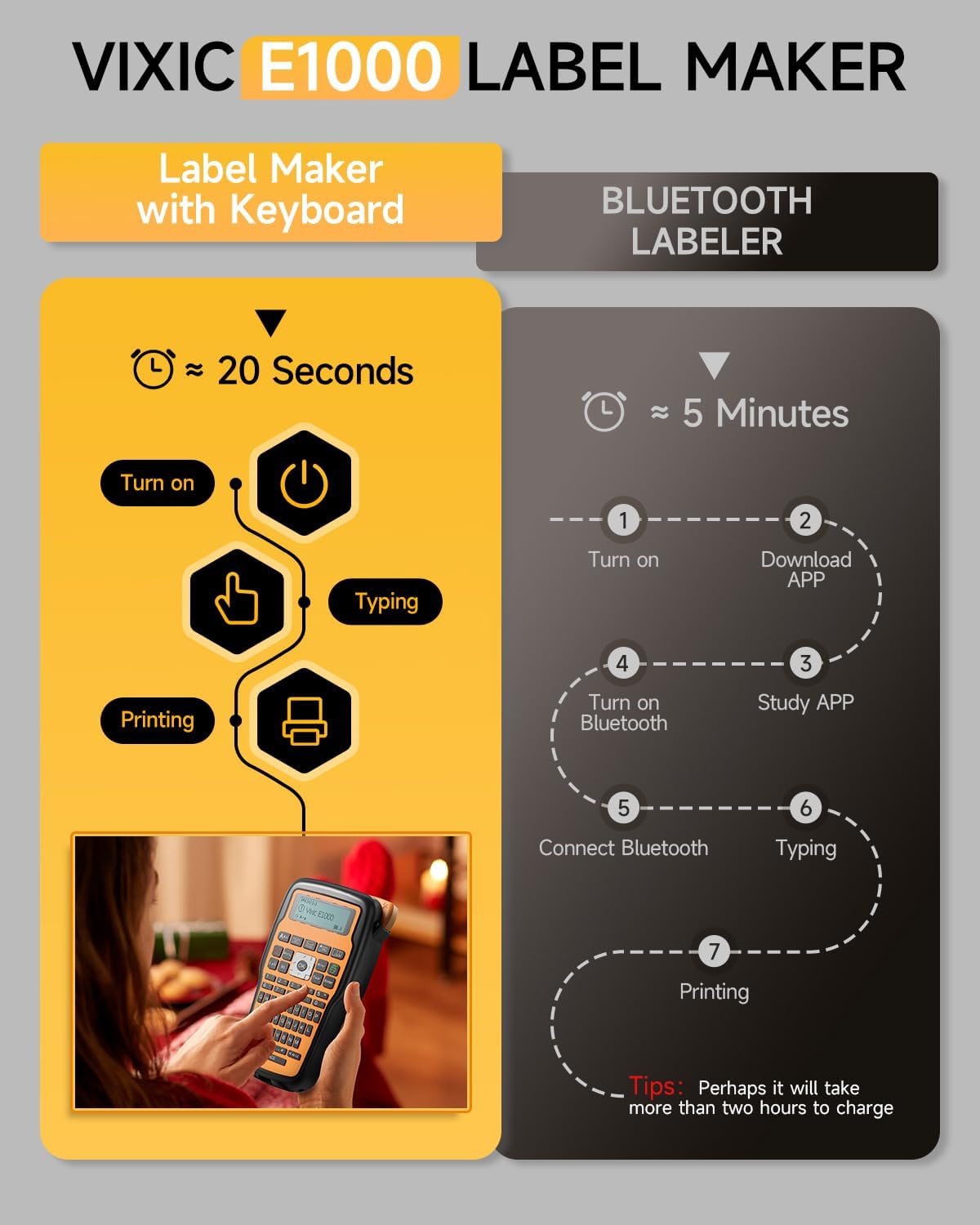
Image: Contents of the Vixic E1000 Label Maker package, including the label maker, a tape cassette, USB-C cable, replacement cutter, and manual.
3. Device Overview
Familiarize yourself with the main components of the Vixic E1000 label maker.

Immaġni: Quddiem view of the Vixic E1000 Label Maker, showing the QWERTY keyboard, display, and control buttons. Also visible are a tape cassette and examples of labels on cables.
4. Setup
4.1 It-Tħaddim tal-Apparat
The Vixic E1000 can be powered by either a USB-C cable or AAA batteries.
- Qawwa USB-C: Connect the provided USB Type-C cable to the label maker and a 5V/2A power adapter (not included) or a computer USB port. The device is not rechargeable; the USB-C cable provides direct power.
- Qawwa tal-batterija: Insert 6 AAA batteries (not included) into the battery compartment located on the back of the device. Ensure correct polarity.

Image: A user connecting the Vixic E1000 Label Maker to a power source via a USB-C cable. This illustrates the USB-C power option.
4.2 Installing the Label Tape
- Open the tape compartment cover on the back of the label maker.
- Insert the label tape cassette with the tape facing the print head. Ensure it clicks into place.
- Agħlaq l-għatu tal-kompartiment tat-tejp.

Image: A close-up of the Vixic E1000 Label Maker showing a label tape cassette inserted into its compartment.
5. Istruzzjonijiet Operattivi
5.1 Basic Label Creation
- Ixgħel: Agħfas il- Qawwa buttuna.
- Ittajpja Test: Use the QWERTY keyboard to enter your desired text. The display will show the text as you type.
- Aġġusta Settings (Mhux obbligatorju): Use the menu buttons to change font size (Large, Medium, Small), add symbols, or frames.
- Stampa: Agħfas il- Stampa buttuna biex tiġġenera t-tikketta.
- Aqta': Aqta’ t-tikketta manwalment billi tuża l-cutter integrat.
5.2 Cable Labeling Modes
The E1000 offers three specialized modes for cable labeling:
- Wrap Mode: Creates labels that wrap around cables.
- Flag Mode: Generates labels that fold into a flag shape for easy identification.
- Faceplate Mode: Produces labels suitable for flat surfaces like faceplates.
To select a mode, navigate through the menu options using the Menu buttuna u OK buttuna.

Image: An illustration demonstrating the three cable labeling modes: Wrap Type, Flag Type, and Faceplate. A person wearing a hard hat with a label on it holds the label maker.
5.3 Chain Print and Narrow Margin Settings
To minimize tape waste and print multiple labels efficiently:
- Narrow Margin: Aċċess għall- Menu, select "Margin", then "Narrow" to reduce blank space at the beginning and end of labels. This can save approximately 0.8 inches per label.
- Chain Print: To print up to 20 different labels consecutively with minimal gaps, use the multiple editing function.
- Copy Labels: Agħfas Shift + Stampa to copy and print up to 9 identical labels.

Image: A visual guide explaining how to use the Narrow Margin setting and Chain Print feature to save label tape. It shows menu navigation and examples of printed labels.
5.4 Customization Options
The E1000 offers extensive customization:
- Symbols & Frames: Choose from over 500 symbols and 100 frames to enhance your labels.
- Fonts: Select from 16 different fonts.
- Barcodes: The device supports printing barcodes.
- Multi-line Text: Print up to 4 lines of text on a single label.

Image: A display of various font styles and over 500 symbols available for use with the Vixic E1000 Label Maker, demonstrating customization capabilities.
6. Manutenzjoni
6.1 Tindif tar-Ras tal-Istampar
Regularly clean the print head to ensure clear and consistent print quality. Use a soft, dry cloth or a cotton swab lightly dampened with isopropyl alcohol. Do not touch the print head with bare hands.
6.2 Replacing the Label Tape
When the tape cassette is empty or you wish to change tape types:
- Kun żgur li l-magna tat-tikketti tkun mitfija.
- Iftaħ l-għatu tal-kompartiment tat-tejp.
- Remove the used tape cassette.
- Insert a new Vixic BZ series label tape cassette, ensuring it clicks into place.
- Agħlaq l-għatu tal-kompartiment tat-tejp.

Image: An illustration highlighting the durability features of Vixic BZ Laminated Tapes, including oil-proof, fading-proof, corrosion-proof, abrasion-proof, water-resistant, and temperature-resistant properties.
7 Issolvi l-problemi
| Problema | Kawża Possibbli | Soluzzjoni |
|---|---|---|
| L-apparat ma jixgħelx. | Bla enerġija jew batteriji baxxi. | Ensure USB-C cable is connected to a 5V/2A power source, or replace AAA batteries. |
| Kwalità tal-istampar fqira jew tikketti vojta. | Print head is dirty or tape is incorrectly installed. | Clean the print head. Reinstall the tape cassette, ensuring it is seated correctly. |
| Tape jams or does not feed. | Tape is jammed or cutter needs replacement. | Open the tape compartment and clear any jammed tape. Replace the cutting holder if necessary. |
| Excessive blank margin on labels. | Narrow Margin setting is not activated. | Mur fuq Menu > "Margin" > "Narrow" to reduce blank space. |
8. Speċifikazzjonijiet
- Mudell: E1000
- Ditta: Vixic
- Dimensjonijiet tal-Prodott: 8.4"D x 4.6"W x 2.4"H
- Piż tal-oġġett: 15.5 uqija
- Daqs Massimu tal-Midja: 0.47 pulzieri (12mm)
- Teknoloġija tal-Istampar: Termali
- Printer Ink Type: Termali
- Teknoloġija tal-Konnettività: USB Tip-Ċ
- Sors tal-Enerġija: USB Type-C cable (for power, not rechargeable) or 6 AAA batteries (not included)
- Tastiera: QWERTY
- Karatteristiċi Speċjali: Chain Print, Laminated Tape compatibility, Portable, QWERTY Keyboard
9. Garanzija u Appoġġ
For warranty information and customer support, please refer to the official Vixic webis-sit jew ikkuntattja lill-bejjiegħ tiegħek. Żomm l-irċevuta tax-xiri tiegħek bħala prova tax-xiri.


