1. Introduzzjoni
The Canon PIXMA TS3750i is a compact, affordable, and user-friendly multifunction inkjet printer designed for home and small office use. It offers versatile functionalities including printing, copying, and scanning. This printer supports wireless connectivity, enabling convenient operation from various devices, and features borderless photo printing. It is also compatible with the PIXMA Print Plan for automated ink delivery.
2. Informazzjoni dwar is-Sigurtà
Jekk jogħġbok aqra l-istruzzjonijiet kollha tas-sigurtà qabel ma tuża l-istampatur biex tiżgura tħaddim sikur u xieraq. Żomm dan il-manwal għal referenza futura.
- Do not place the printer in unstable locations.
- Żomm il-printer 'il bogħod mill-ilma jew mill-umdità.
- Uża biss il-korda tal-enerġija li tiġi mal-istampatur.
- Do not attempt to disassemble or modify the printer.
- Unplug the printer from the power outlet before cleaning or if it will not be used for an extended period.
3. Kontenut tal-Pakkett
Iċċekkja li l-oġġetti kollha li ġejjin huma inklużi fil-pakkett tiegħek:
- Printer Canon PIXMA TS3750i
- Inkjet Cartridges (initial set)
- Kejbil tal-Enerġija
- Setup CD-ROM (for Windows only)
- Manwali u dokumenti oħra
4. Setup
4.1 Spakkjar u Tqegħid
- Neħħi l-istampatur mill-imballaġġ tiegħu u neħħi t-tejps protettivi u l-materjali tal-ippakkjar kollha.
- Poġġi l-istampatur fuq wiċċ stabbli u ċatt bi spazju adegwat madwaru għall-ventilazzjoni u t-tħaddim.
4.2 Konnessjoni tal-Enerġija
- Connect the supplied power cable to the printer's power input.
- Ipplaggja t-tarf l-ieħor tal-kejbil tal-enerġija f'sokit tal-ħajt.
- Agħfas il-buttuna Power biex tixgħel l-istampatur.
4.3 Installazzjoni tal-Kartriġ tal-Linka
- Open the printer's top cover to access the cartridge holder.
- Remove the protective tape from the ink cartridges.
- Insert the color and black ink cartridges into their respective slots until they click into place.
- Agħlaq il-qoxra ta 'fuq.
4.4 Tagħbija tal-Karta
- Open the paper support and pull out the paper output tray.
- Load paper (e.g., A4, photo paper) into the rear paper tray, ensuring it is aligned with the paper guides.
- Adjust the paper guides to fit the width of the paper.
4.5 Software and Wireless Setup
For initial setup and to enable wireless printing, follow these steps:
- Għall-PC: Insert the Setup CD-ROM (Windows only) and follow the on-screen instructions to install drivers and software.
- For PC/Mac/Mobile: Żur il-Kanonku website for your region and download the latest drivers and the Canon PRINT Inkjet/SELPHY app.
- Follow the instructions within the software or app to connect the printer to your Wi-Fi network. The printer supports one-touch wireless connectivity for easier setup.
- For mobile devices, ensure your device is connected to the same Wi-Fi network as the printer.
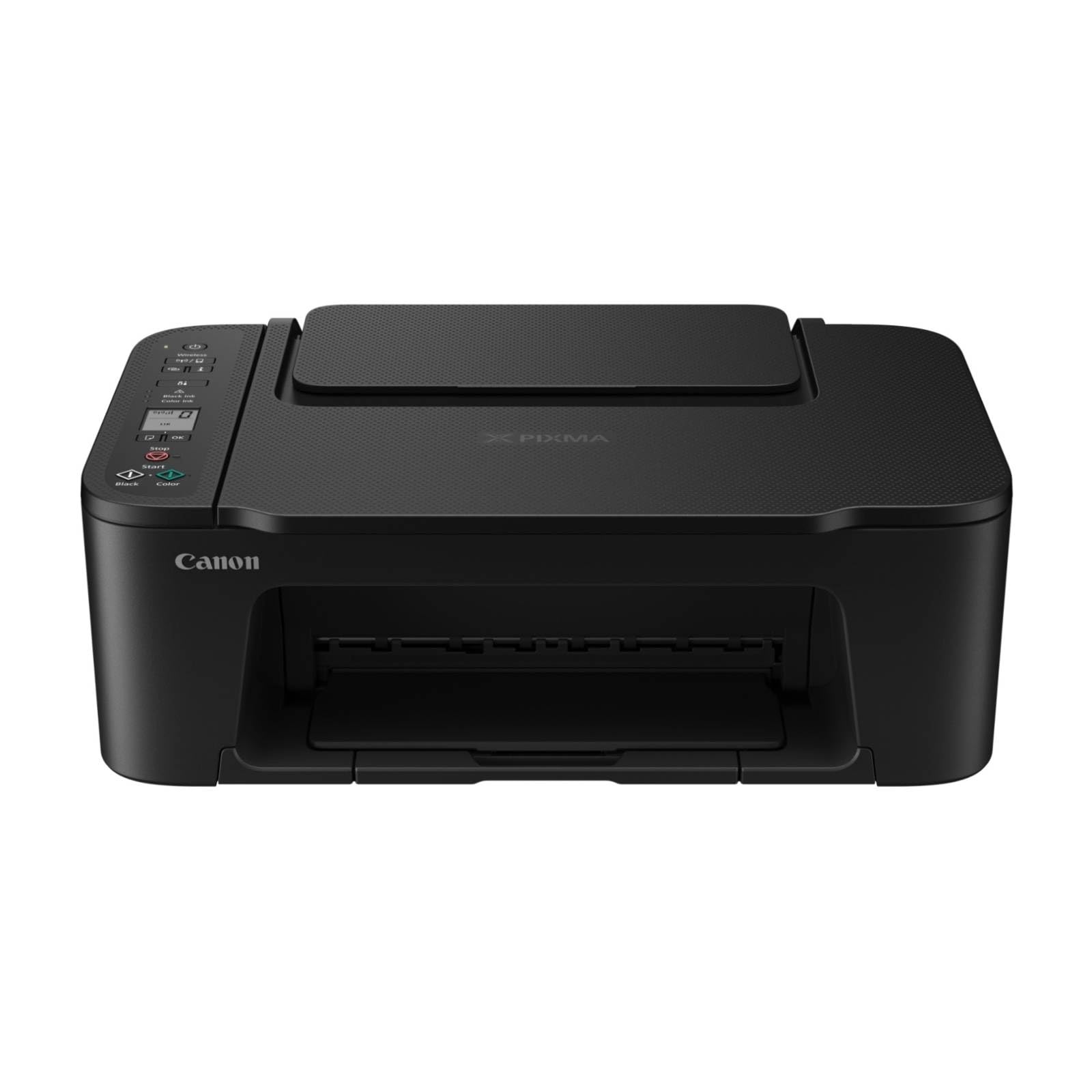
Figura 1: Quddiem view of the Canon PIXMA TS3750i printer, showing its compact design and control panel.
5. Istruzzjonijiet Operattivi
5.1 L-Istampar ta' Dokumenti u Ritratti
- Kun żgur li l-istampatur ikun mixgħul u konness mat-tagħmir tiegħek (permezz tal-Wi-Fi jew tal-USB).
- Load the appropriate paper type and size into the rear paper tray.
- Iftaħ id-dokument jew ir-ritratt li tixtieq tipprintja fuq il-kompjuter jew l-apparat mobbli tiegħek.
- Agħżel l-għażla tal-istampar mill-applikazzjoni tiegħek.
- In the print dialog, select the Canon PIXMA TS3750i as your printer. Adjust settings such as paper size, media type, print quality, and borderless printing (for photos up to 12.7 x 18 cm).
- Ikklikkja "Ipprintja".
5.2 Ikkupjar ta' Dokumenti
- Għolli l-għatu tal-iskaner.
- Place the document face-down on the scanner glass, aligning it with the alignment mark.
- Agħlaq l-għatu tal-iskaner bil-mod.
- On the printer's control panel, press the Black button for a monochrome copy or the Color button for a color copy.
- To make multiple copies (up to 20), press the desired copy button repeatedly for the number of copies needed.
5.3 Skennjar ta' Dokumenti u Ritratti
- Ensure the printer is connected to your computer or mobile device.
- Poġġi d-dokument jew ir-ritratt wiċċu 'l isfel fuq il-ħġieġa tal-iskaner.
- On your computer, open the scanning software (e.g., Canon IJ Scan Utility) or on your mobile device, open the Canon PRINT Inkjet/SELPHY app.
- Select the scan option and adjust settings such as document type, resolution, and destination folder.
- Ibda l-iskennjar. L-immaġni skennjata se tiġi ssejvjata fil-post speċifikat tiegħek.
5.4 Mobile Printing and Scanning
The Canon PIXMA TS3750i supports printing and scanning directly from smartphones and tablets using the Canon PRINT Inkjet/SELPHY app or Apple AirPrint. Ensure your mobile device and printer are connected to the same Wi-Fi network.
- Canon PRINT Inkjet/SELPHY App: Download and install the app from your device's app store. Use the app to select photos or documents for printing, or to initiate scans directly to your mobile device.
- Apple AirPrint: For iOS devices, you can print directly from AirPrint-enabled applications without installing additional drivers. Select the print option from the app and choose your PIXMA TS3750i printer.
- Wi-Fi PictBridge: Connect directly to compatible cameras for photo printing.
6. Manutenzjoni
6.1 Tindif tal-Istampatur
- Barra: Imsaħ il-barra tal-istampatur b'ċarruta ratba u damp, drapp mingħajr suf. Tużax prodotti tat-tindif jew solventi li joborxu.
- Ħġieġ tal-iskaner: Naddaf il-ħġieġ tal-iskaner bil-mod b'ċarruta ratba u mingħajr suf imxarrba b'ammont żgħir ta' tindif tal-ħġieġ. Kun żgur li ma jitħallew l-ebda residwu.
- Kap tal-Istampa: If print quality declines (e.g., streaks, faded colors), perform a print head cleaning from the printer's utility software on your computer or through the Canon PRINT Inkjet/SELPHY app.
6.2 Sostituzzjoni tal-Kartriġi tal-Linka
- When an ink cartridge is low or empty, a message will appear on the printer's display or in the software.
- Open the printer's top cover. The cartridge holder will move to the replacement position.
- Agħfas 'l isfel fuq il-kartuċċa vojta biex tirrilaxxha, imbagħad iġbdu 'l barra.
- Unpack the new Canon genuine ink cartridge and remove the protective tape.
- Insert the new cartridge into the correct slot until it clicks firmly into place.
- Close the top cover. The printer will perform an initialization process.
6.3 Tneħħija tal-Karta Imblukkata
- If a paper jam occurs, an error message will appear.
- Itfi l-istampatur u aqla l-korda tad-dawl.
- Carefully open the printer covers (top cover, rear cover if applicable) to locate the jammed paper.
- Gently pull the jammed paper out in the direction of the paper path. Avoid tearing the paper.
- Ensure all torn pieces of paper are removed.
- Agħlaq l-għatu kollu, daħħal il-korda tal-enerġija, u ixgħel il-printer.
7 Issolvi l-problemi
Refer to the following common issues and their solutions. For more detailed troubleshooting, consult the Canon support websit.
- Printer is not turning on: Kun żgur li l-kejbil tal-enerġija huwa konness sew kemm mal-istampatur kif ukoll ma' sokit elettriku li jaħdem.
- Cannot print:
- Check if the printer is powered on and connected to your device (Wi-Fi or USB).
- Verify that ink cartridges are installed correctly and have sufficient ink.
- Ensure paper is loaded correctly in the paper tray.
- Restart your computer/mobile device and the printer.
- Check printer drivers and software for updates.
- Kwalità tal-istampar fqira:
- Perform a print head cleaning and nozzle check from the printer utility.
- Ensure you are using genuine Canon ink cartridges.
- Check print settings for appropriate paper type and print quality.
- Problemi bil-konnessjoni mingħajr fili:
- Ensure the printer and your device are on the same Wi-Fi network.
- Restart your wireless router, printer, and device.
- Re-run the wireless setup process.
- Check for any firewall settings blocking communication.
- Ġamm tal-karta: Follow the instructions in Section 6.3 to clear any jammed paper.
8. Speċifikazzjonijiet
| Isem tal-Mudell | PIXMA TS3750i |
| Teknoloġija tal-Istampar | Inkjet |
| Funzjonijiet | Stampa, Ikkopja, Skennja |
| Teknoloġija tal-Konnettività | USB, Wi-Fi |
| Veloċità Massima tal-Istampar (Monokromu) | 7.7 ppm |
| Veloċità Massima tal-Istampar (Kulur) | 4 ppm |
| Output Printer | Kulur |
| Stampar Duplex | Iva |
| Daqs Max tal-Midja | A4 |
| Appoġġ għad-Daqs tal-Folja | A4, A5, B5, Custom (Width 89 mm - 215.9 mm, Length 127 mm - 676 mm) |
| Kapaċità Massima tad-Dħul | 60 folja |
| Tip ta' Skaner | Flatbed |
| Kopji Massimi għal kull Ġirja | 20 |
| Apparati Kompatibbli | Laptops, PC, Smartphones, Tablets |
| Karatteristiċi Speċjali | Borderless printing, Lightweight, Auto Power On, Display screen |
| Dimensjonijiet tal-Prodott (P x W x H) | 32.7 x 43.5 x 14.5 ċm |
| Piż tal-Prodott | 4.19 kg |
| Konsum tal-Enerġija | 9 Watt |
9. Garanzija u Appoġġ
This Canon PIXMA TS3750i printer comes with a standard manufacturer's warranty. Please refer to the warranty card included in your package for specific terms and conditions, including warranty period and coverage details.
For technical support, product registration, driver downloads, and additional troubleshooting resources, please visit the official Canon support website for your region. You can also find contact information for customer service there.
- Appoġġ onlajn: www.canon.com/support (Please replace with your regional Canon support link)
- Reġistrazzjoni tal-Prodott: Registering your product helps Canon provide you with better service and support.