1. Introduzzjoni
This manual provides essential information for the safe and efficient operation of your VISION VP-621 4K Ultra HD Multimedia Projector. Please read this manual thoroughly before using the projector and retain it for future reference.
The VISION VP-621 is a versatile smart projector featuring 4K Ultra HD support, 11000 lumens brightness, 5G WiFi, Bluetooth 5.0, Auto Focus, Wireless Miracast, and an integrated Android 9.0 operating system. It is designed for various applications including home entertainment, business presentations, and educational purposes.
2. Informazzjoni dwar is-Sigurtà
- Timblokkax il-fetħiet tal-ventilazzjoni. Kun żgur li jkun hemm fluss tal-arja adegwat madwar il-proġettazzjoni biex tevita li ssaħħan iżżejjed.
- Tħarisx direttament fil-lenti tal-proġettazzjoni meta tkun qed taħdem.amp mixgħul. Id-dawl qawwi jista’ jikkawża ħsara lill-għajnejn.
- Poġġi l-proġettur fuq wiċċ stabbli u livellat biex tevita li jaqa'.
- Żomm il-proġettur 'il bogħod mill-ilma, l-umdità, u temperaturi estremi.
- Uża biss l-adapter tal-enerġija li jiġi mal-proġettur.
- Tippruvax tiftaħ jew issewwi l-proġettur int stess. Irreferi għal kull manutenzjoni f'idejn persunal kwalifikat.
- Skonnettja l-proġettur waqt maltempati bis-sajjetti jew meta ma jintużax għal perjodi twal.
3. Kontenut tal-Pakkett
Iċċekkja li l-oġġetti kollha elenkati hawn taħt huma inklużi fil-pakkett tiegħek:
- VISION VP-621 Projector
- Korda tal-Enerġija
- Adapter
- Kontroll mill-bogħod
- AV Cable
- Qoxra tal-Lenti tal-Proġekter
4. Prodott Aktarview
Familiarize yourself with the main components and interfaces of your VISION VP-621 projector.

Immaġni: Minn quddiem u mill-ġenb view of the VISION VP-621 projector, showcasing id-disinn kompatt u l-lenti tiegħu.
4.1 Il-Panel ta' Quddiem u ta' Fuq
- Lenti tal-Projezzjoni: Joħroġ l-immaġni.
- Riċevitur infrared: Għal sinjali ta' kontroll mill-bogħod.
- Buttuni tal-Kontroll: Power, Navigation (OK, Up, Down, Left, Right), Back.
- Gradilji tal-ventilazzjoni: For cooling the internal components.

Immaġni: Fuq view of the projector highlighting the integrated control buttons for power and navigation.
4.2 Rear Panel and Connectivity Ports
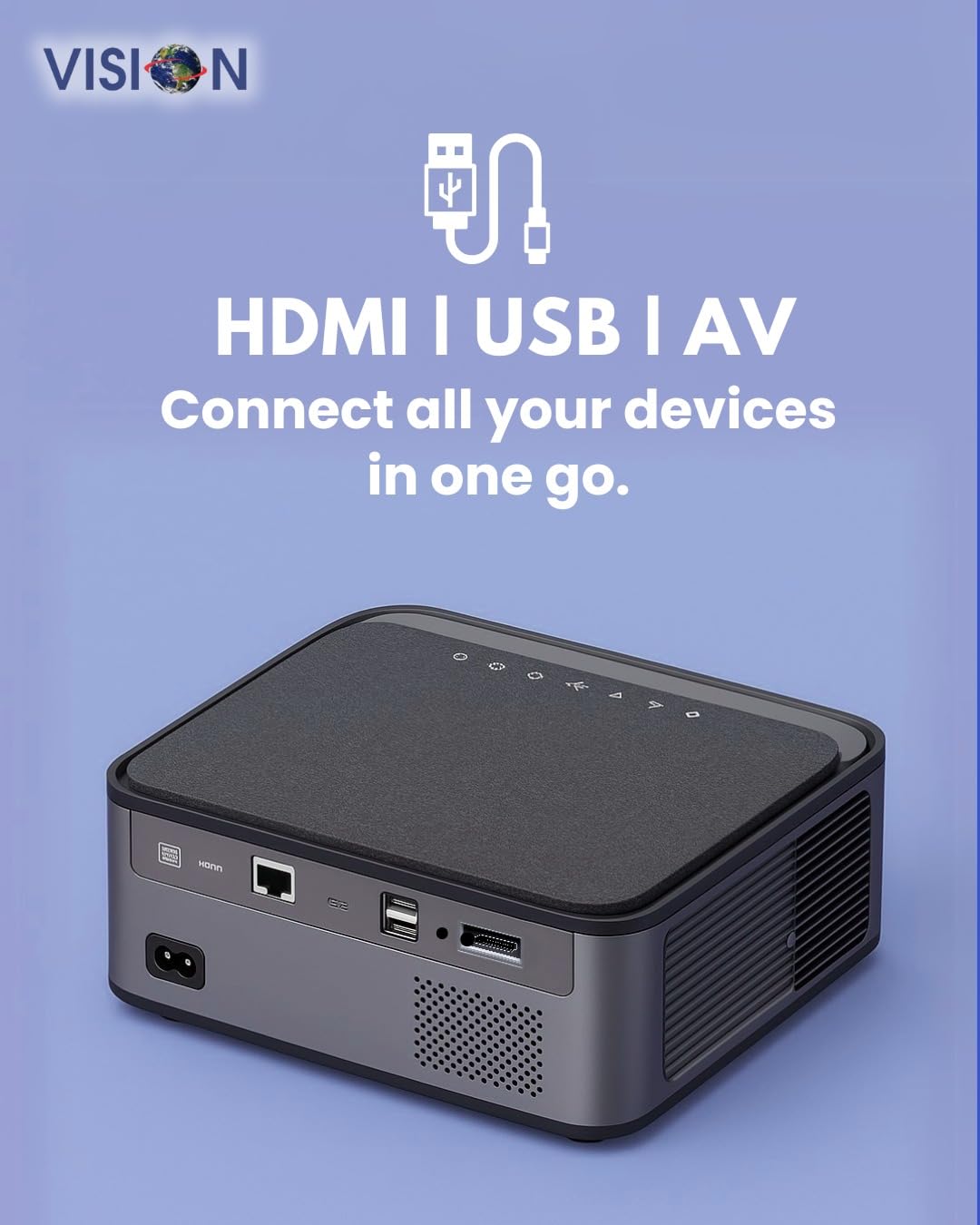
Immaġni: Wara view of the projector displaying the various input and output ports, including HDMI, USB, and AV.
- Input ta' Enerġija: Qabbad l-adapter tal-enerġija hawn.
- Port HDMI: Connect to HDMI-enabled devices (laptops, gaming consoles, streaming sticks).
- Portijiet USB (x2): Connect USB drives for media playback or external devices.
- Input AV: Qabbad ma' apparati eqdem billi tuża l-kejbil AV provdut.
- Ħruġ tal-Awdjo (3.5mm): Qabbad kelliema jew headphones esterni.
- Port tal-LAN: For wired internet connection (if available).
5. Setup
5.1 Pożizzjonament tal-Proġettur
Choose a flat, stable surface for the projector. Ensure there are no obstructions in front of the lens and that the ventilation grilles are clear.

Image: A projector positioned on a desk, illustrating a typical setup environment.
5.2 Konnessjoni tal-Enerġija
- Qabbad l-adapter tal-enerġija mal-port tad-dħul tal-enerġija tal-proġettazzjoni.
- Ipplaggja l-korda tad-dawl ġo żbokk tal-ħajt.
- Id-dawl indikatur tal-enerġija fuq il-proġettazzjoni se jixgħel.
5.3 Qawwa Inizjali
- Agħfas il-buttuna tal-qawwa fuq il-proġekter jew il-kontroll mill-bogħod biex tixgħel.
- The projector will boot up and display the Android 9.0 home screen.
5.4 Aġġustament tal-Fokus u l-Keystone
The VISION VP-621 features automatic focus and 4D keystone correction for a clear and properly aligned image.

Image: Illustrates the projector's automatic focus and keystone correction capabilities, ensuring a sharp and aligned picture.
- Auto Focus: The projector will automatically adjust the focus for a sharp image upon startup or movement.
- Korrezzjoni Keystone 4D: The projector automatically corrects image distortion when placed at an angle. Manual adjustments may be available in the settings menu if needed.
6. Istruzzjonijiet Operattivi
6.1 Android 9.0 Smart OS
The integrated Android 9.0 system allows direct access to streaming services and apps.
- Navigazzjoni: Use the remote control's directional buttons and "OK" button to navigate the interface.
- Installazzjoni tal-App: Access the Google Play Store to download and install applications like YouTube, Netflix, and Prime Video.
- Konnessjoni tan-Netwerk: Go to Settings > Network to connect to a 5G WiFi network or a wired LAN connection.
6.2 Konnessjoni ta' Apparati Esterni
Konnessjoni HDMI
- Connect an HDMI cable from your device (laptop, gaming console, Fire TV Stick) to the HDMI port on the projector.
- On the projector's home screen, select the HDMI input source.
Konnessjoni USB
- Insert a USB drive into one of the USB ports on the projector.
- The projector will typically prompt you to open the media player or file browser. If not, navigate to the file manager app on the Android home screen.
Konnessjoni AV
- Connect the provided AV cable to the AV input port on the projector and to your external device.
- Select the AV input source on the projector.
Bluetooth 5.0 Audio Output
- Go to Settings > Bluetooth on the projector.
- Ippermetti Bluetooth u fittex tagħmir disponibbli.
- Select your Bluetooth speaker or headphones from the list to pair and connect.
Wireless Miracast (Screen Mirroring)
Miracast allows you to wirelessly mirror the screen of your compatible smartphone, tablet, or laptop.
- On the projector's home screen, select the "Miracast" or "Screen Mirroring" application.
- On your mobile device, enable screen mirroring (often found in quick settings or display settings, named "Cast," "Smart View," "Wireless Display," etc.).
- Select the projector from the list of available devices to establish the connection.
7. Manutenzjoni
7.1 Tindif tal-Proġettur
- Lenti: Uża drapp artab u mingħajr suf iddisinjat speċifikament għal lentijiet ottiċi. Tużax prodotti tat-tindif li joborxu.
- Casing: Imsaħ il-proġettazzjoni casinb'ċarruta ratba u niexfa. Għal ħmieġ iebes, nixxef ftitampAħsel id-drapp bl-ilma u mbagħad imsaħ niexef.
- Ventilazzjoni: Regularly check and clean the ventilation grilles to ensure proper airflow and prevent dust buildup. Use a soft brush or compressed air.
7.2 Lamp Ħajja
The VISION VP-621 utilizes advanced LED technology, providing an estimated lamp ħajja sa 50,000 siegħa. Dan inaqqas b'mod sinifikanti l-ħtieġa għal lamp replacement compared to traditional projectors.
8 Issolvi l-problemi
| Problema | Kawża Possibbli | Soluzzjoni |
|---|---|---|
| Ebda immaġini murija |
|
|
| Immaġini mċajpra |
|
|
| L-ebda ħoss |
|
|
| Ma tistax tikkonnettja mal-Wi-Fi |
|
|
9. Speċifikazzjonijiet
| Brand | VIŻJONI |
| Isem tal-Mudell | VP-621 AN |
| Teknoloġija tal-Wiri | LCD |
| Tip ta 'Wiri | LED |
| Luminożità | 11000 Lumens |
| Proporzjon tal-Kuntrast tal-Immaġni | 18000:1 Pixels |
| Riżoluzzjoni Nattiva | 1920 x 1280 (Full HD) |
| Riżoluzzjoni Appoġġjata | Up to 4K Ultra HD |
| Proporzjon ta' l-aspett | 16:9, 4:3 |
| Sistema Operattiva | Android 9.0 |
| Teknoloġija tal-Konnettività | Bluetooth 5.0, HDMI, USB, Wi-Fi (5G) |
| Interface tal-Ħardwer | Bluetooth 5, HDMI, USB 3.0 |
| Karatteristiċi Speċjali | Built-In 3D, Built-In Cooling System, Built-In Speaker, Electric Focus, Wi-Fi Ready, Auto Focus, 4D Keystone Correction, Wireless Miracast |
| Dimensjonijiet tal-Prodott | 30 x 18 x 7 ċm |
| Piż tal-oġġett | 8 kg |
| Lamp Ħajja | Sa 50,000 sigħat |

Image: Illustrates the projector's Full HD (1920x1080) resolution capability for crisp visuals.

Image: Highlights the projector's 11000 lumens brightness, ensuring clear visuals in various lighting conditions.
10. Garanzija u Appoġġ
For warranty information and technical support, please contact the manufacturer:
- Manifattur: Scorpio Infosolutions
- Post: Delhi, India
- Telefon: +91-7982647130
- Websit: visionsheen.in
Please have your product model (VP-621) and purchase details ready when contacting support.


