1. Introduzzjoni
This manual provides detailed instructions for the installation, operation, and maintenance of your LAMTTO RC08 7-inch Wireless Carplay and Android Auto Portable Car Stereo. Please read this manual thoroughly before using the device to ensure proper functionality and safety. Keep this manual for future reference.
2. Prodott Aktarview u l-Kontenut tal-Pakkett
The LAMTTO RC08 is a portable 7-inch HD touch screen designed to bring wireless Apple Carplay and Android Auto functionality to your vehicle. It features Bluetooth 5.3 for stable audio transmission, voice control capabilities, mirror link for screen sharing, and multiple audio output options.
2.1 Karatteristiċi ewlenin
- Wireless Apple Carplay and Android Auto compatibility.
- 7-inch HD IPS Touch Screen (1024*600P resolution).
- Bluetooth 5.3 for enhanced connectivity and audio quality.
- Siri and Google Assistant voice control support.
- Real-time GPS navigation via connected smartphone.
- SuperLink for seamless screen mirroring (Airplay & Android Cast).
- Multiple audio output modes: Built-in Speaker, AUX, FM Transmitter, Car Stereo Bluetooth.
- Easy installation with suction cup or adhesive bracket.
- OTA system online updates via APP.
2.2 Kontenut tal-Pakkett
Ivverifika li l-oġġetti kollha huma preżenti fil-pakkett:

Image: The package contents of the LAMTTO RC08, including the 7-inch Carplay screen, car charger, AUX cable, suction cup mount, suction cup base, crowbar, cable clips, and instruction manual.
- 7-inch Carplay Screen (1 unit)
- Car Charger (Type-C) (1 unit)
- Suction Cup Mount (1 unit)
- Suction Cup Base (1 unit)
- AUX Cable (1.5 meters) (1 unit)
- Crowbar (1 unit)
- Cable Clips (4 units)
- Manwal tal-Istruzzjonijiet (unità 1)
3. Setup u Installazzjoni
The LAMTTO RC08 is designed for easy installation in various vehicles, compatible with 12-24V power systems. No specialized tools or professional installation skills are required.
3.1 Immuntar tal-Apparat
Choose between the extendable suction cup bracket or the self-adhesive bracket for mounting on your dashboard or windshield. Ensure the chosen location does not obstruct your view jew jinterferixxu mal-kontrolli tal-vettura.

Image: The LAMTTO RC08 screen mounted on a dashboard, illustrating its compatibility with various car types (car, truck, caravan, van, trailers, campers) and its power connection via the cigarette lighter socket.

Image: A step-by-step guide demonstrating how to install the suction cup mount. It shows attaching the mount to the screen, cleaning the dashboard surface, pressing the suction cup firmly, and securing the mount.
- Attach Mount to Screen: Securely connect the chosen mount (suction cup or adhesive) to the back of the LAMTTO RC08 screen.
- Wiċċ Nadif: Ensure the dashboard or windshield surface where you intend to mount the device is clean and dry.
- Pożizzjoni u Sikurezza: Place the suction cup or adhesive base firmly on the desired surface. For suction cups, press down and engage the locking mechanism. For adhesive mounts, apply pressure for a few seconds.
- Aġġusta Angolu: Adjust the screen angle for optimal viewmingħajr ma tostakola s-sewqan tiegħek view.
3.2 Konnessjoni tal-Enerġija
Connect the provided car charger cable to the Type-C port on the LAMTTO RC08 and plug the other end into your vehicle's cigarette lighter socket. The device will power on automatically when the vehicle's ignition is turned on.
4. Istruzzjonijiet Operattivi
This section details how to use the various functions of your LAMTTO RC08 portable car stereo.
4.1 Wireless Apple Carplay Connection
To connect your iPhone wirelessly to Apple Carplay:

Image: A visual guide showing four steps to connect an iPhone to the LAMTTO RC08 for Apple Carplay: turning on Wi-Fi and Bluetooth, connecting to the device's Bluetooth, allowing connection, and successful pairing.
- On your iPhone, enable Wi-Fi u Bluetooth.
- On your iPhone, go to Bluetooth settings and connect to the device named 'T86xxxxxx' (the specific name will be displayed on the LAMTTO screen).
- Confirm the pairing request on your iPhone.
- After a brief waiting period (10-20 seconds), the connection will be successful, and Apple Carplay will launch on the LAMTTO screen.
4.2 Konnessjoni bla fili ta' Android Auto
To connect your Android phone wirelessly to Android Auto:

Image: A visual guide showing four steps to connect an Android phone to the LAMTTO RC08 for Android Auto: turning on Wi-Fi and Bluetooth, connecting to the device's Bluetooth, allowing connection, and successful pairing. Notes indicate Android 8.0+ for Google phones and Android 11+ for other brands.
- On your Android phone, enable Wi-Fi u Bluetooth.
- On your Android phone, go to Bluetooth settings and connect to the device named 'T86xxxxxx'.
- Confirm the pairing request on your Android phone.
- After a brief waiting period (10-20 seconds), the connection will be successful, and Android Auto will launch on the LAMTTO screen.
Nota: Google Pixel phones require Android 8.0 or above. Other Android brand phones require Android 11 or above for wireless Android Auto.
4.3 Għażliet tal-Output tal-Awdjo
The LAMTTO RC08 offers several ways to output audio to your car's sound system:

Image: An illustration showing the four primary audio output methods: Bluetooth connection to car speakers, AUX cable connection, FM transmitter, and the device's built-in speaker.
- Bluetooth: Connect the LAMTTO RC08 to your car's Bluetooth system for high-quality stereo audio. This is the recommended method for optimal sound.
- Ħruġ AUX: Use the provided AUX cable to connect the LAMTTO RC08 to your car's AUX input port.
- Transmiter FM: Select an unused FM frequency on the LAMTTO RC08 and tune your car radio to the same frequency to transmit audio wirelessly.
- Kelliem inkorporat: The device has a built-in speaker for basic audio output.
4.4 Voice Control (Siri & Google Assistant)
The LAMTTO RC08 integrates with your smartphone's voice assistant, allowing for hands-free operation. Use voice commands for navigation, calls, messaging, and music playback.
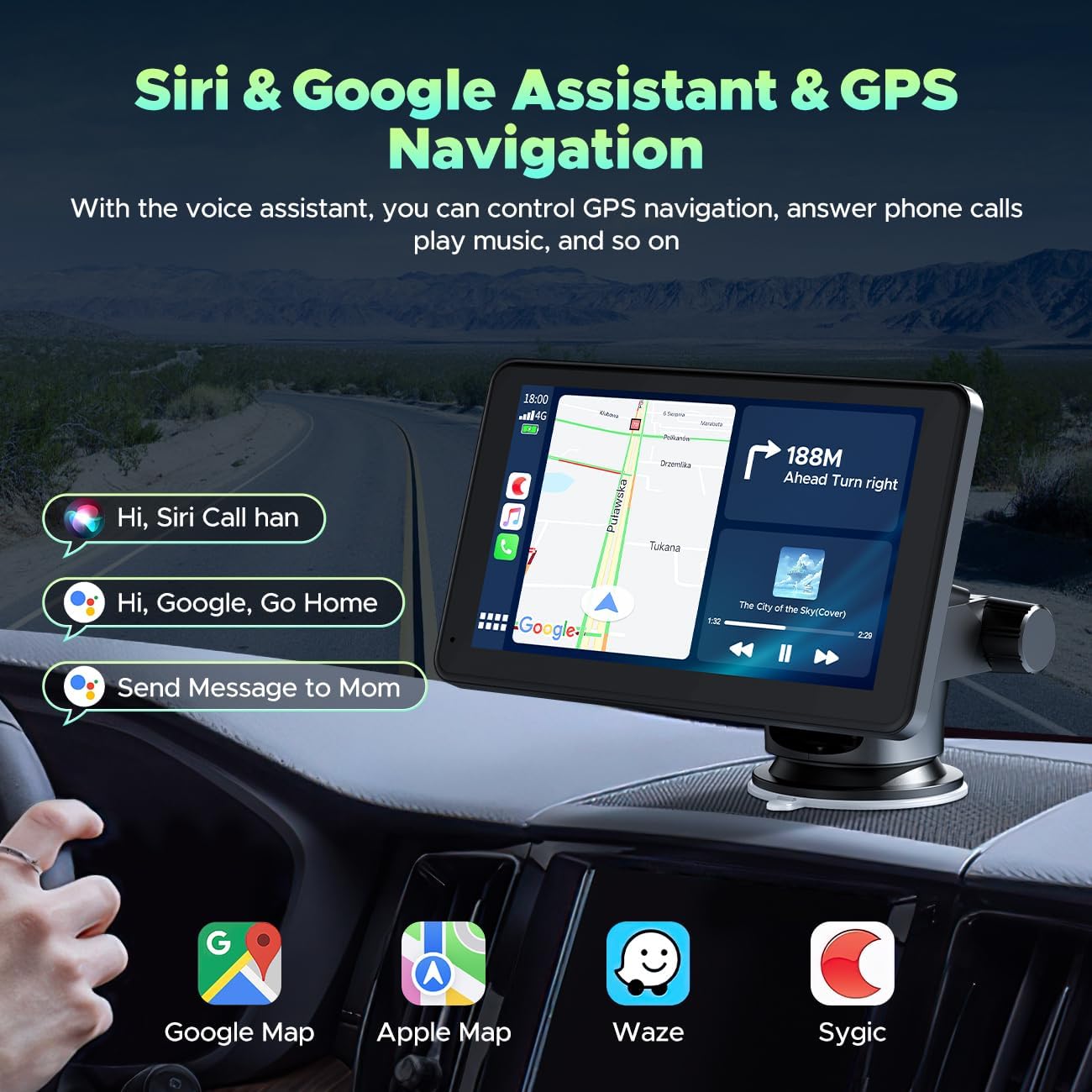
Image: The LAMTTO RC08 screen showing a navigation map with examples of voice commands like "Hi, Siri Call han" and "Hi, Google, Go Home," demonstrating hands-free control.
To activate, simply say "Hey Siri" or "Hey Google" (depending on your connected phone) and issue your command. The built-in microphone ensures clear voice input.
4.5 Mirror Link (SuperLink)
The SuperLink feature allows you to mirror your smartphone's screen onto the LAMTTO RC08, enabling you to display videos, photos, or other applications.

Image: The LAMTTO RC08 screen showing a video mirrored from a smartphone, highlighting HD resolution, IPS touch screen, Wi-Fi connectivity, and video playback capabilities via Apple Airplay and Android Cast.
4.5.1 Connecting SuperLink for iPhone

Image: A six-step visual guide for connecting an iPhone to SuperLink: download EveLink app, open SuperLink on Carplay and switch to iPhone mode, open EveLink on phone and click 'Add' button, turn on Wi-Fi and select 'EVELINK-xxx', scroll down to Control Center and click 'SmartScreen', connection successful.
- Niżżel il- EveLink app from the App Store on your iPhone.
- On the LAMTTO Carplay screen, open SuperLink and switch to iPhone mode.
- Iftaħ il- EveLink app on your iPhone and tap the "Add" button.
- Go to your iPhone's Wi-Fi settings, turn on Wi-Fi, and select the network named 'EVELINK-xxx'.
- Scroll down to open the Control Center on your iPhone and tap 'SmartScreen' (or Screen Mirroring).
- The connection will be successful, and your iPhone screen will be mirrored.
4.5.2 Connecting SuperLink for Android

Image: A six-step visual guide for connecting an Android phone to SuperLink: download EveLink app, open SuperLink on Carplay and switch to Android mode, open EveLink on phone and click 'Add' button, go to Wi-Fi settings and select 'EVELINK-xxx', scroll down to Control Center and click 'Screen Cast', connection successful.
- Niżżel il- EveLink app from the Google Play Store on your Android phone.
- On the LAMTTO Carplay screen, open SuperLink and switch to Android mode.
- Iftaħ il- EveLink app on your Android phone and tap the "Add" button.
- Go to your Android phone's Wi-Fi settings, turn on Wi-Fi, and select the network named 'EVELINK-xxx'.
- Scroll down to open the Quick Settings panel on your Android phone and tap 'Screen Cast' (or Wireless Projection/Smart View).
- The connection will be successful, and your Android phone screen will be mirrored.
4.6 Navigazzjoni GPS
When connected to Apple Carplay or Android Auto, the LAMTTO RC08 utilizes your smartphone's GPS capabilities to provide real-time navigation. This eliminates the need for separate map updates on the device.
4.7 Split-Screen Functionality
The device supports split-screen display, allowing you to view navigation while managing calls or music simultaneously, enhancing multitasking capabilities during your drive.

Image: The LAMTTO RC08 screen displaying various applications in a split-screen layout, illustrating its ability to handle phone calls, music, navigation, and other functions concurrently.
5 Issolvi l-problemi
If you encounter issues with your LAMTTO RC08, refer to the following common troubleshooting steps:
- Ebda Qawwa: Ensure the car charger is securely plugged into both the device and the cigarette lighter socket. Check if the vehicle's ignition is on.
- Connection Issues (Carplay/Android Auto):
- Verify Wi-Fi and Bluetooth are enabled on your smartphone.
- Forget the device's Bluetooth connection on your phone and re-pair.
- Restart both the LAMTTO RC08 and your smartphone.
- Ensure your phone's operating system meets the minimum requirements for wireless Carplay/Android Auto.
- Ebda Output Awdjo:
- Check the selected audio output mode on the LAMTTO RC08 (Bluetooth, AUX, FM).
- If using Bluetooth, ensure the device is paired with your car's stereo.
- Jekk qed tuża l-AUX, kun żgur li l-kejbil huwa konness sew kemm mal-apparat kif ukoll mal-input AUX tal-karozza tiegħek.
- If using FM, verify that the frequency on the device matches your car radio and that the frequency is clear of other broadcasts.
- Adjust volume levels on both the LAMTTO RC08 and your car stereo.
- Screen Mirroring (SuperLink) Problems:
- Ensure the EveLink app is installed and running on your smartphone.
- Verify that your phone is connected to the 'EVELINK-xxx' Wi-Fi network.
- Check that screen mirroring/casting is activated from your phone's control center.
- L-iskrin tat-touchscreen ma jirrispondix: Erġa' ibda l-apparat. Jekk il-problema tippersisti, ikkuntattja l-appoġġ għall-klijenti.
6. Speċifikazzjonijiet
| Karatteristika | Speċifikazzjoni |
|---|---|
| Brand | LAMTTO |
| Mudell | RC08 |
| Daqs tal-Iskrin | 7 Pulzier |
| Tip ta 'Wiri | LED, Color Screen |
| Riżoluzzjoni | 1024 * 600P |
| Kompatibilità tas-Sistema Operattiva | iOS, Android |
| Apparati Kompatibbli | Smartphones (Android 8.0+ for Google, Android 11+ for others) |
| Teknoloġija tal-Konnettività | Wireless Carplay & Android Auto, Bluetooth 5.3, AUX, FM, Airplay & Android Cast (SuperLink) |
| Input tal-Interface tal-Bniedem | Touchscreen, Mikrofonu |
| Modi ta' Output Awdjo | Built-in Speaker, AUX, FM, Car Stereo Bluetooth |
| Input tal-Enerġija | 12-24V (Car Charger) |
| Dimensjonijiet tal-Prodott | 22.1L x 1.5W x 13.2H Centimetres (approx.) |
| Piż tal-oġġett | 770 g (madwar) |
| UPC | 765463552540 |
7. Garanzija u Appoġġ
For warranty information, product support, or technical assistance, please refer to the contact details provided with your purchase or visit the official LAMTTO websit. Żomm l-irċevuta tax-xiri tiegħek bħala prova tax-xiri għal kwalunkwe talba ta' garanzija.


