1. Introduzzjoni
This manual provides detailed instructions for the installation, configuration, and operation of your UeeVii WR3000K WiFi6 AX3000 Dual Band Wireless Router. Please read this manual thoroughly before using the device to ensure proper setup and optimal performance. The UeeVii WR3000K is designed to provide high-speed, stable wireless connectivity for various home and office environments, supporting WiFi 6 technology and dual-band operation.
2. Kontenut tal-Pakkett
Iċċekkja li l-oġġetti kollha elenkati hawn taħt huma preżenti fil-pakkett tiegħek. Jekk xi oġġett huwa nieqes jew bil-ħsara, jekk jogħġbok ikkuntattja l-appoġġ għall-klijenti.
- UeeVii WR3000K WiFi6 AX3000 WiFi Router
- Adapter tal-Enerġija
- Cable Ethernet
- Manwal għall-Utent (dan id-dokument)

Image: Contents of the UeeVii WR3000K package, including the router, power adapter, Ethernet cable, and user manual.
3. Prodott Aktarview
The UeeVii WR3000K router features a robust design with multiple antennas and essential ports for network connectivity.

Immaġni: Quddiem view of the UeeVii WR3000K WiFi6 AX3000 Router, showcasinbis-sitt antenni esterni tiegħu u d-disinn eleganti tiegħu.
3.1. Portijiet u Buttuni
The rear panel of the router contains all necessary ports and buttons for connection and control.

Immaġni: Dettaljata view of the router's rear panel, indicating the WPS/Reset button, LAN ports, WAN port, and DC power input.
- Buttuna WPS/Reset: Press briefly for WPS function. Press and hold for 5-10 seconds to reset the router to factory default settings.
- Portijiet tal-LAN (LAN1, LAN2, LAN3): Qabbad apparati bil-fili bħal kompjuters, consoles tal-logħob, jew printers tan-netwerk.
- Port WAN: Connect to your modem or main internet source. This port supports 2Gbps speeds.
- Input ta' Enerġija DC: Qabbad l-adapter tal-enerġija pprovdut hawn.

Image: A close-up highlighting the 2Gbps WAN/LAN port, indicating its high-speed capability.
3.2. Indikaturi LED
The router features an LED indicator on its top surface to show operational status. A green light typically indicates normal operation and internet connectivity.
4. Gwida ta' Setup
4.1. Konnessjoni Bażika
- Qawwa Mixgħul: Connect the power adapter to the router's DC Power Input and plug it into a power outlet.
- Qabbad mal-Modem: Use the provided Ethernet cable to connect your modem's LAN port to the router's WAN port.
- Qabbad l-Apparati (Mhux obbligatorju): For wired connections, use Ethernet cables to connect your computers or other devices to the router's LAN ports.

Image: A diagram illustrating the basic connection of the router to the internet source and various client devices like phones, computers, and cameras.
4.2. Konfigurazzjoni Inizjali (Web interface)
- Qabbad mar-router: Connect your computer or mobile device to the router's default Wi-Fi network (SSID and password usually found on a label on the router) or via an Ethernet cable.
- Aċċess Web Interface: Iftaħ a web browser and enter the default IP address, typically http://192.168.100.1, into the address bar.
- Idħol: Enter the default username and password (usually 'admin' for both, or as specified on the router label).
- Segwi l-Wizard tas-Setup: Ir-router web interface will guide you through the initial setup, including setting up your internet connection type, Wi-Fi network name (SSID), and password.

Image: A smartphone displaying the router's web interface login page, accessible via the default IP address, with the router visible in the background.
4.3. WPS (Wi-Fi Protected Setup)
The WPS button allows for quick and secure connection of WPS-compatible devices without entering the Wi-Fi password.
- Press the WPS button on the router (located on the rear panel).
- Within two minutes, activate WPS on your client device (e.g., a wireless adapter, printer).
- The devices will automatically establish a secure connection.

Image: A close-up of the WPS/Reset button on the router, illustrating its dual functionality for PBC (Push Button Connect) and MESH network setup.
4.4. MESH Function
The MESH function allows for easy network expansion, eliminating Wi-Fi dead zones and providing seamless coverage throughout your home or office. This function can be activated via the WPS button (as shown in the image above) or through the router's web interface.
4.5. Modalità ta' Pont Wireless
The router can be configured to operate in Wireless Bridge mode to extend your network wirelessly to another location.

Image: A diagram illustrating the setup for connecting the UeeVii WR3000K router with a wireless bridge (Master CPE and Slave CPE) to extend network coverage.
4.6. Modalità tal-Punt ta' Aċċess (AP)
The router can function as an Access Point, converting a wired network connection into a wireless one.

Image: A diagram showing how to connect the UeeVii WR3000K router in Access Point (AP) mode, extending wireless connectivity from a wired network.
5. Istruzzjonijiet Operattivi
5.1. Dual Band WiFi Operation
The UeeVii WR3000K supports dual-band operation (2.4GHz and 5.8GHz) for flexible and high-performance wireless connectivity. The 2.4GHz band offers wider coverage, while the 5.8GHz band provides faster speeds and less interference.

Image: Visual representation of the 2.4GHz and 5.8GHz dual-band capabilities, showing typical speed ranges for each band.

Image: Depicts users enjoying seamless internet activities like browsing and gaming, highlighting the smooth performance of the router's dual-band WiFi.
5.2. Wide Coverage
Equipped with a 6-antenna design and WiFi 6 technology, the router provides enhanced signal coverage, ensuring stable connections across your home or office.
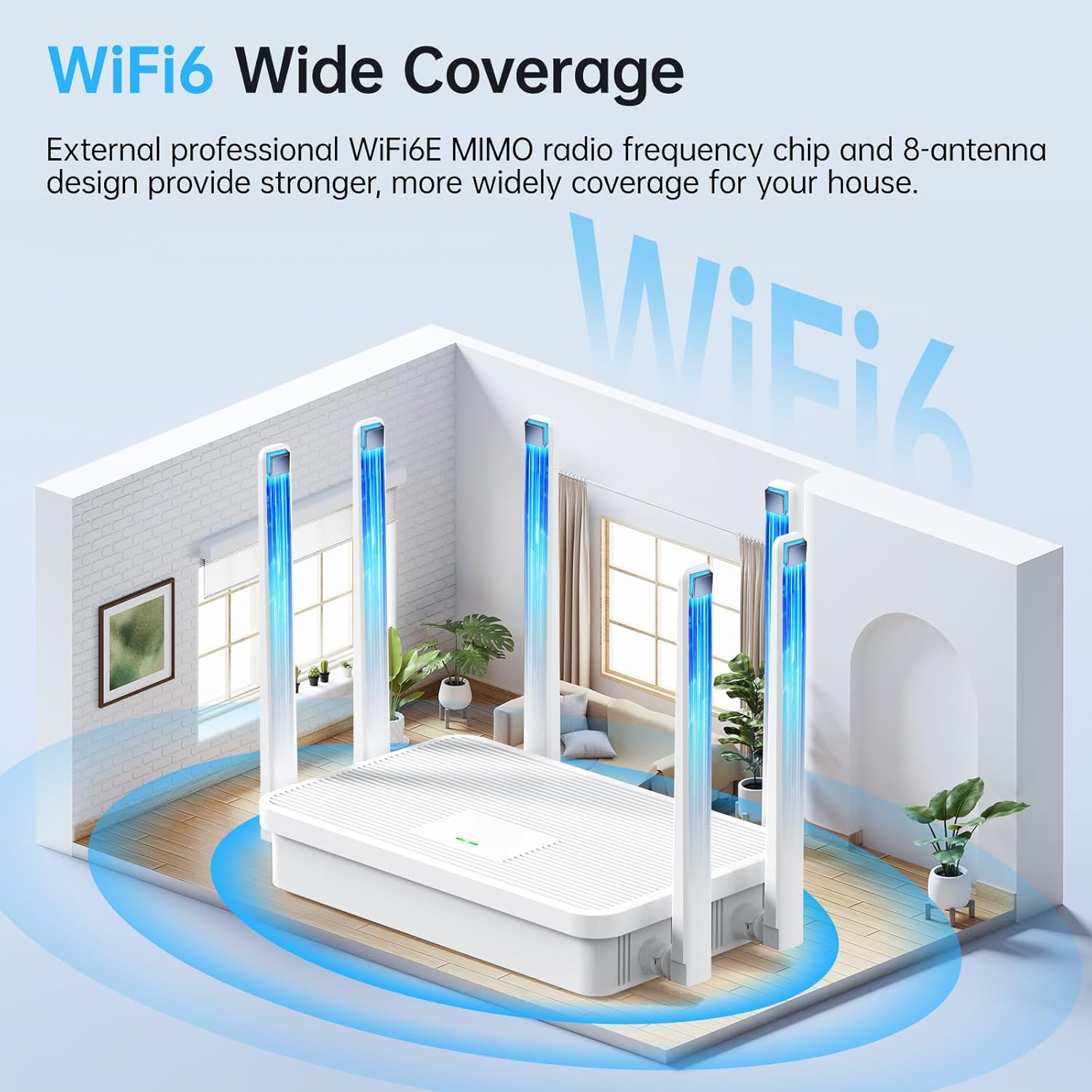
Image: An illustration demonstrating the wide coverage provided by the WiFi6 router with its six antennas, extending signal throughout a multi-room environment.
5.3. Konnessjoni ta 'Mezzi multipli
The UeeVii WR3000K router is capable of connecting up to 128 devices simultaneously, making it suitable for households with numerous smart devices.

Image: A visual representation of the router's capacity to connect up to 128 devices, including laptops, smartphones, and tablets, to the internet.
5.4. Sigurtà tan-Netwerk
The router incorporates multiple security features to protect your network and data:
- WPS: For secure, one-touch device connection.
- WPA/WPA2/WPA3 Encryption: Advanced wireless encryption protocols to secure your Wi-Fi network.
- SSID Hiding: Option to hide your Wi-Fi network name for added privacy.
- Netwerk tal-Mistiedna: Create a separate network for guests, isolating them from your main network.
- Anti-DDOS Protection: Helps protect against Denial-of-Service attacks.

Image: An abstract illustration representing the multiple layers of security features, including encryption and protection mechanisms, provided by the router.
6. Manutenzjoni
6.1. Dissipazzjoni tas-Sħana
The router features a four-sided heat dissipation design to ensure optimal cooling and long-term stable operation, even under high network loads.

Image: An illustration showing the router's excellent heat dissipation design, with airflow indicated to maintain optimal operating temperature.
6.2. Aġġornamenti tal-Firmware
Iċċekkja perjodikament il-manifattur website for firmware updates. Keeping your router's firmware up-to-date ensures access to the latest features, security patches, and performance improvements. Follow the instructions provided with the firmware update carefully.
6.3. Tindif
To clean the router, gently wipe its exterior with a soft, dry cloth. Do not use liquid cleaners or abrasive materials, as they may damage the device.
7 Issolvi l-problemi
If you encounter issues with your UeeVii WR3000K router, refer to the following common troubleshooting steps:
- Ebda Konnessjoni tal-Internet:
- Check all cable connections (power, Ethernet from modem to WAN port).
- Restart your modem and router by unplugging them for 30 seconds and then plugging them back in.
- Iċċekkja li l-konnessjoni tal-fornitur tas-servizz tal-internet tiegħek (ISP) hija attiva.
- Aċċessa r-router web interface biex tiċċekkja l-istatus u l-konfigurazzjoni tal-WAN.
- Sinjal Wi-Fi Dgħajjef jew Żoni Mejta:
- Irriloka r-router f'post ċentrali, 'il bogħod minn ostakli u sorsi ta' interferenza (eż., microwaves, telefowns mingħajr fili).
- Ensure antennas are positioned vertically for optimal signal.
- Consider using the MESH function or additional access points to extend coverage.
- Ma nistax naċċessa r-Router Web Interface:
- Kun żgur li l-apparat tiegħek huwa konness man-netwerk tar-router (bil-fili jew mingħajr fili).
- Ivverifika li qed tuża l-indirizz IP korrett (http://192.168.100.1) u l-kredenzjali tal-login.
- Ipprova neħħi l-cache tal-browser tiegħek jew uża browser ieħor.
- If all else fails, perform a factory reset (see WPS/Reset Button section) and reconfigure.
8. Speċifikazzjonijiet
| Karatteristika | Deskrizzjoni |
|---|---|
| Isem tal-Mudell | WR3000K |
| Brand | UeeVii |
| Standard Wireless | 802.11a, 802.11ac, 802.11ax (WiFi 6), 802.11g, 802.11n |
| Klassi ta' Banda ta' Frekwenza | Doppju Banda (2.4GHz & 5.8GHz) |
| Antenni | 6-Antenna Design |
| WAN Port Speed | 2Gbps |
| Karatteristiċi Speċjali | Internet Security, LED Indicator, WPS, MESH Function |
| Protokolli tas-Sigurtà | WPS, WPA/WPA2/WPA3 encryption, SSID hiding, Guest Network, Anti-DDOS |
| Apparati Kompatibbli | Konsol tal-Logħob, Kompjuter Personali, Televiżjoni Intelliġenti, Smartphone, Tablet |
| Użu Rakkomandat | Ġewwa |
| Piż tal-oġġett | 1.68 liri |
| Dimensjonijiet tal-Pakkett | 10.35 x 10.35 x 2.32 pulzieri |
9. Garanzija u Appoġġ
For warranty information and technical support, please refer to the documentation included with your product or visit the official UeeVii websit. Żomm l-irċevuta tax-xiri tiegħek għal pretensjonijiet ta' garanzija.


